 Carrier Integration Support
Updates in Shipment Split
Navigation: Shipments → [Shipment] → Carrier interactions → Split shipment.
Key Updates
Displayed Removed Containers
The shipment split functionality allows for accommodating last-minute changes in capacity or any other logistic limitations. In this case, you need to transfer the shipment information to a new booking(s) and keep the original at the same time.
If Cargoo does not receive information regarding the shipment split, users can perform the split functionality manually.
For more information on shipment split functionality, see the user manual available on Cargoo Support Center here - Carrier Split Confirmation and Manual Split.
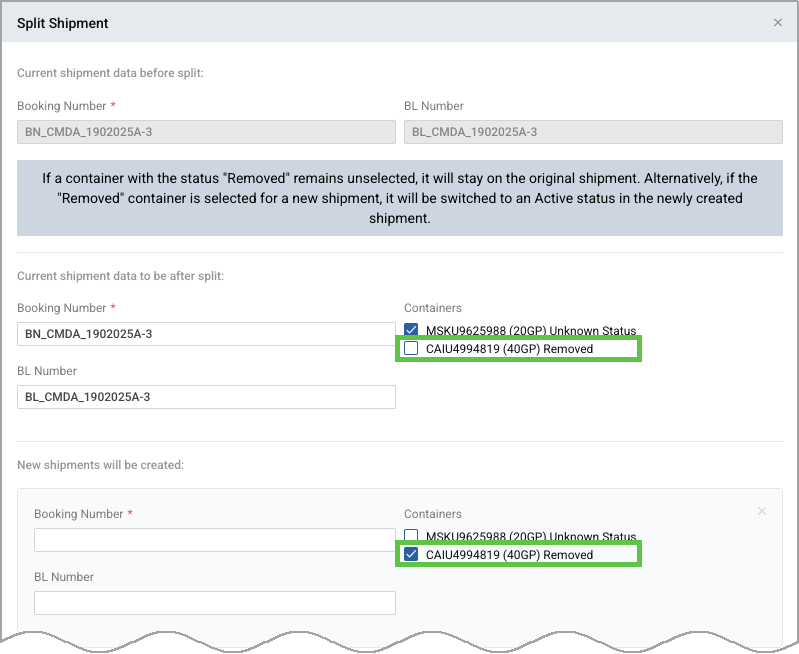
During a manual split of shipments, in case the original shipment has containers with a Removed status, users will have the following options for handling the containers:
- On the split shipment, the container status will switch to Active status.
- On the original shipment, the container will remain visible in Reallocated status.
- The container will remain in the original shipment without a status change.
This allows for maintaining data consistency and completing the manual split of shipments successfully.
To start manual split, you should have at least 2 containers in Active or Removed statuses.
Auto-adjust Count of Planned/Actuals After Manual Split
Now, after performing a manual split, the count of planned versus actual containers is calculated automatically.
This ensures that the data remains accurate without requiring additional manual intervention.