 Carrier Integration Support
Registration and Login
Email Domains and User Roles
To register on Cargoo, you must first have a valid email address, as it will be verified through an authentication process.

If your email is registered under the private domain of an organization/company which is not yet available on the Cargoo system, after registration you will become a user of a new organization/company for which you will have an Org Admin role.
If your email is registered under the private domain of a company which is already available on the Cargoo system, while registering you can either choose to become a user of that company or create a new company under the same private domain for which you will have a Company Admin role.
If your email domain is recognized by the Cargoo system as public, after registration you will become a user of a new organization/company for which you will have an Org Admin role.
User Registration
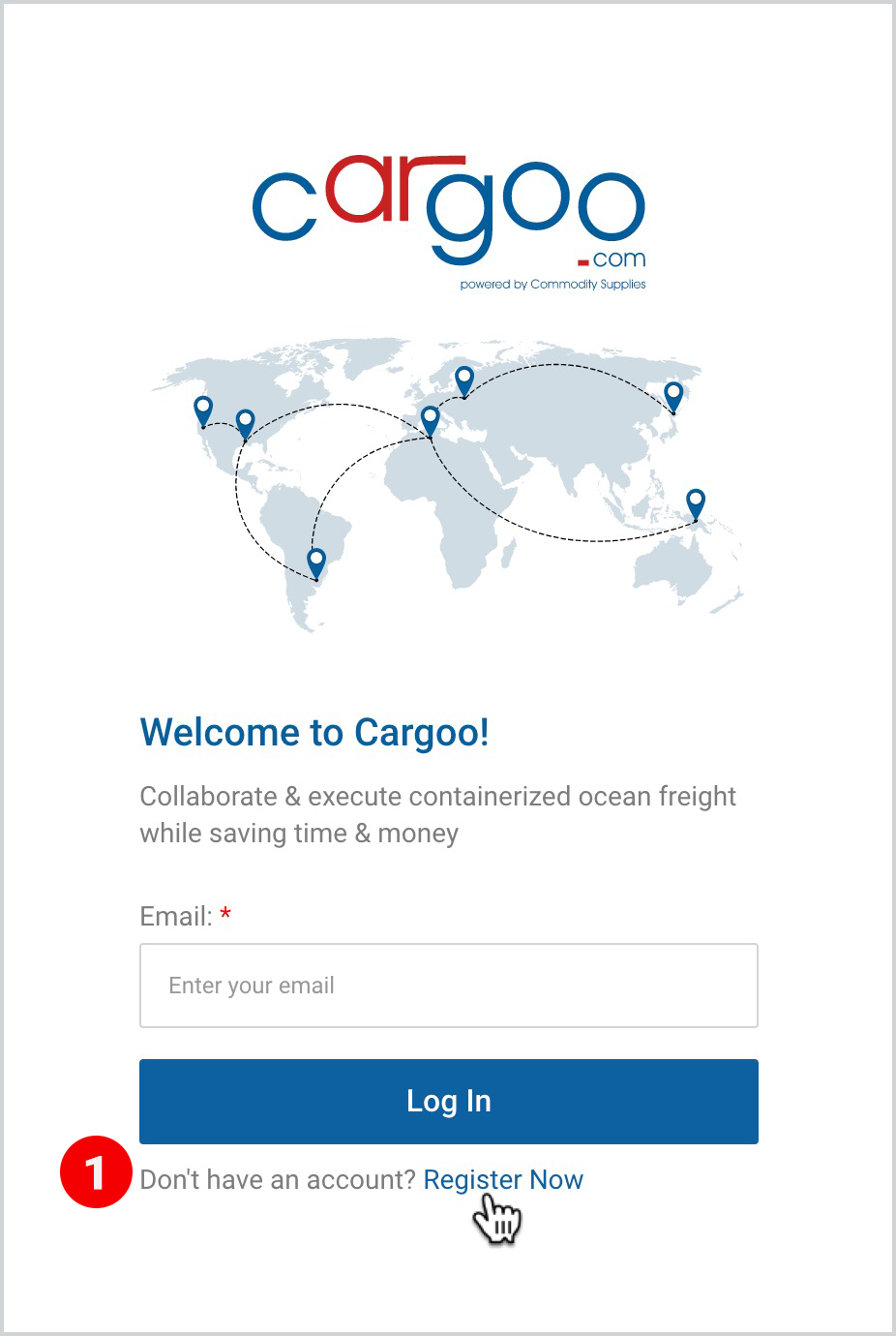
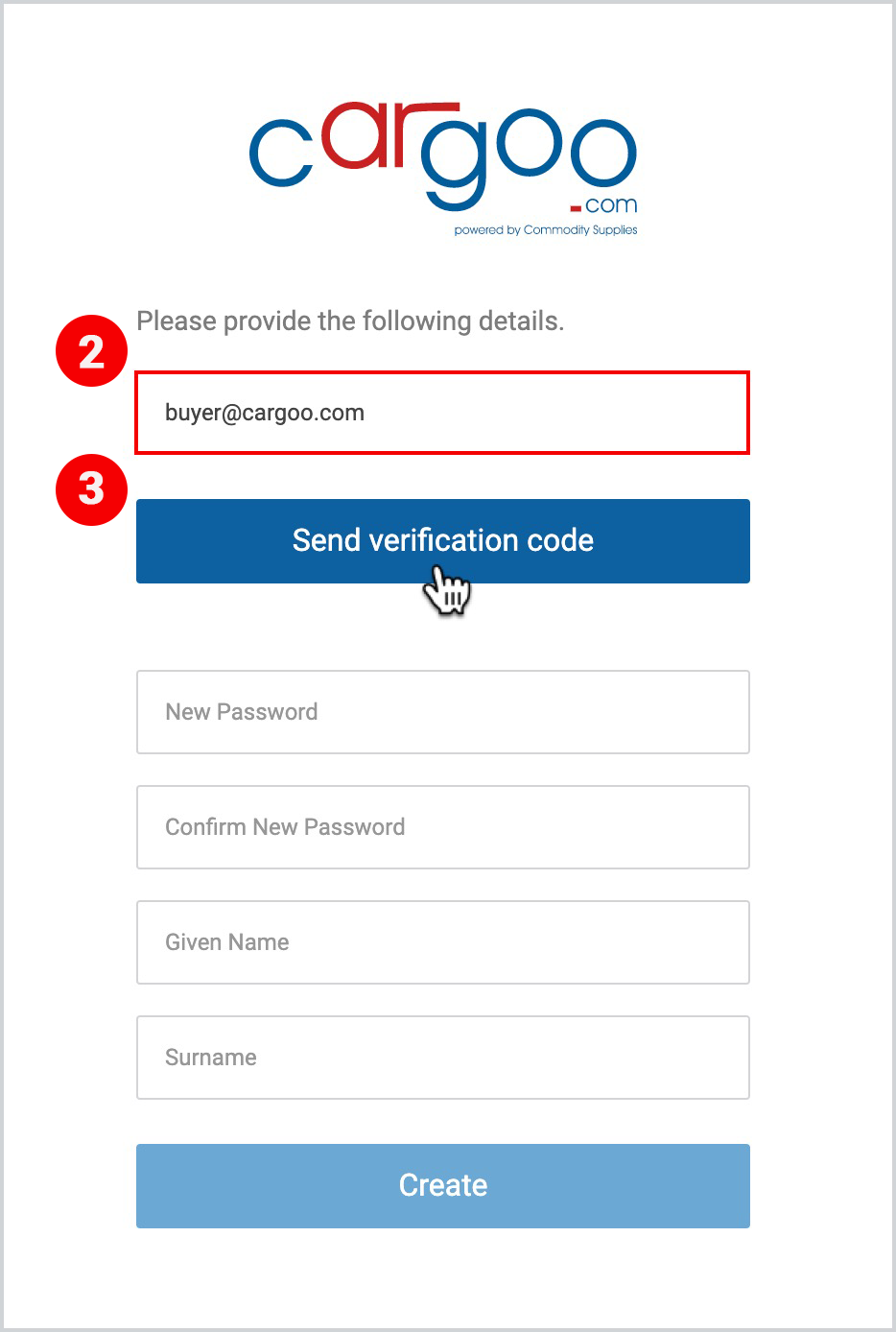
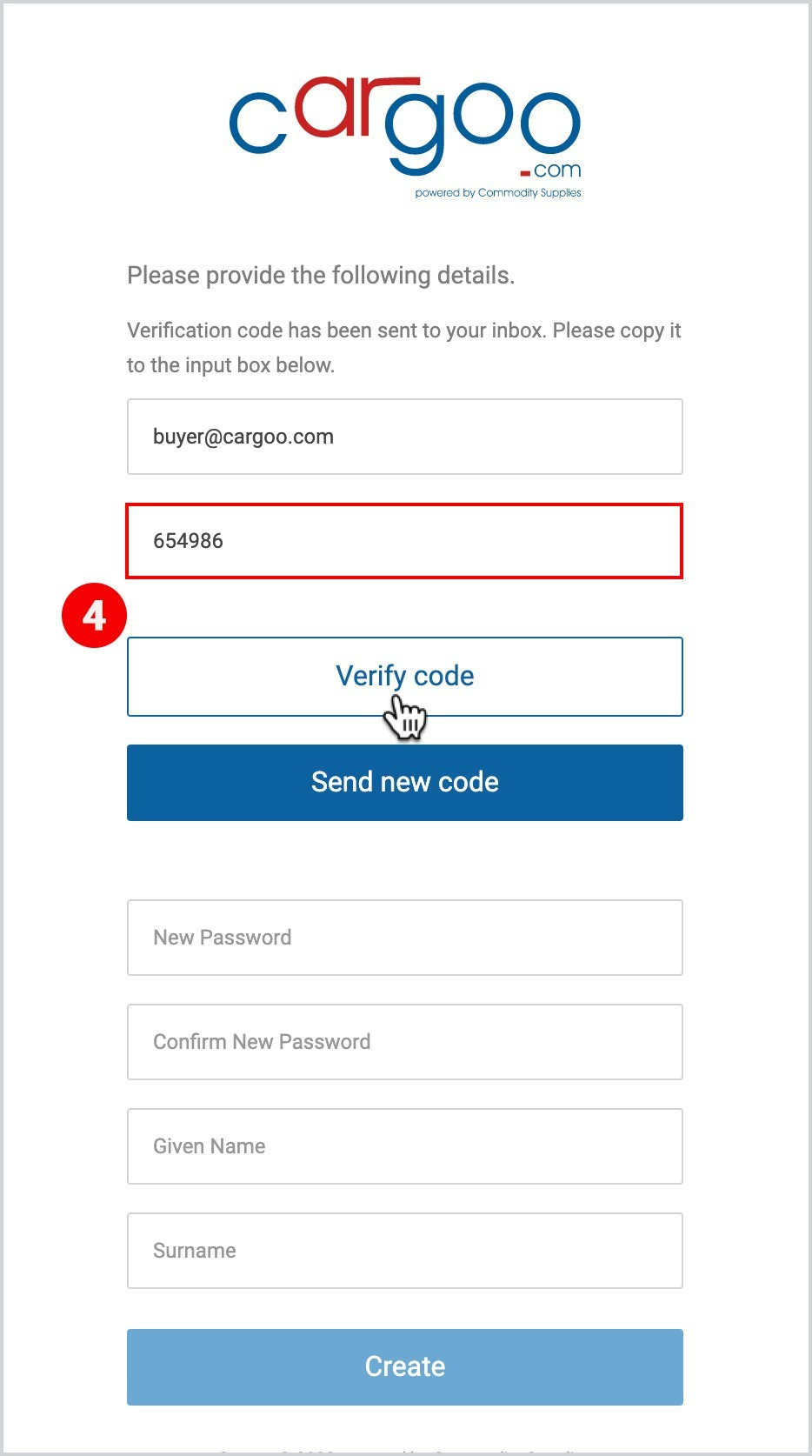
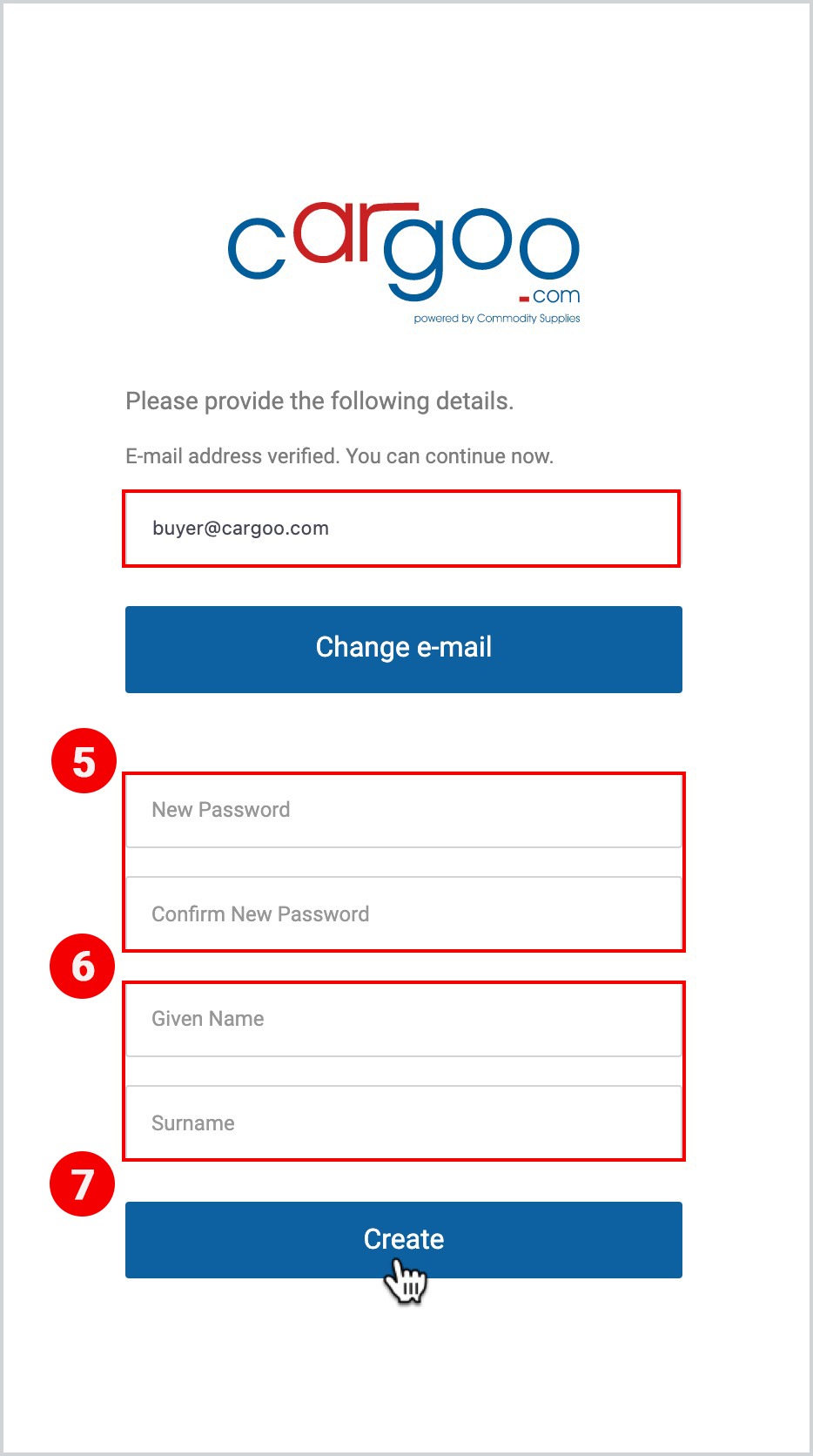
To start the user registration process, you should first take the following 7 initial steps:
- Go to https://app.cargoo.com/login and click Register Now.
- In the Email Address field, enter your email.
- Click Send verification code.
 |  |
4. When you receive an email from the Cargoo team with an MS Azure-generated 6-digit verification code, copy this code into the Verification code field and click Verify code.
5. Fill in a New Password and confirm it.
6. Fill in your Given Name and Surname.
7. Click Create.
 |  |
After clicking Create, depending on the user’s email domain (See Email Domains and User Roles here), the system will automatically offer you to register
- A new organization/company for which you will have an Org Admin role
- A new company in an existing organization for which you will have a Company Admin role
- A user of an existing company in an existing organization
Register as a User of a New Organization with an Org Admin Role
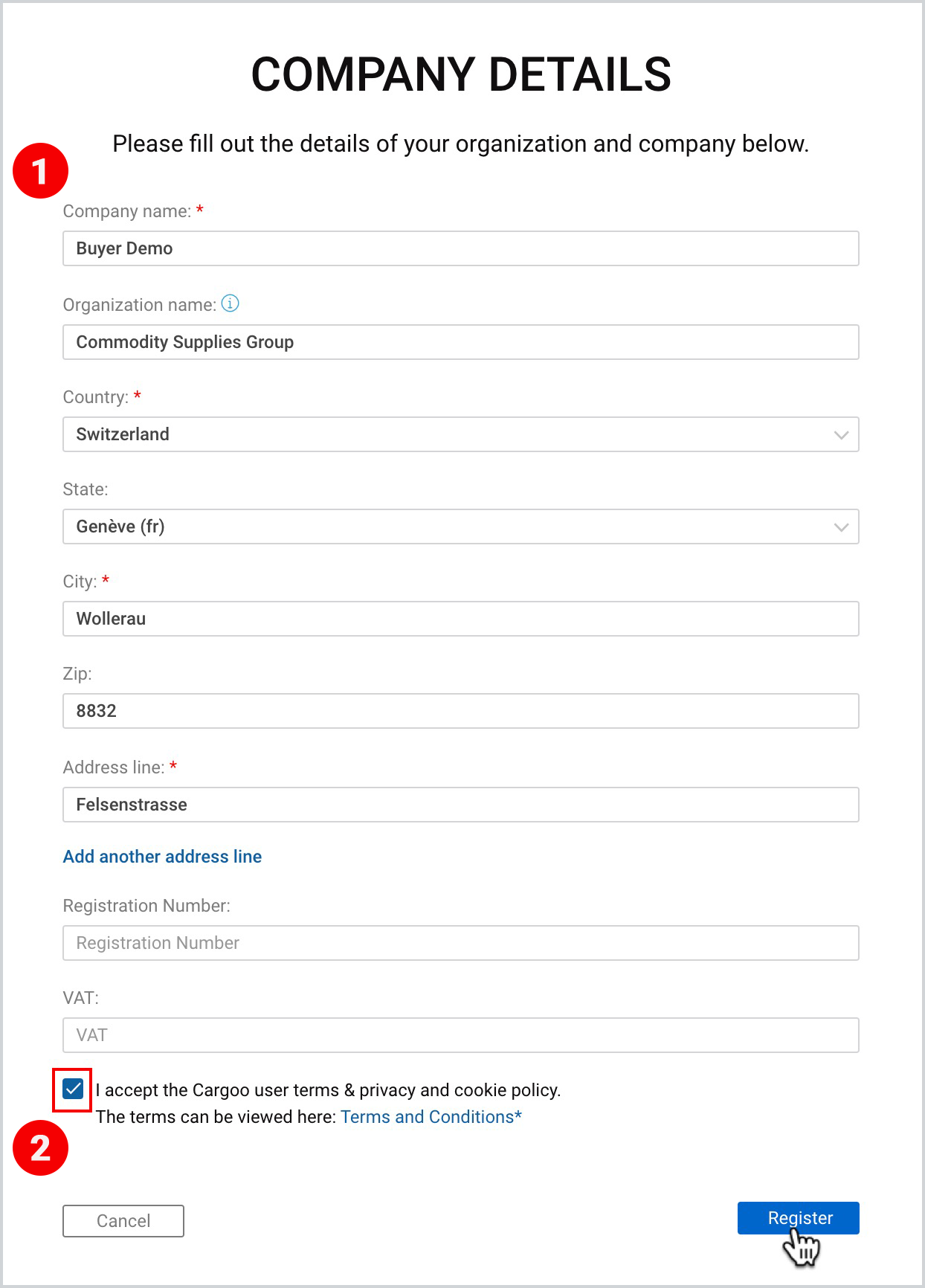
If, after taking the initial 7 registration steps described here, you are redirected to the Company details page, this means that you will be creating a new organization/company for which you will have an Org Admin role.
To continue the registration with this role
- Fill in all the mandatory (and optional) fields (mandatory fields are marked with *).
- Click I accept Cargoo user terms & privacy and cookies policy checkbox and then click Register.
A window with the REGISTRATION COMPLETE message will appear.
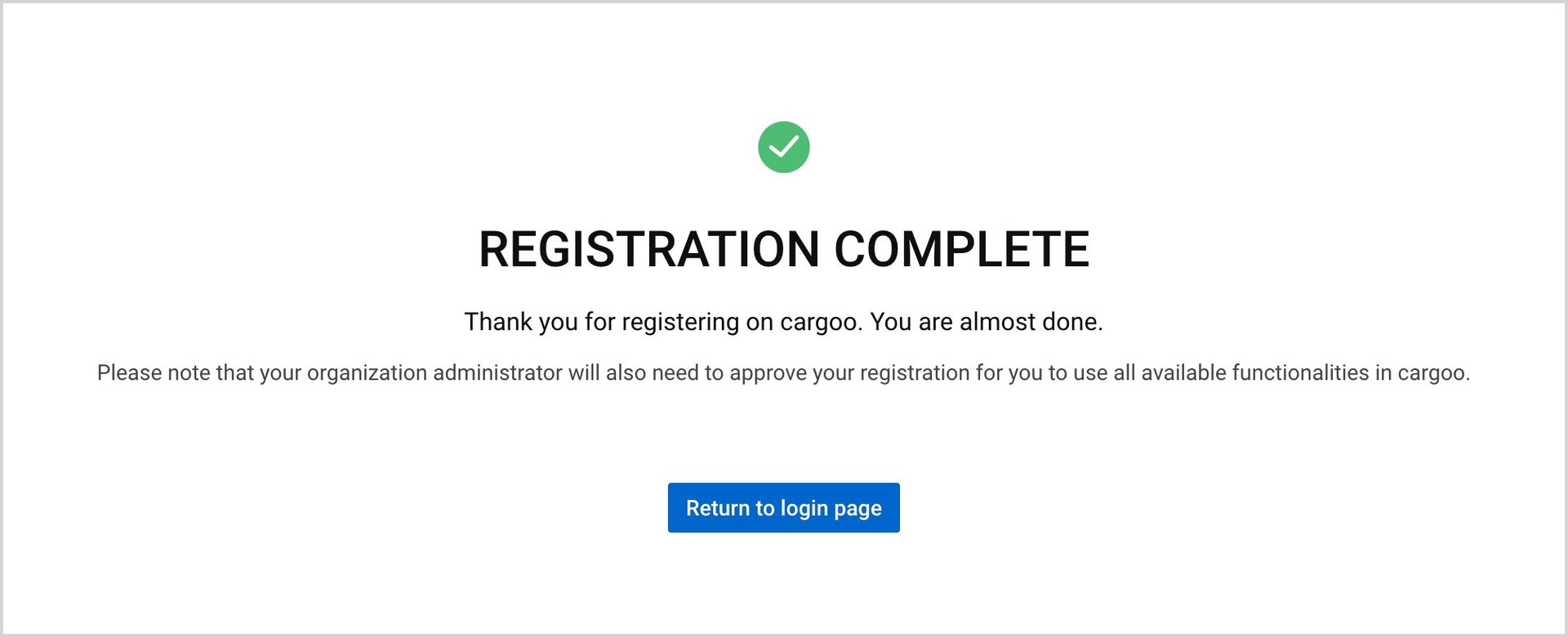
After completing your registration, you will receive an email from Cargoo on the successful registration and on your account being under verification process. You will, within 24 hours, receive another email notification on whether your account has been approved or rejected by the Cargoo administration.
Register as a User of a New Company in an Existing Organization with a Company Admin Role
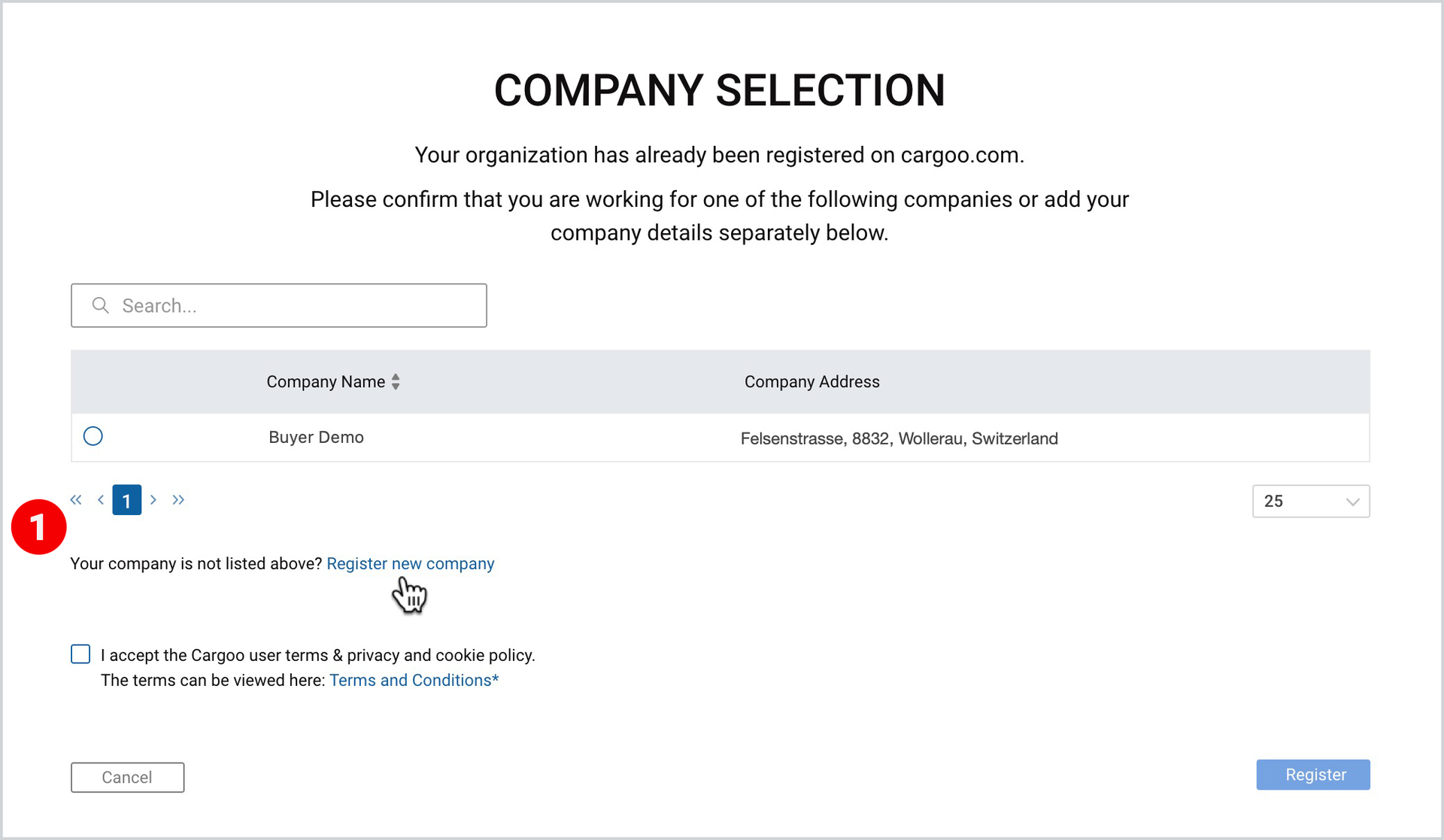
If, after taking the initial 7 registration steps described here, you are redirected to the Company Selection page, it means that there is already a registered company(ies) with your email domain on the Cargoo system, and it offers you either to become a user of one of them or, alternatively, to create a new company under the existing organization for which you will have a Company Admin role.
To create a new company and take on a Company Admin role.
- Under the list of offered companies, click Register new company.
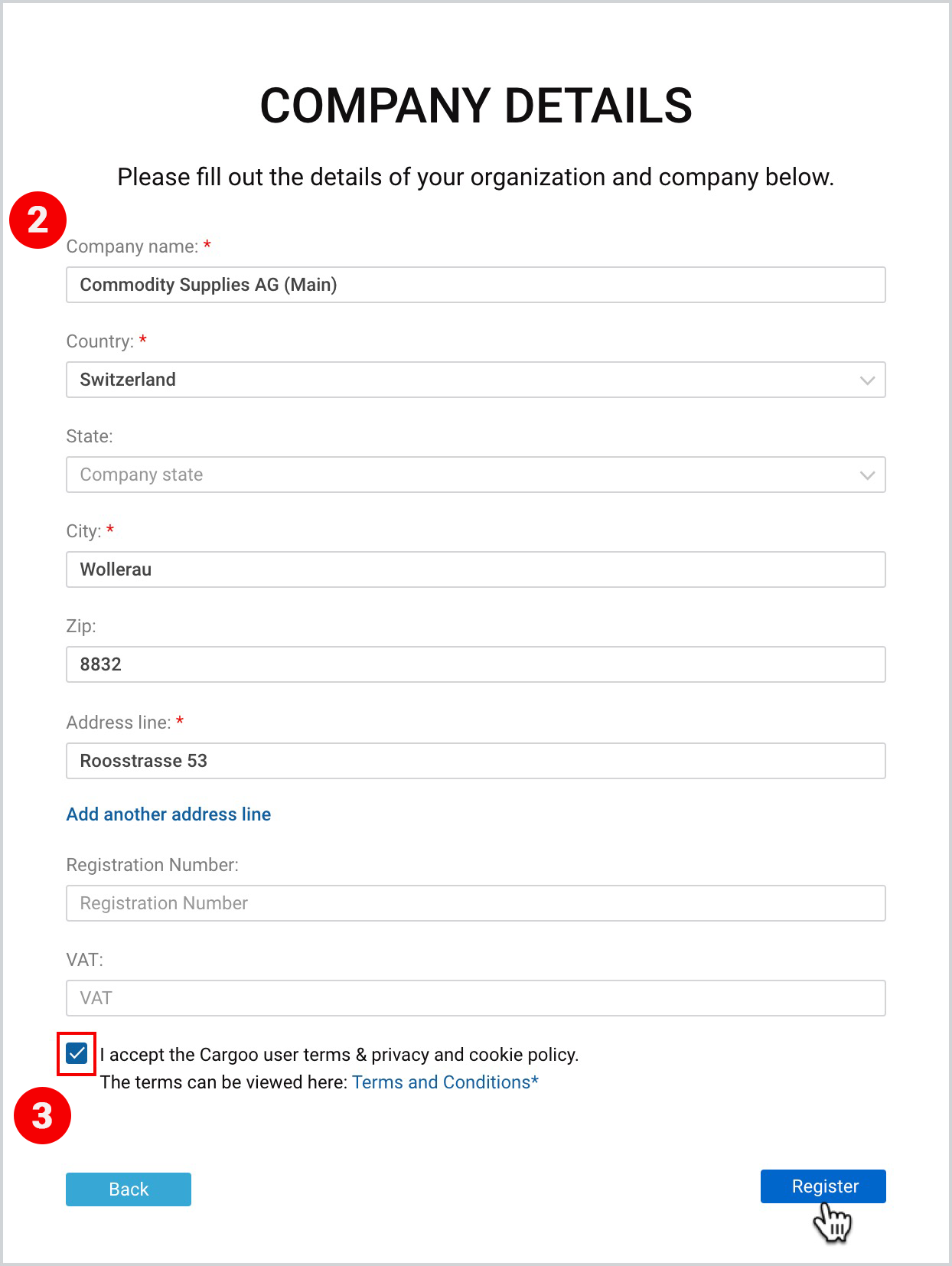
2. When you are redirected to the Company details page, fill in all the mandatory (and optional)
fields (mandatory fields are marked with*).
3. Click I accept Cargoo user terms & privacy and cookies policy checkbox and then click Register.
A window with the REGISTRATION COMPLETE message will appear.
After completing your registration, you will receive an email from Cargoo on the successful registration and on your account being under verification process. You will, within 24 hours, receive another email notification on whether your account has been approved or rejected by the Cargoo administration or by your Org Admin(s).
Register as a User of an Existing Company in an Existing Organization
If, after taking the initial 7 registration steps described here, you are redirected to the Company Selection page, it means, that there is already a registered company(ies) with your email domain, and the system offers you to become a user of one of them.
To take on a Company User role
- Select the Company that you want to become a user of.
- Click I accept Cargoo user terms & privacy and cookies policy checkbox and then click Register.
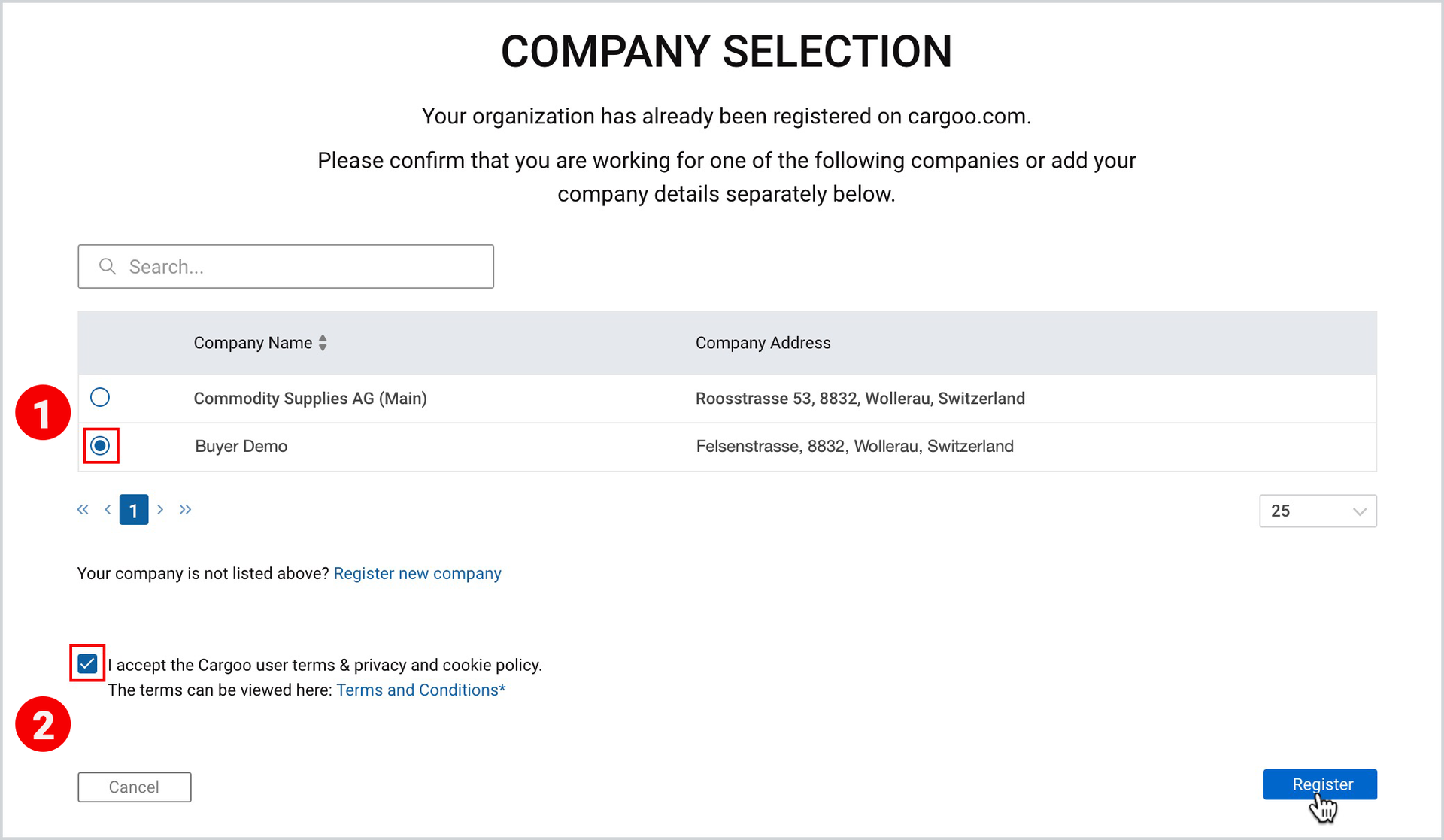
A window with the REGISTRATION COMPLETE message will appear.
After completing your registration, you will receive an email from Cargoo on the successful registration and on your account being under verification process. You will, within 24 hours, receive another email notification on whether your account has been approved or rejected by the Cargoo administration or by your Org Admin(s).
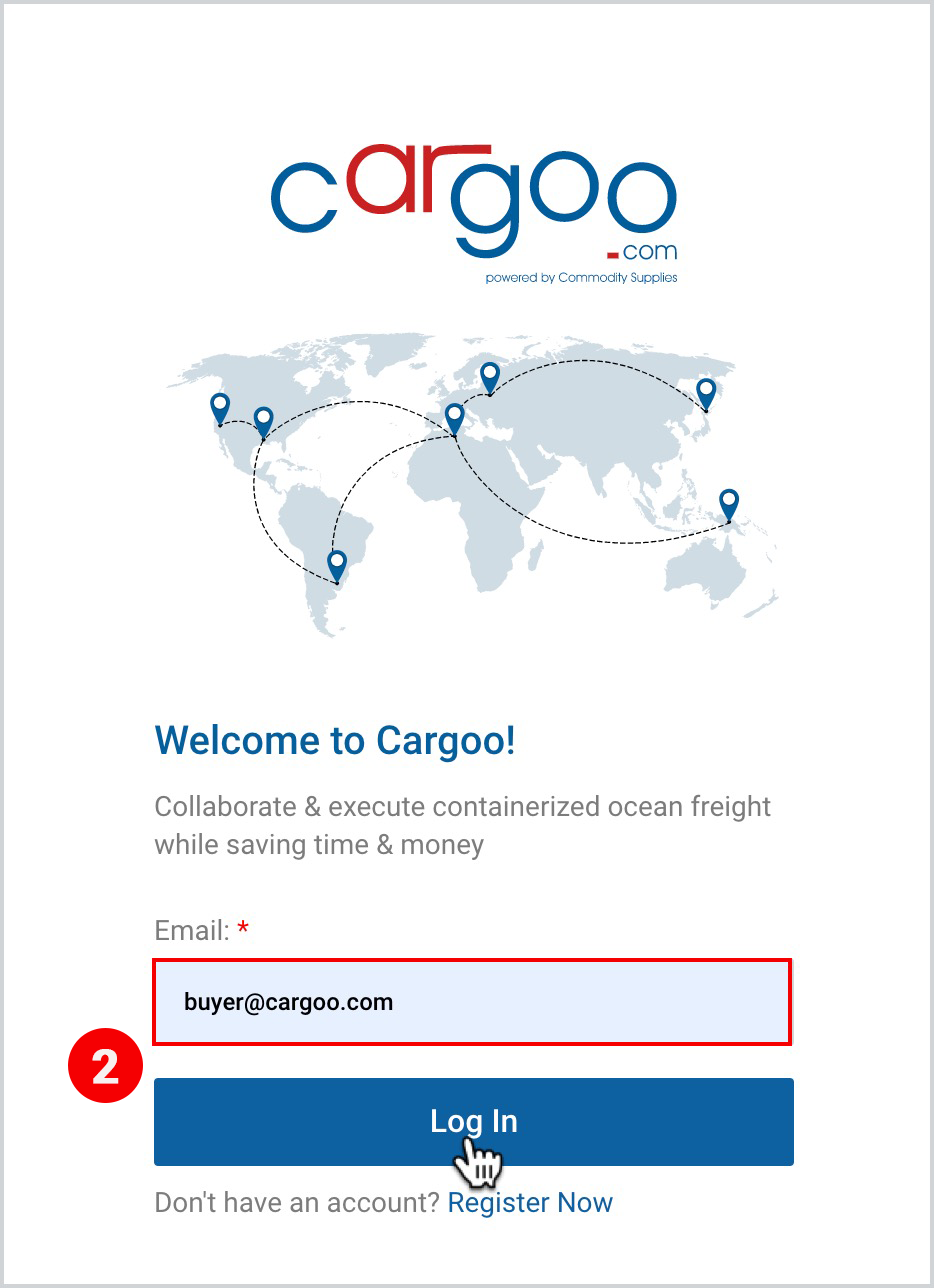
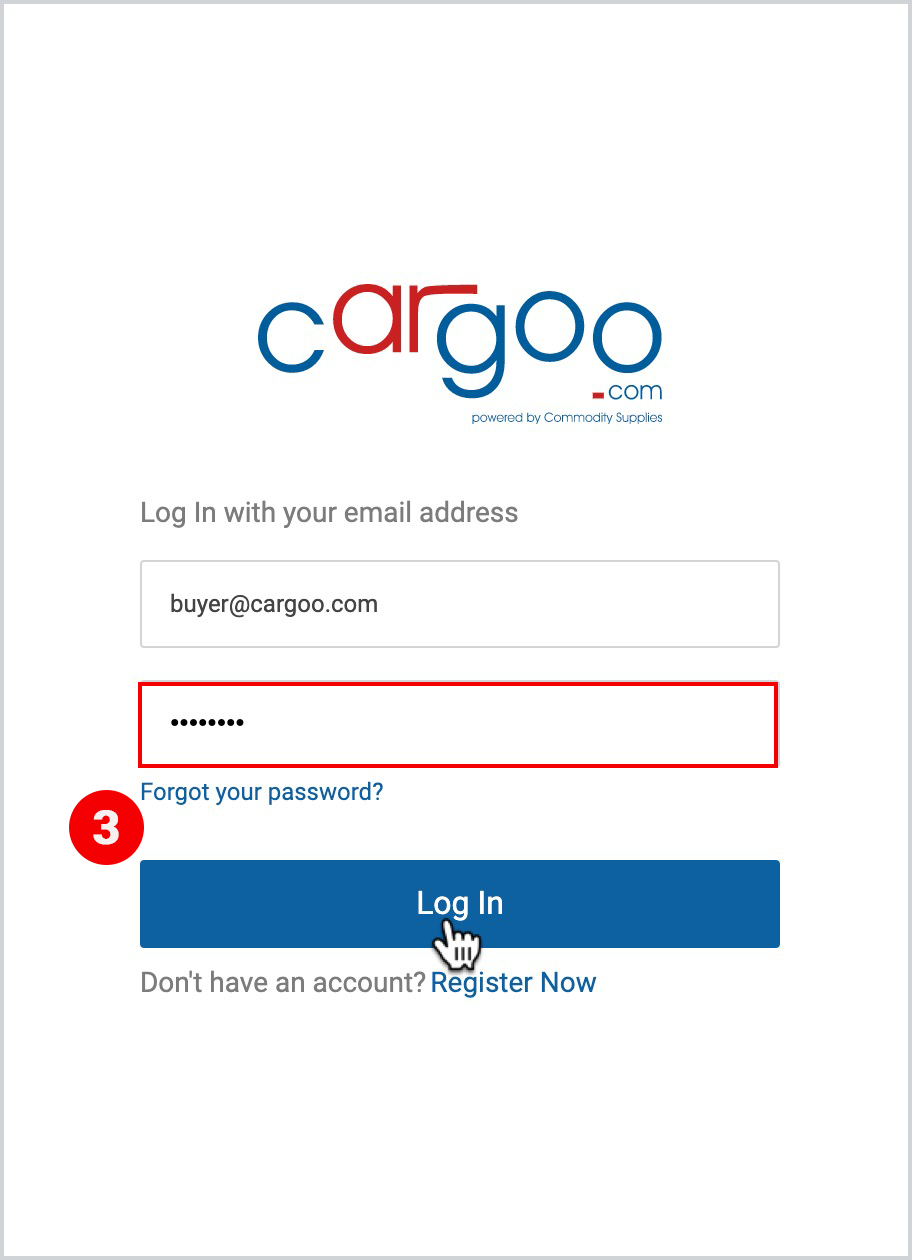
If you already have a Cargoo account, you can login using your email address and password you have registered with. For this action you should take the following steps:
- Go to https://app.cargoo.com/login.
- Enter your email and click Log In.
- After a new window appears with your email filled in, fill in your password in Enter Your Password and click Log In.
 |  |
Note | While registering, a user can be assigned only to one company. After registration, however, he/she can contact the Org Admin with the request to provide him/her access to other companies of the same organization. |
Reset Your Password
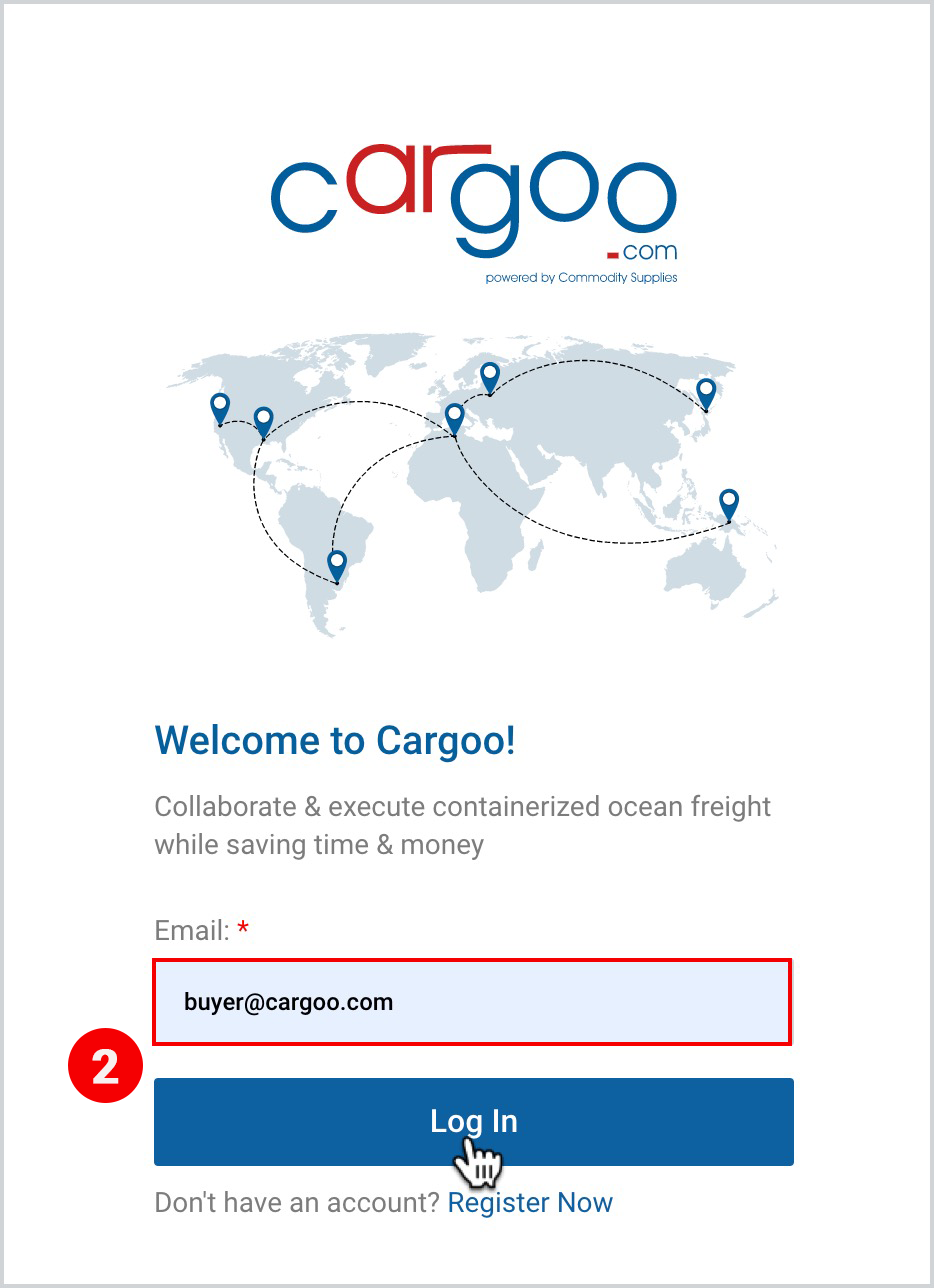
If you do not remember your password to login to your account, you can reset it by taking the following steps:
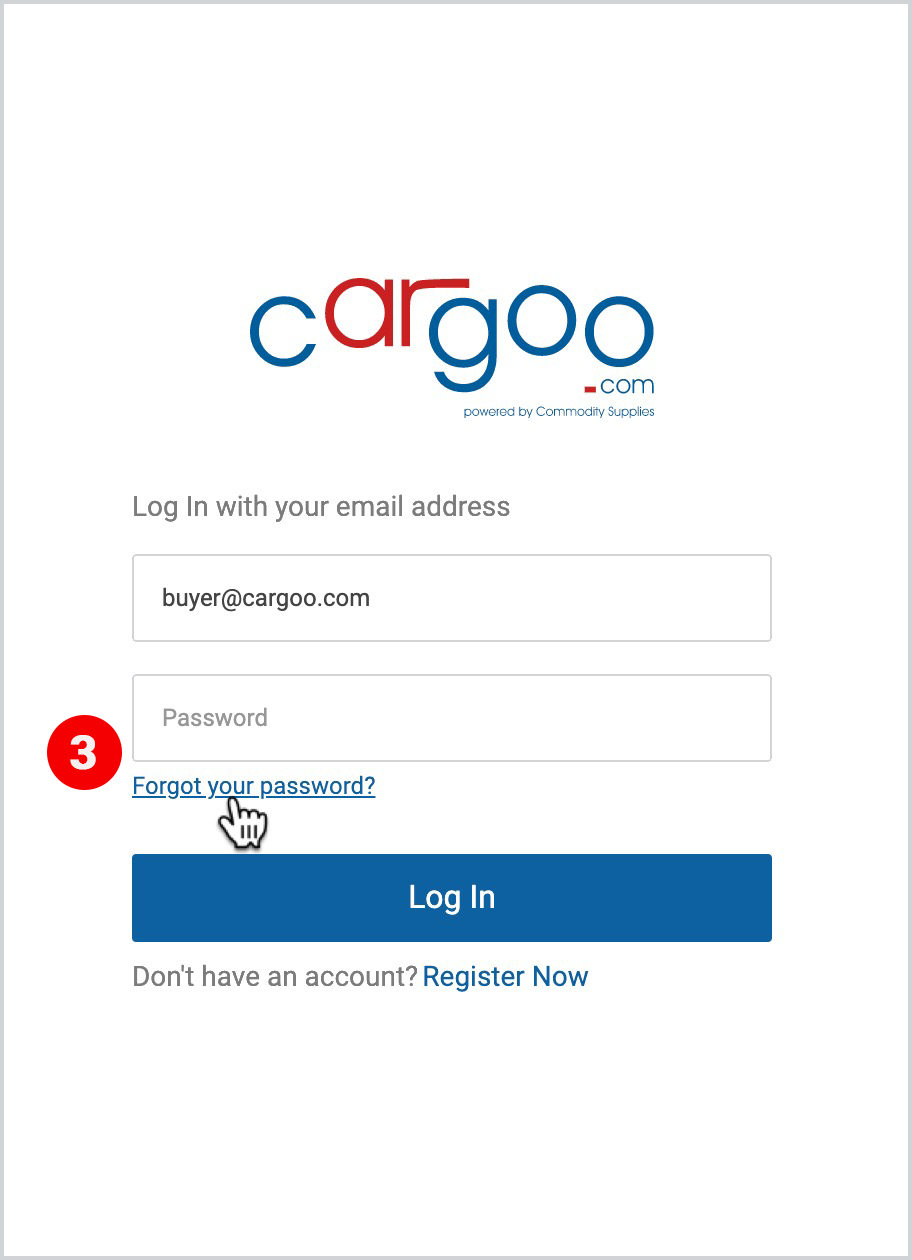
- Go to https://app.cargoo.com/login.
- Enter your email and click Log In.
- Under the password field, click Forgot your password?
 |  |
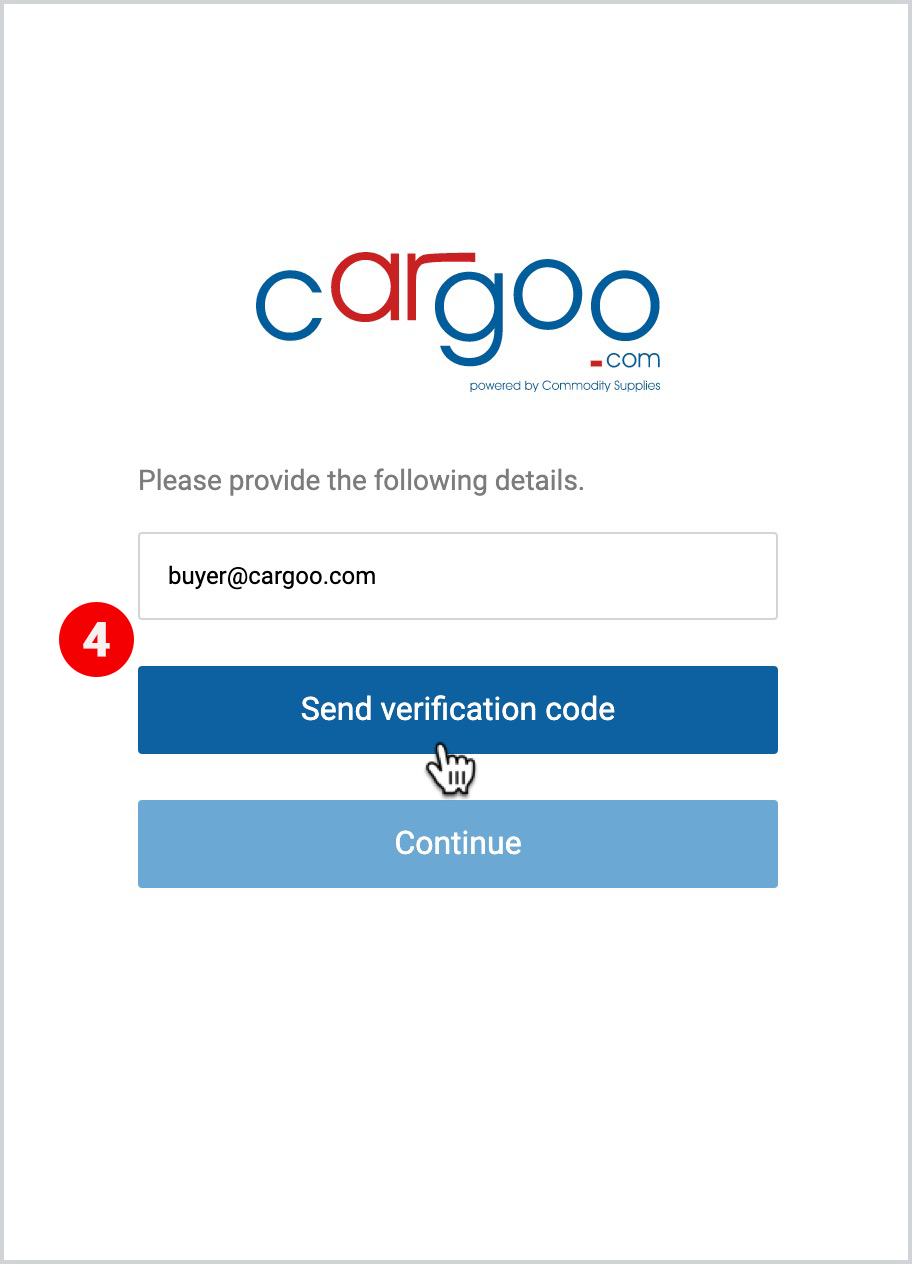
4. Enter your email and click Send verification code.
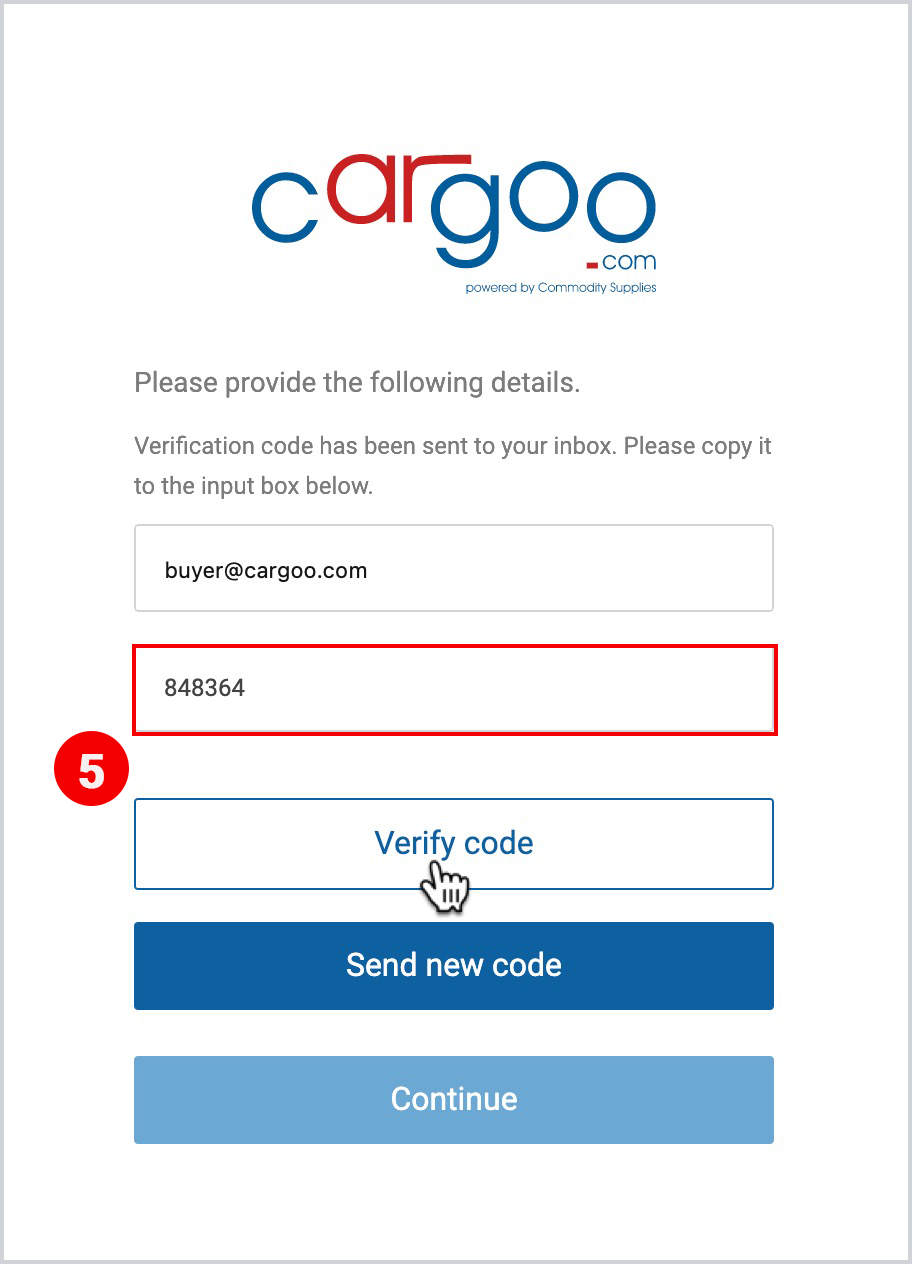
5. When you receive an email from the Cargoo team with an MS Azure-generated 6-digit verification code, copy the code into the Verification code and click Verify code.
 |  |
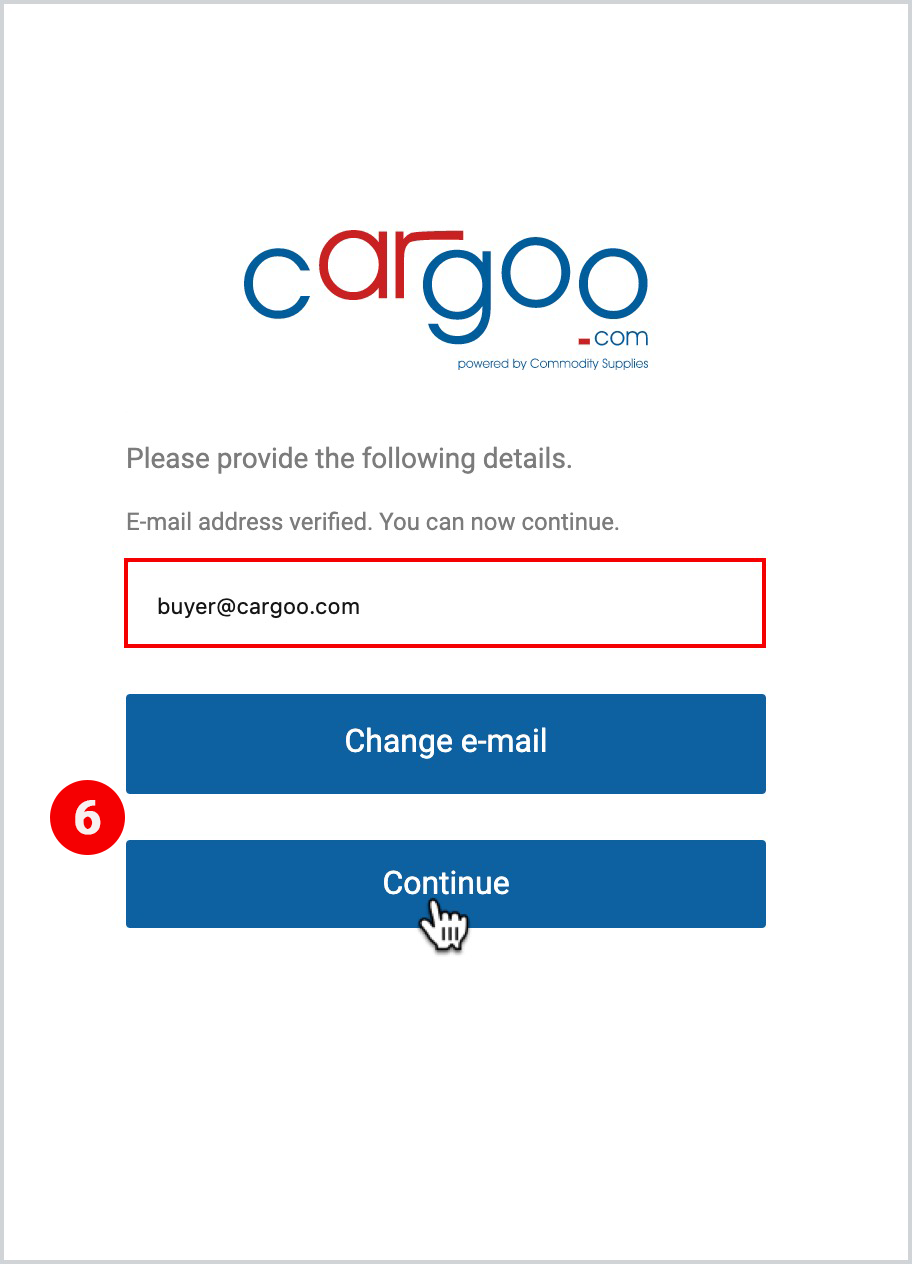
6. After your email appears, click Continue.
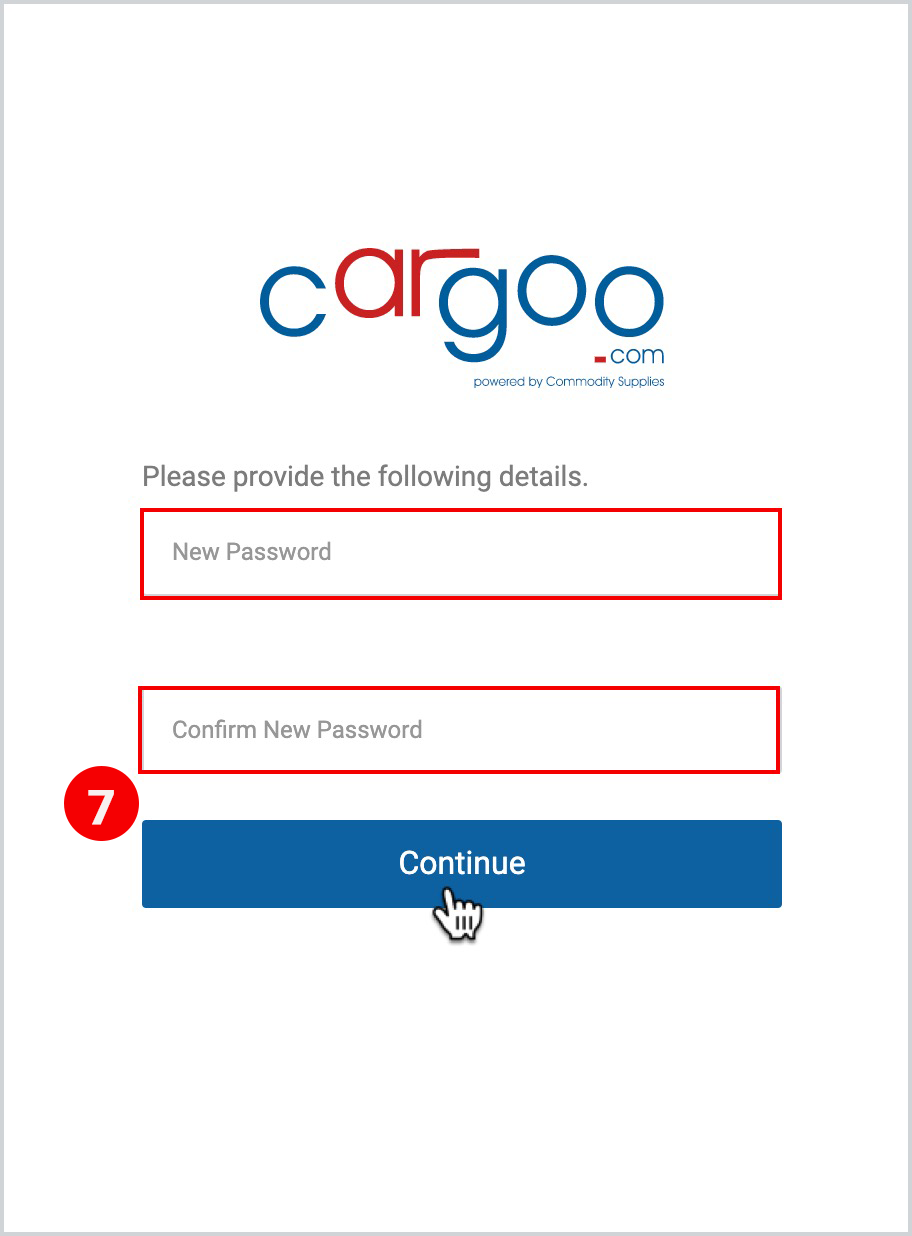
7. Enter your new password, verify it and click Continue.
 |  |
Note | On step 5, if you do not receive the verification code within a few minutes, click Send new code and repeat the actions of this step. |