 Carrier Integration Support
Bidding
Through Bidding, the carriers that are invited through the Tendering tool offer their bids to the inviting companies. For this module, Org/Company Admin should send a subscription request to the Cargoo administration. After subscription, they can grant only manage right option to their users (for more details on user accesses see User Management, Subscribe Business Modules to Your Users).
To access the Bidding module:
- Under Rates, click Bidding.
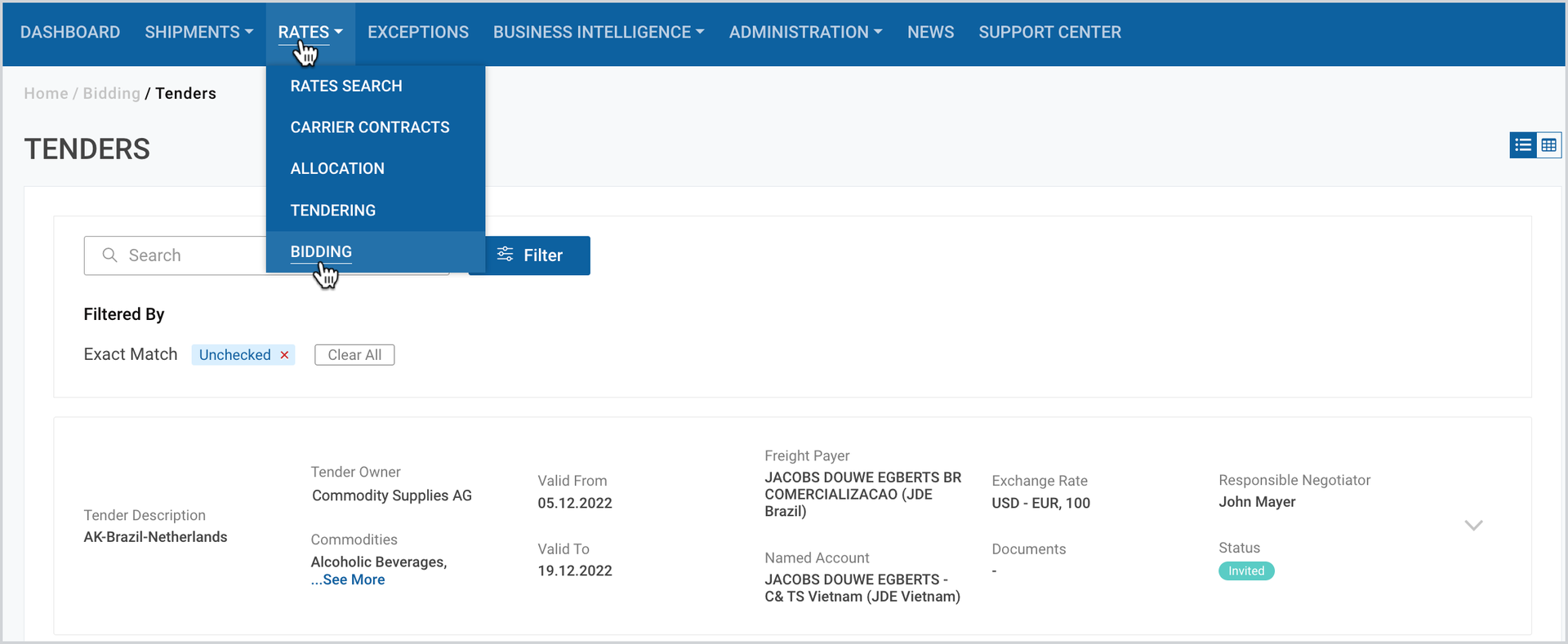
On the appeared page you can access and manage bulk tenders list in card or table view.
Access Your Invited Tenders
As you click Bidding under Rates module, you can see the list of all your invited tenders. Here you can also access specific tenders via Search and Filter.
Manage Your Bidding Process
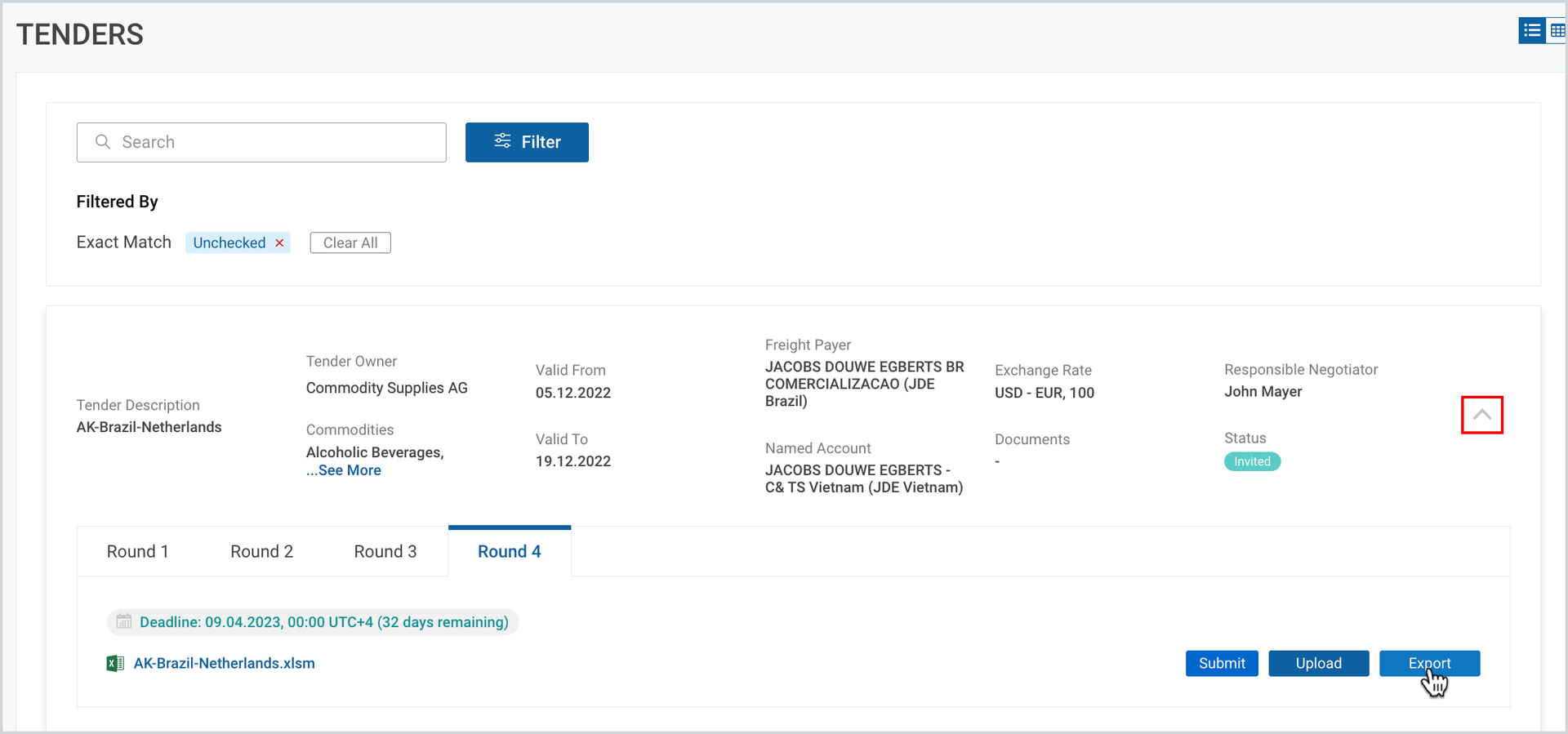
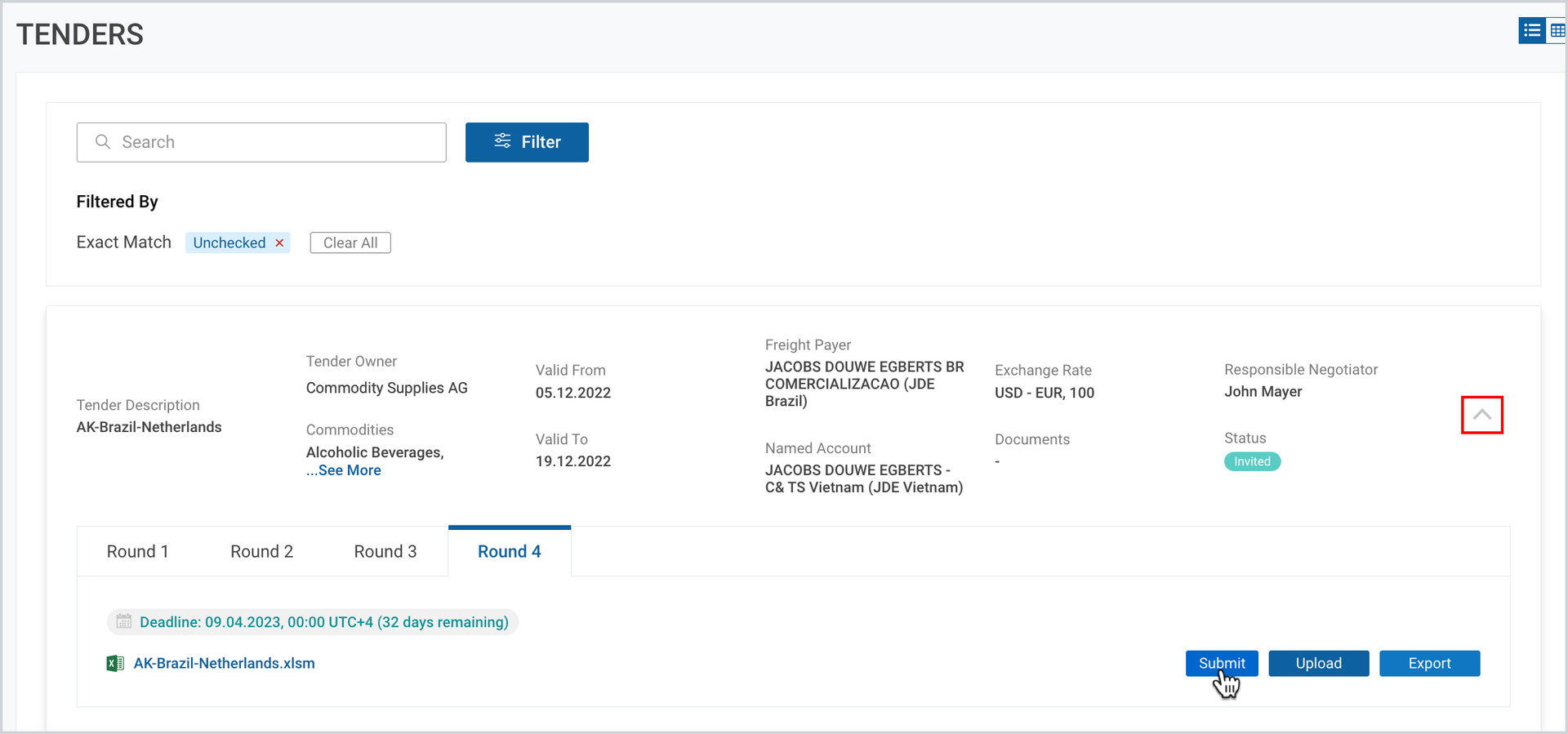
On each tender card, as you click Expand icon, you can see the number of tender rounds with the respective documents submitted by the inviting company, as well as the following three buttons:
- Export
- Upload
- Submit
Export
Through Export you download the requested tender details submitted to you by the inviting company. This is the main excel file where you can see the requirements for the Ocean Freight, Free Time, Additional Charges, Allocation, as well as any awarding decisions made on your bid.
To export
- In the expanded view of the desired tender, under Rates tab, click Export.
Excel File Peculiarities
As you open the exported excel file, it contains several tabs where you have to fill in required and additional information. The four main tabs are Ocean Freight, Free Time, Additional Charges and Allocation. Each of these tabs contain fields highlighted in blue and grey colors. The blue-colored fields (carrier, bidding) are for the bidder to fill in, while the grey-colored ones are for information only. All the other tabs contain additional information on the tender.
Tip | The very first READ ME tab (highlighted in yellow) contains detailed instructions on how to fill in the excel file. Please, read it carefully before starting. |
Upload
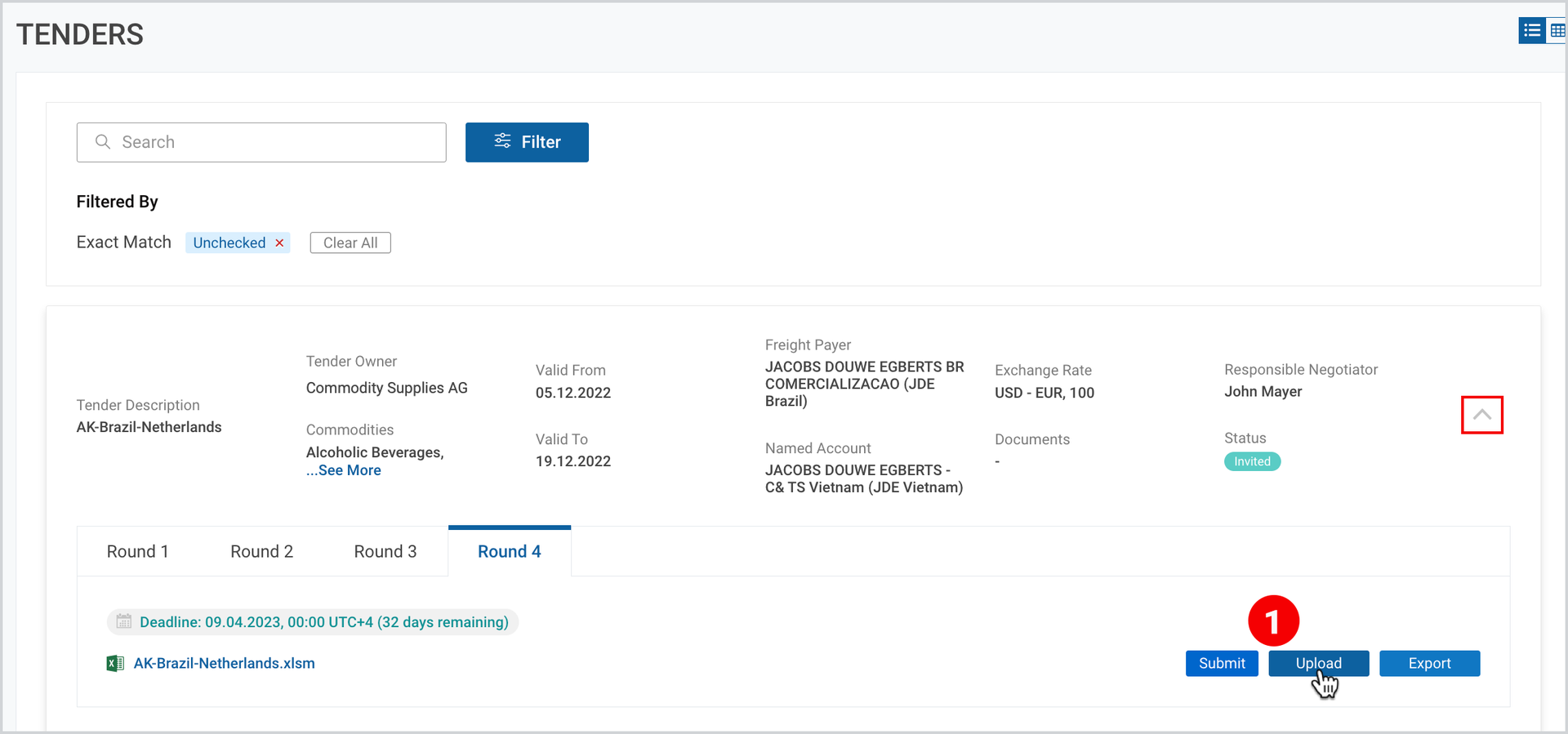
Through upload you submit your bid in the already exported file with the requirements of the inviting company. If your bid obtains an “awarded” status, then by only adding a contract number in the exported file, you confirm the final tender (contract) conditions.
To upload the file
- In the expanded view of the desired tender, under Rates tab, click Upload.
2. As the popup window appears, Drag and Drop your files or Browse.
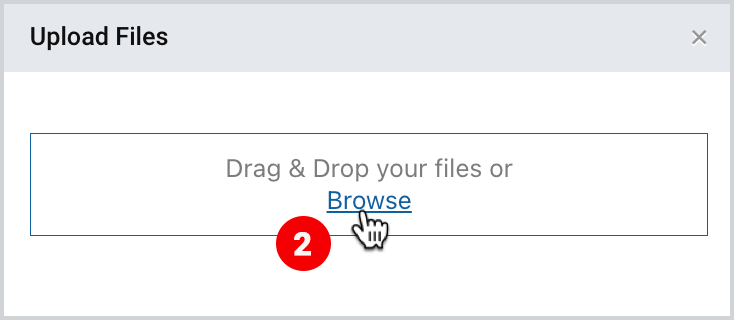
Note | As you upload an excel file, in case any of the fields is incorrectly completed, an “Error Results Table” appears, where all errors are displayed and need to be amended. |
Submit
As you upload your offer, the inviting company will not see it unless you submit it into the system.
To submit the file
- In the expanded view of the desired tender, click Submit to send your bid to the inviting company.
To download the print version of this article, click the PDF icon: