 Carrier Integration Support
Rates Search
Rate Search is the only free module provided by Cargoo and it helps you to find carrier rates and schedules offered by your linked business partners that best match your requirements. The same search results with the same set criteria also appear while Creating a Shipment Plan, in Step 2 – Rate and Schedule, and in New Delegation and Booking Tool, Carrier Selection.
To access the module
- Under Rates, click Rate Search.
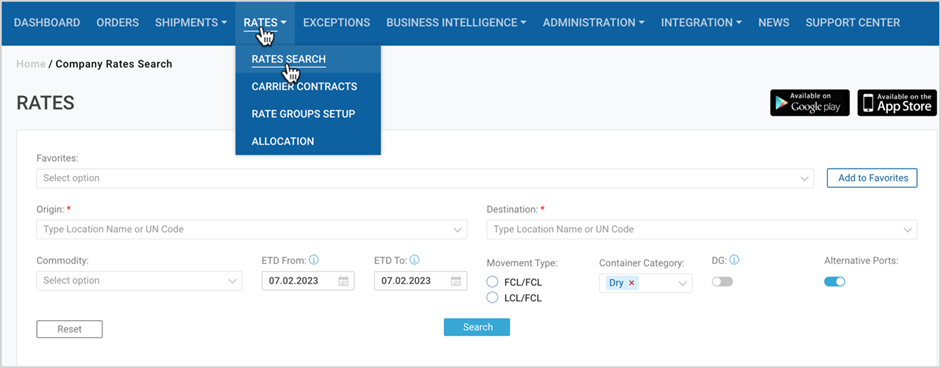
In the appeared Rate Search page, you can find
- Main Search Criteria
- Additional Search Criteria
The fields to be filled in the Main Search Criteria are given in Table 1 and visualized in the Figure below.
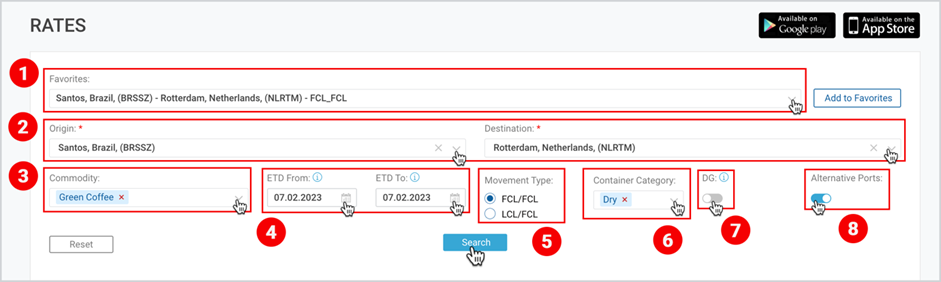
ITEM IN ABOVE FIGURE | FIELD | DESCRIPTION |
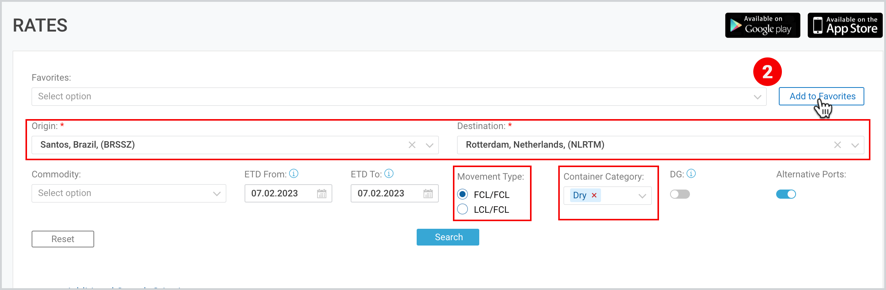
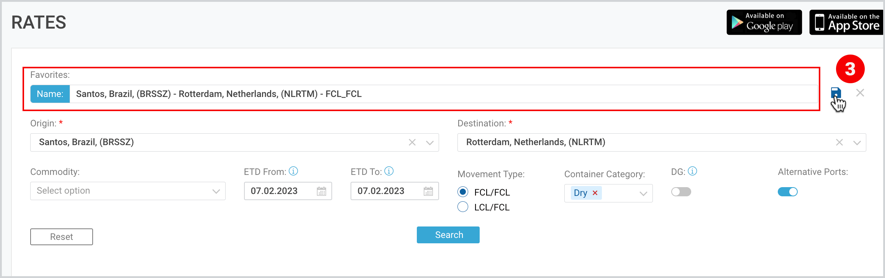
1. | Favorites | This is a single select searchable dropdown where you can select the ready-made template for those search options that you frequently use. If you do not have any, you can create one by taking the following actions:
3. Click on the appeared “Save” icon.
Irrespective of selecting the template in “Favorite” field, you will see the “Best Price for Your Favorites” at the lower left corner of the page. |
2. | Locations | This is a required field, and you have to select from the searchable single select dropdown:
|
3. | Commodity(ies) | This is an optional field, and if no commodity is selected, All commodities are selected by default and appear in the related row. |
4. | ETD | You have to select
|
5. | Movement Type | This is a required field, and you have to select between the following movement types:
|
6. | Container Category | This is a required field and you have to select the container category from the multiple-select dropdown. |
7. | Dangerous Goods (DG) | DG toggle is deactivated by default. If you choose to activate it, you will get rates for the dangerous goods category as well. |
8. | Alternative Ports | Alternative Ports toggle is activated by default, and search will show the rates for alternative ports unless you deactivate it. |
Tip | Do not forget to click Search icon to see the results. |
Additional Search Criteria include the following additional locations to be filled in.
- Origin Region and Destination Region
- Origin and Destination Country
- Origin and Destination Depot
- Origin and Destination Modes of Transport
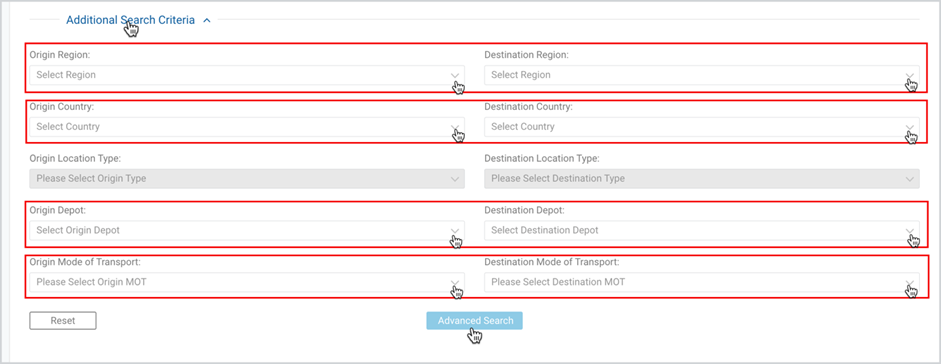
Tip | As you fill in the above fields, do not forget to click Advanced Search icon to see the combined results both from main and additional search criteria. |
The Rate Search Results will show the list of all the carriers relevant for your set criteria with the respective price details, allocation, schedules in an expandable card.
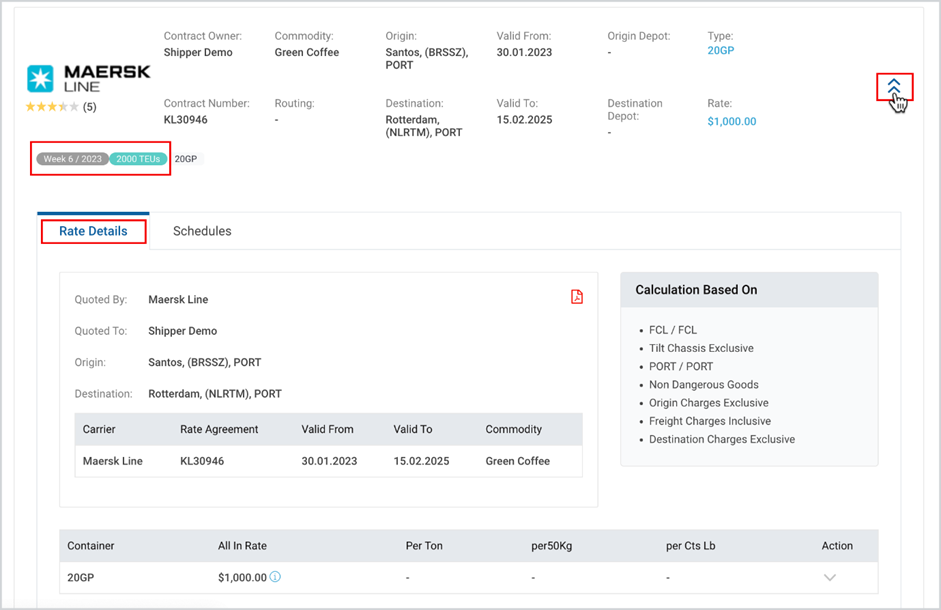 |
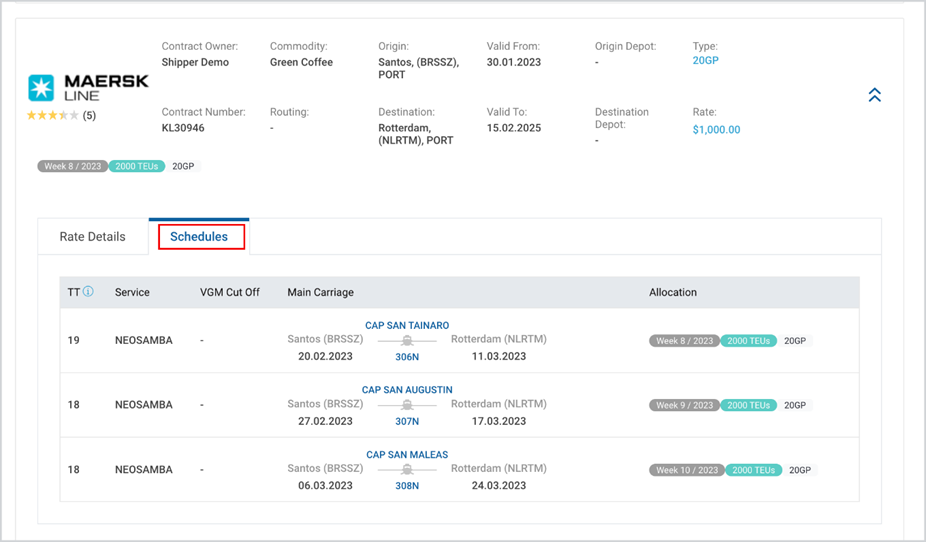 |
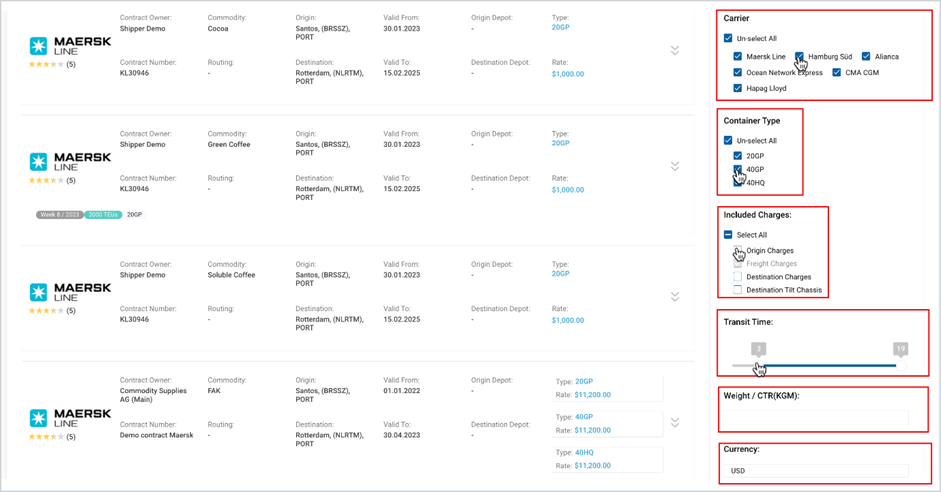
As the search results appear, at the right part of the page you can see the following filters with the help of which you can narrow your search results:
- Carrier
- Container Type
- Included Charges
- Weight/CTR (KGM)
- Transit Time
- Currency
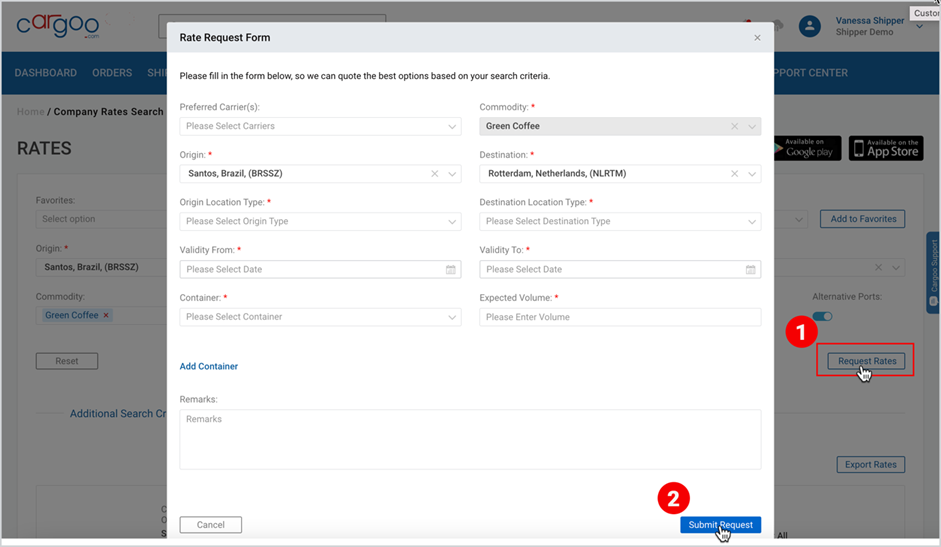
If by the set criteria, the search results will be empty, or those results will not match your requirements, you can request rates by
- Clicking Request Rates button at the upper right part of the page (appears after clicking Search)
- Filing in the Rate Request Form in the appeared pop-up window and clicking Submit Request.
Maersk Spot Rates
For Maersk Spot Rates, Org/Company Admin should send a separate subscription request to the Cargoo administration. In case the Spot Rates module is on, both Cargoo and Maersk spot rates appear in the rate search results. Maersk spot rates are marked with a green label ‘Maersk Spot’. Spot prices have no fixed conditions and can be changed at any time before booking.
To download the print version of this article, click the PDF icon: