 Cargoo Support
Creation of Multiple Shipment Plans
Multiple shipment plans can be created from the Orders module. In this case, you create separate shipment plans for each split item of the order.
To create multiple shipment plans
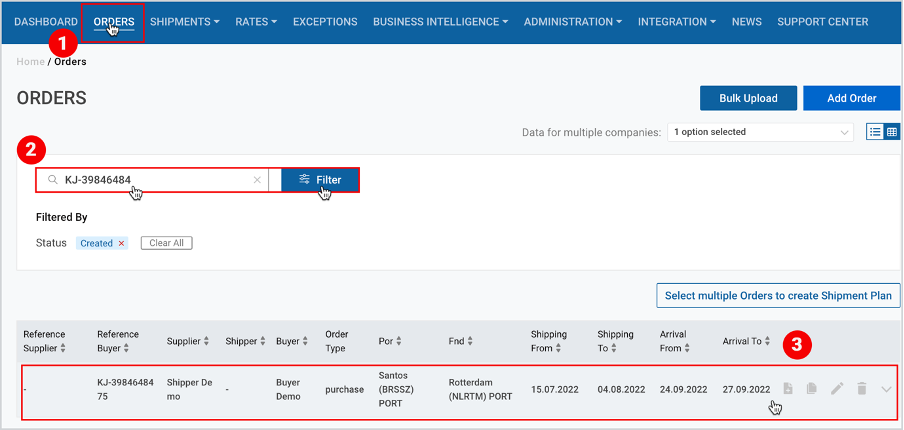
- On the Main Menu, click Orders.
- Find your desired order using Search or Filter.
- As the desired order appears, click the right-angle bracket of the orders card or click on order card/table by hovering it over.
| Card view |
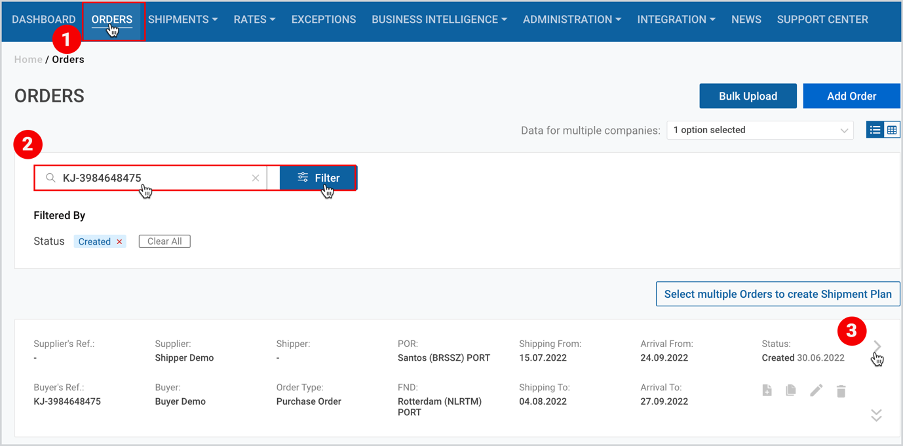 |
Table view |
 |
4. When redirected to the Order View page, at the upper right corner, click
Create multiple shipment plans.
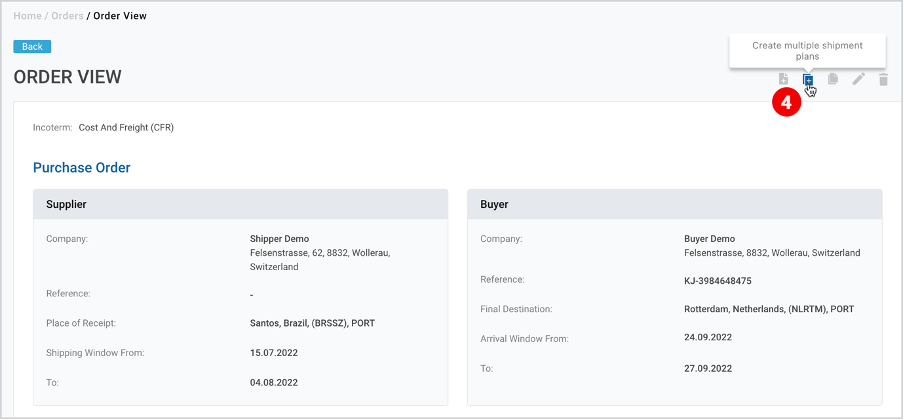
As you click the button, at the upper right corner of the page the following message will appear: “Creation of multiple shipment plans has been successfully started. New created shipments will be soon available in the Shipments list”.
You will also receive a push notification in the Notifications section of your account on the creation of the shipment plans.
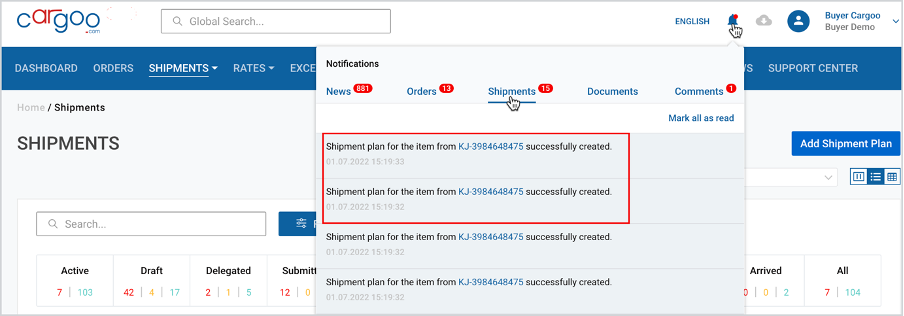
After having created multiple shipment plans, on the shipments page, separate shipment plans will be created as per the number of the split items of the same order (in this case, two).
Specific Requirements for the Creation of Multiple Shipment Plans
In order to create a multiple shipment plan,
- at least one item should not have any linkage to any active shipment. Otherwise, an error message will appear at the upper right corner of the page.
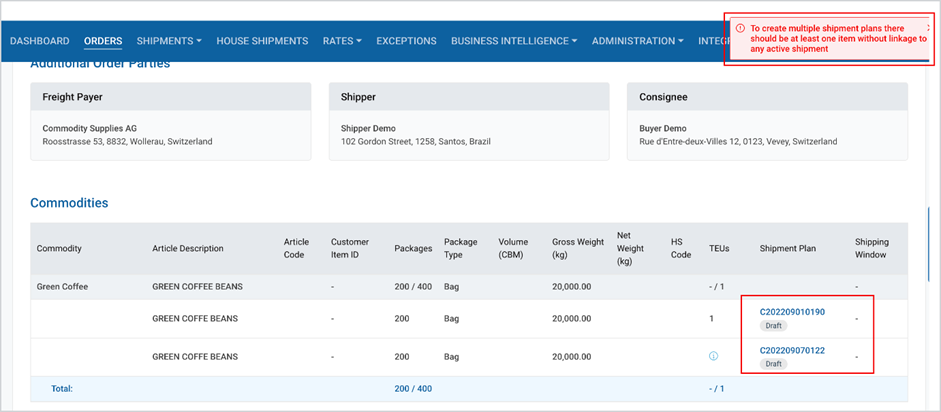
Note | In this case, the creation of multiple shipment plans will be possible if at least one further item is added to the Commodities. |
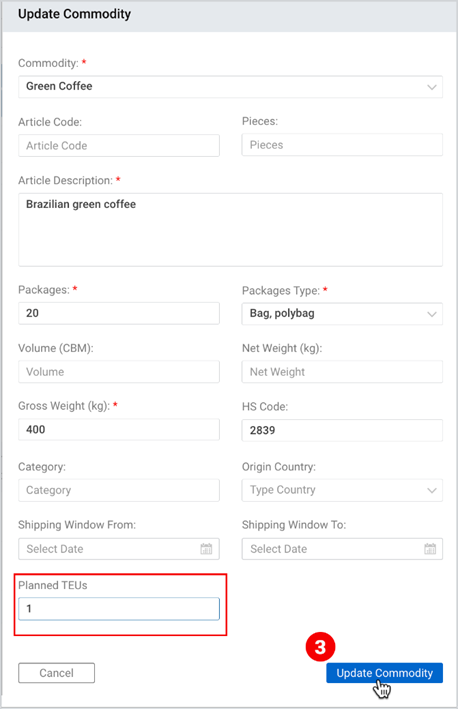
- all items must have planned TEUs, which will also be warned by the error message.
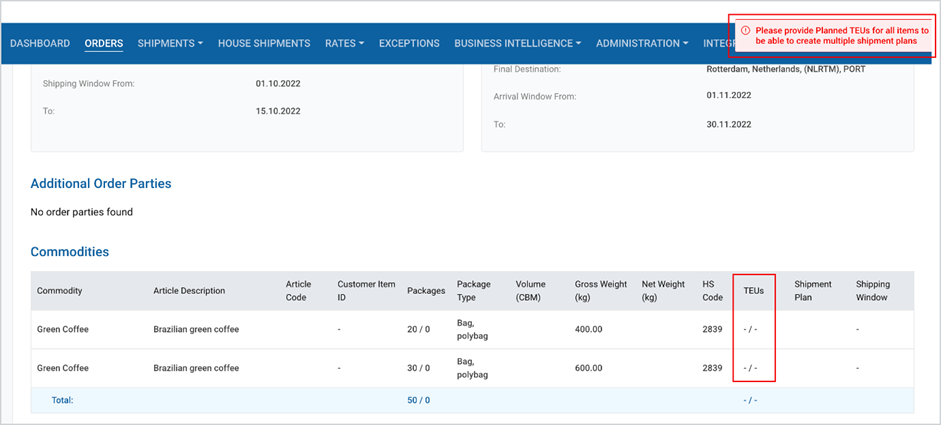
To add TEUs to the items
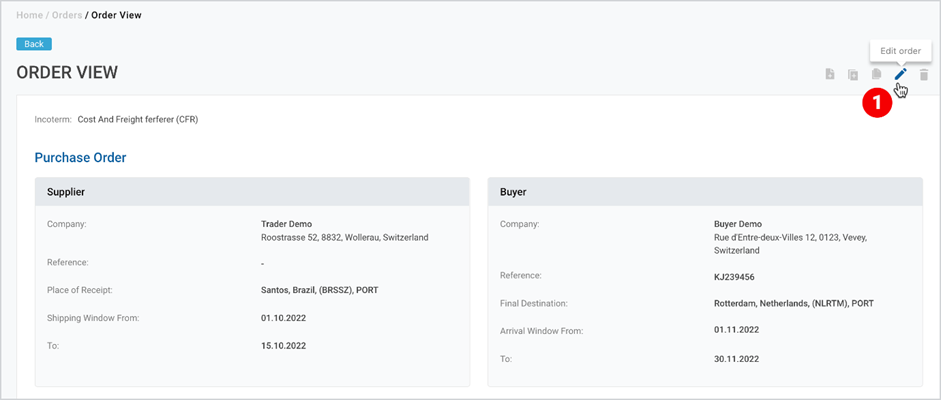
- At the right part of the Order View page, click Edit Order.
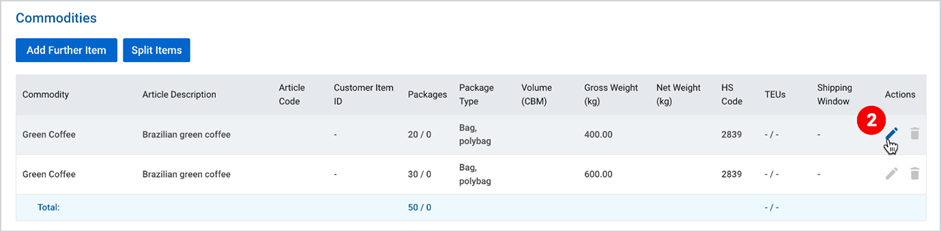
2. As the Edit Order page appears, scroll of the Commodities, and under Actions,
click Edit.
3. In the Update Commodity popup-window, fill in the planned TEU and click
Update Commodity.
4. At the bottom of the Edit Order page, click Save.
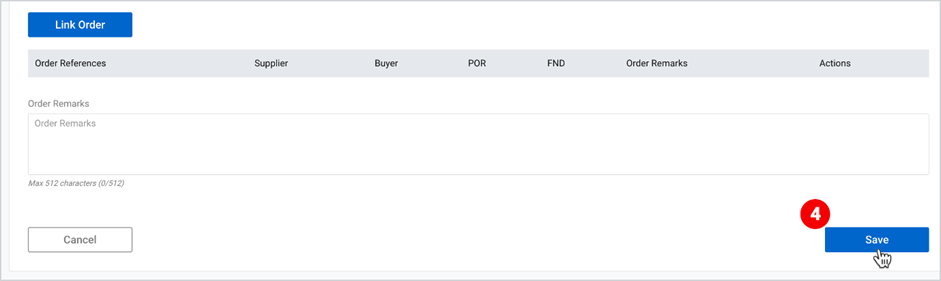
The updated order will appear on the Orders list.
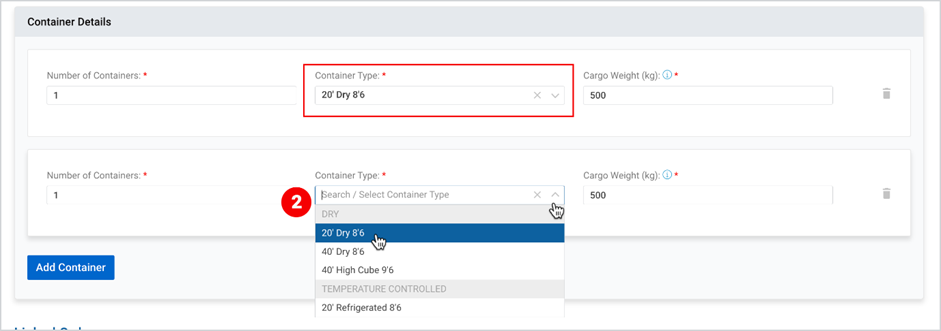
- there must be only one type of container selected, otherwise an error message will appear at the upper right corner of the page.
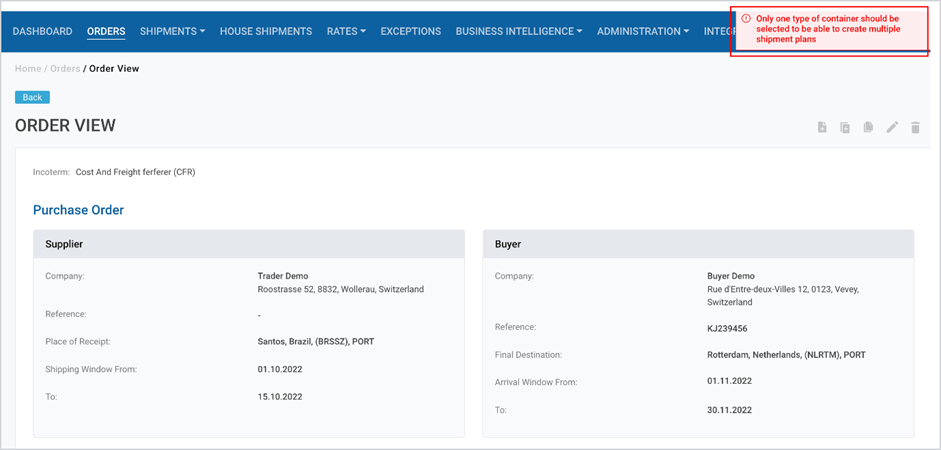
To update the container type
- Take the 1st step, shown here.
- As the Edit Order page appears, scroll to the Container Details, and under Container Type, update it.
To access the created shipment plans
- On the Main Menu, under Shipments, click Shipments and find them on the shipments list.
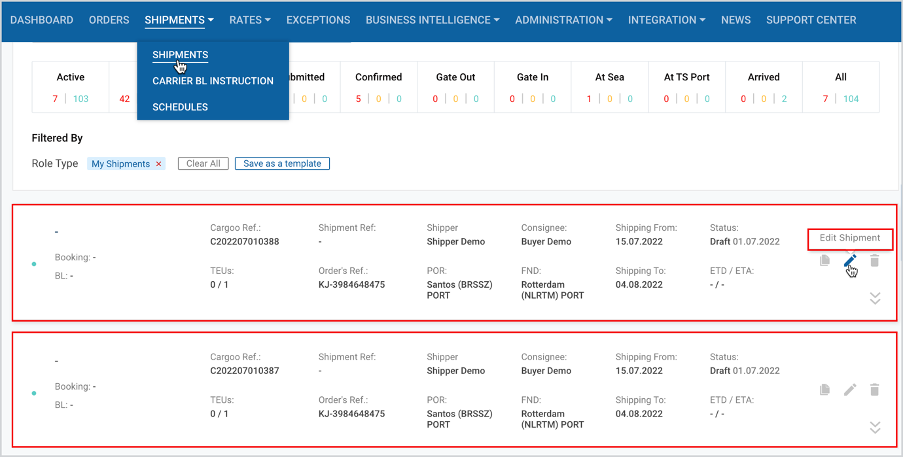
To start the shipment planning process
After this step, you are delegated to the Shipment Plan page, where you have to fill in/update the same information in four consecutive steps depending on the selected flow (submission or delegation) as described in Submitting or Delegating a Booking Request.
To download the print version of this article, click the PDF icon: