 BIM Support
Special Features: Origin DND Report Category
This report category helps you get an insight on demurrage and detention related costs incurred at the origin due to not fulfilling all the obligations within the Free Time set in the contract.
You can use the historical data for more accurate planning of your actions following the arrival of the cargo at the port of origin in order to avoid such charges in the future.
Note | DND here stands for “Demurrage and Detention”. |
To view the Origin DND report category
- Navigate to Business Intelligence>Reports.
- Select Origin DND Report.
Note | Shipment data and contract details are validated to make sure the contract can be used for the calculations; thus, it is suggested that you use valid contract numbers in your shipments. |

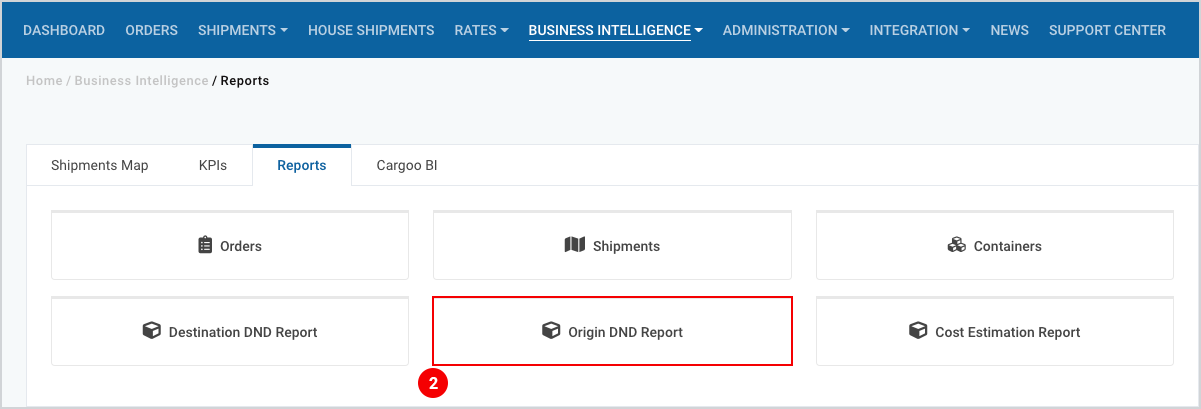
Figure 2
When you open Origin DND Report you will see 2 (two) tabs.
- Active Containers – Provides information on the Free Time for the containers which have arrived at the port of origin but have not yet been shipped.
- Shipped Containers – Provides information on the Free Time for al shipped containers, including the ones that are already returned.
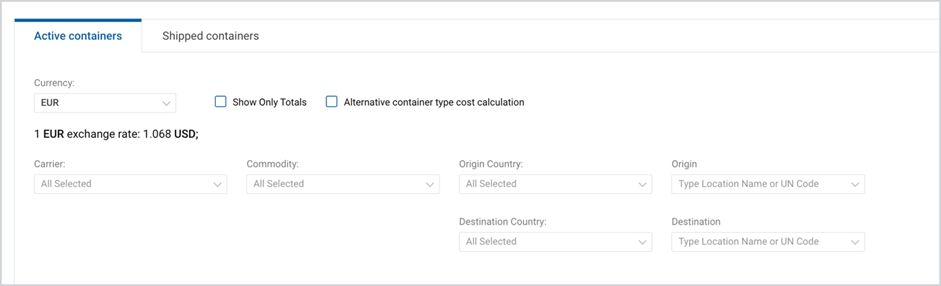
Figure 3
Before generating a report, make sure that
- You’re using the right Company account.
(For more details, please see Business Intelligence: Reports Section article.) - You have checked the Data for multiple companies: section and have selected all the companies for which you are looking to get the data .
(For more details, please see Common Features: Data for Multiple Companies article.) - All Filters and Additional Filters are set.
(To set the Filters and Additional Filters follow the steps described in Filters and Additional Filters.)
Tip | Save the filter configurations as a template in case you use the same filter configurations repeatedly, or use existing templates if any. |
Once all filters are set, generate a report and use report table features to view and analyze the report online or use the provided options to download or save it to preferred file formats.
(For more details on report table features, please see Common Features: Report Table article.)
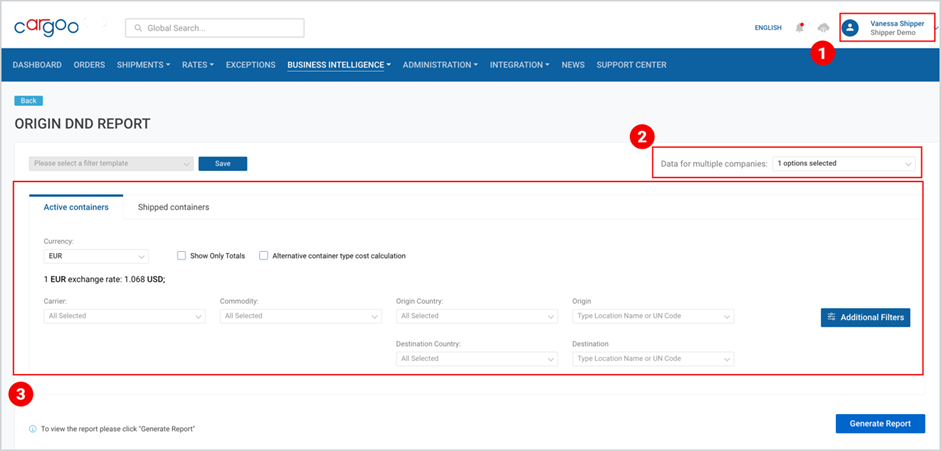
Figure 4
Filters
To set the filters
- Select Currency.
Below the searchable drop-down menu, you can find currency exchange rates, the information on the latter is given relative to the currencies used in your contracts.
For example
If you have used different currencies in your contracts, e.g., EUR, USD, RMB, and JPY, and you choose to convert them to USD, you will see the exchange rates for all 3 (three) – EUR to USD, RMB to USD, and JPY to USD rates. - Select Show Only Totals, if you don’t need information broken down per detailed calculation steps. (See Table 1 Show Only Total Selected)
If you leave it unselected you will get detailed information on the Free Time conditions set in the contracts, i.e., whether the day type was set as Calendar Days or Working Days, how many free days you had, overdue days, the subtotal and total costs per each period, as well as the overall total costs. - Select Alternative container type cost calculation, if you want the generated report to include container type broad match (the estimated costs can be alternatively applied for 40GP container type instead of 40HQ (and vice versa) and for 40RF container type instead of 40RQ (and vice versa)).
- (Only in Shipped Containers tab) Select the Shipped Containers From: date. The default selected date is 7 days prior to the current date. The generated report will include all containers which received a “Shipped” event during this selected period, i.e., from the selected date up to the current date.
- (Only in Shipped Containers tab) Select Include active containers, if you want the generated report to include not only shipped containers, but also active containers i.e., the ones that have arrived at the port of origin and do not have valid “Shipped” status/event.
- Use the drop-down menus of the following filters to narrow down the search results and filter the data accordingly:
- Carrier,
- Commodity,
- Origin Country,
- Destination Country.
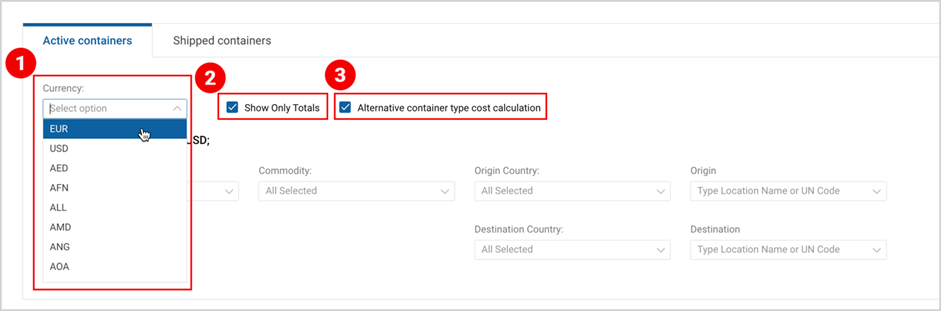
Figure 5
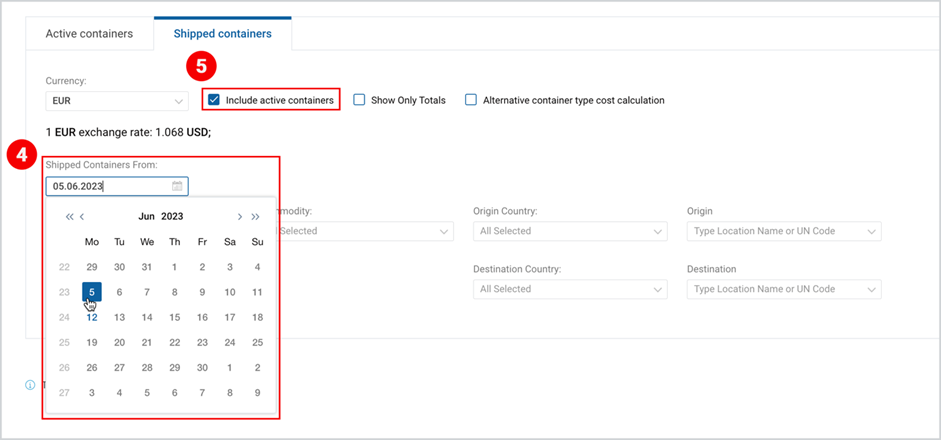
Figure 6
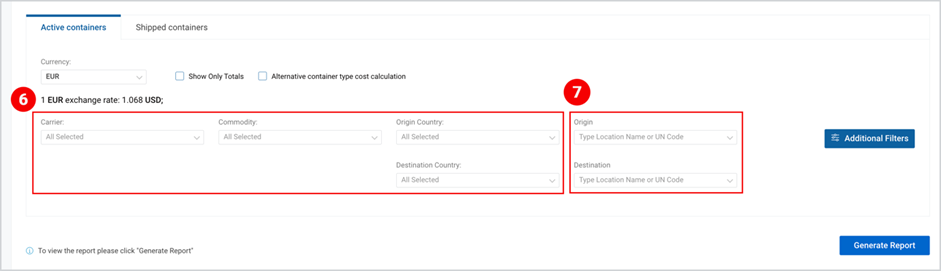
Figure 7
Table 1 Show Only Total Selected
SUBTOTAL | SUBTOTAL | SUBTOTAL | TOTAL |
Detention |
| Demurrage+Storage | Detention/ |
Detention+Demurrage |
| Storage | Detention+Demurrage/ |
Detention | Demurrage | Storage | Detention/Demurrage/ |
Detention+Demurrage |
|
| Detention+Demurrage |
Additional Filters
Additional Filters allow you to
- Filter the data per your role in the shipments;
- Add additional fields to the report.
Select Your Role in Shipment
- Select Additional Filters.
- Select one of the three filter options:
- My Shipments — Shipments created by you or by companies selected in Data for Multiple Companies.
- Observer — Shipments where you or the companies selected in Data for Multiple Companies are added as Further Parties.
- All — This option includes the above-mentioned two filter options and is selected by default.
- Click Apply.
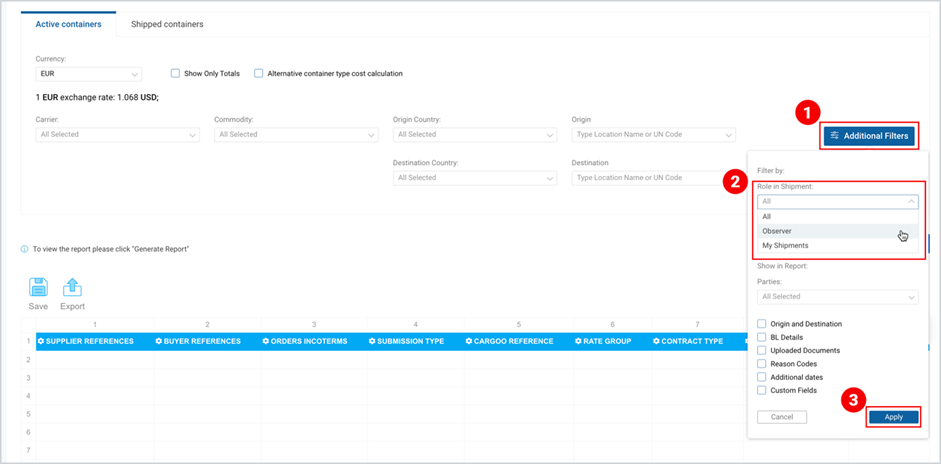
Figure 7
Show in Report: Parties (Business Partners)
To add Parties to the report
- Select Additional Filters.
- Open the drop-down menu for Parties and select the Parties you want to be shown in the report.
For this report type no parties are selected by default. - Click Apply.
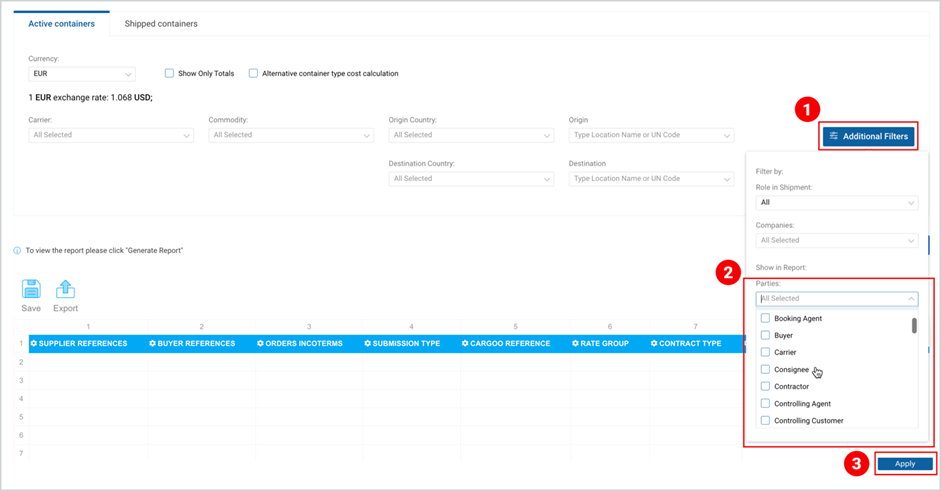
Figure 8
Show in Report: Fields
To add more fields to the report
- Select Additional Filters.
- Select the checkboxes of the fields you want to be shown in the report.
Information on the list of columns added per field is given in Table 2 List of Columns Added per Field. - Click Apply.
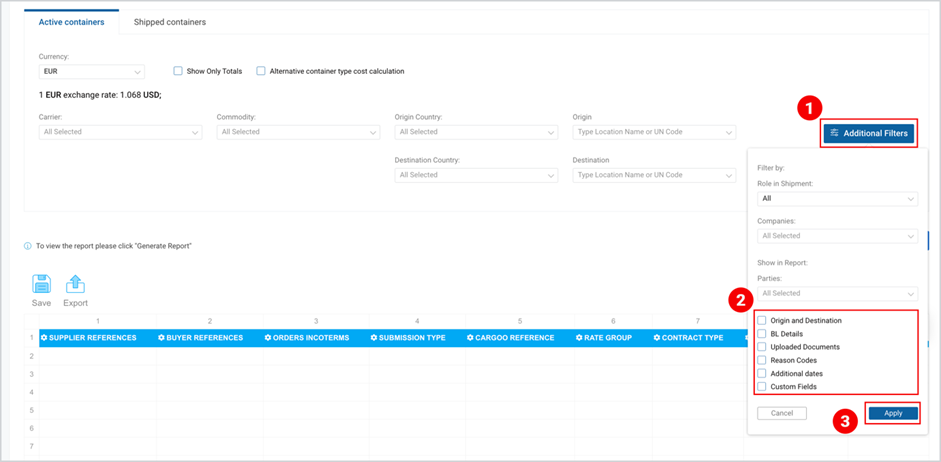
Figure 9
Table 2 List of Columns Added per Field
FIELDS | COLUMNS |
Additional Dates |
*From the port of origin. |
BL Details |
|
Custom Fields | *Custom fields derived from the order, if such fields are available for the company. |
Origin and Destination |
|
Reason Codes |
|
Uploaded Documents |
|
To download the print version of this article click the PDF icon: