CSA Support
Key Performance Indicators (KPIs)
The Key Performance Indicators (KPIs) allow you to track the quality of all your carriers’ and shippers’ performance, as well as view various KPIs for the Company shipments (Own KPIs).
To access the KPIs page
- On the Main Menu, click Business Intelligence>KPIs.
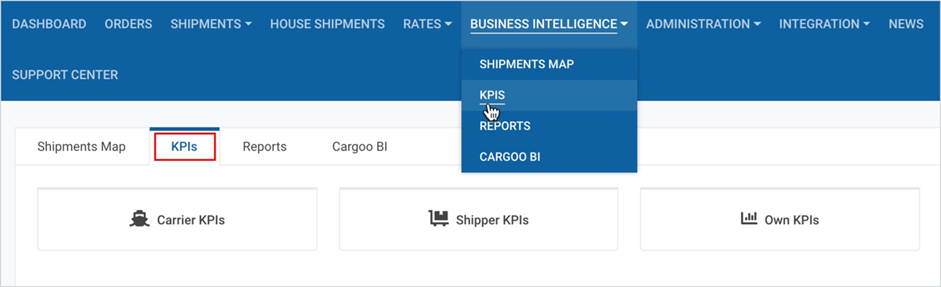
The KPIs section includes the following three sub-sections:
KPIs Common Features
The common features for all KPIs categories include chart and table views of KPIs, selection of data for multiple companies, shipping window and additional filters.
Chart and Table Views of KPIs
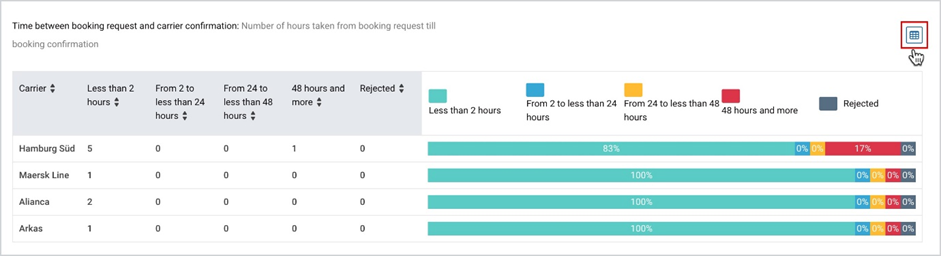
On the page, all KPIs are by default displayed in the chart view. You can switch them to table view by clicking the table view icon at the upper-right corner of each chart.
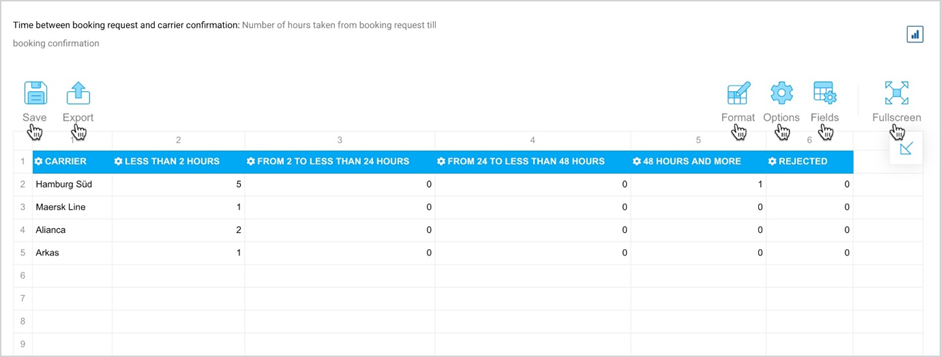
Here you can access the data in Flexmonster, where you can
- save and/or export the KPI for further thorough analysis;
- format cells and apply conditional formatting;
- apply layout options;
- modify columns and add new columns by dragging values to formula (Fields);
- view the KPI data in full-screen mode.
Note | For more details on the functionalities displayed on the table view, see Common Features: Report Table. |
Data for Multiple Companies
Data for Multiple Companies allows you to filter KPI data per a company or multiple ones, depending on your account permissions.
To filter the data:
- On the Main Menu, click Business Intelligence>KPIs.
- Select the KPI category.
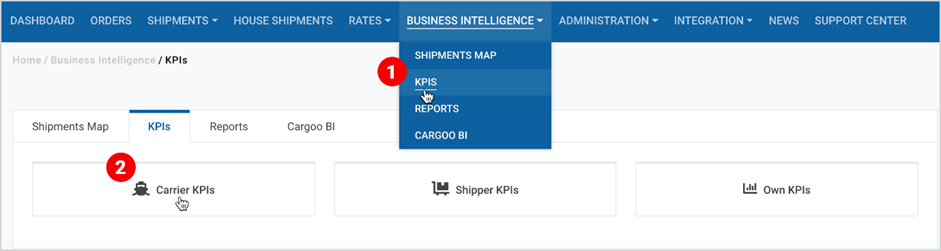
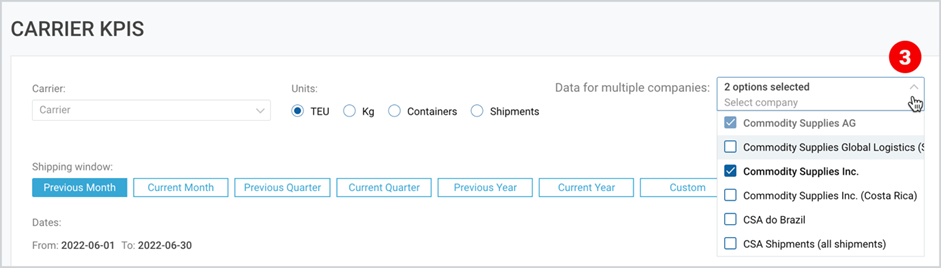
3. Click the drop-down menu on the right side of Data for multiple companies: and select
all the companies you want to get the data for.
Shipping Window
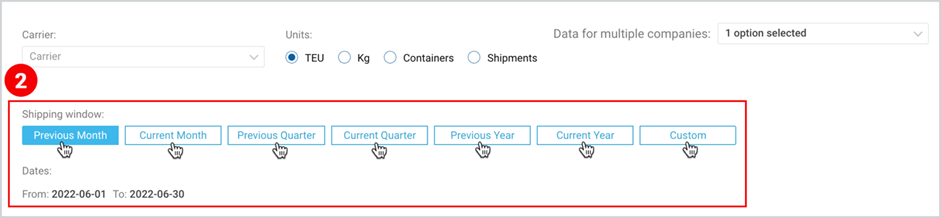
For all KPI categories, the shipments data are shown based on the selected shipment window matching with the following time periods:
- Previous Month
- Current Month
- Previous Quarter
- Current Quarter
- Previous Year
- Current Year
- Custom (you can select the window with your desired dates)
To select the time period
- Take the two initial steps, described here.
- Under shipping window, select the desired time period.
Units
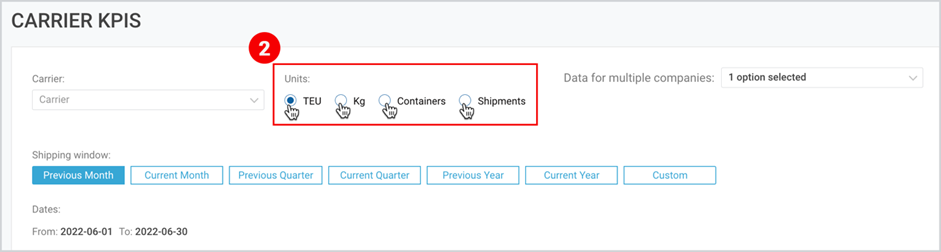
The Carrier and Shipper KPIs pages by default, show the unit in TEU. However, you can change the unit data as per containers and shipments.
In Carrier KPIs page, you can also select the unit in kg, which is used only in Volume per Carrier chart.
To select the unit
- Take the two initial steps, described here.
- On the left side of the page, next to Carrier or Shipper (in case of shipment KPIs), select desired unit.
Additional Filters
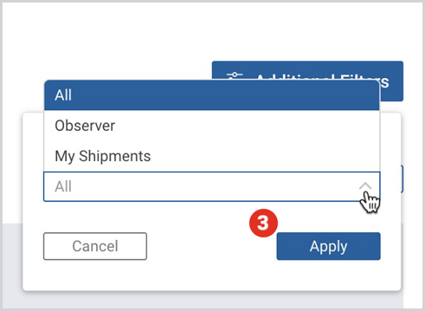
Irrespective of KPI category, the page by default shows the data from the point of view of any party related to shipment only (All). The additional filter of the page allows you to set the view also from the point of view of the Observer - any party except Creator or Consignee or Shipper; or filter it by My Shipments category, which shows the page from the point of view of the Creator, or Consignee, or Shipper.
To use additional filter
- Take the two initial steps described here.
- On the right side of the page, click Additional Filters.
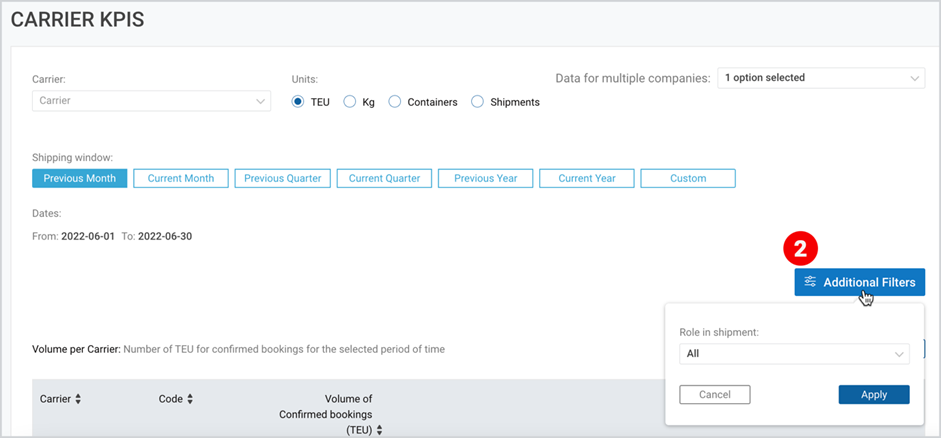
3. Under Role in shipment, click the drop-down, select the category and click Apply.
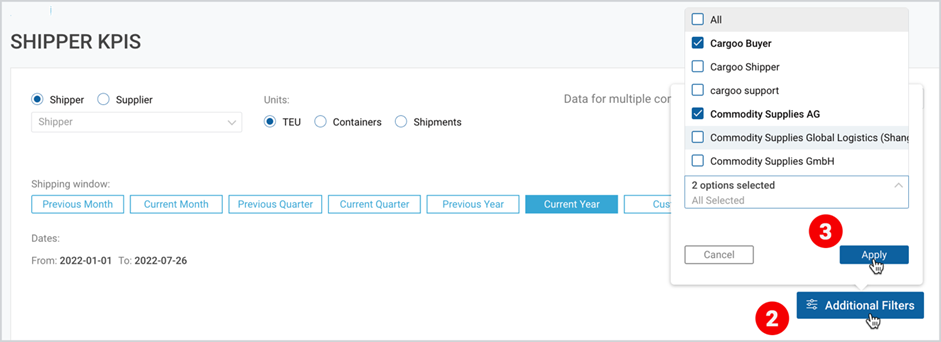
In case of Shipper KPI, in addition to Role in shipment, the Additional Filters contains the Companies filter, which allows you to filter the shipper KPI data per company or multiple ones (searchable multiselect filter), depending on your account permissions. The Companies filter is available only to Org Admin and Support users.
To use additional filter for Companies selection
- Take the two initial steps described here.
- On the right side of the page, click Additional Filters.
- Under Companies, click the drop-down, select the company (ies) and click Apply.