 CSA Support
AES Filing
AES (Automated Export System) and submission of AES is a procedure imposed by the United States Census Bureau as part of the U.S. government's efforts to streamline export reporting. Exporters are required to submit electronic export information (EEI) through the AES for most shipments valued over $2,500 or those that require an export license. Cargoo allows the creation and submission of AES filings for these shipments, ensuring seamless connection between U.S. Customers.
To activate AES filing module, Org Admin(s) or Company Admin(s) shall send subscription requests to the Cargoo administration. Once a filing is created, all users of the creator company will have edit rights to it. For other cases, when a company is mentioned as a party, its users will have access to the AES filing view mode only. For more details on user accesses see User Management, Subscribe Business Modules to Your Users.
To be able to create an AES filing:
- the company must be a Shipment Creator, Shipper, Booking Agent, or Origin Handling Agent;
- the shipment status must be at least Confirmed.
Create AES Filing
Before creating AES Filing, the respective document type must be added to the shipment plan or configured as part of GSI setup.
In case the shipment is already booked, and you want to add AES document to it,
- Under Main Menu, click Shipments>Shipments.
- Find your booked shipment on the shipment list and click on it.
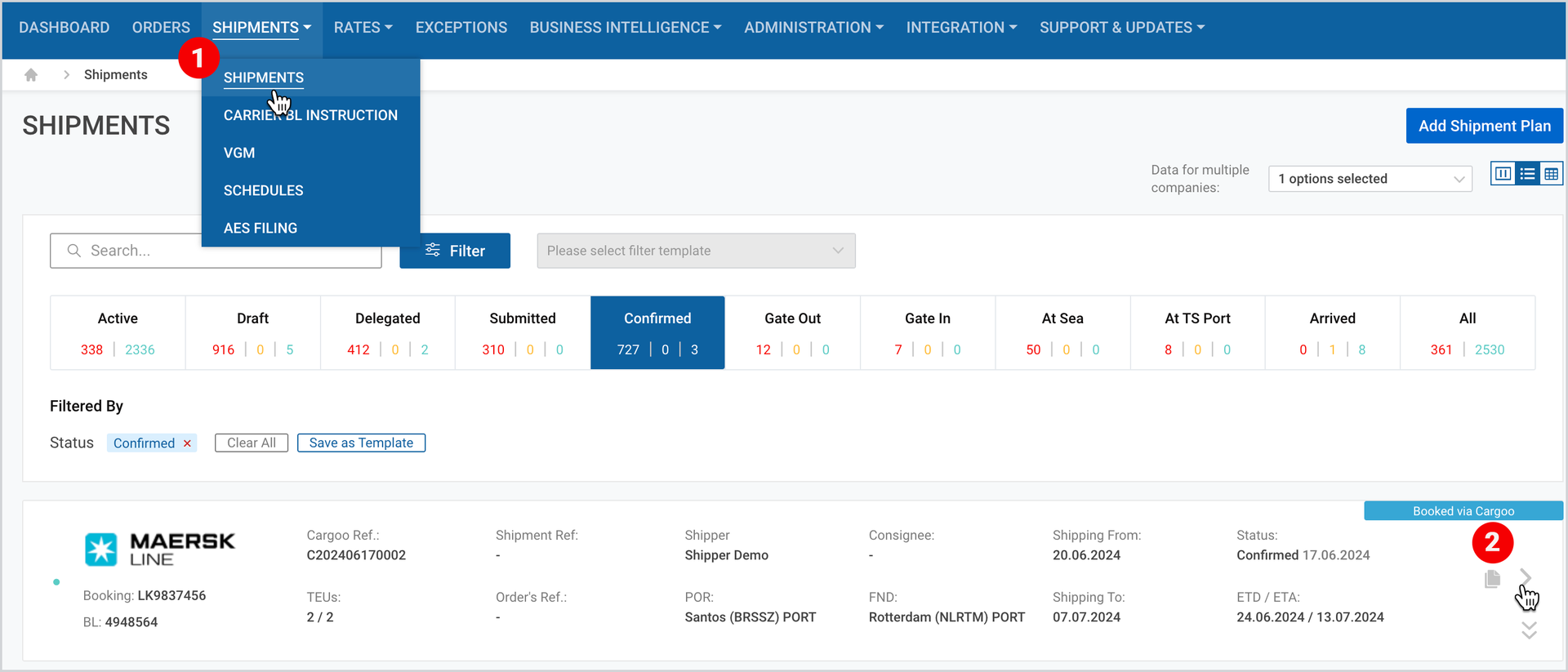
3. Click on Documents tab.
4. Click Add Document Type and select from the list – AES Filing US Customs.
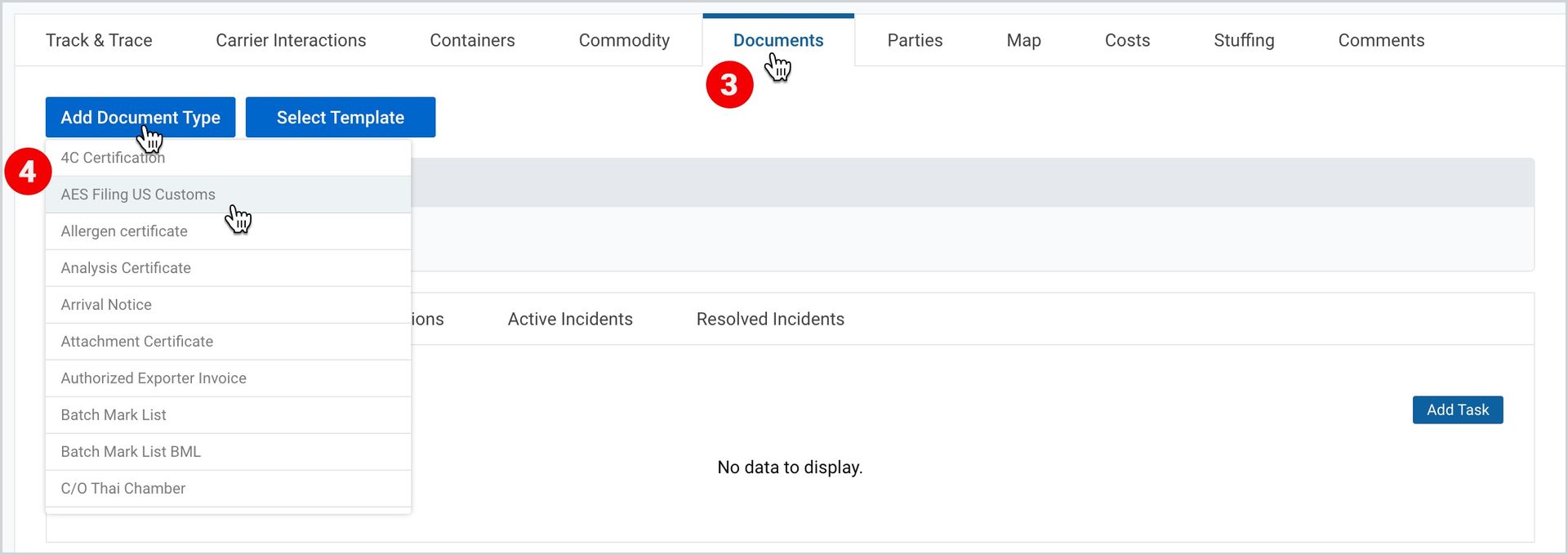
The creation of AES Filing can only start after the shipment status is “Confirmed” by the carrier.
To start its creation,
- On the AES Filing US Customs document, click Create.
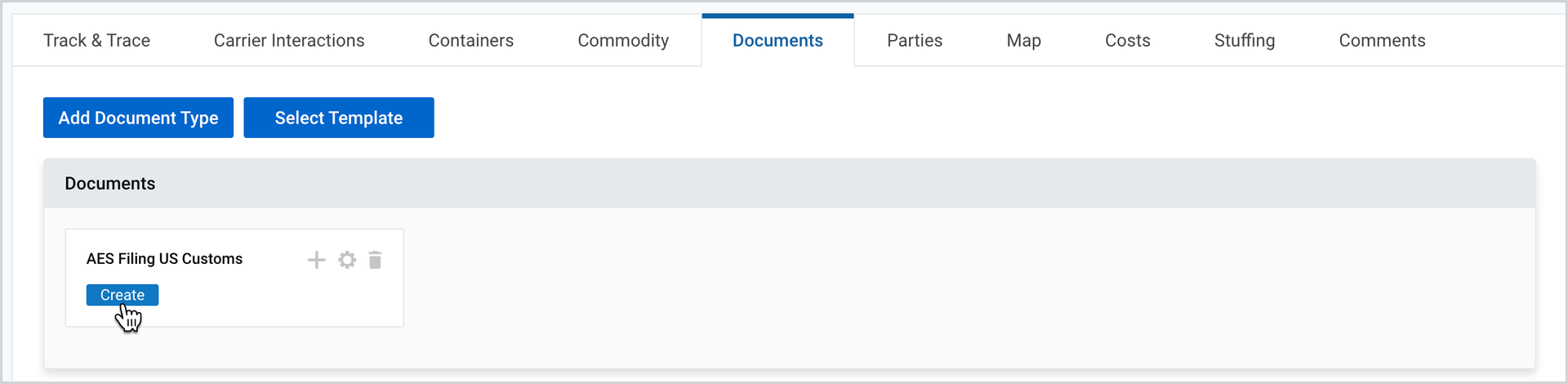
You will be redirected to the AES Document Edit page, which includes the following sections:
- Summary
- Base Info
- Equipment
- Parties
- Commodities
- History (non-editable)
Once you have filled in all the required data, you can
- Save the captured data for further completion – status changes to “Draft”;
- Save and Submit - saves input, validates for completeness and submits the filing to the US Customs – status changes to “Submitted”;
- Cancel – sends a request to the US Customs to withdraw the submitted filing (the button becomes active only after the filing acquires “Submitted” status).
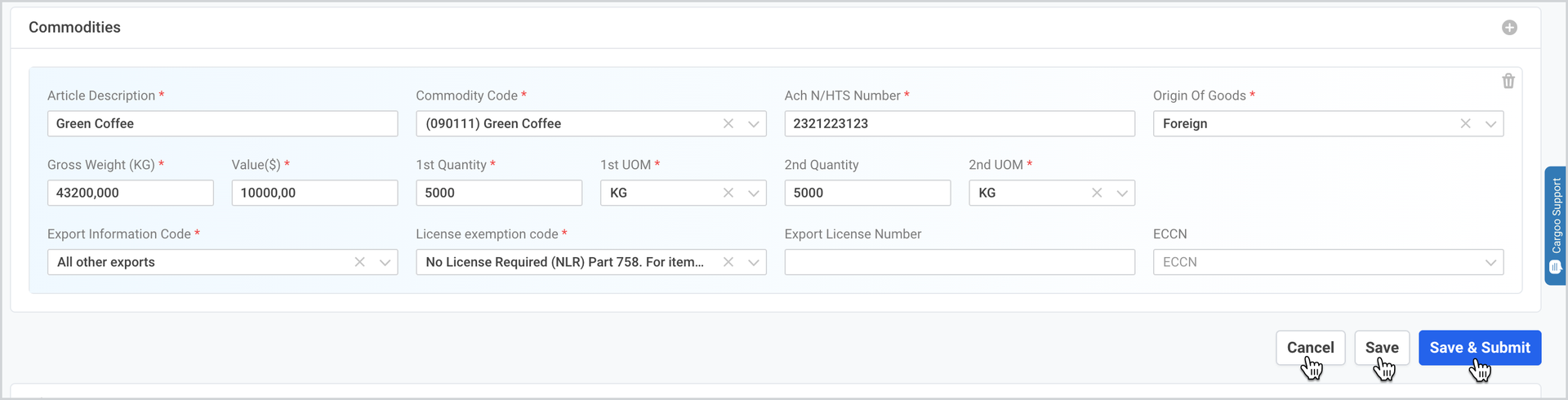
The data to be filled under each section are given below.
Summary
This information is non-editable and represents data from the confirmed shipment, including Carrier, Filing Reference, ITN, Cargoo Reference, BL Number, Booking Number, Shipment Reference, Submission Due Date, Status and Transport Plan.
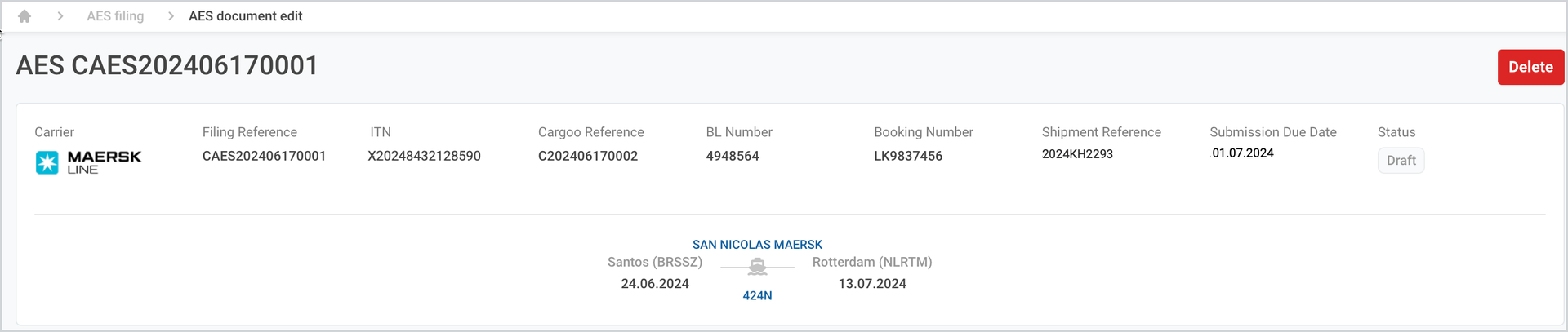
The description and allowed actions on AES statuses are given in Table 1 below.
Table 1: AES Statuses
N | AES STATUS | DESCRIPTION | ALLOWED ACTIONS |
1. | Draft | Filing is created. |
|
2. | Submitted | This status is set once the filing creator clicks on “Save & Submit” at the bottom of the page. It means that the filing has been submitted to the US Customs. | Filing can be only viewed by any party set in the filing. |
3. | Confirmed | This status is set automatically once Cargoo gets feedback from the US Customs that filing is accepted. If the filing is accepted, then the US Customs assigns ITN reference and it is visible in the Cargoo system. |
|
4. | Amendments submitted | This status is set once the filing creator clicks on “Save & Submit” on the filing in status Confirmed. Communication is sent to the US Customs similarly to the case of status Submitted. | Filing can only be viewed by any party set in the filing. |
5. | Rejected | This status is set only automatically once Cargoo gets feedback from the US Customs that the filing is rejected due to errors. User shall correct data and resubmit filing. The reason for rejection is visible on a hover at |
|
6. | Cancellation Requested | This status is set once the filing creator clicks on the button “Cancel” at the bottom of the AES Document Edit page, requesting the US Customs to withdraw filing. | Can be only viewed by any party set in the filing. |
7. | Cancelled | This status is set only automatically once Cargoo gets feedback from the US Customs (with the respective code) that the filing is cancelled upon the client’s request. | Filing can be only viewed by any party set in the filing. A new filing can be created for the given shipment. |
 icon next to status.
Base Info
A part of this section is non-editable and is inherited from the current shipment. Other fields are required to be filled in or edited.
You can check the information to be filled in Table 2. The visualization is given in the figure below.
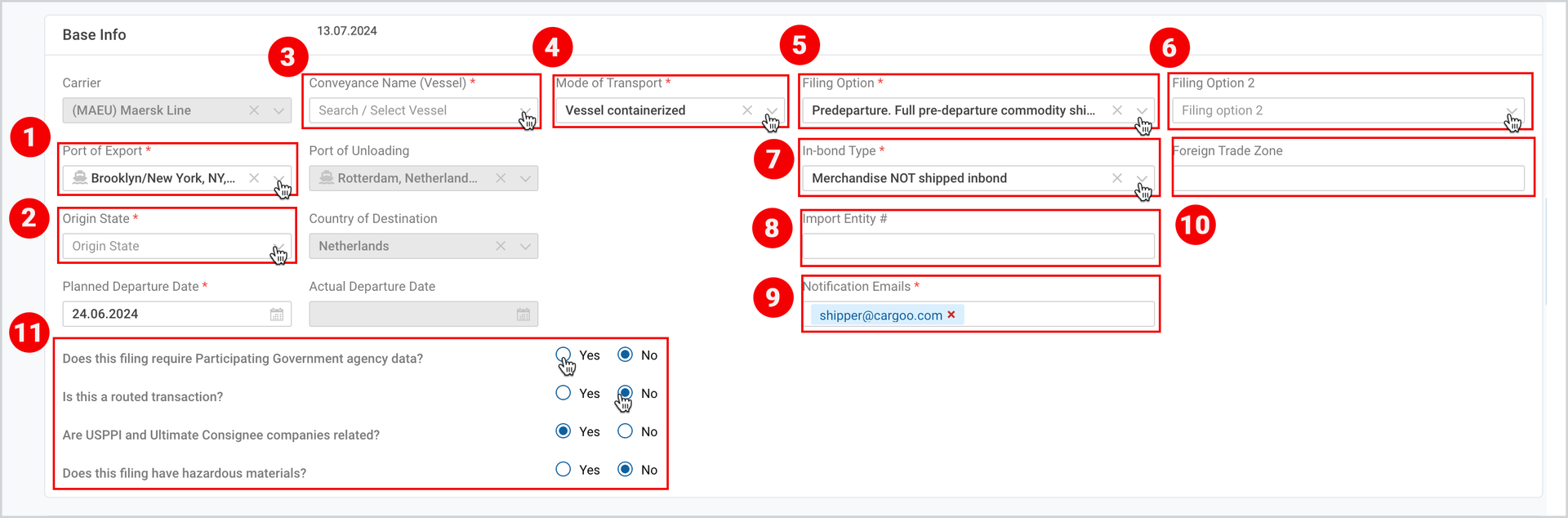
Table 2: Base Info Fields
ITEM IN THE ABOVE FIGURE | FIELD | DESCRIPTION |
1. | Port of Export | Select the port of export from the drop-down list. If the mode of transport (MoT) is not rail or rail, containerized, then location can only be a US location. If MoT is rail or rail, containerized, then location is not relevant and is not visible. |
2. | Origin State | Select the required US state from the drop-down menu. |
3. | Conveyance Name (Vessel) | Select the vessel from the drop-down list, in case the shipment has multiple ones. The selected vessel should be the one leaving the US/North America (for shipments that cross the border and have a departure in Canada or Mexico). |
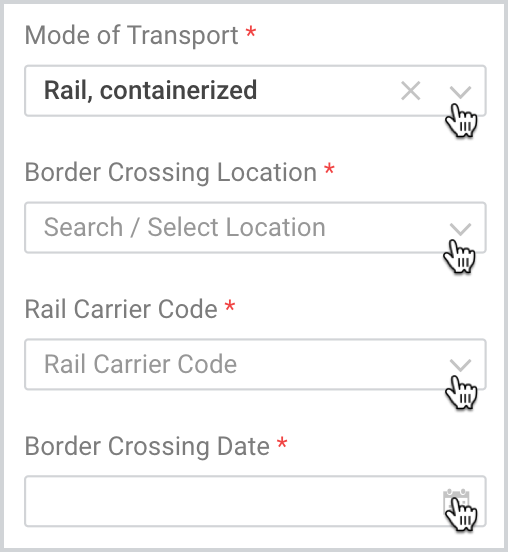
4. | Mode of Transport | Select the mode of transport from the drop-down list. If MoT is rail or rail, containerized, you should provide additional information, such as
|
5. | Filing Option | This field indicates the type of filing "option" selected by the creator for the commodity shipment transaction. Select from the following options:
|
6. | Filing Option (2) | This is an optional field and is required to be filled in case Filing Option is:
|
7. | In-bond Type | This is an indication of whether the shipment is being "transported under bond". Select from the following options:
|
8. | Import Entity # |
|
9. | Notification Emails |
|
10. | Foreign Trade Zone |
|
11. | Does this filing require Participating Government agency data? | This is a statement if the filing requires Participating Government agency data.
|
Is this a routed transaction? |
| |
Are USPPI and Ultimate Consignee companies related? | This is a statement whether USPPI and Ultimate Consignee companies are related.
| |
Does this filing have hazardous materials? | This is a statement whether the shipment has dangerous goods.
|
Equipment
This section automatically displays the container numbers available in the shipment. Filing can be created even if the shipment has no actual containers yet; however, containers are required to submit the AES filing for the shipment. You cannot add new containers to the AES filing.
If containers are available, then for each container you may optionally provide seal number.
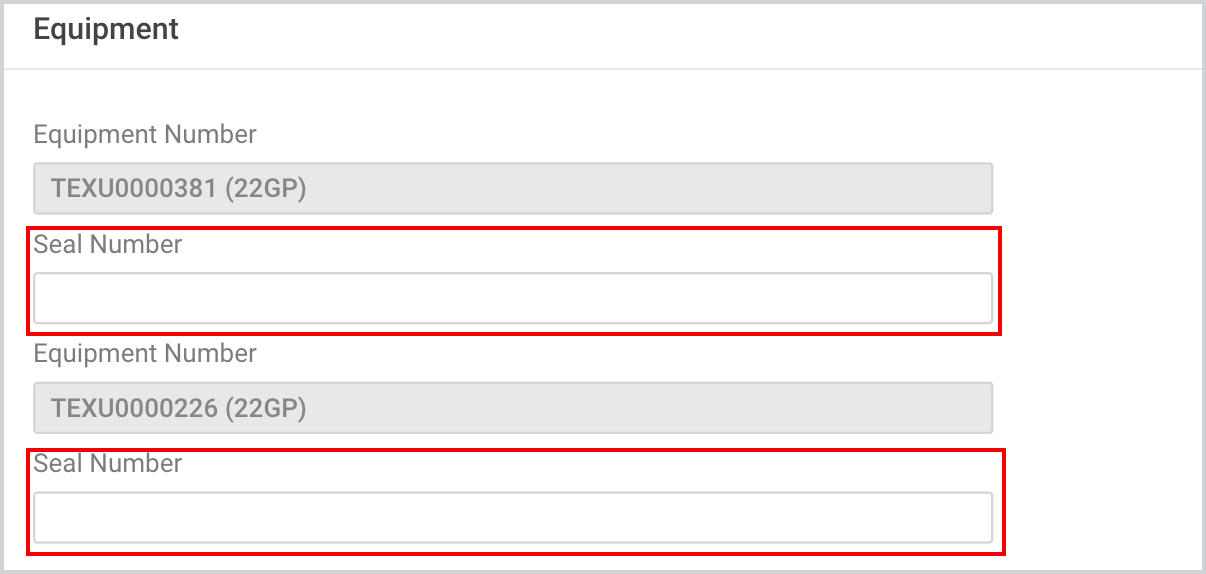
There is synchronization between shipment and AES filing if filing is still in draft status. This implies that the filing will be updated to the latest shipment status on containers and transport plan.
Parties
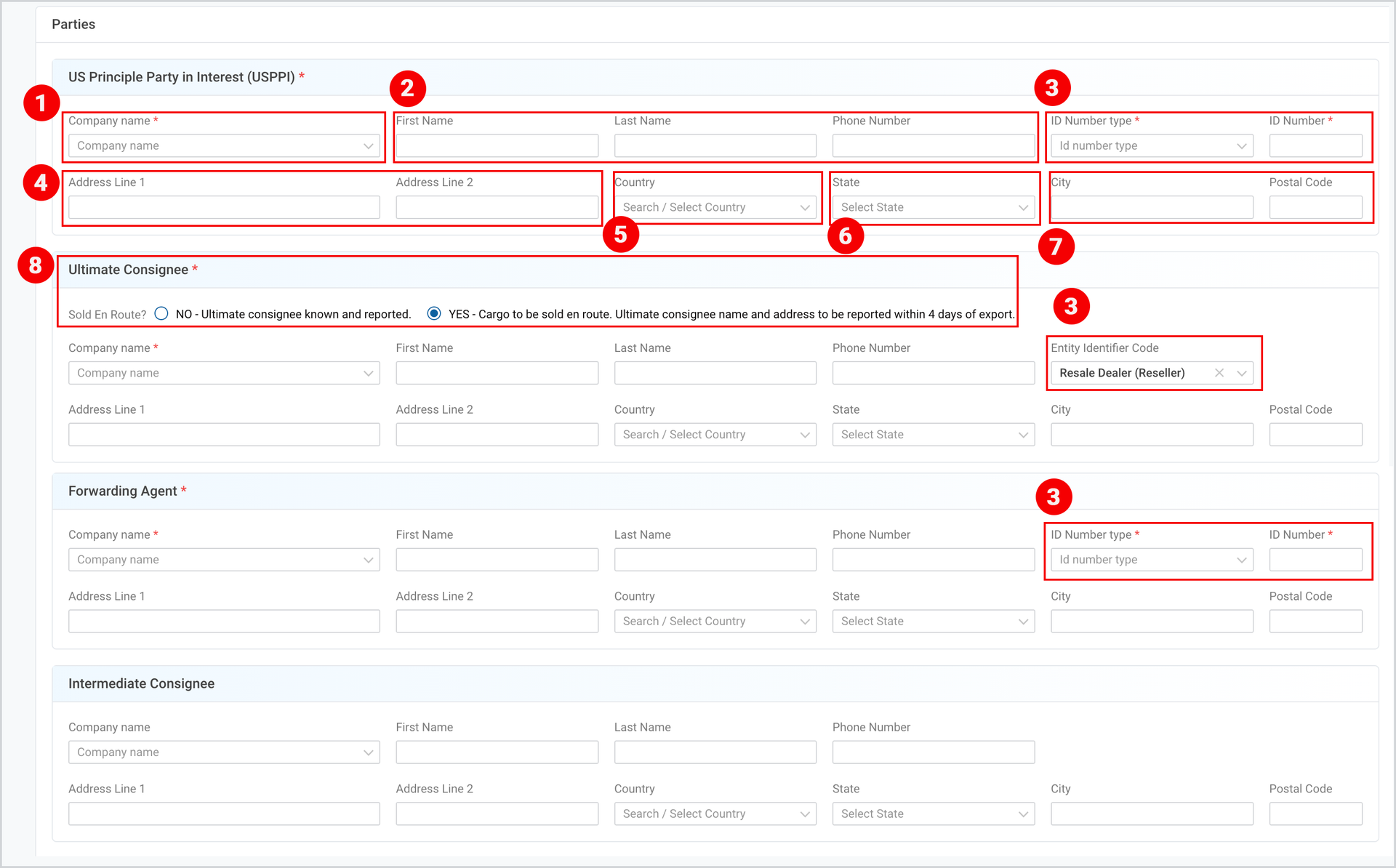
In this section you should fill in the details of the following 4 party types:
- US Principle Party in Interest (USPPI) - can be pre-filled from the shipment party US Principle Party in Interest or defined by user in filing only.
- Ultimate Consignee - can be pre-filled from the shipment party Consignee or defined by user in filing only.
- Forwarding Agent - can be pre-filled from the shipment party Booking Agent or defined by user in filing only.
- Intermediate Consignee - defined by user in filing only.
All parties are required to be filled in except Intermediate Consignee.
For each party you should fill in the following required/optional information:
- Company Name (might be prefilled if this party is available in the shipment. Otherwise, it displays the list of company business partners [all except rejected]).
- First Name, Last Name and Phone Number (required to be filled in only with the party type USPPI).
- ID Number Type and ID Number (in case of USPPI or Forwarding Agent) or Entity Identifier Code (in case of Ultimate Consignee).
- Address.
- Country.
- State (required if the country is either the US or Mexico).
- City and Postal Code.
- In case of Ultimate Consignee, select one of the options of the Sold en Route? question (see step 8 in the figure below):
- NO - Ultimate consignee known and reported.
- YES - Cargo to be sold en route. Ultimate consignee name and address to be reported within 4 days of export.
Commodities
You can check the information to be filled on each commodity field in Table 3. The visualization is given in the figure below.
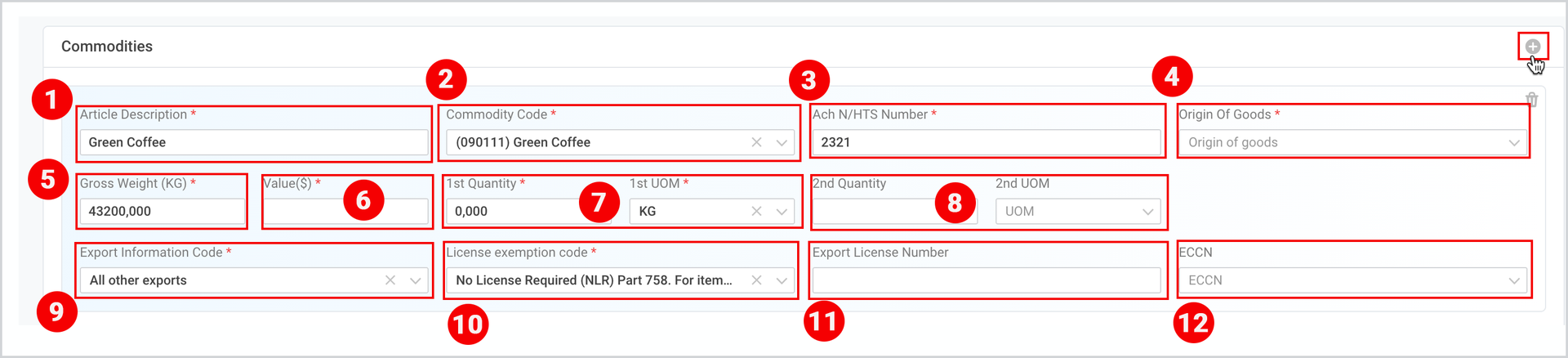
Table 3: Commodities Fields
ITEM IN THE ABOVE FIGURE | FIELD | DESCRIPTION |
1. | Article Description | This field is prefilled from shipment items article description. |
2. | Commodity Code | The commodity code of items. |
3. | Ach N/HTS Number | The identification of the commodity as classified by the U.S. Census Bureau (Schedule B number) or the U.S. International Trade Commission (HTS number). Only 10-digit codes are accepted. |
4. | Origin of Goods | An indication of the origin of the commodity. |
5. | Gross Weight (KG) | May be prefilled from the shipment containers description. |
6. | Value ($) | Value of the commodity reported in whole U.S. dollars. Maximum amount can be 9,999,999,999 USD. |
7. | 1st Quantity and 1st UOM | Total number of units that correspond to the first unit (pre-filled total weight of shipment items) A unit of measure (UOM) code that corresponds to the first quantity (Quantity 1) as prescribed by the Schedule B/HTS number reported. |
8. | 2nd Quantity and 2nd UOM | If prescribed by the Schedule B/HTS number reported. A unit of measure (UOM) code that corresponds to the second quantity (Quantity 2) as prescribed by the Schedule B/HTS number reported. |
9. | Export Information Code | A code that indicates the reporting requirements. |
10. | License Exemption Code | A type of other government agency export license, permit, license exemption or an indication that NO license is required. |
11. | Export License Number | License Number if license is required. |
12. | ECCN | An Export Control Classification Number (ECCN). It is a required field only if License Exemption Code is license issued by the Bureau of Industry and Security (BIS). |
You can add a new commodity with its details by clicking on the “+” icon on top right corner of the Commodities box (see the figure above).
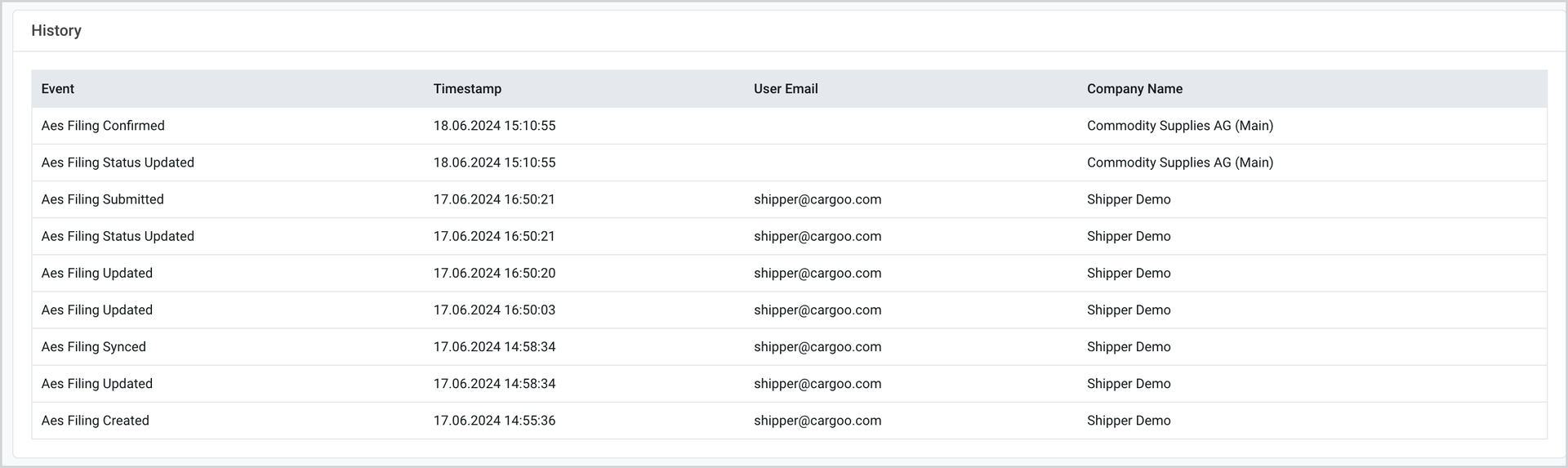
History
This section displays all updates related to the AES filing.
AES List
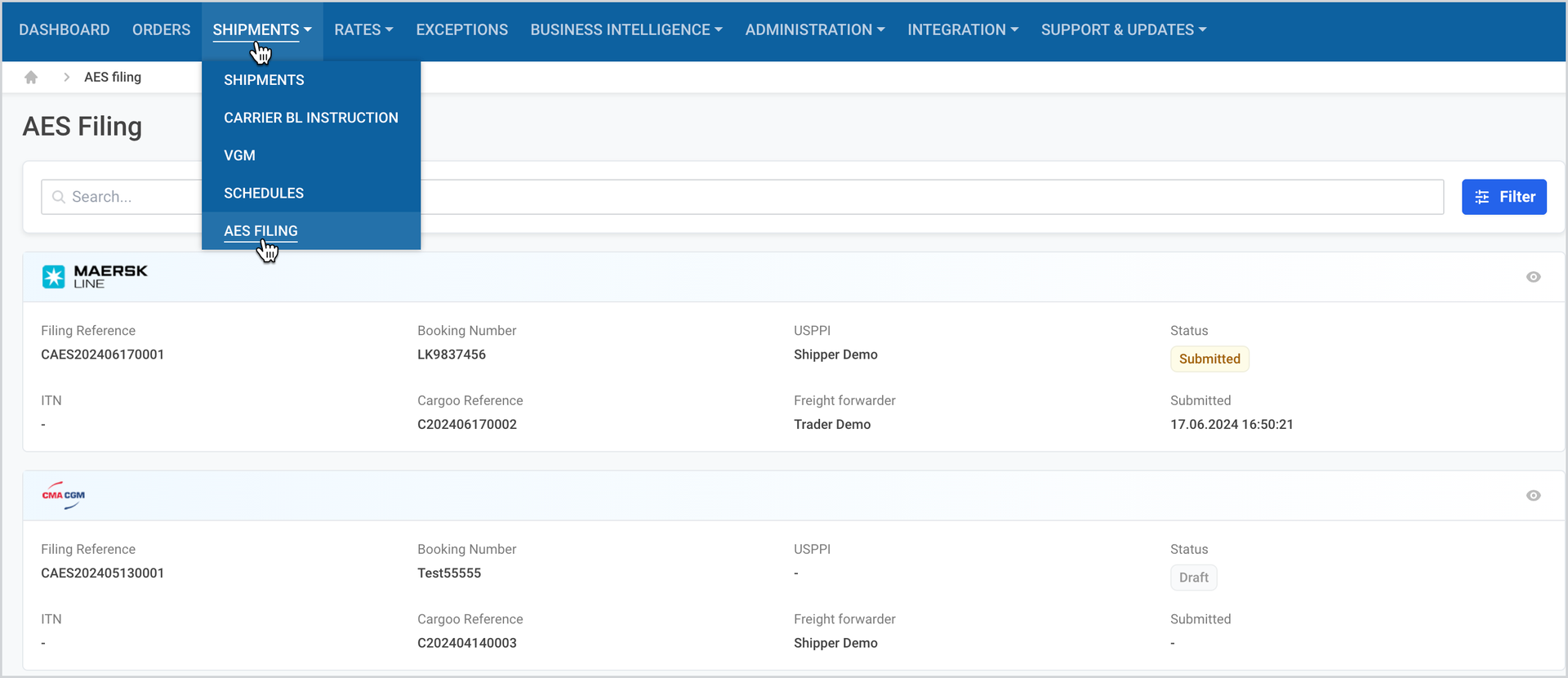
You can view the list of all AES filings by selecting AES Filing in the Shipments menu.
Access AES
You can access the required AES filing by searching or filtering it.
Search for AES
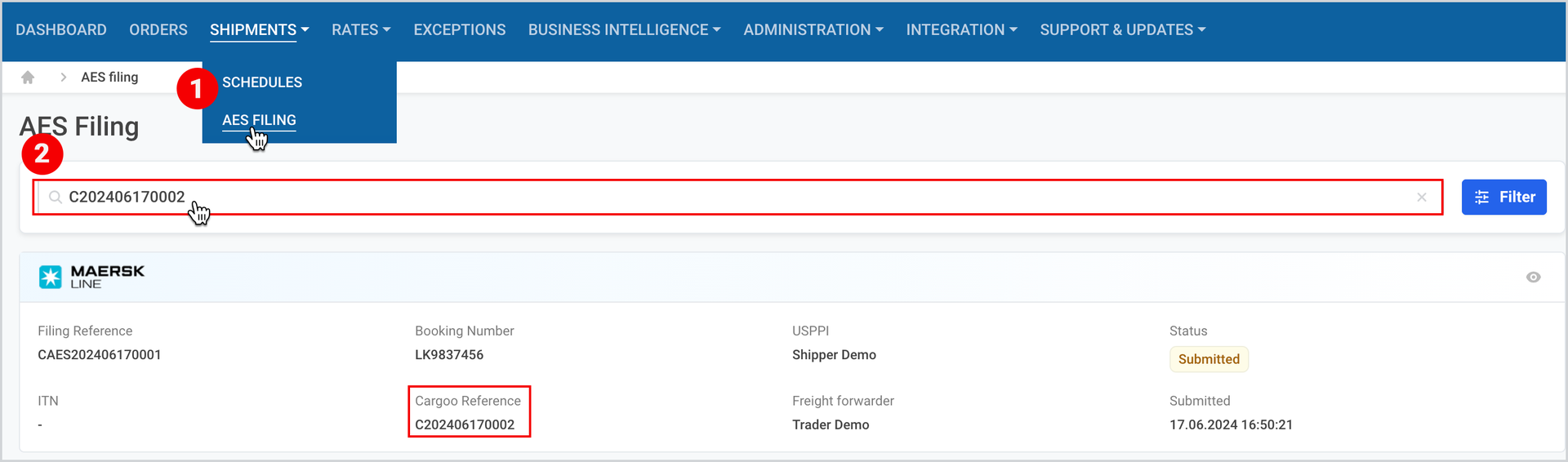
The AES filing search can be performed by
- Cargoo Reference
- Booking Number
- ITN
To search for the required AES:
- Under Main Menu, click Shipments>AES Filing.
- At the upper-left corner of the page, in the search field, fill in the Cargoo Reference, Booking Number or ITN.
Filter AES
You can filter the AES by the following categorizations:
- Status (the description and allowed actions on AES statuses are given in Table 1).
- Carrier Code
- Party Type
- Company
- Creation Date
To filter the desired AES Filing,
- Under Main Menu, click Shipments>AES Filing.
- At the upper-right corner of the appeared page, click Filter and fill in the required criteria.
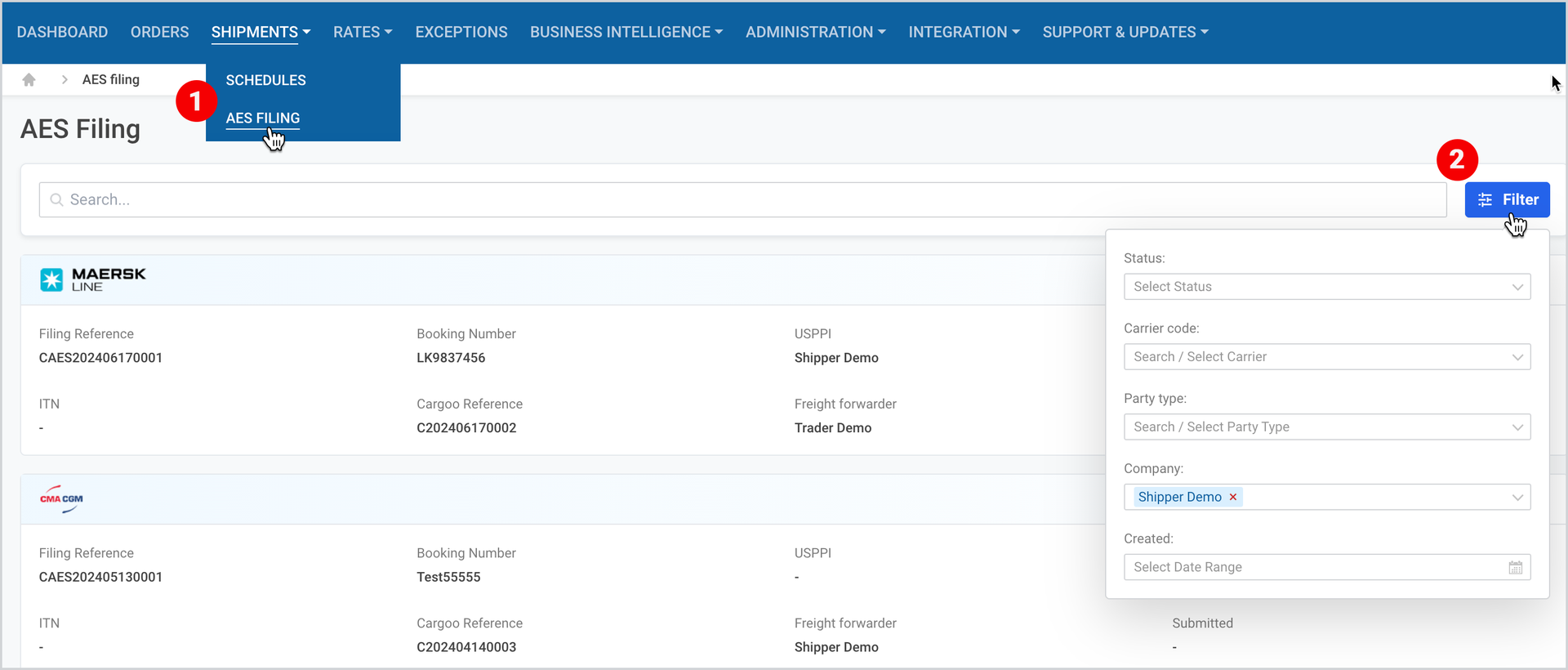
To exit, click anywhere outside the filter window.
Edit or Remove AES
On each AES you can see the following buttons:
- Edit AES – by clicking you can make the required changes in the AES Document Edit page. This action can be performed by the filing creator company for the filings in status Draft, Confirmed, Rejected.
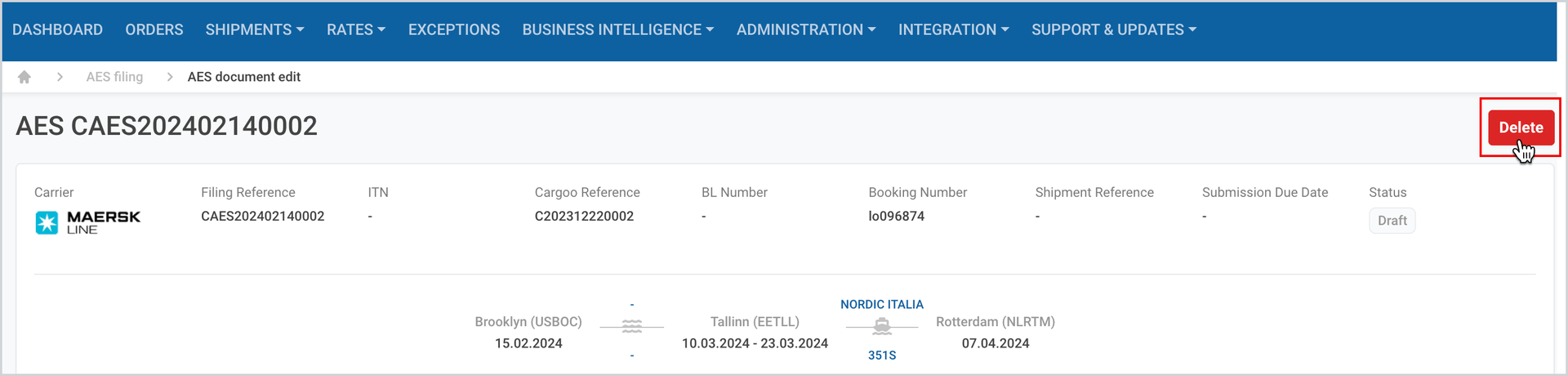
- Remove – by clicking the given AES will be deleted. This action can be performed by the filing creator company for the filings in Draft status.

You can remove AES by clicking on the delete icon at the upper right corner of the AES Document Edit page.
To download the print version of this article, click the PDF icon: