 Carrier Integration Support
User Management
The User Management of Cargoo’s Administration feature involves the same actions for both the Org and Company Admins. In terms of capabilities, as an Org Admin, you can access and manage all the users of all the companies of your own organization, while as a Company Admin you can access and manage only the users of those companies for which you have a Company Admin role.
Access Your Users
You can access the list of all your users, including the list of pending users, search and filter them as per categories.
- On the Main Menu, under Administration, click User Management to be redirected to the users page.
The users page automatically shows the list of All pending users who have been registered and are waiting for your approval. You may click the Search bar to find the pending user by email or name.
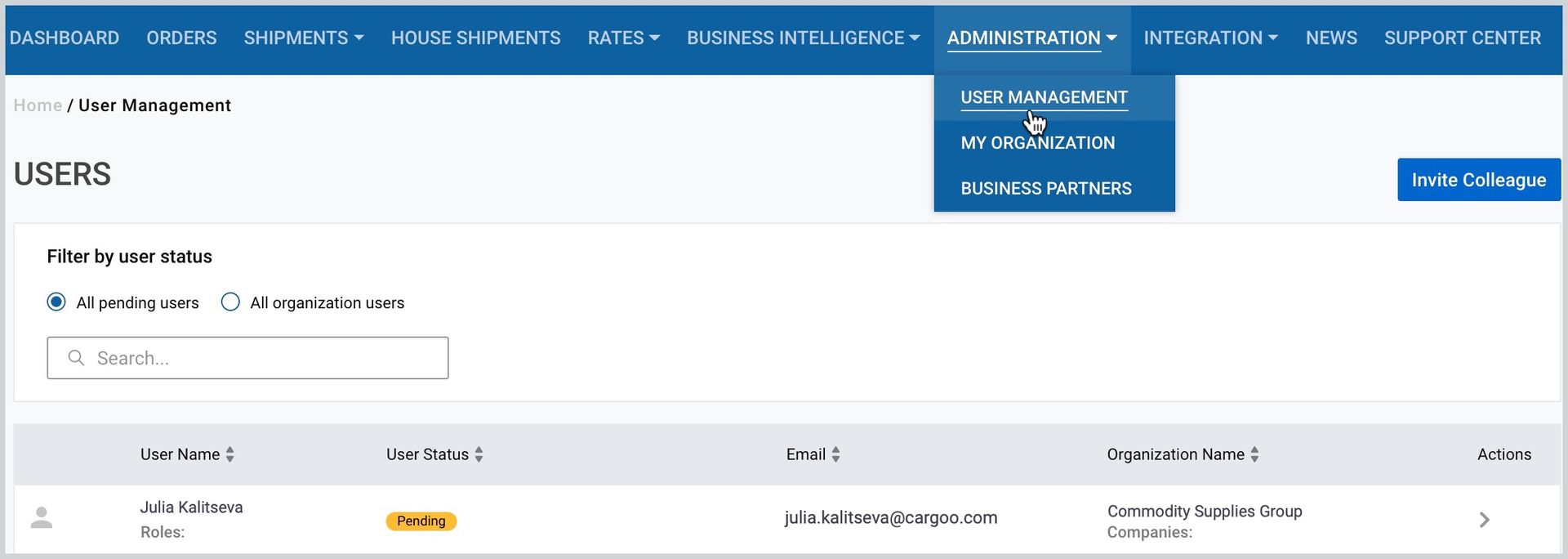
To access all the users of your organization
- Next to all pending users, click All organization users (All users for Company Admin).
- In the Search bar, enter the user's name or email to find the desired user.
- Click Filter to find the users as per the following statuses:
- Approved
- Pending
- Rejected
- Disabled
Manage Your Users
You can manage your users by adding, rejecting, disabling them, or subscribing particular business modules to them.
Add, Approve, Reject or Disable a User
To add a new user, you have two options: to invite a colleague, or approve a user’s request.
To invite a colleague
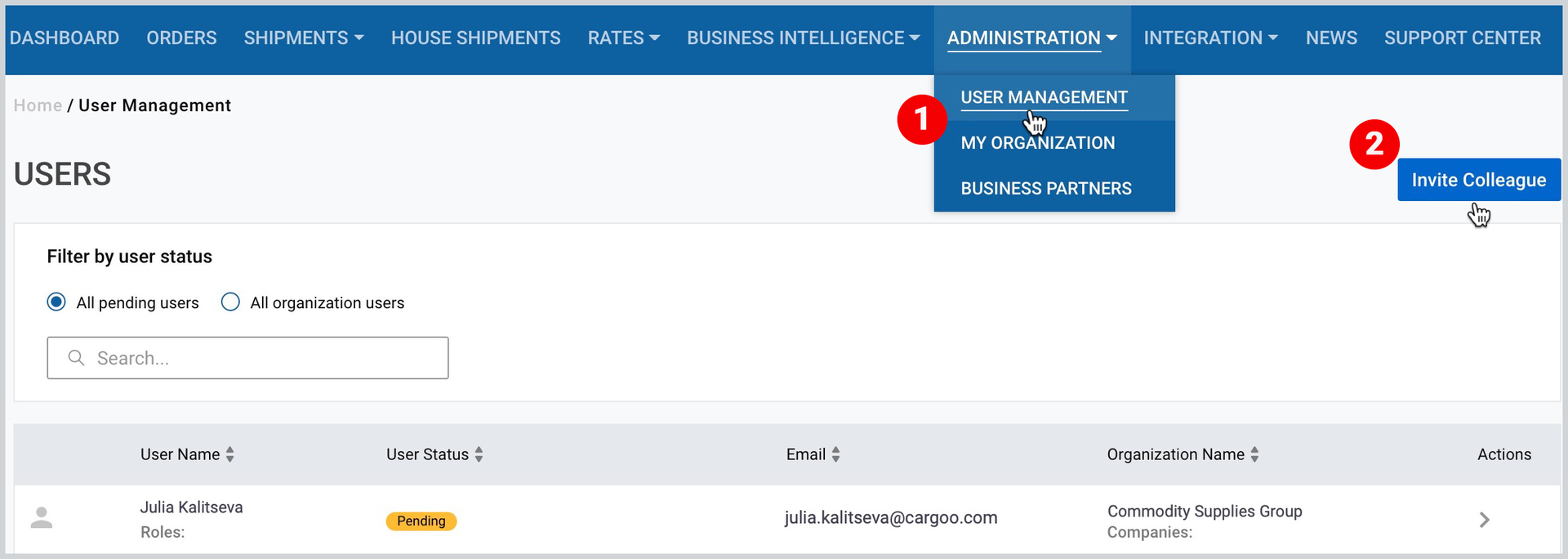
- Click Administration>User Management.
- When you are redirected to your users page, in the top-right corner, click Invite Colleague.
3. In the appeared window, type in the user’s name, email and then click OK.
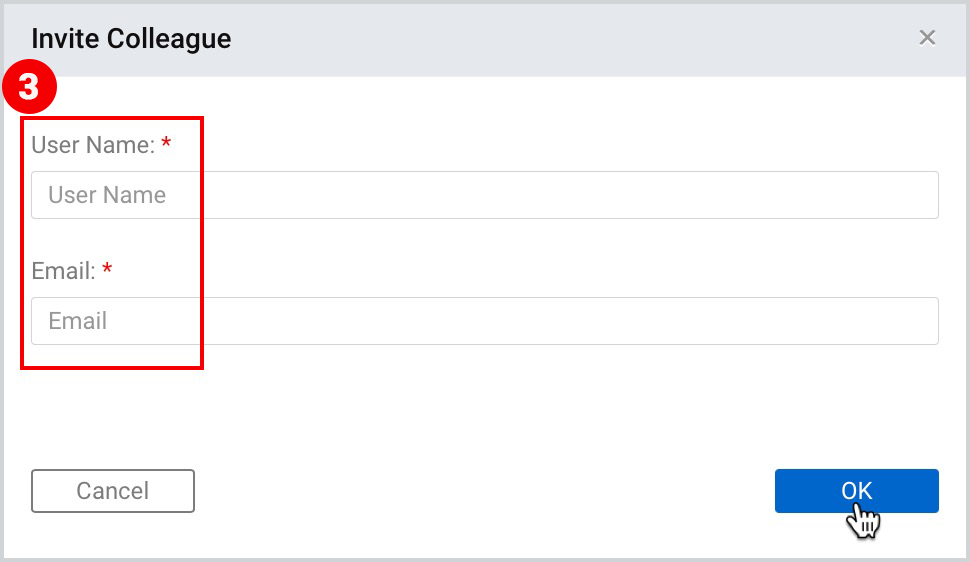
The user will automatically appear on your users page under the status "approved” once he/she receives and confirms the invitation.
To approve or reject a new user
- Click Administration>User Management.
- When the list of pending users appears, point to the desired user and under Actions, click the right-angle bracket (>).
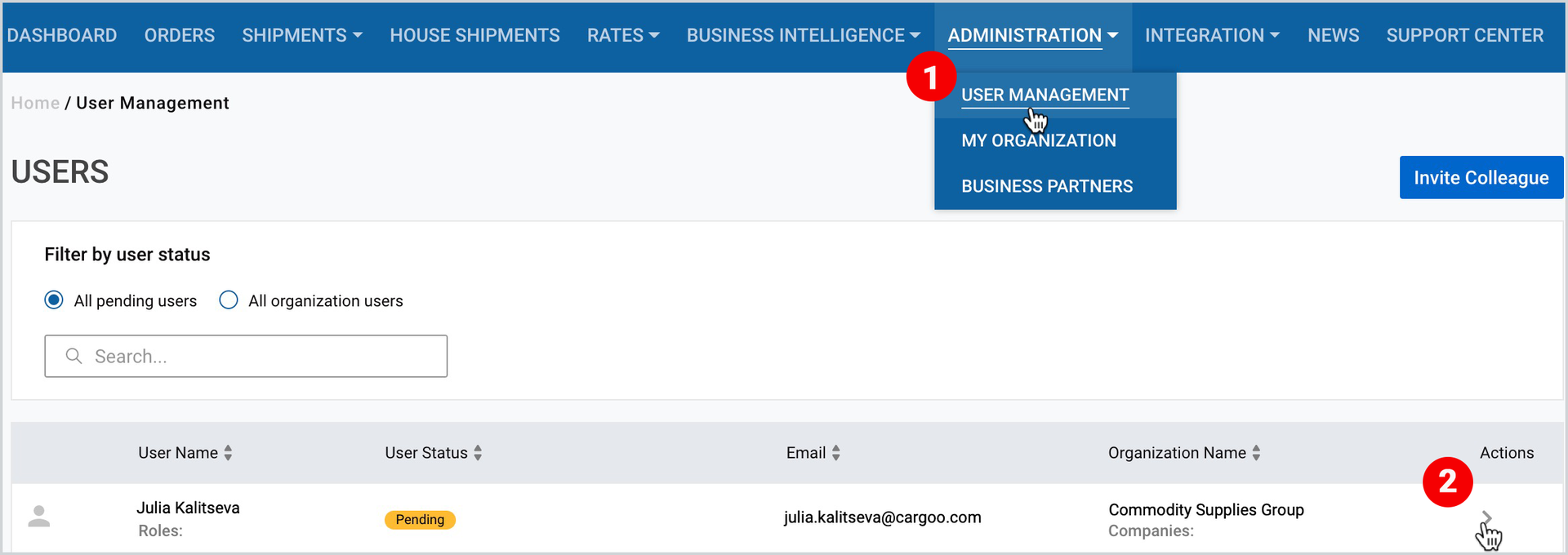
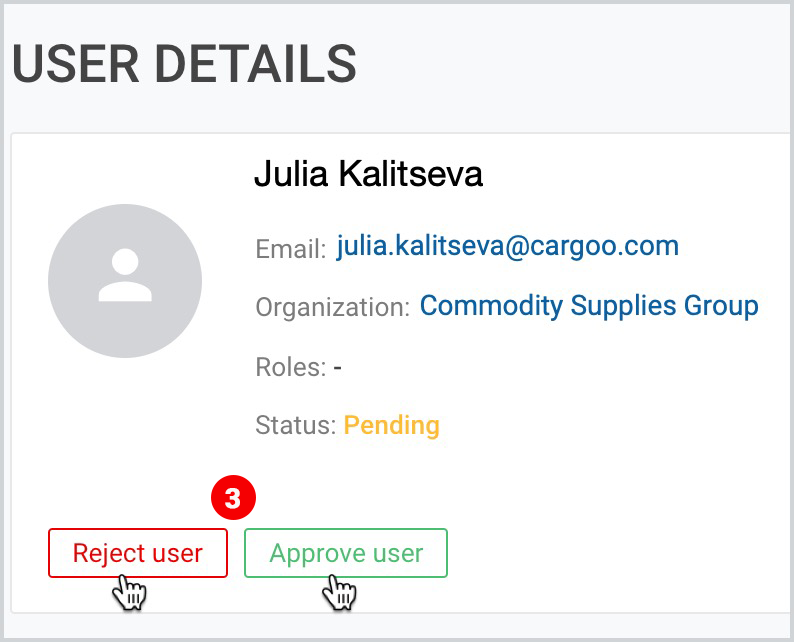
3. When the user details page appears, click Approve user or Reject user.
You can still approve a rejected user any time by taking the following steps:
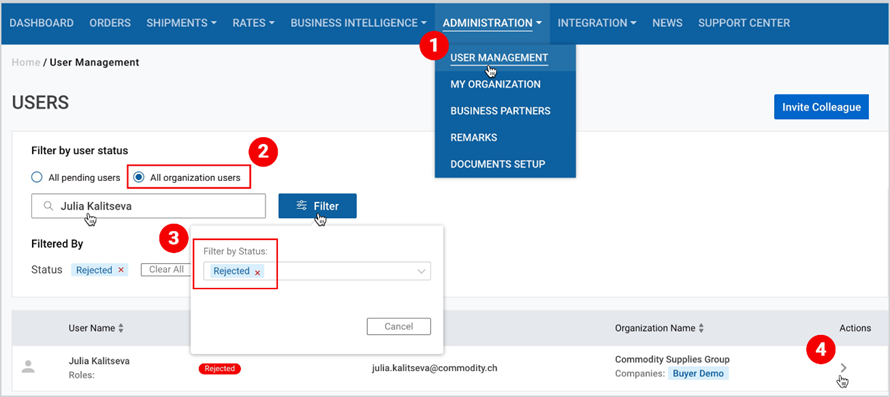
- Click Administration>User Management
- Next to all pending users, click All organization users (All users for Company Admin).
- Find your user in the search bar or filter them under “rejected” status.
- When the rejected user (by searching) or the list of rejected users (by filtering) appears, point to the desired user and under Actions, click the right-angle bracket (>).
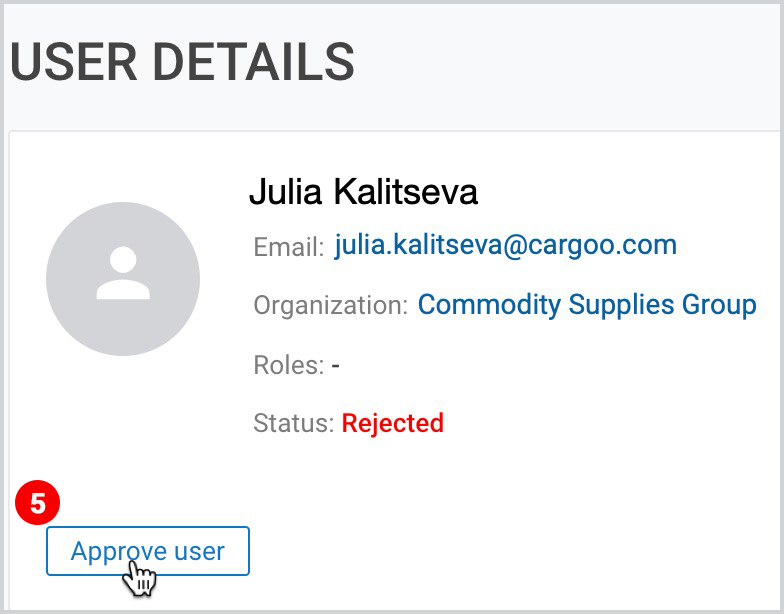
5. When the user details page appears, click Approve user.
To enable/disable a user
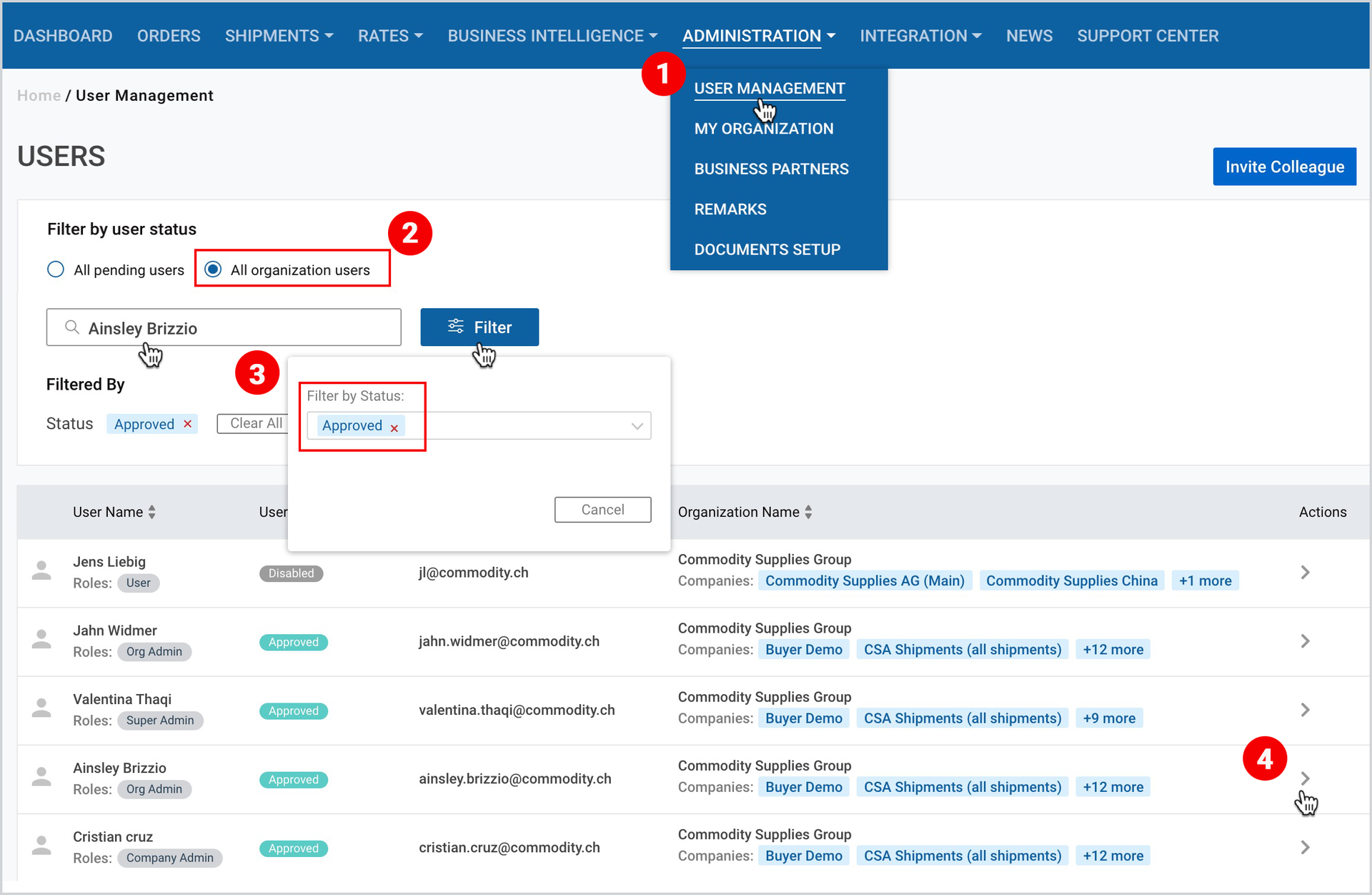
- Click Administration>User Management.
- Next to all pending users, click All organization users (All users for Company Admin)
- Find your user in the search bar or filter them under “approved” status.
- When the user (by searching) or the list of approved users (by filtering) appears, point to the desired user and under Actions, click the right-angle bracket (>).
5. In the upper-right corner of the user details page, switch between enable/disable toggles.

Subscribe Business Modules to Your User
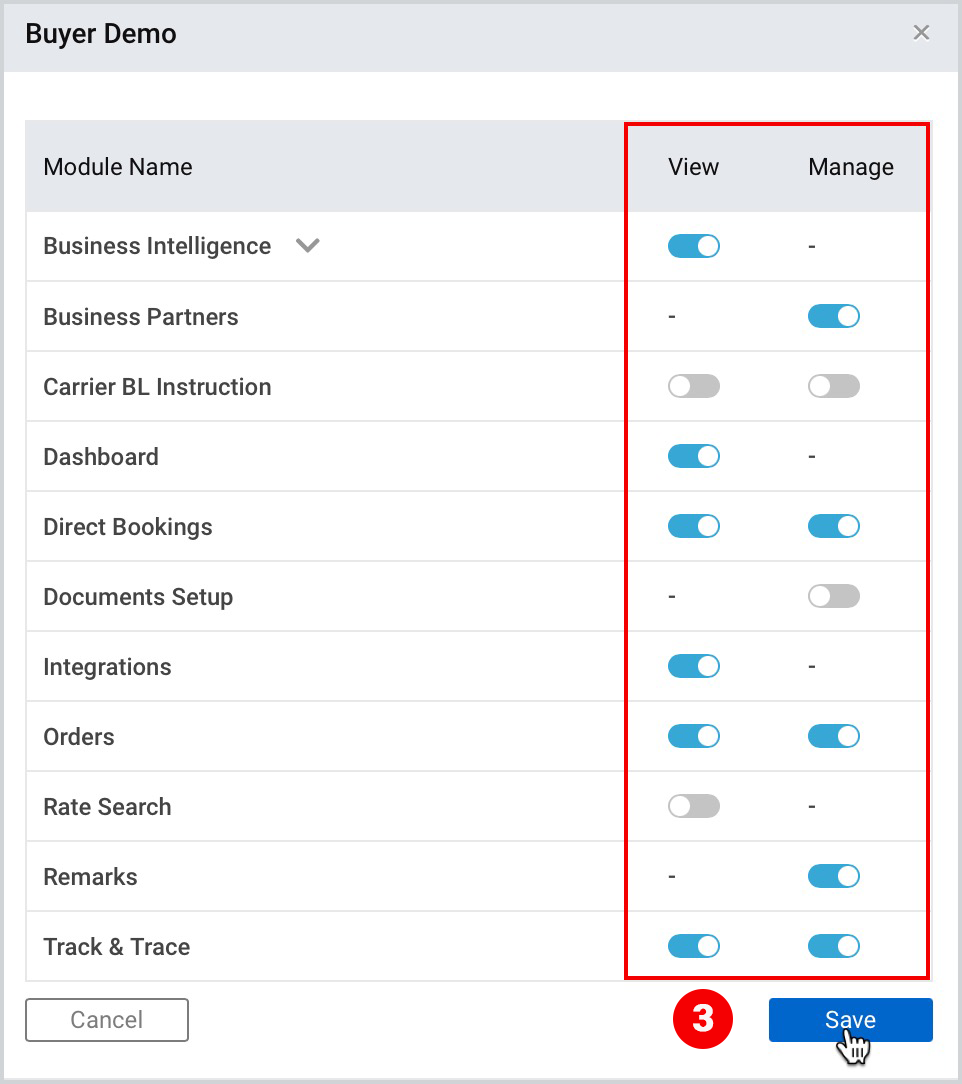
You can subscribe your users individually to selected business modules that their companies are already subscribed to, with the view and/or manage switch-toggles.
To activate or deactivate the business modules for your users
- Take the first 4 steps described here.
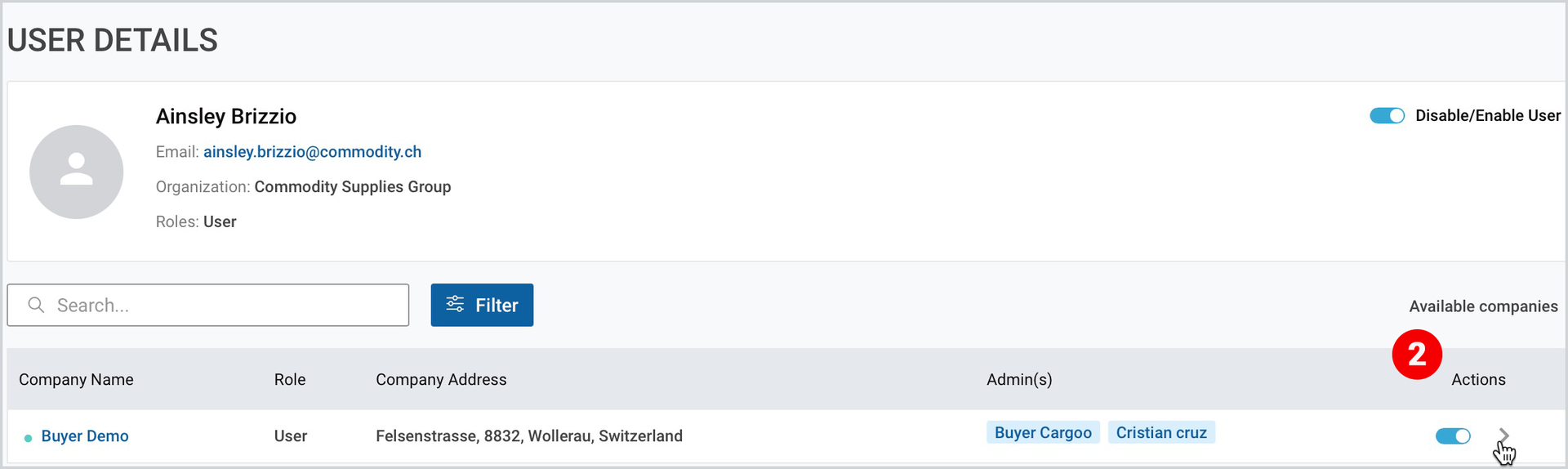
- When the user details page appears, point to one of your organization's companies, and under Actions, click the drop-down icon.
3. When the pop-up window the list of modules appears, activate/deactivate the view and/or manage toggle-switches of the given company for the given user and then click Save.
Note | The accesses of the modules already granted to the companies are automatically inherited by the Org/Company admins and can no way be changed by the Cargoo administration. |
To download the print version of this article click the PDF icon: