 Carrier Integration Support
Verified Gross Mass (VGM)
For VGM, Org Admin(s) or Company Admin(s) shall send subscription requests to the Cargoo administration to activate VGM module. After subscription, they can grant or limit the access of the module individually to their users with both view (all the fields are non-editable) and manage modes or either of them (for more details on user accesses see User Management, Subscribe Business Modules to Your Users).
Note | To submit a VGM successfully, your company ID must be linked to an ID in the receiving carrier’s system. If you have placed the booking earlier, this has been ensured already. However, you may receive an error if that link has not yet been established. If in doubt, please reach out to support@cargoo.com. |
Add VGM
VGM can be created/added only for the shipments with status Confirmed and higher.
You can add/edit VGM, if
- your company is subscribed to the VGM module, and you are granted with the VGM manage right, and
- your company has one of the following roles in the shipment:
- Shipment Creator
- Origin Handling Agent
- Booking Agent
- Shipper
- Supplier
- Origin Broker
- FOB Agent
You can add the VGM per container, edit it and check the VGM status.
To add a VGM, take the following steps:
- Under Main Menu, click Shipments->Shipments.
- Find your booked shipment on the shipment list and click on it.
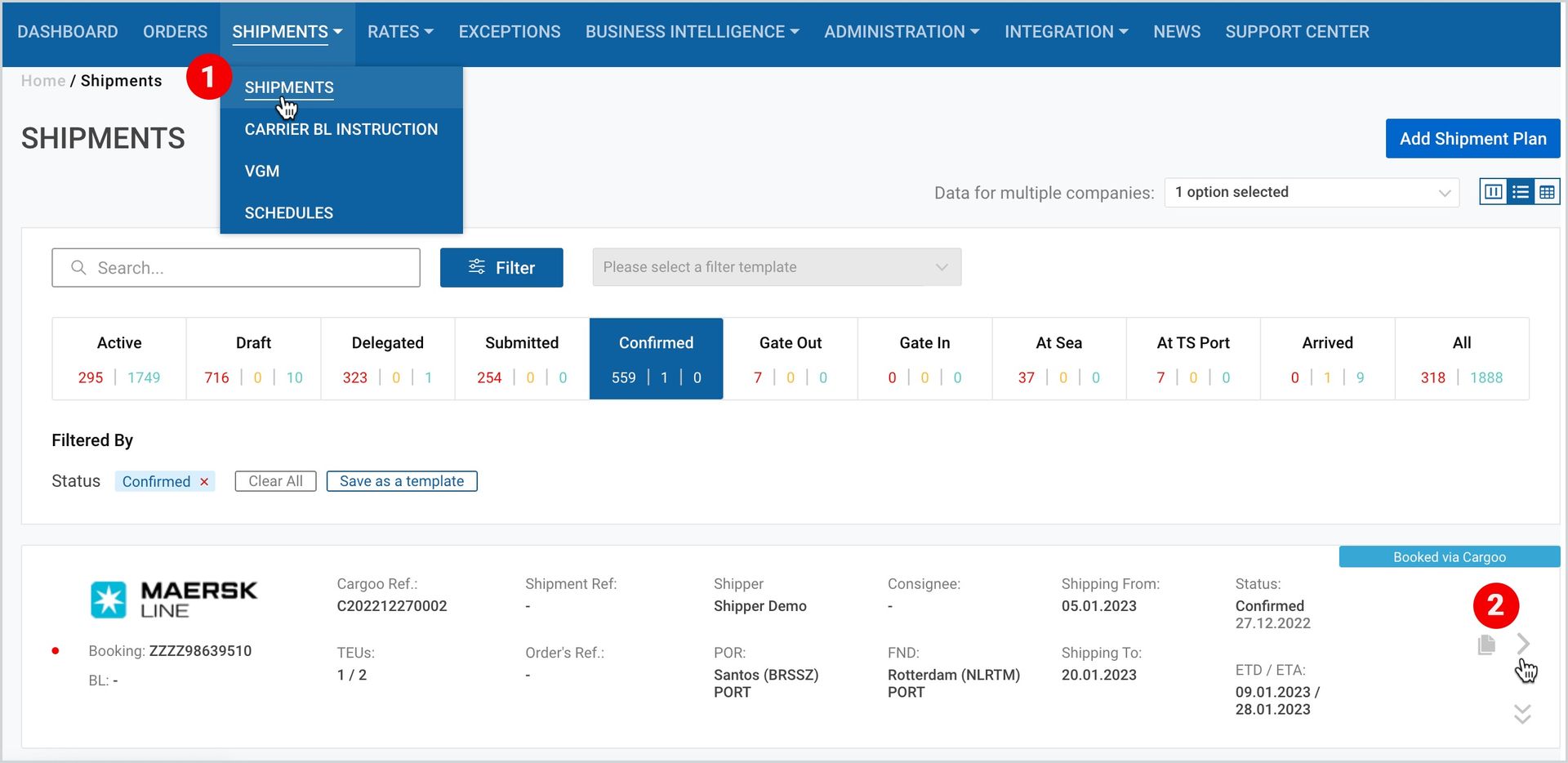
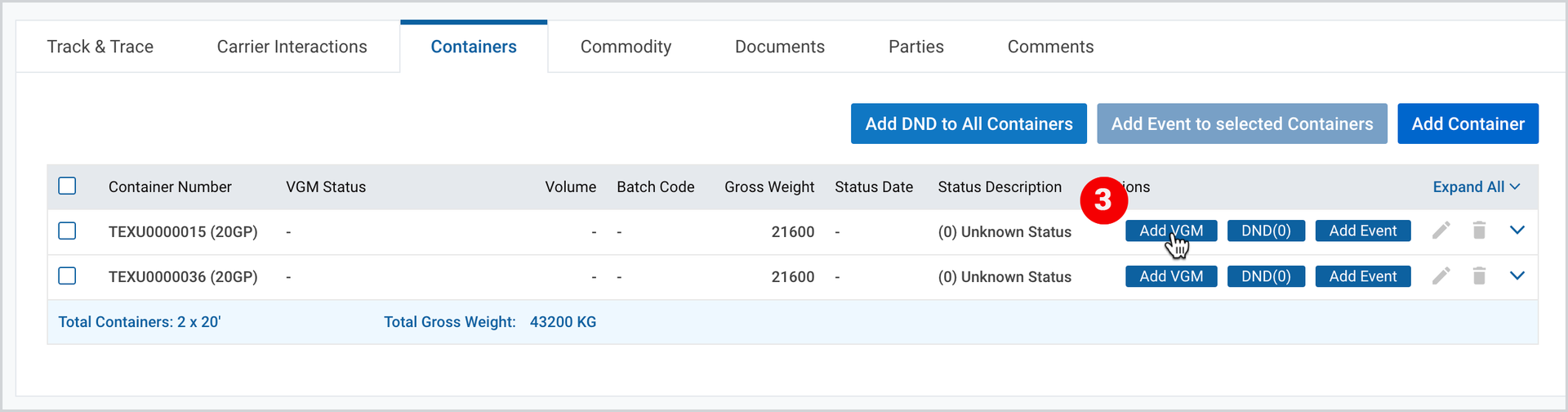
3. In the Containers tab, on the desired container, click Add VGM.
4. As the popup-window appears, fill in the required (and optional) data and click Save and Submit.
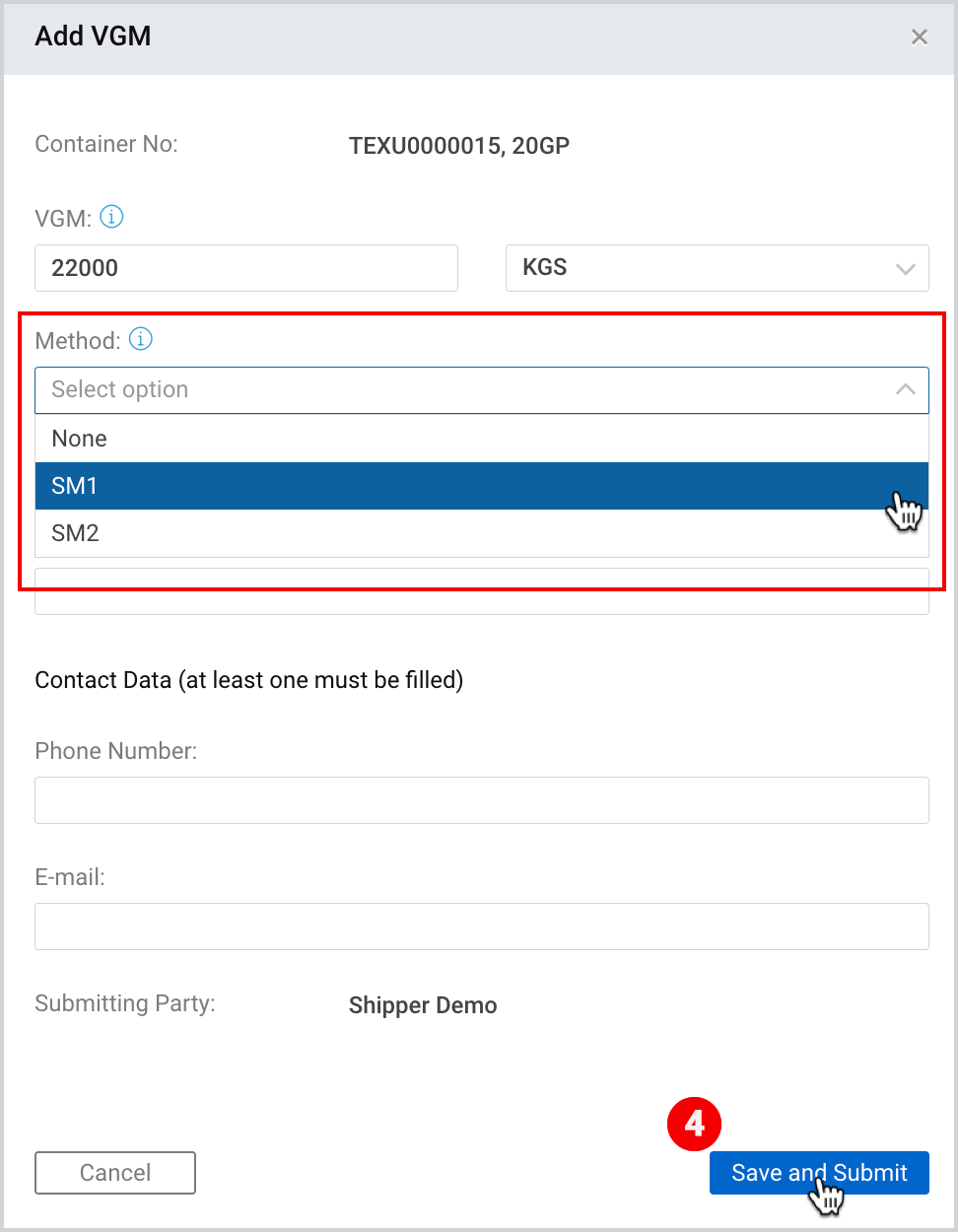
Note | There are 2 approved methods to declare the gross mass of cargo when creating the VGM:
|
Note | The VGM responsible party is pre-set to be the shipper. It is not possible to change the VGM responsible party in Cargoo. As submitting party, you must be authorized by the shipper to submit on their behalf. |
Edit VGM
Irrespective of which party created the VGM, it can be edited by all the parties that have manage right mentioned above.
VGM can be edited both from Track & Trace and from VGM page.
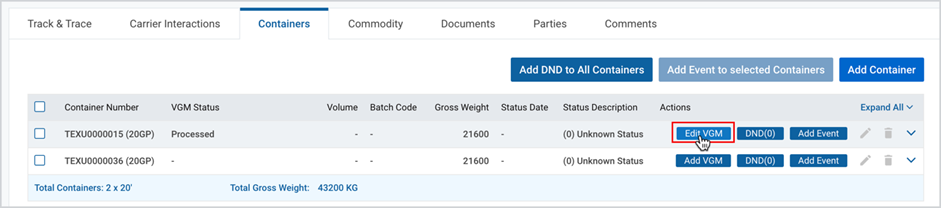
In Track & Trace, after you Add VGM, the Add VGM icon turns into the Edit VGM icon, and by clicking it, you can make amendments in the same popup (see the figure here).
Note | VGM can be re-submitted if 1 hour has been passed since the previous submitted VGM’s status has changed to “Delivered to Carrier” (irrespective of the fact whether the status “Delivered to Carrier” is further changed to “Received from Carrier” or not)
If VGM status is Received or higher (Received, Rejected, Accepted), then VGM next version can be re-submitted. Every time User resubmits VGM, status is changed to “Processed by Cargoo |
To edit VGM from VGM page:
- Under Shipments, click VGM.
- As you find the desired VGM, at the right part of VGM card, click “Edit” icon.
- Take step 4 shown in the figure here.
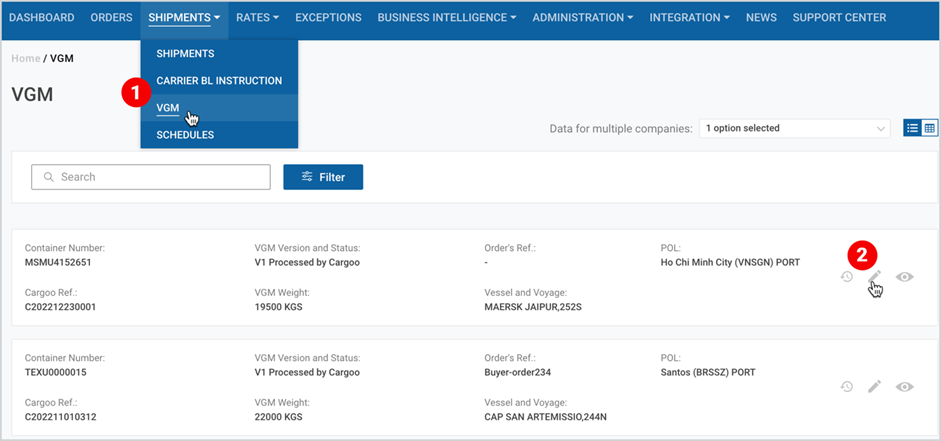
VGM List
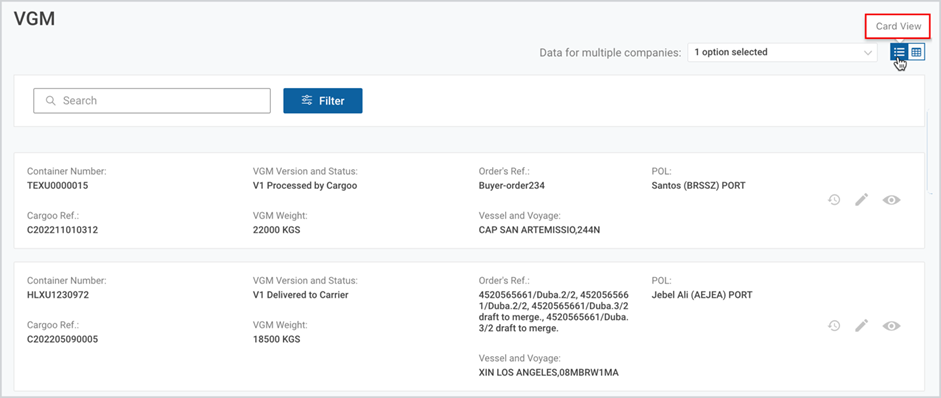
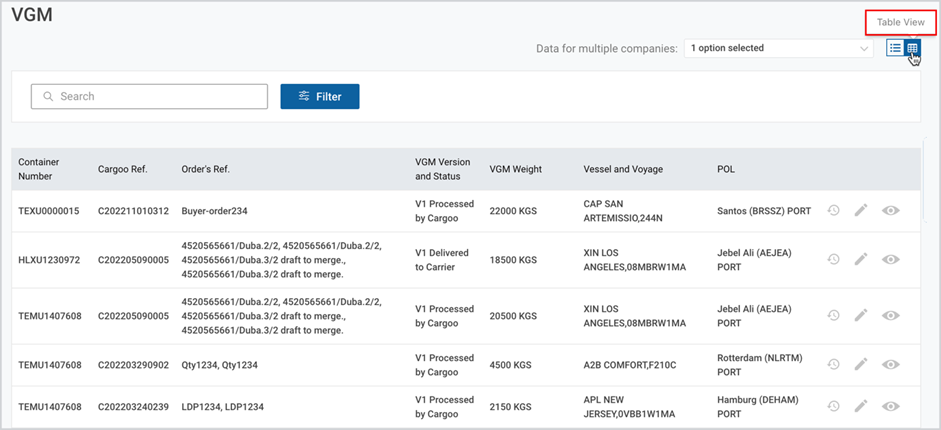
As you click on the VGM section of Shipments module, you can see the list of all your VGMs in the card view. You can switch them to table view by clicking the table view icon at the upper-right corner of the page.
| Card view |
 |
| Table view |
 |
At the right part of each order card/table, there are three clickable icons
- History (you can see the VGM status history)
- Edit (see Edit VGM)
- View (you can view non-editable details of the VGM)

Access Your VGM
You can access your desired VGM by searching or filtering it by the status.
Search your VGM
The VGM search can be performed by
- Container Number
- Cargo Shipment reference
- Port of Origin code
- Order Reference
- Vessel and Voyage
To search for VGM
- Under Main Menu, click Shipments->VGM
- At the upper-left corner, in the search field, fill in the container number (or cargo shipment reference, port of origin code, order reference, vessel and voyage)
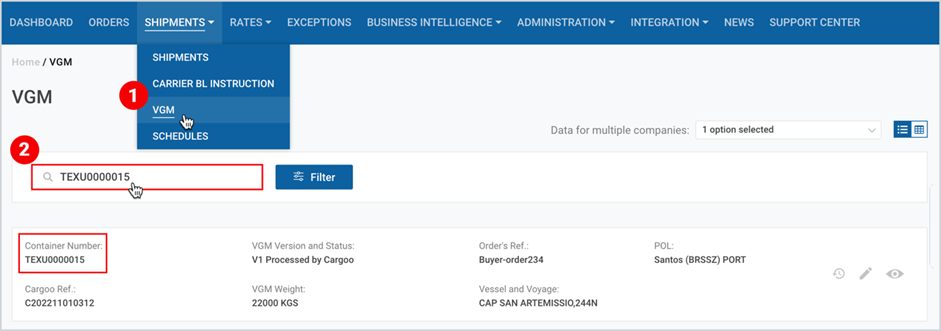
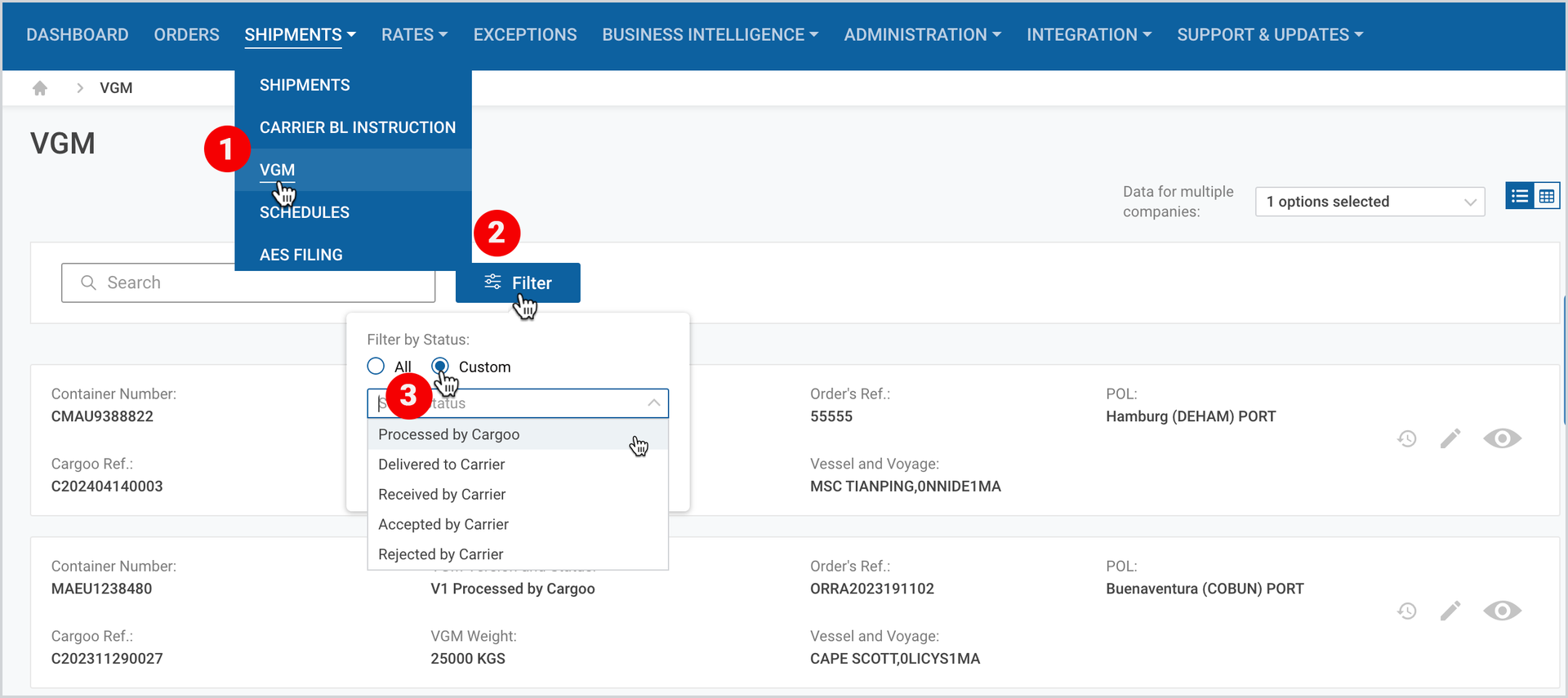
Filter VGM
You may filter VGM by the following statuses:
N | VGM STATUS | DESCRIPTION |
1. | Processed by Cargoo | Message is created and in process to be sent to the Carrier. |
2. | Delivered to Carrier | Message is sent to the Carrier. |
3. | Received by Carrier | Carrier received the message and sent an acknowledgment note in regards the VGM. |
4. | Approved by Carrier | Carrier approved the VGM. |
5. | Reject by Carrier | Carrier refused the VGM and the information about the rejection reason will be visible in Cargoo. |
To filter VGM,
- Click Shipments->VGM.
- At the upper-left corner, next to the Search field, click Filter.
- Click Custom and select the VGM status.
To download the print version of this article, click the PDF icon: