 Carrier Integration Support
Creation of a Single Shipment Plan
A single shipment plan can be created from the Orders module. In this case, one shipment plan is created for all items listed in one order.
To create a single shipment plan from the Orders module, you can directly start either from the Order Card or check the order details in view mode and start the shipment creation process after. The steps for the former are described in Option 1, and for the letter – in Option 2 below.
Option 1
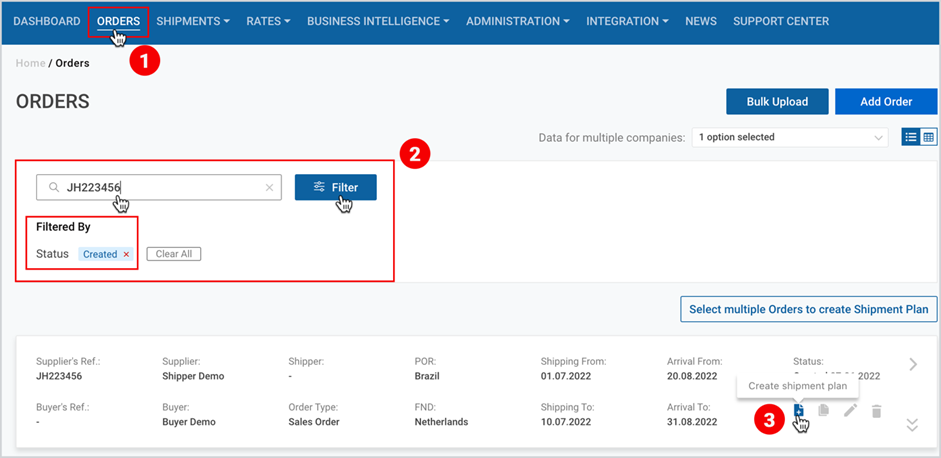
- Under Main Menu, click Orders․
- When the orders list page appears, find your order on the list, or search or filter it by “Created” status․
- As you find your desired order card, click “create shipment plan” button (the button is available only to the order creator company, the booking agent or the Origin Handling Agent), (this step is missing if you see your order in the table view).
Option 2
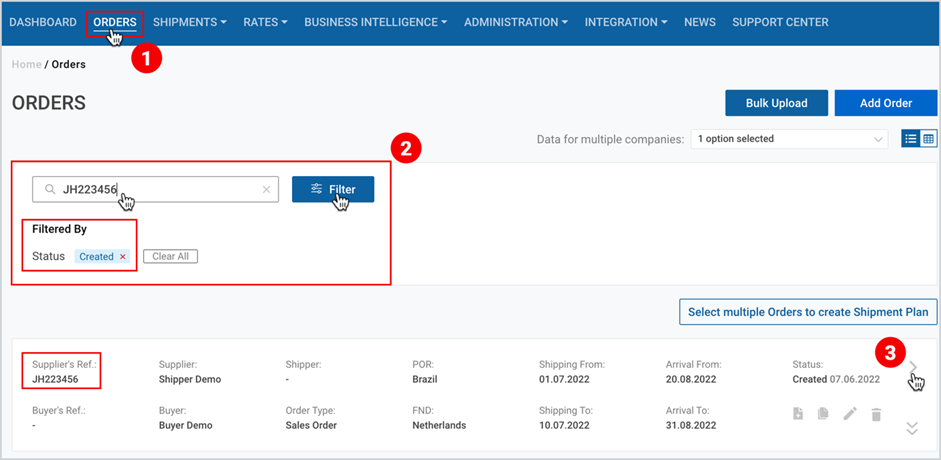
- Under Main Menu, click Orders․
- When the orders list page appears, find your order on the list, or search or filter it by “Created” status․
- As you find your desired order card/table, click on it or the right-angle bracket.
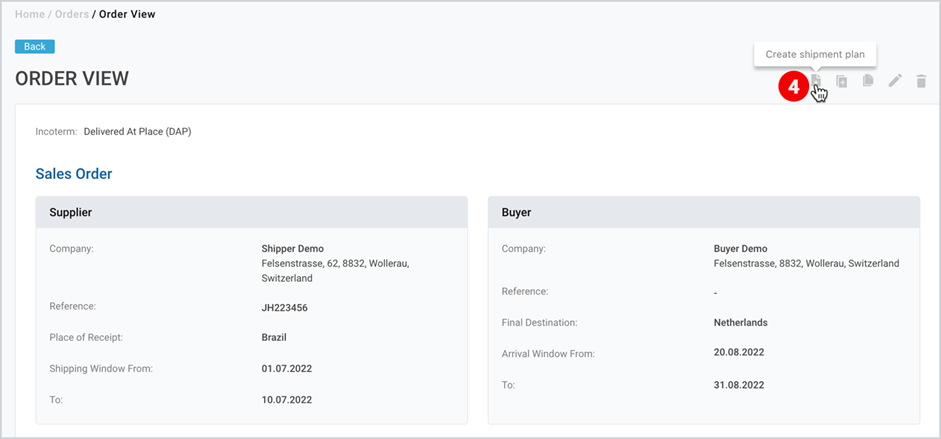
4. At the upper right corner of the appeared page, click Create shipment plan button.
Note | If you have not filled in the shipment window and/or container details, while creating the order, popup windows will appear with the request to fill in this information. |
As you click the Create shipment plan button, you are delegated to the Shipment Plan page. On this page, you first of all have to select between the following two booking submission flows:
- I want to submit booking request myself (hereinafter referred to “Submission flow”)
- I want to delegate booking submission to my business partner (hereinafter referred to as “Delegation flow”).
Both flows include Initial and 4 consecutive steps. They are described separately in Submitting or Delegating a Booking Request.
To download the print version of this article, click the PDF icon: