 Cargoo Support
Special Features: House Shipments Report Category
Here you can view all the data on your organization’s/company’s house shipments.
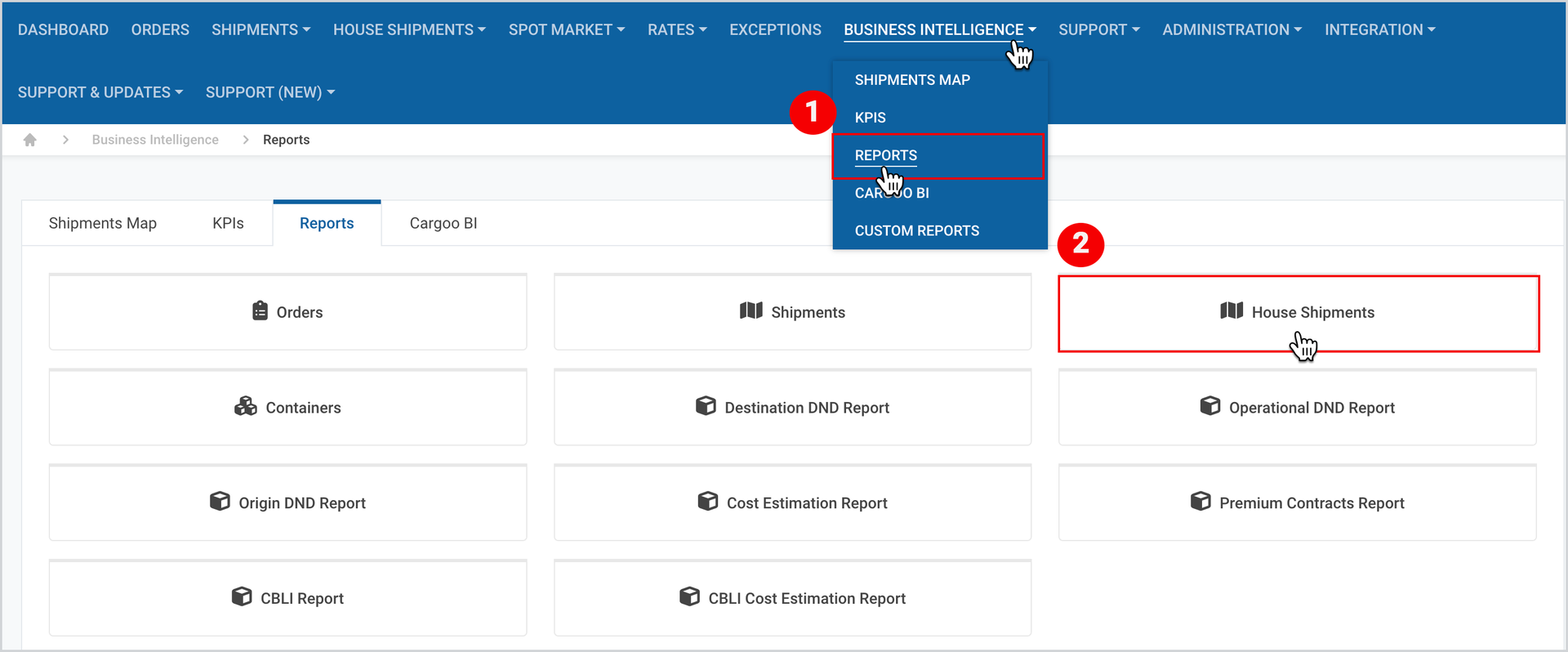
To view the House Shipments report category
- Click Business Intelligence>Reports.
- Select House Shipments report category.
Before generating a report, make sure that
- You’re using the right Company account.
(For more details, please see Business Intelligence: Reports Section article.) - You have checked the Data for multiple companies: section and have selected all the companies for which you are looking to get the data.
(For more details, please see Common Features: Data for Multiple Companies article.) - All Filters and Additional Filters are set. To set the Filters and Additional Filters follow the steps described in Filter by and Additional Filters.
Tip | Save the filter configurations as a template in case you use the same filter configurations repeatedly or use existing templates if any. (For more details, please see Common Features: Save Your Filter Configurations as a Template article.) |
Once all filters are set, generate a report and use report table features to view and analyze the report online or use the provided options to download or save it to preferred file formats.
(For more details on report table features, please see Common Features: Report Table article.)
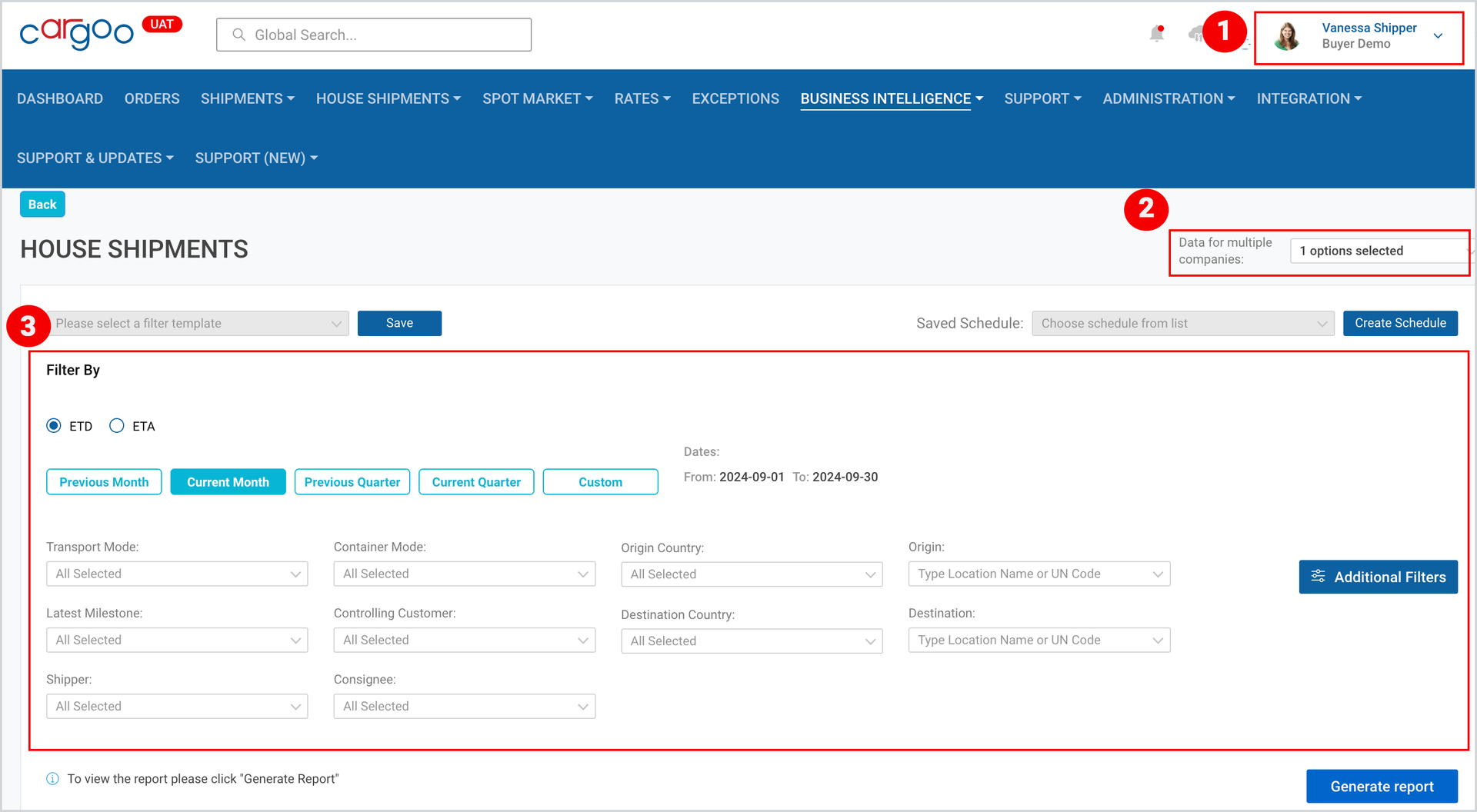
Figure 2
Aside from the Common features, the House Shipments report category offers the following special features:
- Create Schedule (Report Scheduler)
- Filter by
- Additional Filters
Create Schedule
This feature allows you to automate your reporting process, saving time and effort. With the Report Scheduler, you can schedule the generation and delivery of reports at the preferred intervals (even multiple schedules per day) and the preferred format (CSV or Excel) having the required information at hand. You can find the details on the creation of the schedule in Create Schedule, in Special Features: Shipments Report Category.
Filter by
To set the filters
- Select between ETA and ETD to filter the house shipments as per the respective milestone.
- Select the date range from the provided options, or select Custom and use the calendars to select From and To dates.
- Use the drop-down menus of the following filters to narrow down the search results and filter the data accordingly.
- Transport Mode
- Latest Milestone
- Shipper
- Container Mode
- Controlling Customer
- Consignee
- Carrier
- Origin Country
- Destination Country
4. Type in the Location Names or the UN Codes (UN/LOCODE) for the Origin and the Destination.
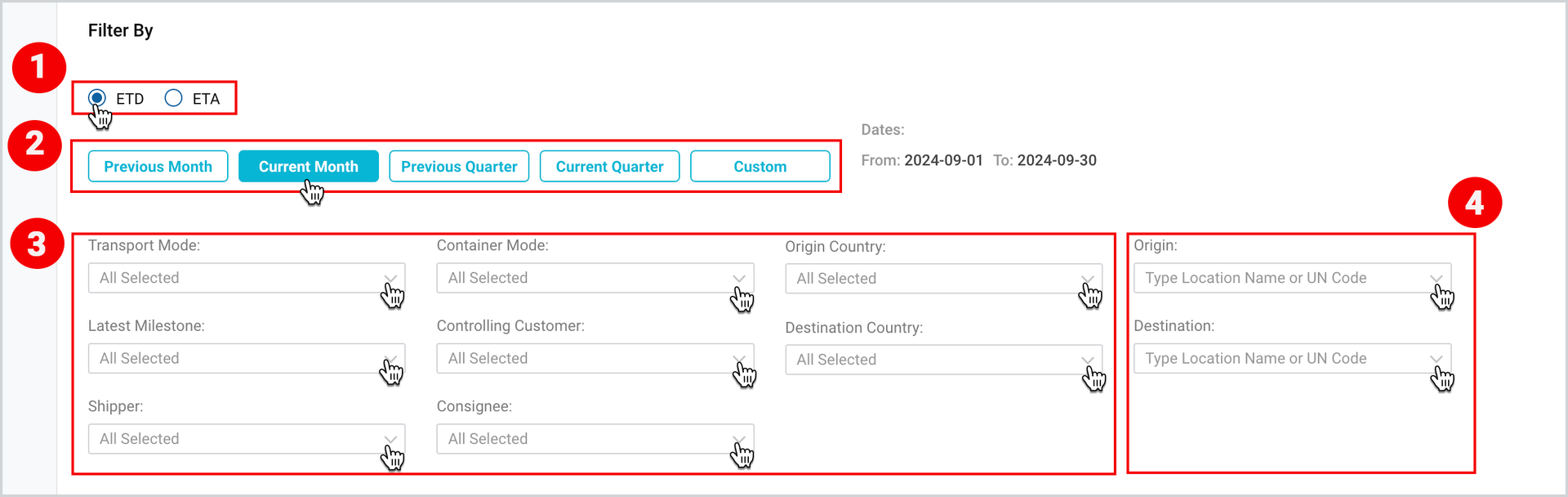
Figure 3
Additional Filters
Additional Filters allow you to add/display the following fields to the report:
- Parties (Business Partners)
- All Documents (checkbox)
- Split by Shipment (checkbox)
Show in Report: Parties
To add Parties to the report
- Select Additional Filters.
- Open the drop-down menu for Parties and select more Parties or deselect the default selected options.
- Click Apply.
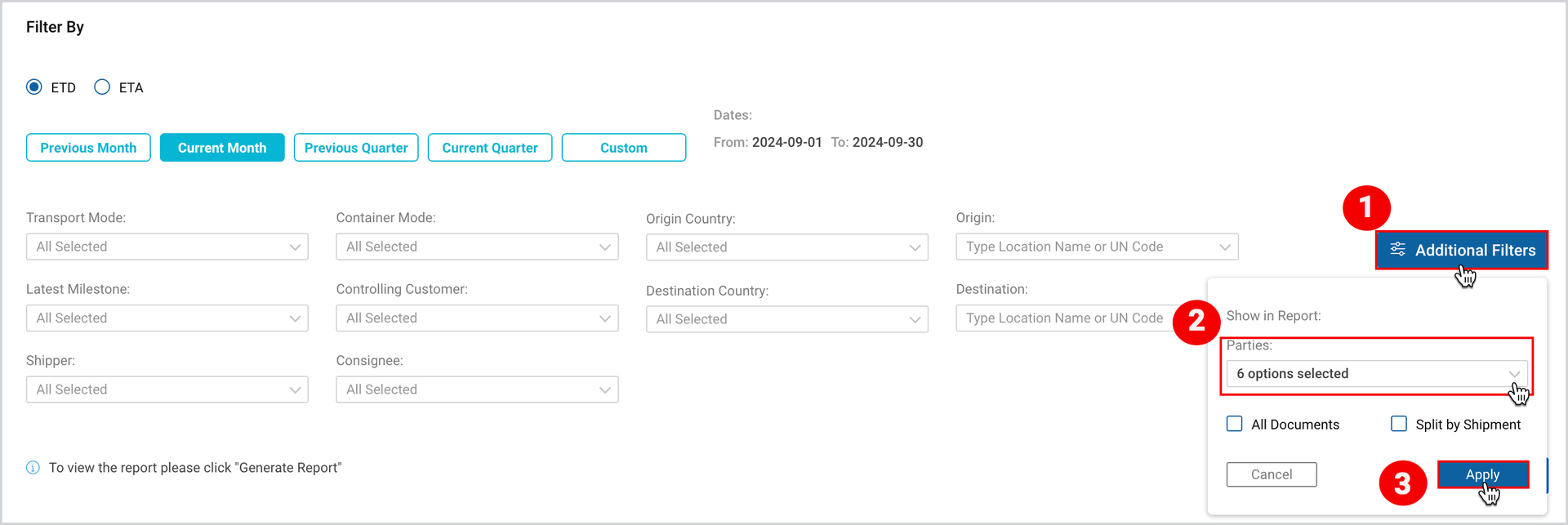
Figure 4
By default, the below mentioned 6 (six) Parties (Business Partners) are selected and will be reflected in the report only if there is any information about them.
- Buyer
- Supplier
- Carrier
- Owner
- Shipper
- Consignee
Show in Report: Checkboxes
To add more fields to the report
- Select Additional Filters.
- Select the checkboxes of the field you want to be shown in the report.
- Click Apply.
Note | Information on the list of columns added per field is given in Table 1: List of Columns Added per Field below. |
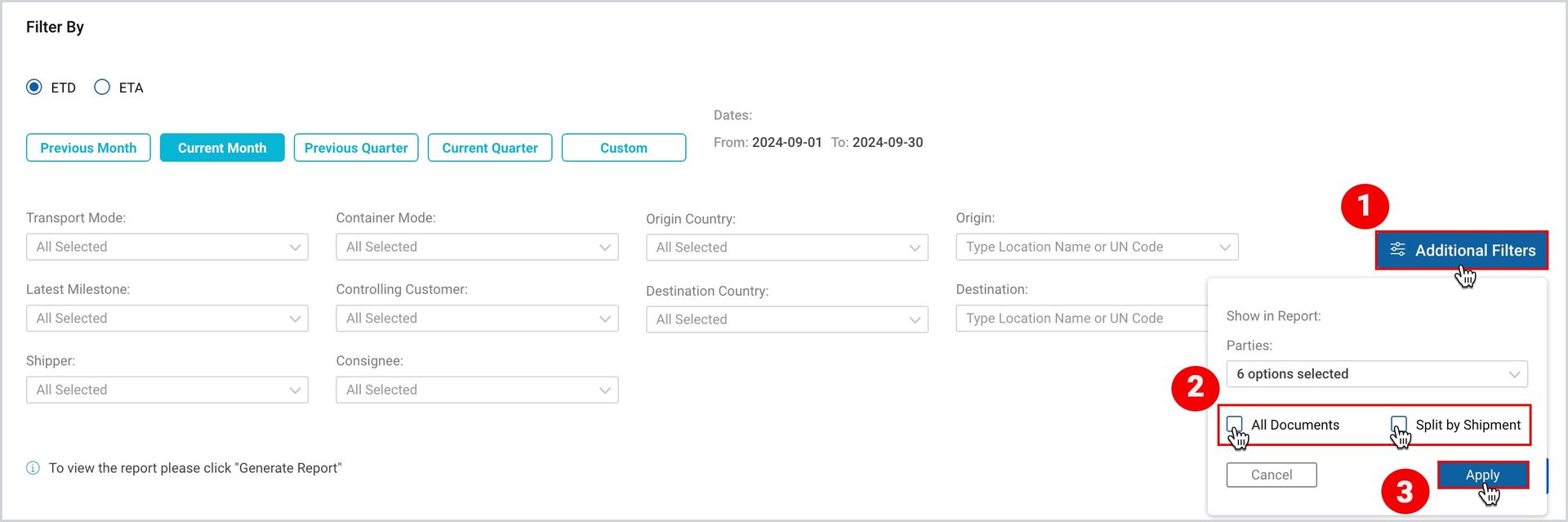
Figure 5
Table 1: List of Columns Added per Field
Fields | Columns |
All Documents |
|
Split by Shipment | Each house shipment’s related shipment is shown in a separate row altering behavior of Cargoo shipment related fields. |
To download the print version of this article, click the PDF icon: