 Cargoo Support
Dashboard
For this module, Org or Company Admins need to send a subscription request to the Cargoo administration. Once subscribed, they can assign only View rights to their users. Based on user access and roles, only limited dashboard widgets are available (for more details on user access see User Management, Subscribe Business Modules to Your Users).
Click on Dashboard to access the page.
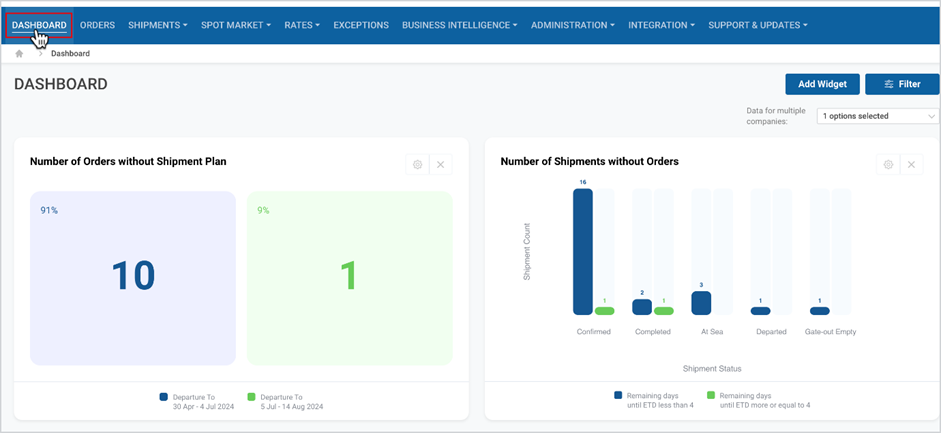
Display Specific Dashboard Data
Specific data will be displayed by selecting following options:
- Filter
- Adding Widget
- Data For Multiple Companies (only available for users with access to multiple companies)
Filter
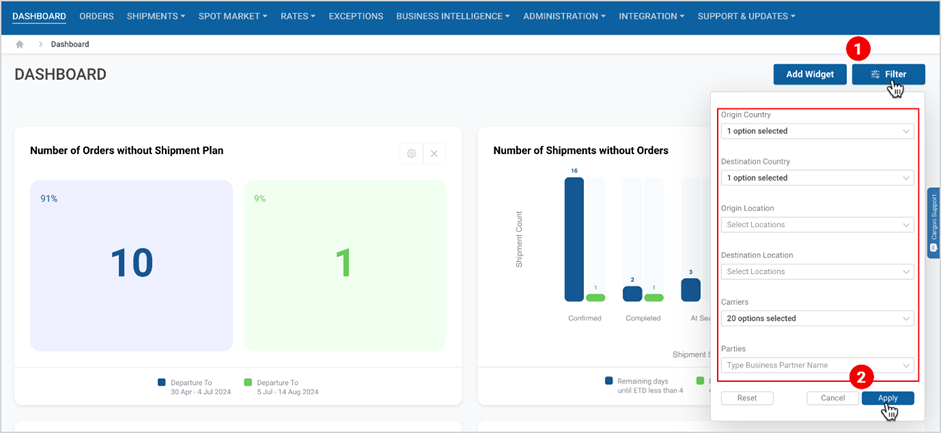
Widgets can be filtered by following criteria:
- Origin Country
- Destination Country
- Origin Location
- Destination Location
- Carriers
- Parties
To filter
- Click Filter.
- Select the criteria and click Apply.
Data For Multiple Companies
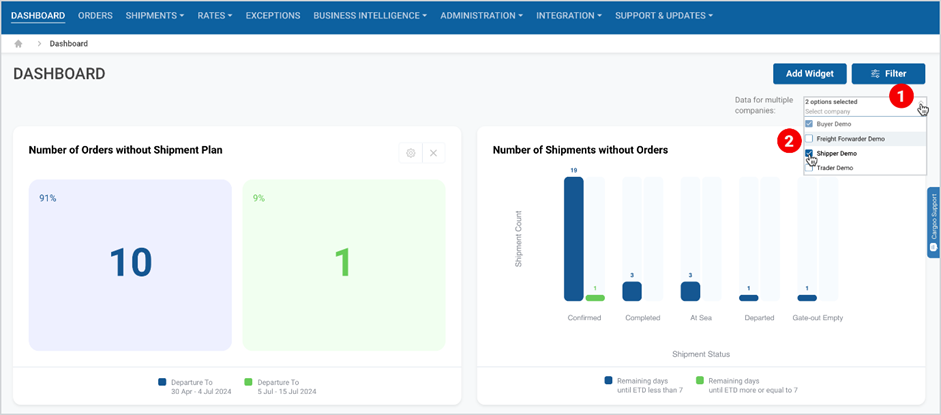
By default, the Dashboard displays data for one company. However, depending on your account access, you can see data for multiple companies.
To see the data from multiple companies:
- Click on the drop-down menu.
- Select from the list of companies.
Add Widget
Some widgets may not be visible on the Dashboard initially butbut can be added.
- Click Add Widget.
- Select the required widget and click Add Widget.
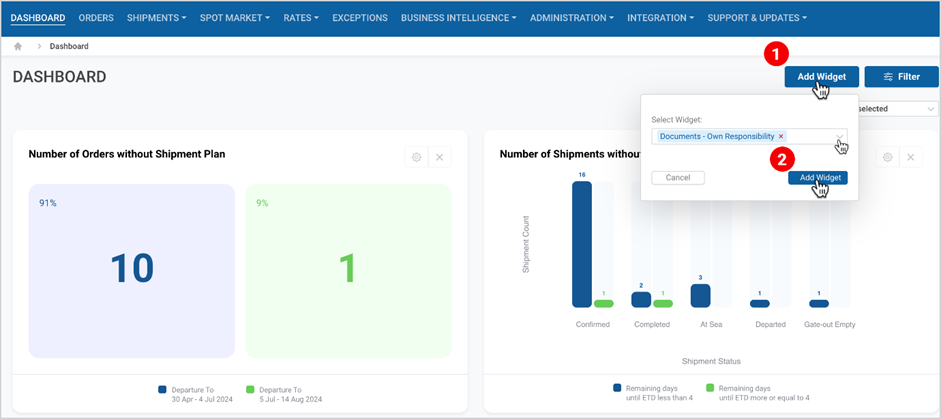
If all the widgets are visible on the Dashboard, then the selection field will be empty.
Widgets
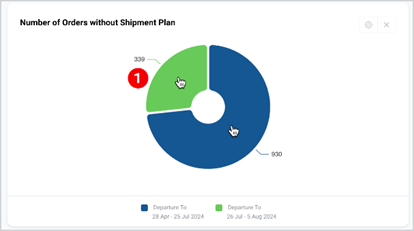
Each widget is an individual element, such as a pie chart, KPI card, or a bar chart in blue and green colors with its settings and customizations. The blue segment represents priority items, while the green segment represents less urgent ones.
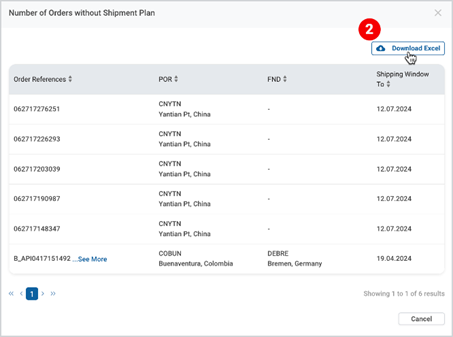
Upon clicking on each chart’s colors, detailed information will appear in a pop-up, which can be downloaded in Excel format.
 |  |
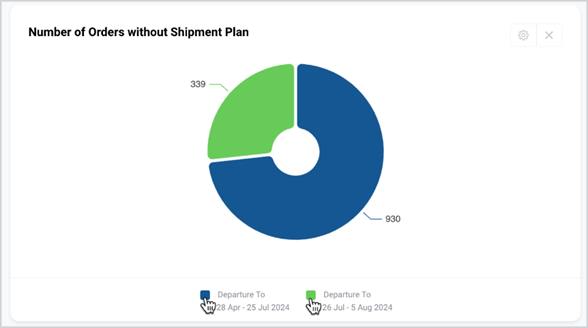
Upon clicking on the color legend underneath the chart, you can either enable or disable visibility of the data.
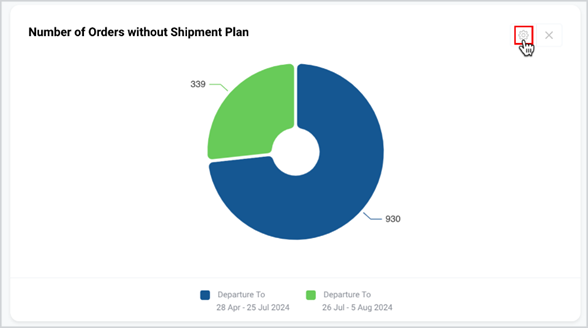
Settings can be customized for each widget.
Note | Shipments older than one year are not included in the Dashboard. Default setting displays data from past three months. |
Widgets can be removed from your Dashboard by clicking on the “x” button at the upper right corner of the widget. Removed widgets can be restored again by clicking on the “Add Widget” button.
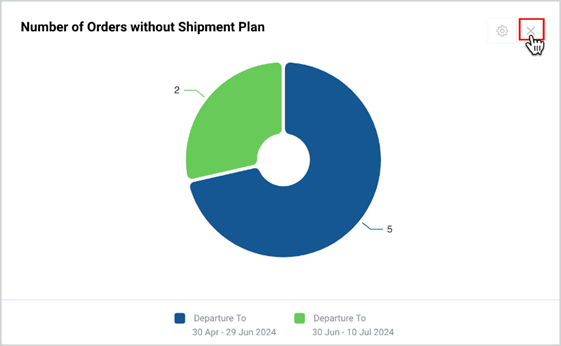
Note | Widget descriptions and customizations are based on Date of July 16th for all time frame calculations. |
Table 1: Widgets Descriptions
WIDGET | DESCRIPTION | BLUE | GREEN |
Orders Widgets |
|
|
|
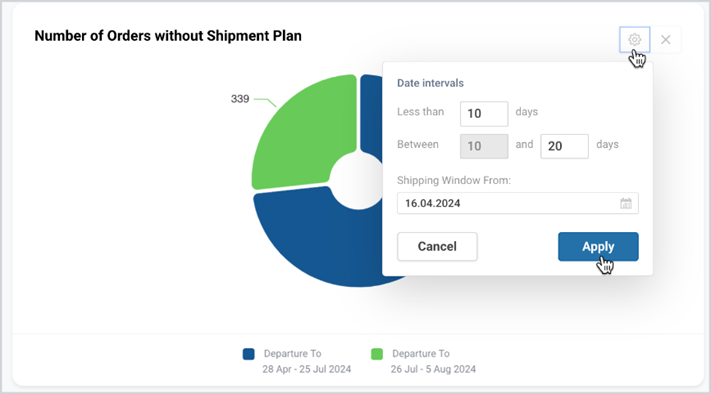
Number of Orders without Shipment Plan | This widget displays orders in status Created without linked shipment plans, or with linked shipment plans that are in status Cancelled/Rejected. By selecting a “Shipping Window From”, data related with “Departure To” shipments will be displayed.
If no shipping window is selected, orders with no "Shipping Window From" date are also included. | Number of Orders with “Departure To” date before today and earlier + number of days specified in Less than field (e.g. Today: July 16 Before today: July 15 + Less than 10 days = 25 Jul 2024) The starting date is the earliest shipment departure date after all filters applied. | Number of Orders with Departure within first and second value of Between field (e.g. |
WIDGET | DESCRIPTION | BLUE | GREEN |
Shipments Widgets |
|
|
|
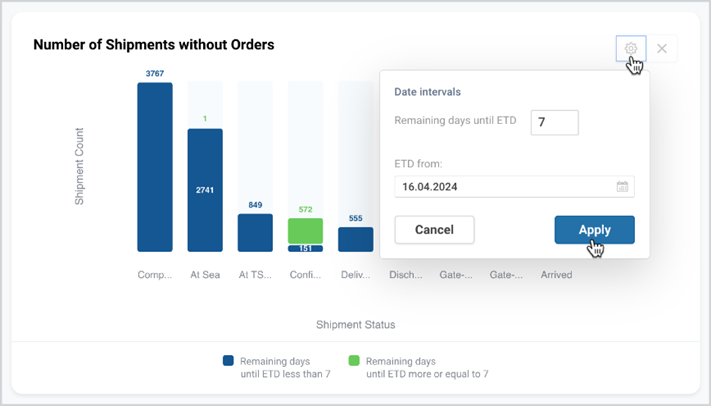
Number of Shipments without Orders | The widget displays Shipments from the Confirmed status onward, which are not linked to any order (i.e. shipment created via Direct Booking). If no “ETD from” is selected, shipments with no ETD date are also included. | Number of shipments with ETD before today and earlier + number of days specified in Remaining days until ETD field
The starting date is the earliest departure date after all filters applied. | Number of shipments with ETD from today+ number of days specified in Remaining days until ETD field |
WIDGET | DESCRIPTION | BLUE | GREEN |
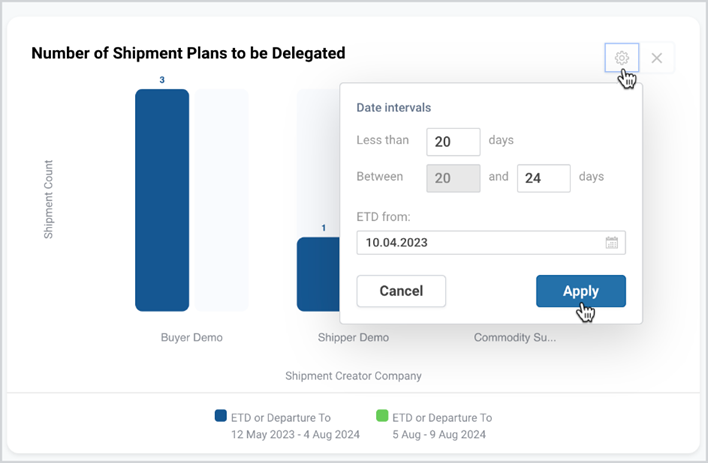
Number of Shipment Plans to be Delegated | The widget displays shipments in status Draft where delegate flow was selected but not yet delegated, based on the defined periods in the Settings button.
If no “ETD from” is selected, shipments with no ETD date are also included. |
Number of Shipment Plans with ETD or Departure before today and earlier + number of days specified in Less than field
The starting date is the earliest departure all filters applied.
| Number of Shipment Plans with ETD or Departure within first and second value of Between field
|
WIDGET | DESCRIPTION | BLUE | GREEN |
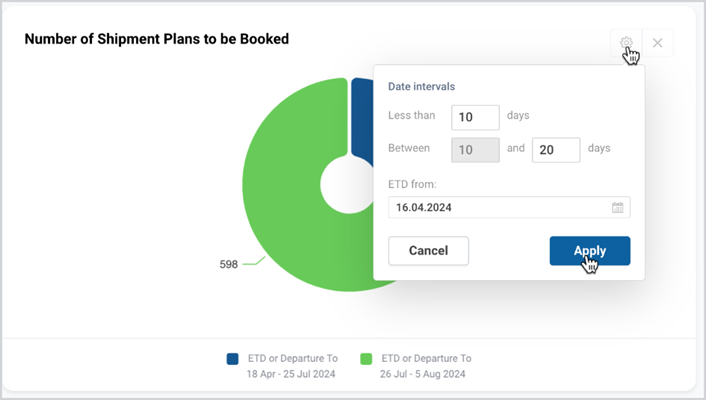
Number of Shipment Plans to be Booked | The widget displays shipments in status Draft
If no “ETD from” date is selected, shipments with no ETD date are also included. | Number of Shipment plans with ETD or Departure To before today and earlier + number of days specified in Less than field
The starting date is the earliest departure date after all filters applied.
| Number of Shipment with ETD or Departure To within first and second value of Between field
|
WIDGET | DESCRIPTION | BLUE | GREEN |
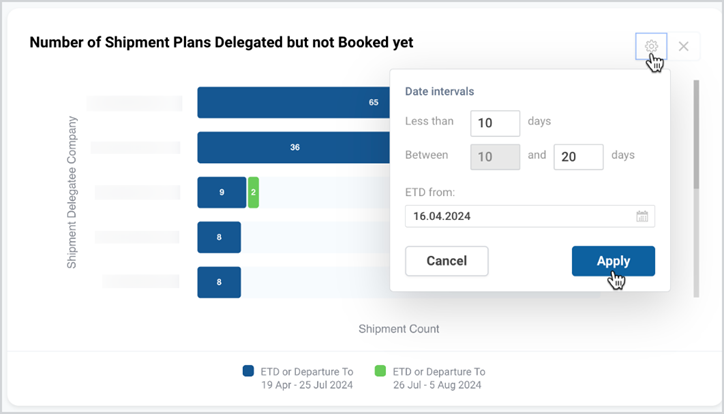
Number of Shipment Plans Delegated but not booked yet | The widget displays shipments in status Delegated, with ETD or “Shipping Window To date” within the selected time frame. If no “ETD from” is selected, shipments with no ETD date are also included. |
Number of shipment plans with ETD or Departure To before today and earlier + number of days specified in Less than field
The starting date is the earliest departure date after all filters applied.
| Number of shipment with ETD or Departure within first and second value of Between field
|
WIDGET | DESCRIPTION | BLUE | BLUE |
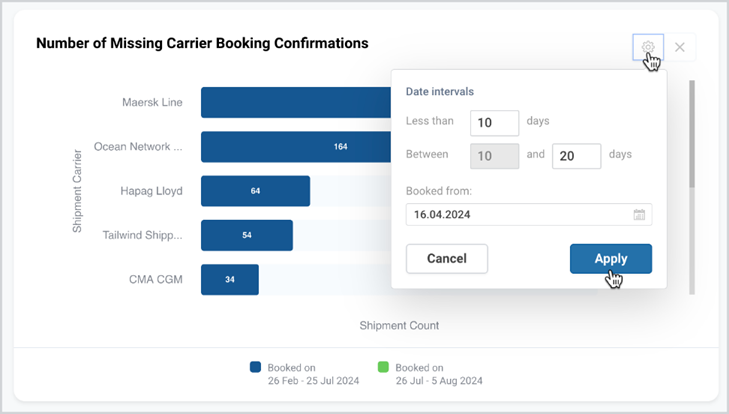
Number of Missing Carrier Booking Confirmations | The widget displays shipments in status Submitted with missing booking confirmation within specified time frame based on booking date. If no “Book from” date is selected, all shipments with missing Booking confirmation displayed. |
Number of shipment plans before today and earlier + number of days specified in Less than field
The starting date is the earliest after all filters applied. | Number of shipment plans with Booking Date within first and second value of Between field |
WIDGET | DESCRIPTION | BLUE | GREEN |
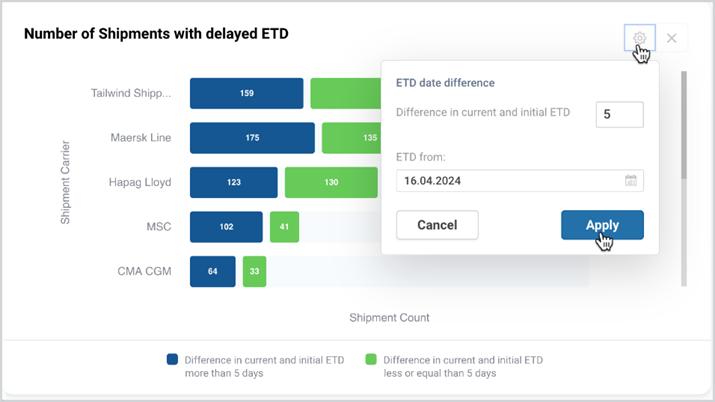
Number of Shipments with Delayed ETD | The widget displays shipments where there is a difference between the initial booking confirmation ETD and the current ETD. The initial booking confirmation is received from the carrier or updated via manual confirmation. The current ETD is updated based on carrier booking updates, amendments or manual updates. | Number of shipments with more than specified difference between initial and current ETD based on ETD from date |
Number of shipments with less or equal specified difference between initial and current ETD based on ETD from date
|
WIDGET | DESCRIPTION | BLUE | GREEN |
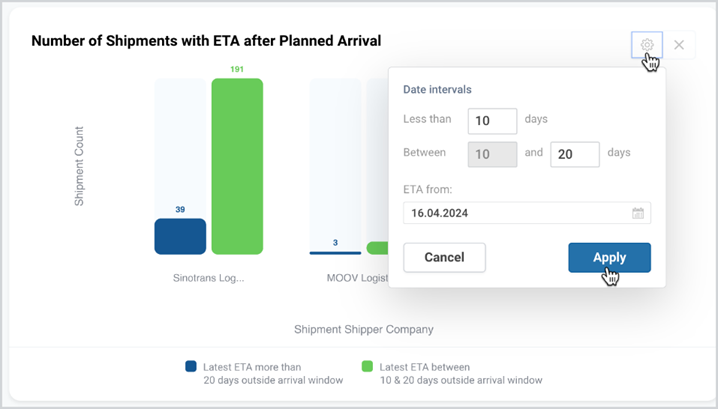
Number of Shipments with ETA after Planned Arrival | The widget displays Shipments, whose estimated time of arrival (ETA) falls beyond the scheduled arrival date of the linked orders. It includes Shipments with a status ranging from Confirmed and higher, excluding Arrived or higher. If there is no order linked to the shipment, it will not be displayed on the widget automatically. Shipments with no ETA date are also excluded. | Number of shipments with ETA before today + number of days specified in Less than field
The starting date is the earliest arrival date found after all filters applied. | Number of shipments with ETA within first and second value of the Between field |
WIDGET | DESCRIPTION | BLUE | GREEN |
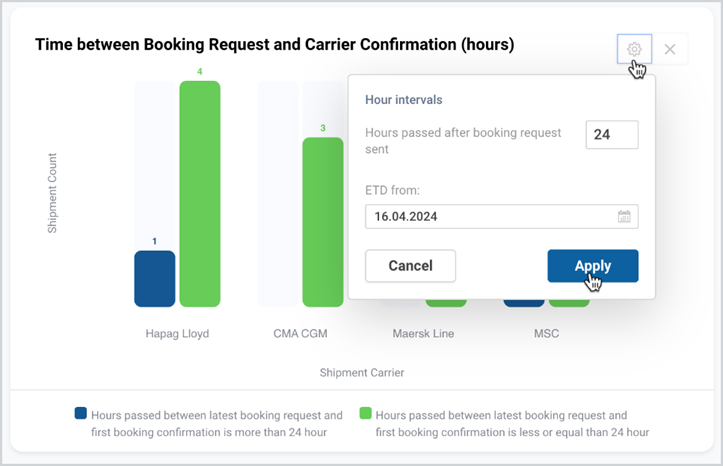
Time between Booking Request and Carrier Confirmation (in hours) | This widget displays all shipments where booking was requested and confirmed within specified hours based on selected “ETD from”. The shipments with status Rejected and Cancelled are not included.
All shipments are sorted by the hour’s interval. | Number of shipments, with the latest booking request sent and first booking confirmation received with more than the number of hours specified in Hours passed after booking request sent |
Number of shipments, with the latest booking request sent and first booking confirmation received with less or equal than the number of hours specified in Hours passed after booking request sent field. (here 24 hours)
|
WIDGET | DESCRIPTION | BLUE | GREEN |
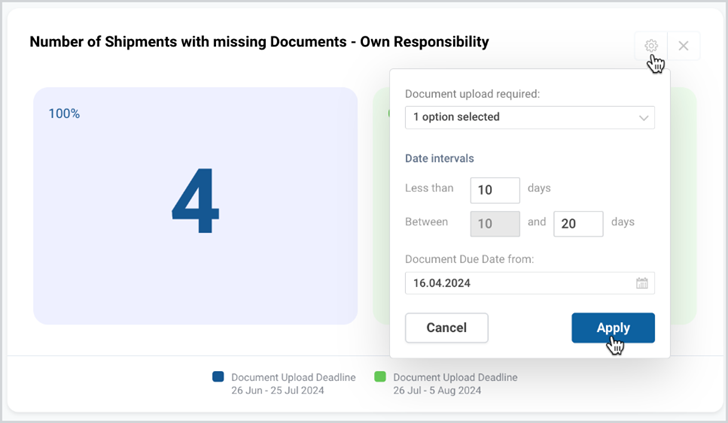
Number of Shipments with Missing Documents- Own Responsibility | The widget displays shipments with status Submitted or higher, where your company is mentioned as Responsible Party on the document section.
There are two options to choose from Document upload mandatory and Document upload optional. If nothing is selected shipments with both mandatory and optional documents are selected. If “Document due Date from” is not selected, shipments without “Document Upload Deadline” will not be displayed. | Number of shipments with deadline for upload of documents with specified time frame. Calculation starts with the “Document Due Date From” and ends before today + number of days specified in Less than field | Number of shipments within first and second value of the Between field |
WIDGET | DESCRIPTION | BLUE | GREEN |
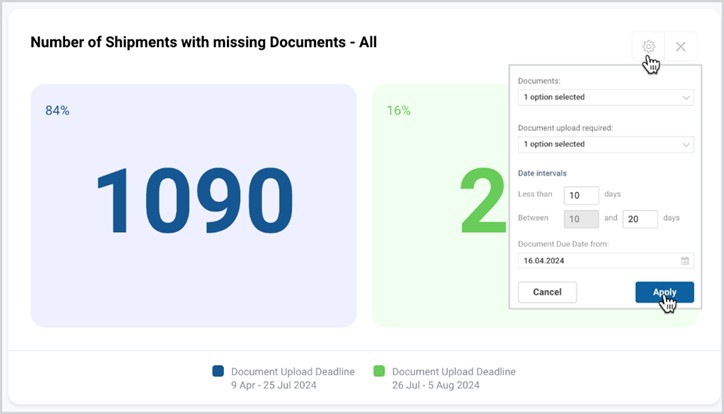
Number of Shipments with missing Documents - All | The widget displays shipments with status Submitted or higher, where your company is mentioned as any of the parties in the shipment. There is the possibility to select "All", "Requested documents", or "Other documents". Additionally, there are two options to choose from Document upload mandatory and Document upload optional. If nothing is selected shipments with both mandatory and optional documents are selected. If “Document due Date from” is not selected, shipments without “Document Upload Deadline” will not be displayed. | Number of shipments with deadline for upload of documents with specified time frame. Calculation starts with the “Document Due Date From” and ends before today + number of days specified in Less than field
| Number of shipments within first and second value of the Between field |
WIDGET | DESCRIPTION | BLUE | GREEN |
DND Widgets | The containers in these widgets will be displayed only if your company is one of the following parties of the contract:
| ||
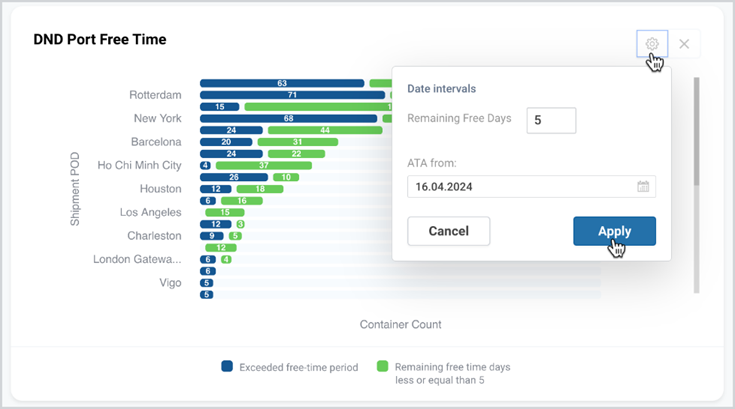
DND Port Free Time | The widget displays the containers that are either close to or have exceeded the free-time period at the port.
The container will be shown when the actual start event is received (based on contract free-time) and the actual end event is not received.
As soon as the actual end event is received, the container will not be shown in the widget.
If no “ATA from” date is selected, shipments without ATA date will be also displayed. | Number of containers with exceeded free time period, more than Remaining Free Days Calculation starts with the earliest ATA from date | Number of containers with free-time days less or equal than specified days in Remaining Free Days |
WIDGET | DESCRIPTION | BLUE | GREEN |
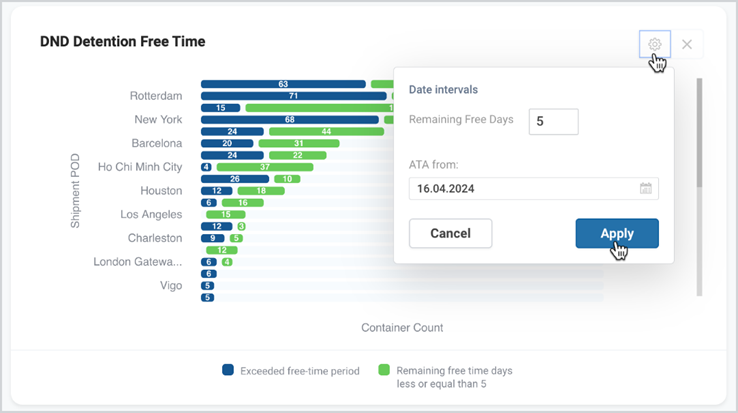
DND Detention Free Time | The widget displays the containers that are either close to or have exceeded the detention free-time period. The container will be shown when the actual start event is received (based on contract free-time) and the actual end event is not. As soon as the actual end event is received, the container will not be shown in the widget.
If no ATA date is selected, shipments with no ATA date are also included. | Number of containers with exceeded free time period, based on the Remaining Free Days selected Calculation starts with the earliest ATA from date.
| Number of containers with free-time days less or equal than specified days in Remaining Free Days
|
WIDGET | DESCRIPTION | BLUE | GREEN |
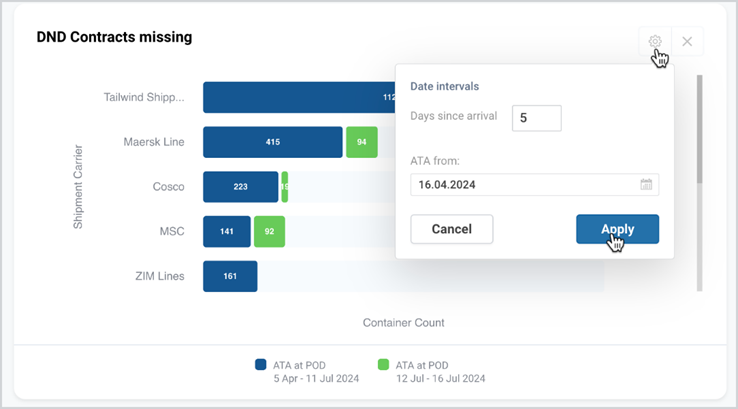
DND Contracts missing | The widget displays containers starting from status Arrived and higher, but lower than Returned where no DND contract is found. | Number of containers before today minus number of days specified in Days since arrival
The starting date is the earliest arrival date after all filters applied. | Number of containers including today and number of days specified in Days since arrival field |
To download the print version of this article, click the PDF icon: