BIM Support
Introducing Shipment Templates
We are pleased to introduce the Shipment Template functionality in Shipment Plan V2, designed to streamline the shipment creation process and enhance operational efficiency. This enhancement minimizes manual data entry and reduces the time required to manage recurring shipments.
Details
For shipments in Draft and Delegated statuses, you can now save, apply, and delete personalized templates.
- Saving a Template
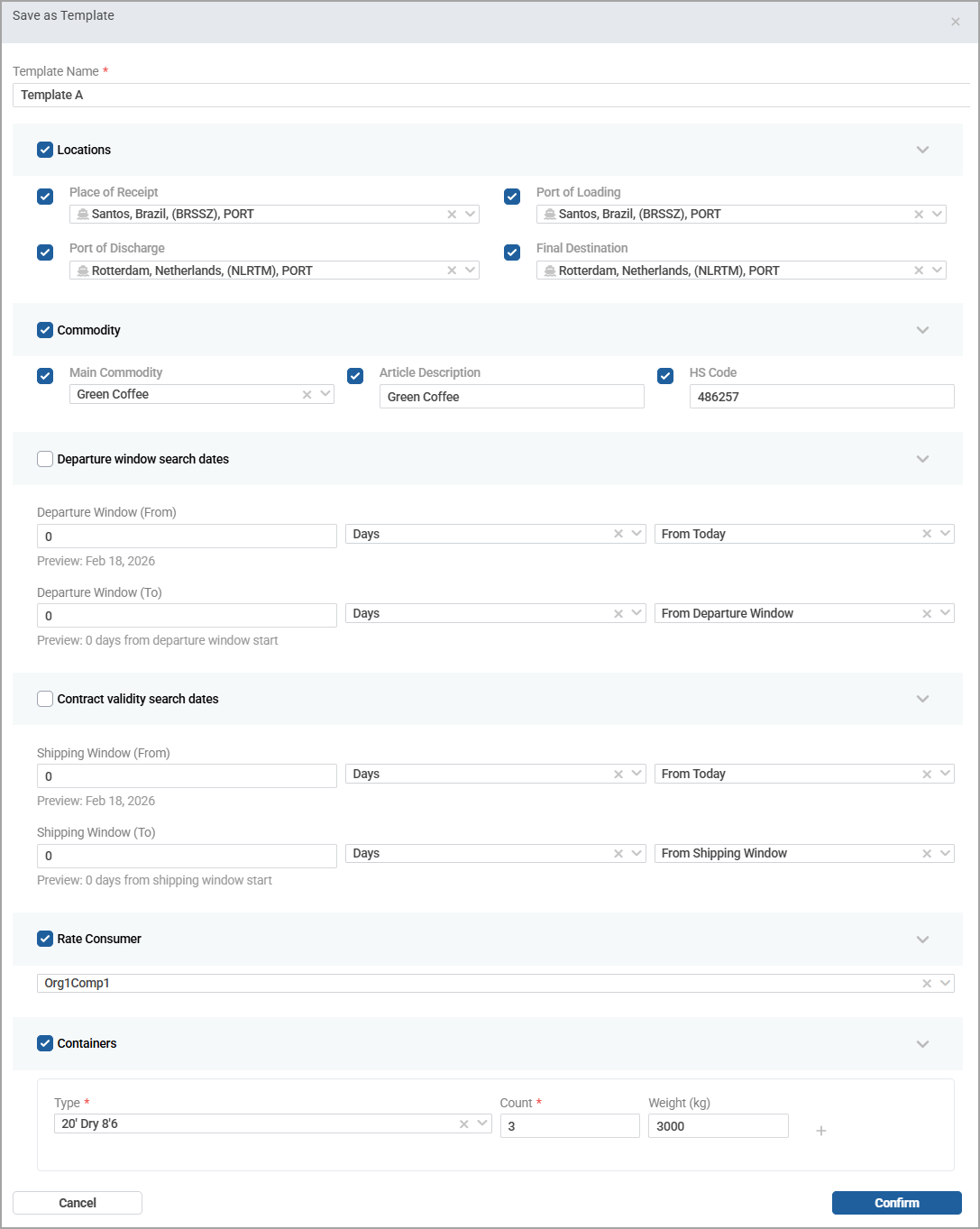
When editing a shipment, you can save the current shipment details as a personal template that can be reused for future shipments. The template will be available only to you.

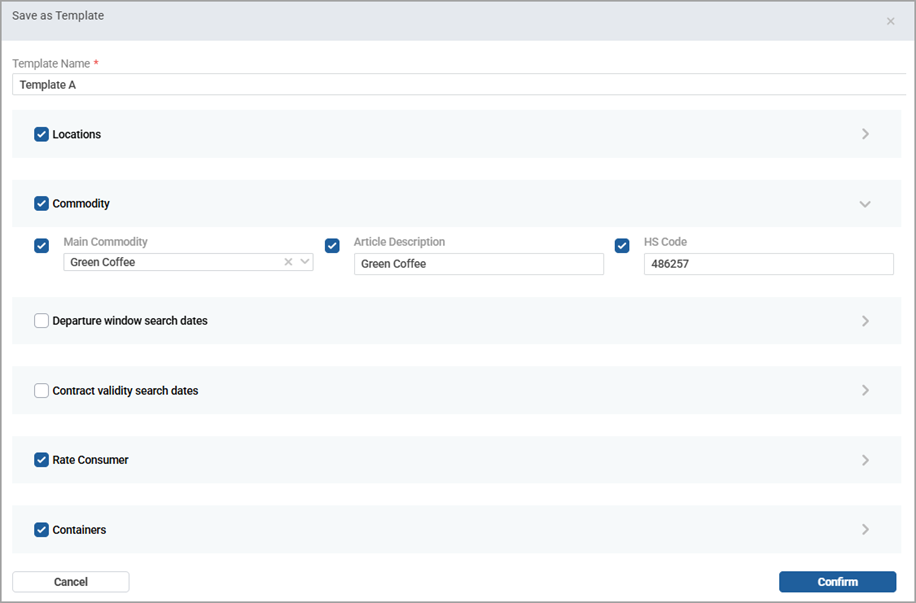
The Save as Template button opens a pop-up to add a template title and define the fields you want to include in the template. Fields are populated with the current shipment values. If needed, you can adjust the data in each field.
Note: To save a template, you must select at least one field in the pop-up form.
- Applying a Template
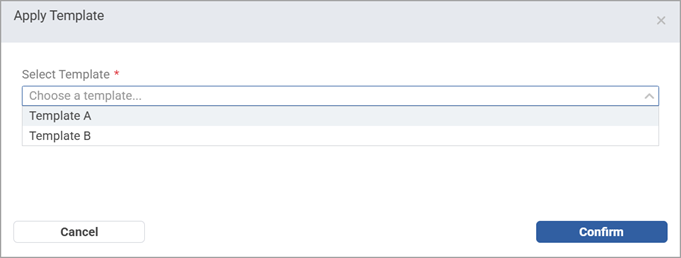
After creating a template, you can click the Apply Template button to open a dropdown and select one of your saved templates.

The fields saved in the template are automatically populated into the shipment form.
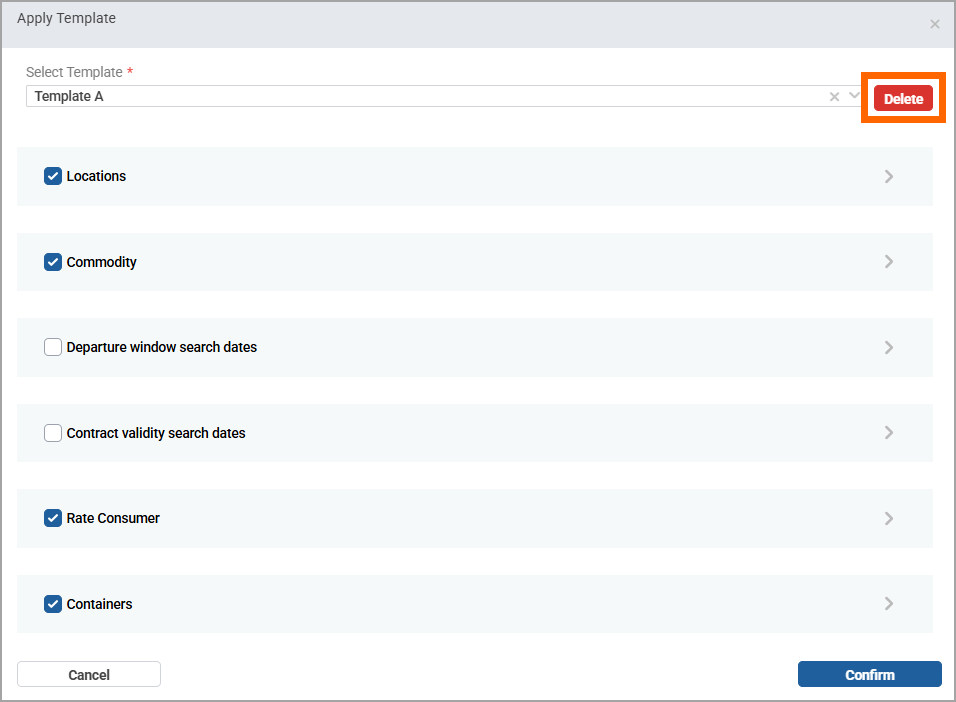
- Deleting a Template
If needed, you can delete the templates you no longer need.