 BIM Support
Business Intelligence: Reports Section
The Reports section of the Business Intelligence module helps you get an insight into your data using the preconfigured report categories.
The Reports section is available and visible only to those users who are subscribed to it.
Note | As an Org Admin, a Company Admin, or a User, your access to modules depends on your permissions. For more information please see User Management article. |
To view the Reports:
- Under Main Menu, click Business Intelligence, and select Reports.

Figure 1
There are 12 (twelve) report categories:
- Orders
- Shipments
- Containers
- Cost Estimation
- Destination DND
- Destination DND Operational
- Origin DND
- CBLI
- CBLI Cost Estimation
- Premium Contracts
- House Shipments
You can both view the generated reports online, as well as download them for detailed analysis.
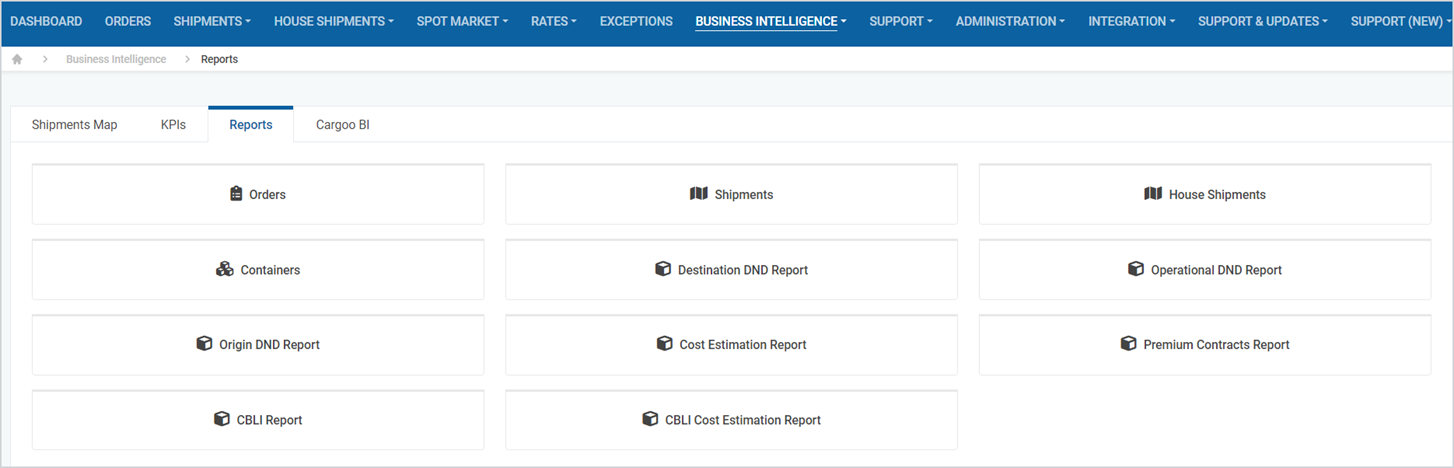
Figure 2
Report Features
All report categories offer common and special features designed to facilitate your experience.
Common features are present in all report categories, while special features are unique and differ from one to another, depending on the report category.
Common features along with their short descriptions are listed in Table 1: Common Features.
Special features along with their short descriptions are listed in Table 2: Special Features.
Table 1: Common Features
Template (1) | Allows you to save the filter configurations and use them in the future (Figure 4) |
Data for multiple companies (2) | Allows you to filter the data per company (Figure 4) |
Report Scheduler (3) | Allows you to automate your reporting process, scheduling the generation and delivery of reports at the preferred intervals and the preferred format. |
Report (4) | Allows you to generate a report, manipulate data instantly on the platform to view it online, as well as provides options for downloading and saving reports to several file formats. After generating the report, “Download Report” button will appear to download it in Excel or CSV format. |
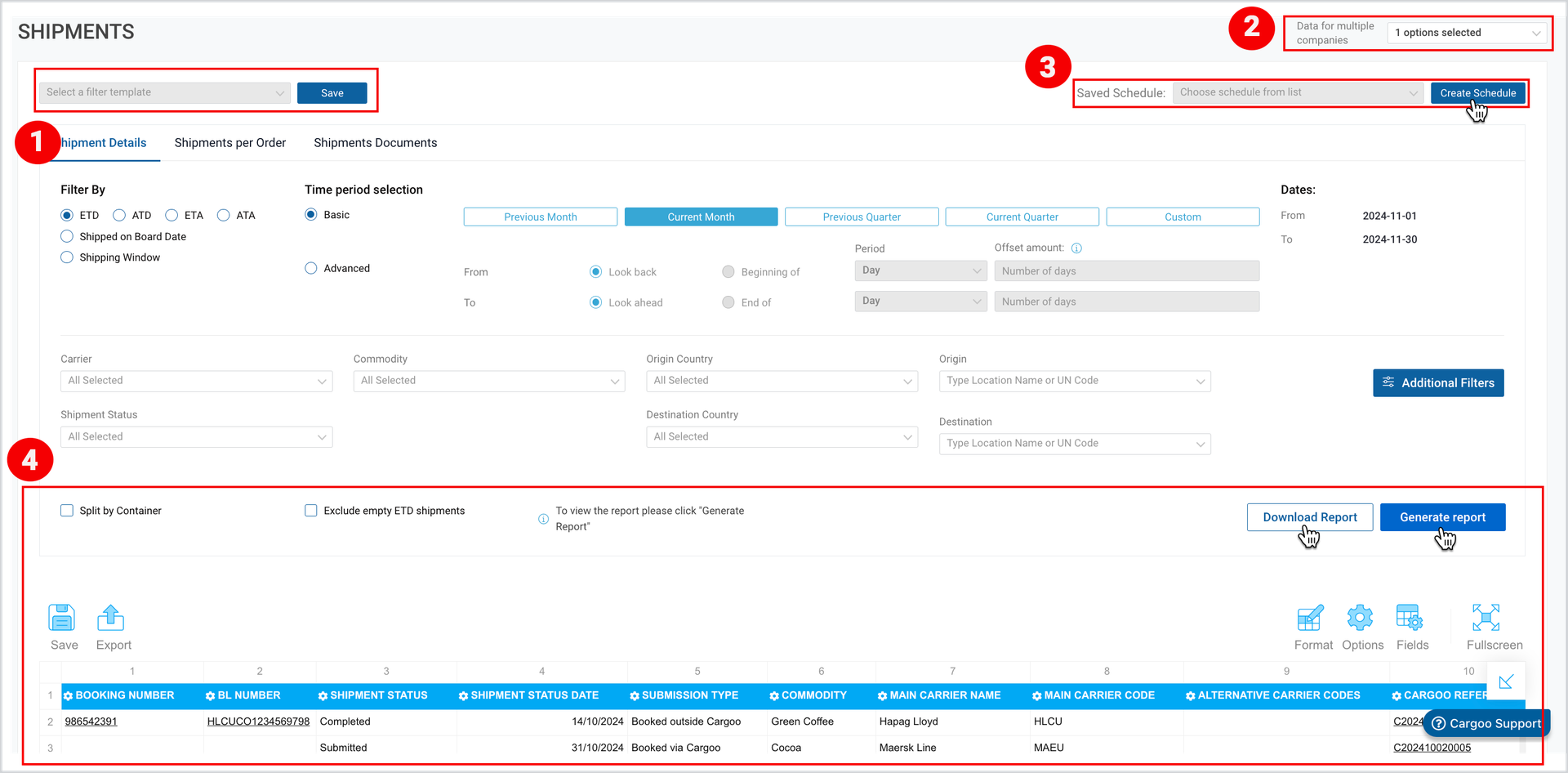
Figure 3
Table 2: Special Features
Filters | Gives control over the information displayed in the report |
Additional Filters | Provides options for adding additional columns to the generated report |
Note | All report categories along with their special features are described in separate articles. For detailed information please check the respective articles. |
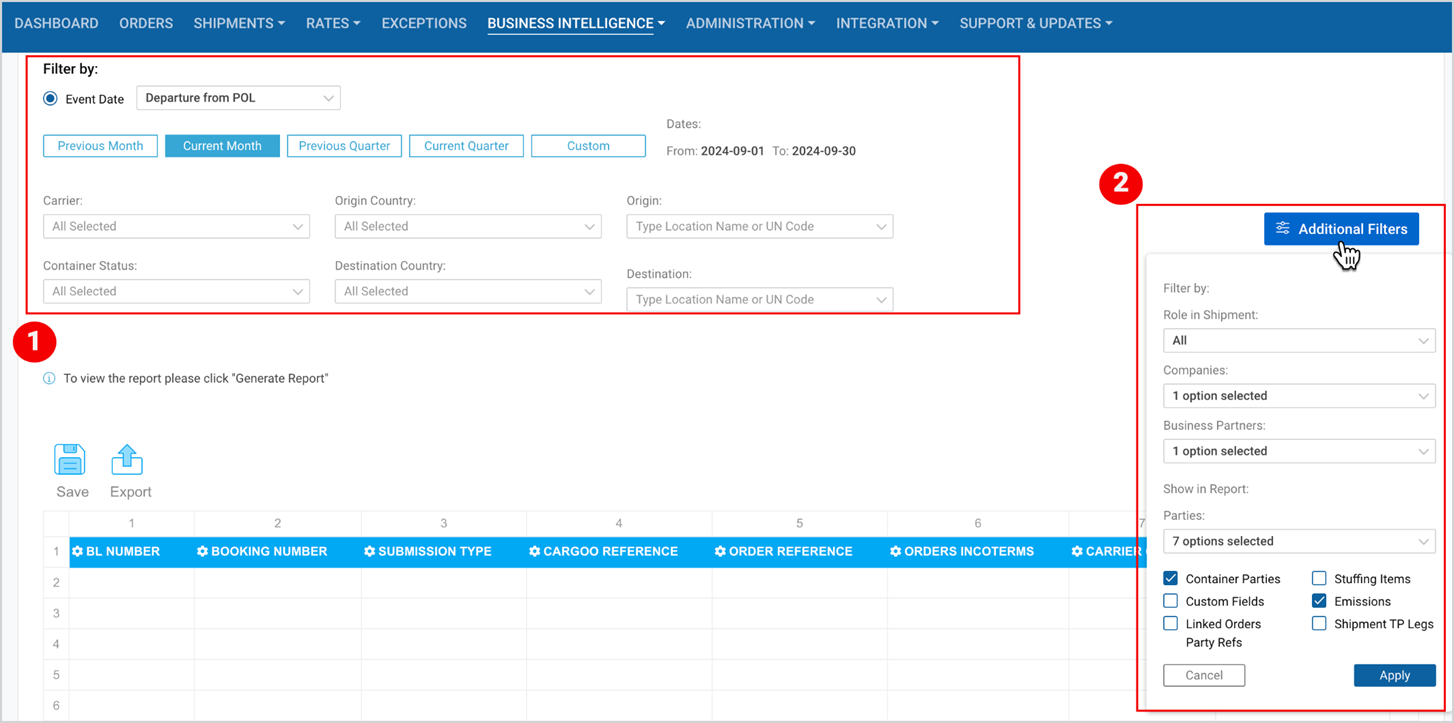
Figure 4
To download the print version of this article, click the PDF icon: