 BIM Support
Volume Planner
Volume Planner is the name of the overall tool that aims to ensure the communication between the procurement department and its customers (combined in Rate Groups or specific Business Partner companies). The module for the procurement department is called Volume Planner. The object itself that the procurement department creates and invites customers to provide their feedback on planned volumes is called a Forecast (module – Volume Forecasting).
This manual is focused on the Volume Planner module.
For this module Org/Company Admin should send a subscription request to the Cargoo administration. After subscription, they can grant only manage right option to their users (for more details on user accesses see User Management, Subscribe Business Modules to Your Users).
To access the Volume Planner module:
- In the Main Menu, under Rates, click Volume Planner.
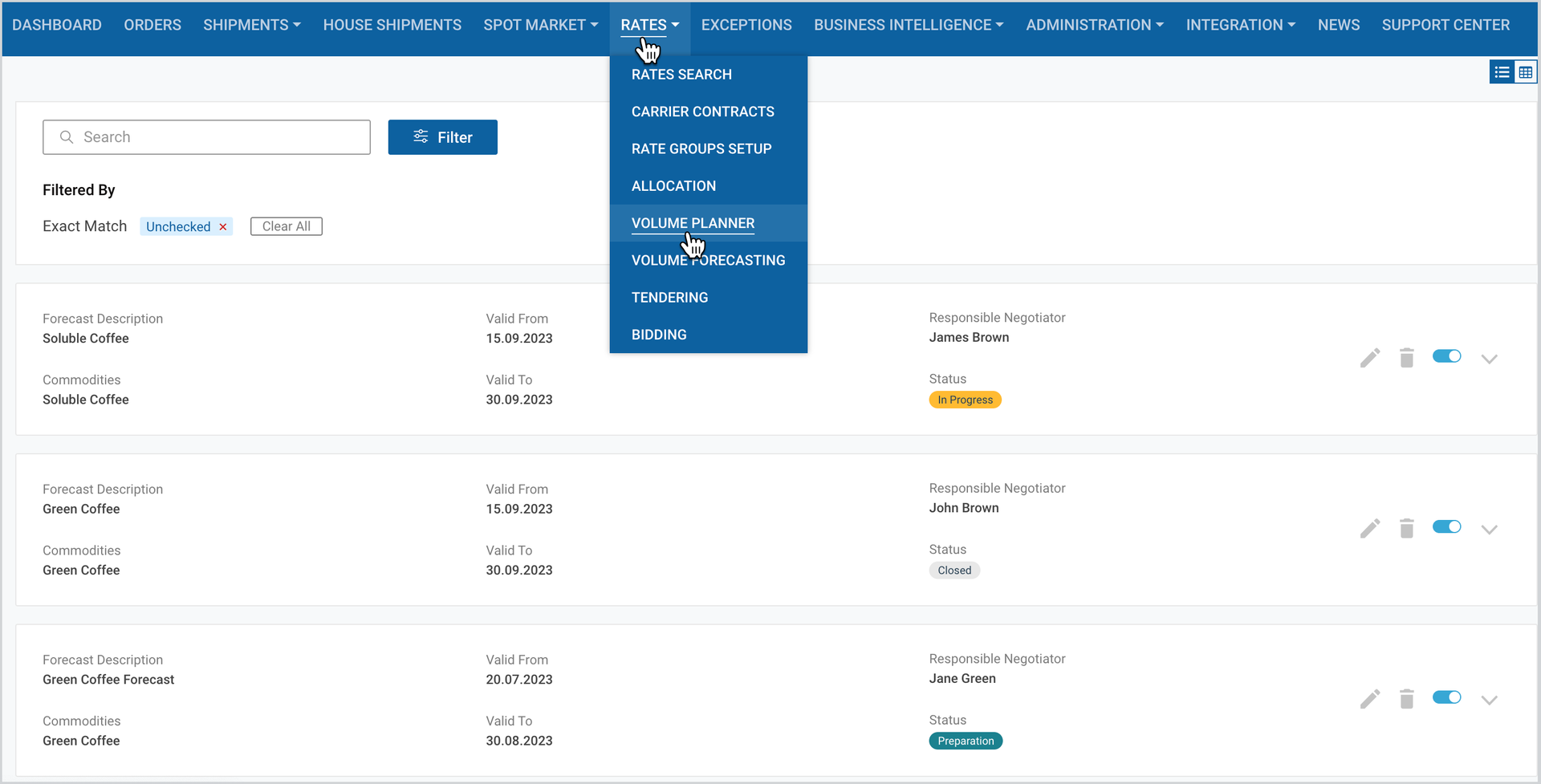
On the appeared page you can add new forecast, access and manage forecasts list in card or table view.
Add New Forecast
In order to add a new forecast
- Take the step shown in the above Figure.
- At the right part of the page, click Add New Forecast.
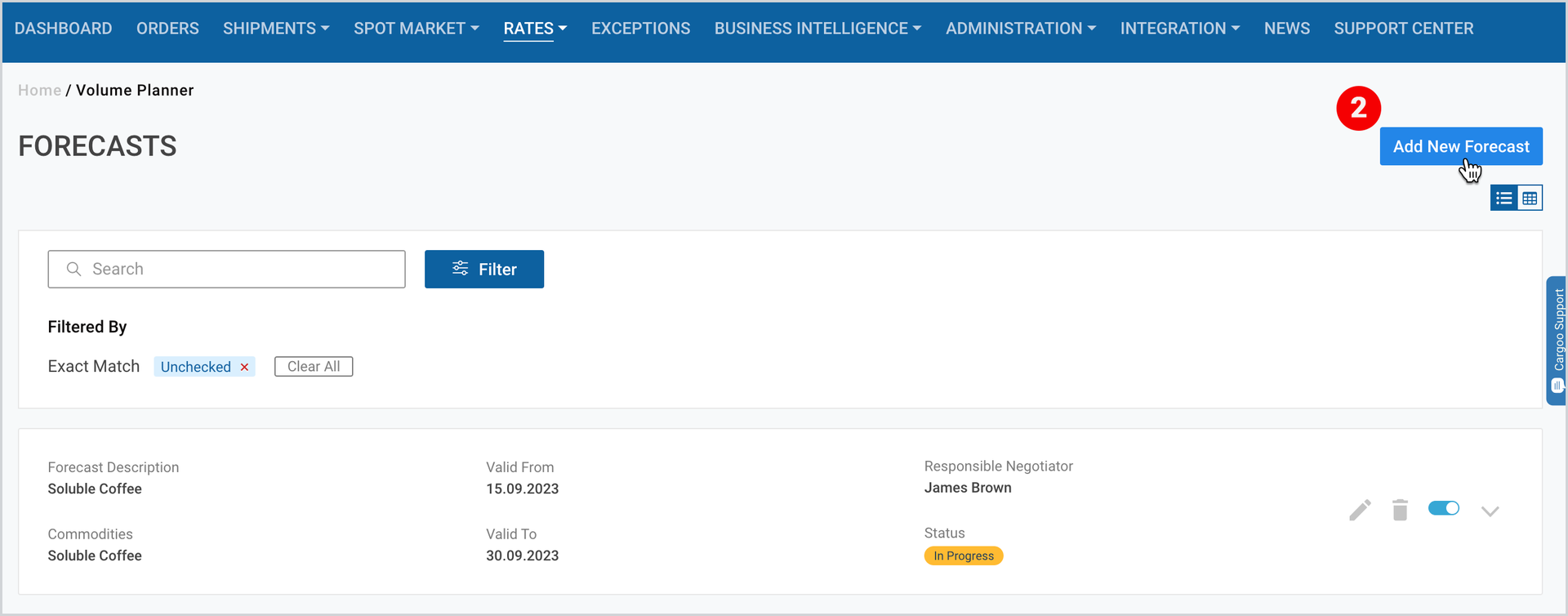
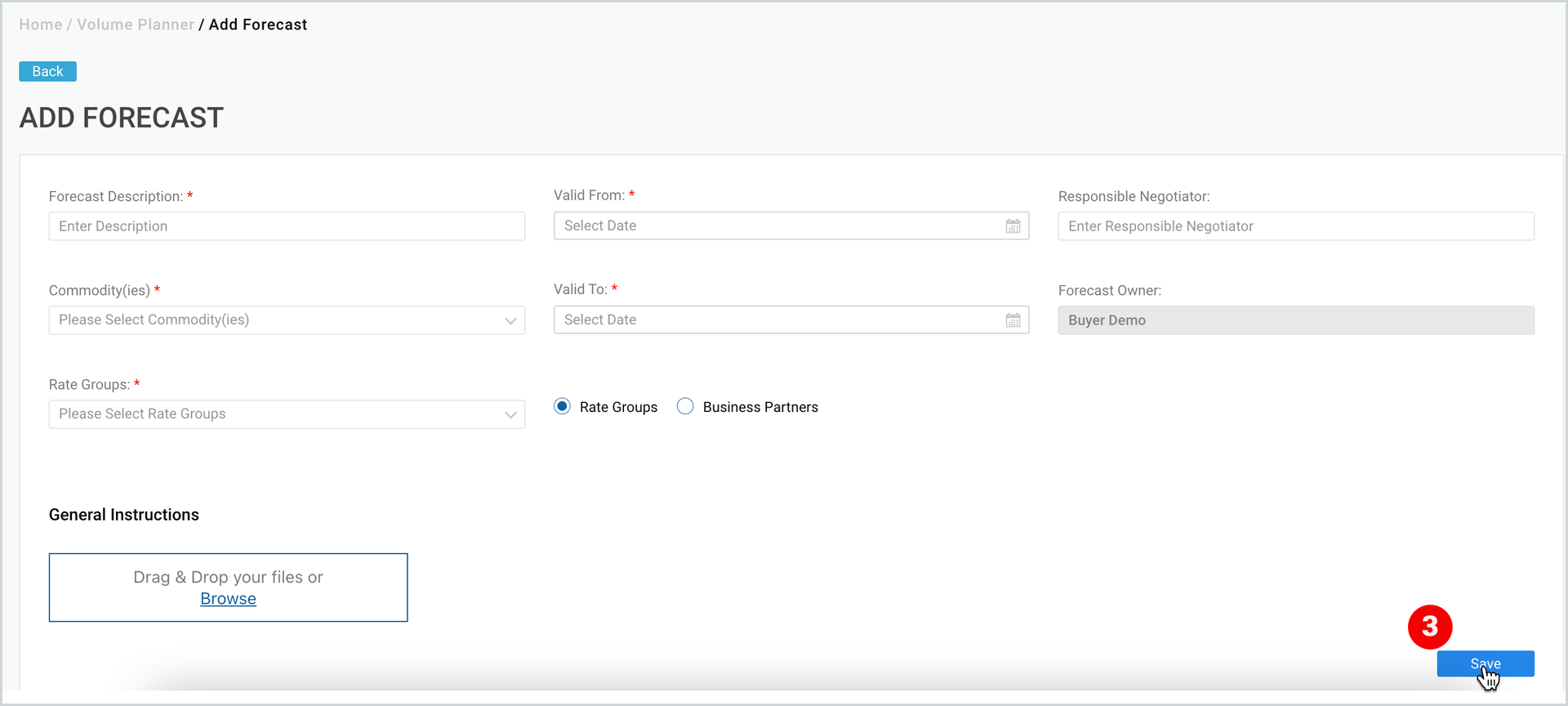
3. As the Add Forecast page appears, fill in the required/optional details and click Save.
Forecast Structure
After clicking the Add Forecast button, you are redirected to the Add Forecast page, where you have to fill in the required and optional information, given in Table 1: Forecast Structure and visualized in the Figure below.
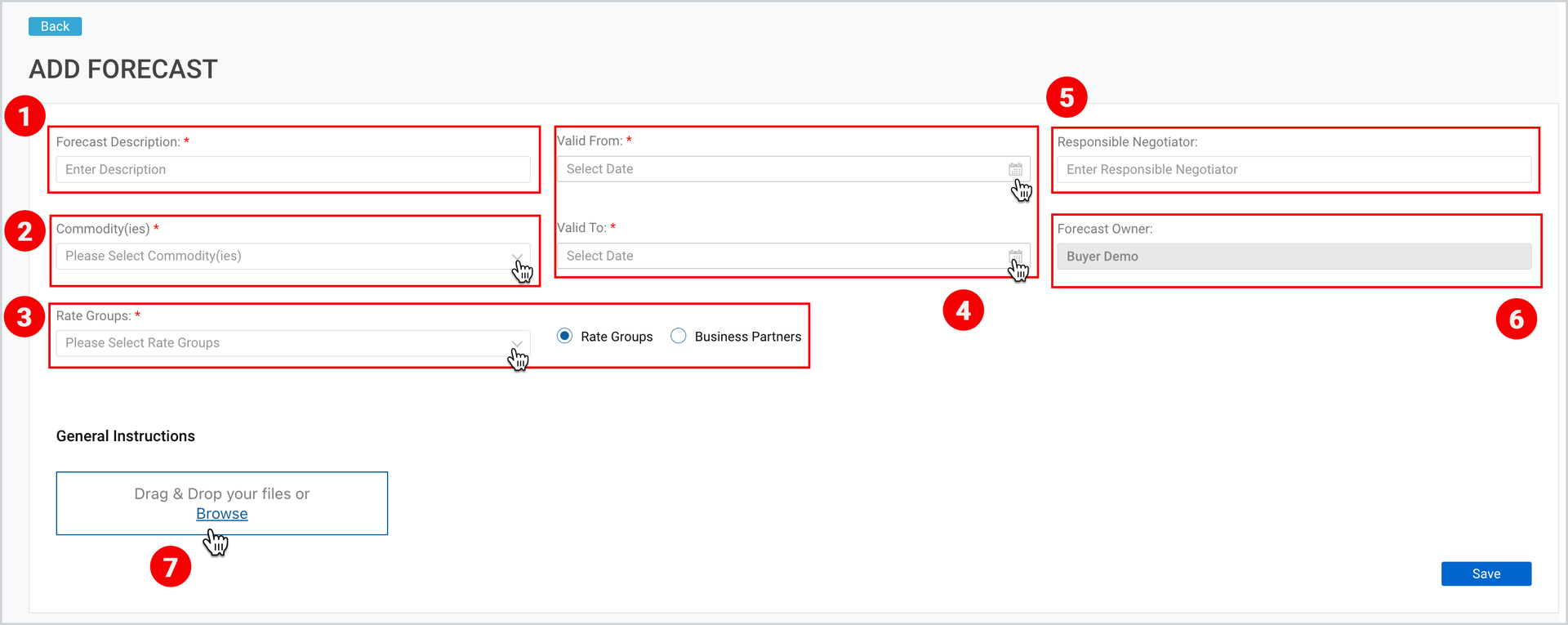
Table 1: Forecast Structure
ITEM IN FIGURE ABOVE | FIELD | DESCRIPTION |
1. | Forecast Description | This is a required field and you have to fill in the forecast description in max. 50 characters |
2. | Commodity(ies) | It is a multi-select drop-down, and you have to select among the list of company’s commodities |
3. | Rate Groups or Business Partners | Depending on which toggle you will select (rate groups or business partners), you will select from the respective list |
4. | Validity | Here you have to fill in the validity period of the forecast. |
5. | Responsible Negotiator | This is an optional field, where you can fill in the details in max. 30 characters |
6. | Forecast Owner | This is a non-editable field, and the current company name is pre-filled. |
7. | General Instructions | Here you can Drag and Drop or Browse your forecast related multiple documents. |
Note | As you create a new forecast, you will not be able to edit validity period, forecast owner, and replace rate groups or business partners (only add new ones). |
Forecasts List
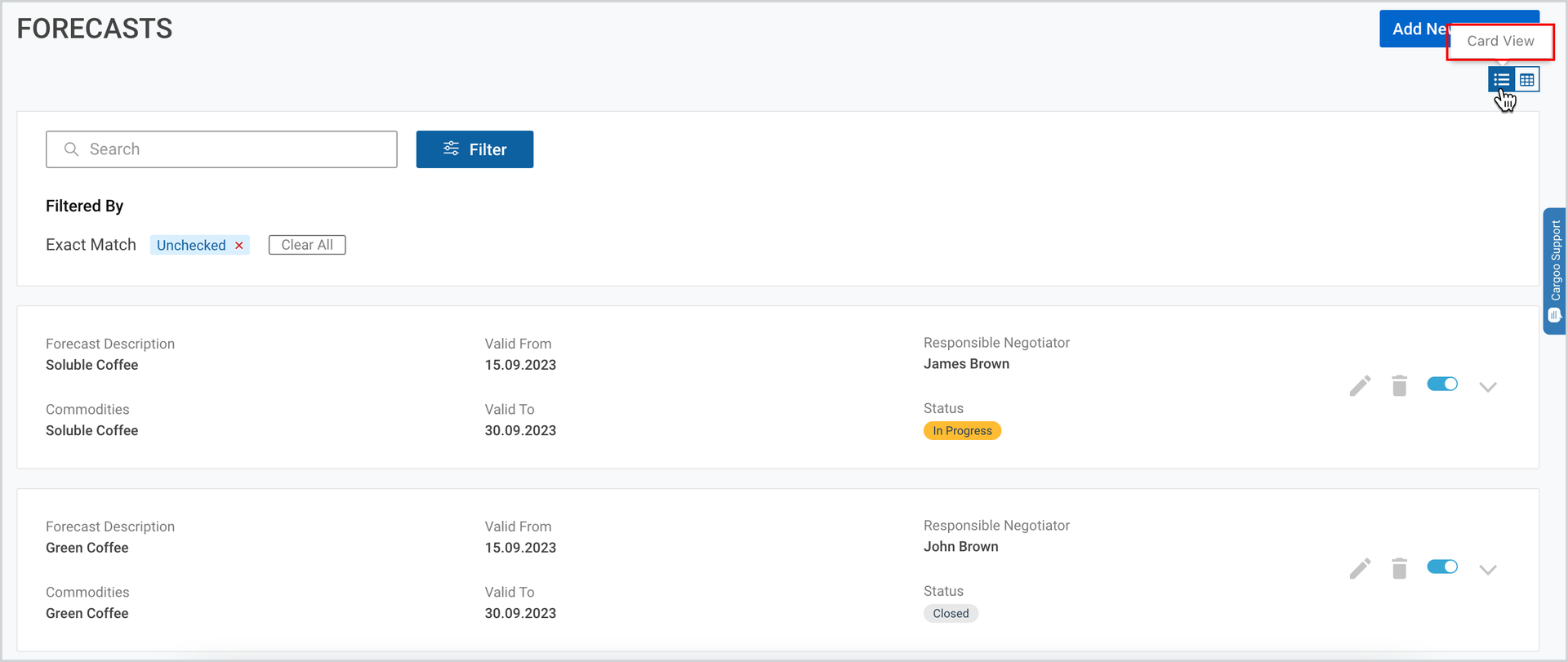
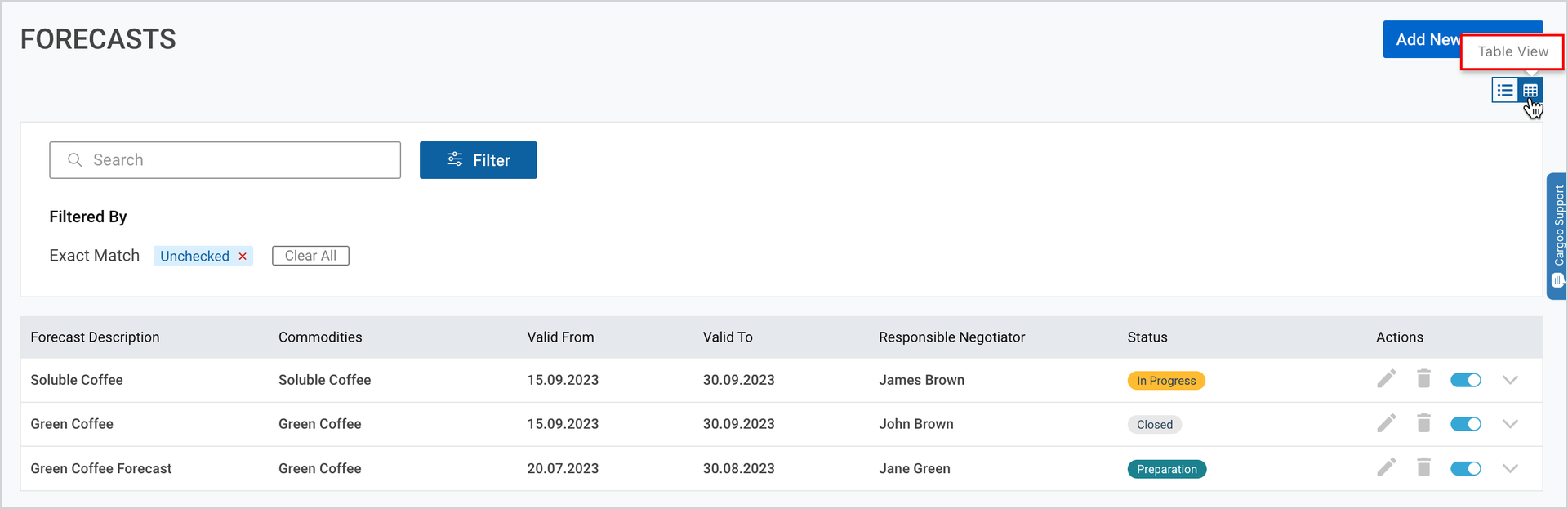
As you click on the Volume Planner under Rates module you can see the list of all your forecasts in the card view. You can switch them to table view by clicking the table view icon at the upper-right corner of the page.
Card View |
Table View |
|
Access Specific Forecasts
The Forecasts page displays the following features through which you can access specific ones:
- Search
- Filter
Search the Required Forecast
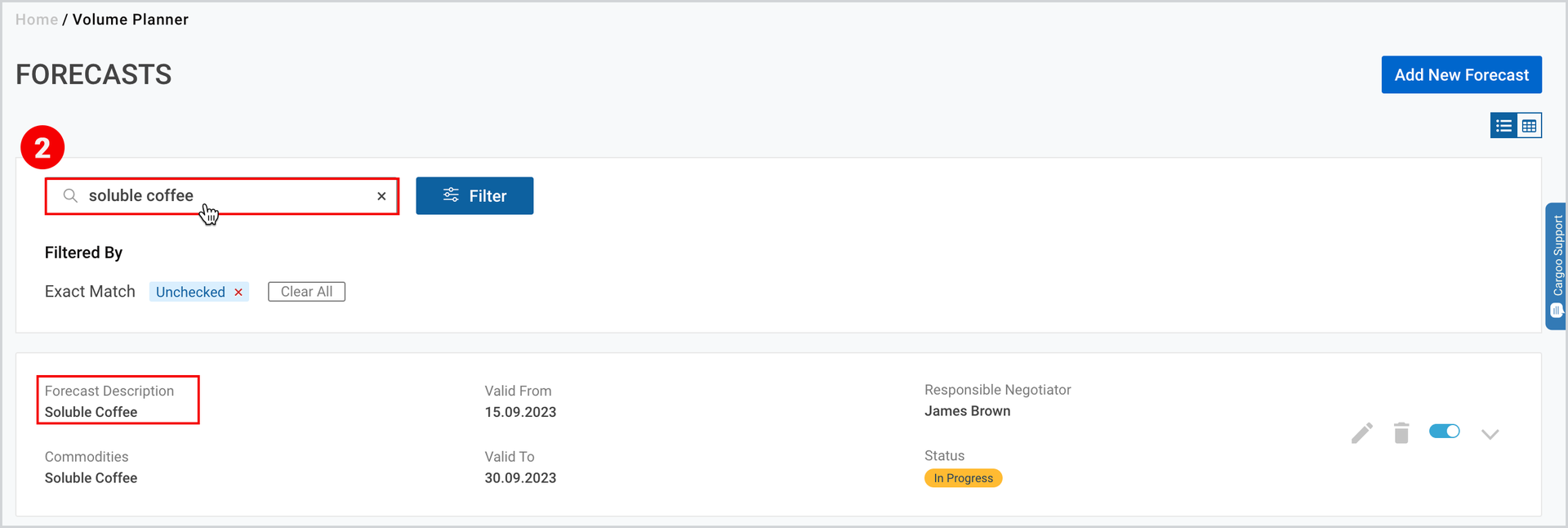
Search can be done by the forecast description. Search starts working from the first typed character showing the suggested list.
To search for your desired forecast:
- Take the step, shown here.
- At the upper-left corner of the page, in the Search field, fill in the forecast description.
Filter Your Forecast
You can alternatively filter your forecast by either of the following categorization:
- Commodity
- Validity
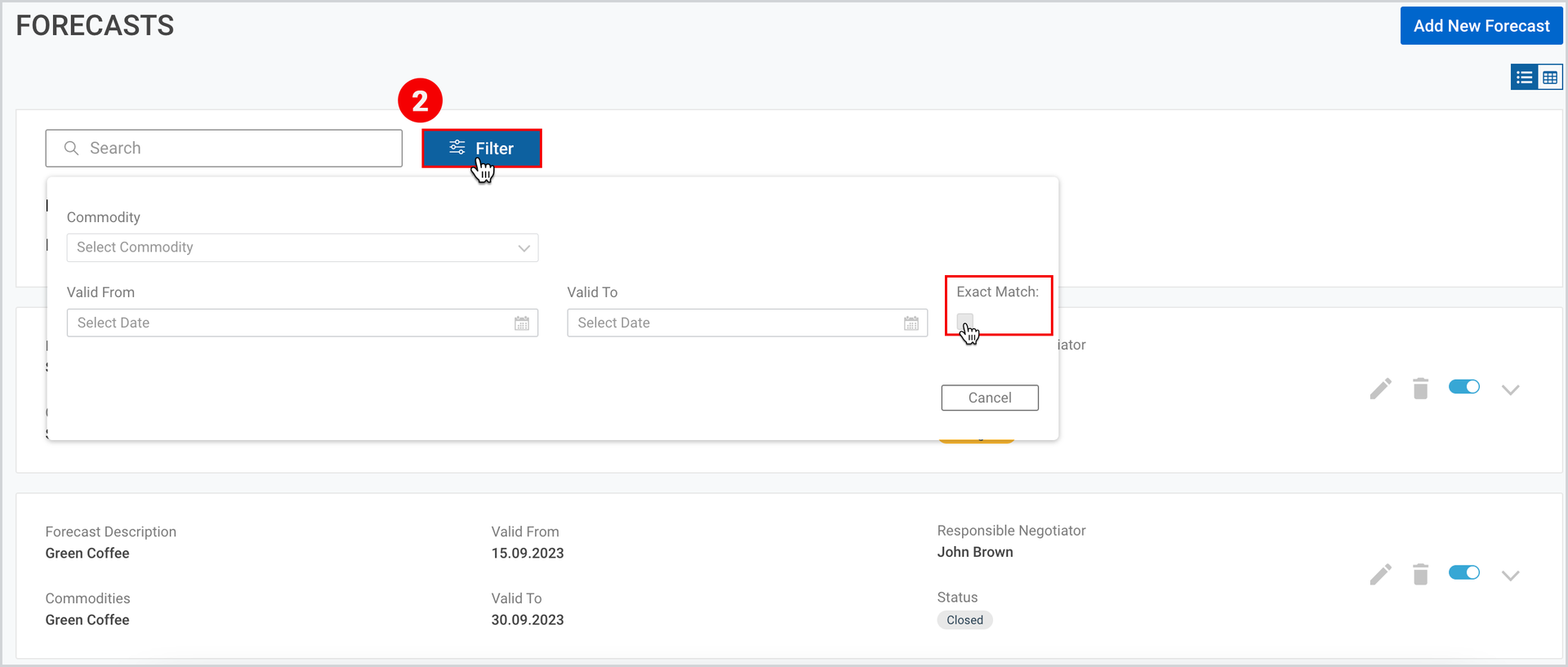
As you fill in both fields, then “Exact Match” checkbox will be activated. If you select the checkbox, you will see the exact match; if you leave it unchecked, you will see all the forecasts matching the commodity and falling within the range of the selected validity period criteria.
To filter the forecast:
- Take the step, shown here.
- At the upper-left corner of the appeared page, next to the Search field, click Filter and set the desired criteria.
Forecast Status
You can see the forecast status at the right side of each forecast. A forecast acquires the statuses, given in Table 2 below:
Table 2: Tender Status
N | FIELD | DESCRIPTION |
1. | Preparation | Forecast is created and saved, all consumers are in Pending status or there are no consumers |
2. | In Progress | At least one consumer has Invited or Not Submitted status. |
3. | Submitted | All consumers that were invited to the forecast have status Submitted. |
4. | Closed | All consumers that were invited to the forecast have status Closed |
Manage Your Forecast
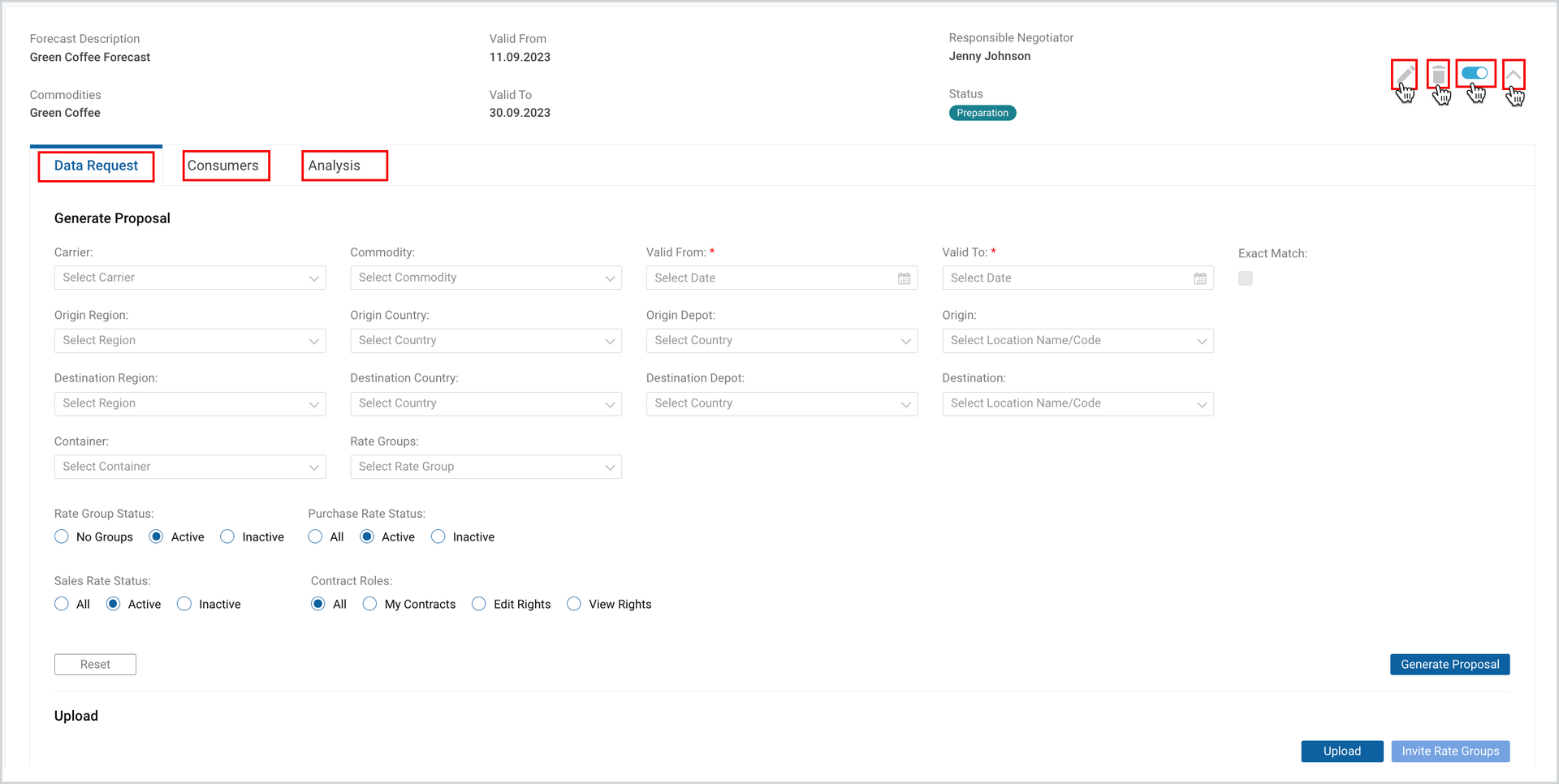
On each forecast card, from left to right, you will find the following clickable icons:
- Edit – by clicking you will be redirected to the Edit Forecast page, where the steps are the same as described in Add New Forecast .
- Delete – this action is possible if there are no consumers invited yet.
- Activate/Deactivate toggle – deactivates or activates the forecast. If the forecast is deactivated, you can edit inactive forecast frame data, export uploaded files, but you can’t upload new files and invite new customers.
- Expand – by clicking, you will see the following tabs:
- Data Request
- Consumers
- Analysis
Data Request Tab
From this tab you can generate proposal, upload the details for the volume forecast, invite rate groups (or business partners).
Generate Proposal
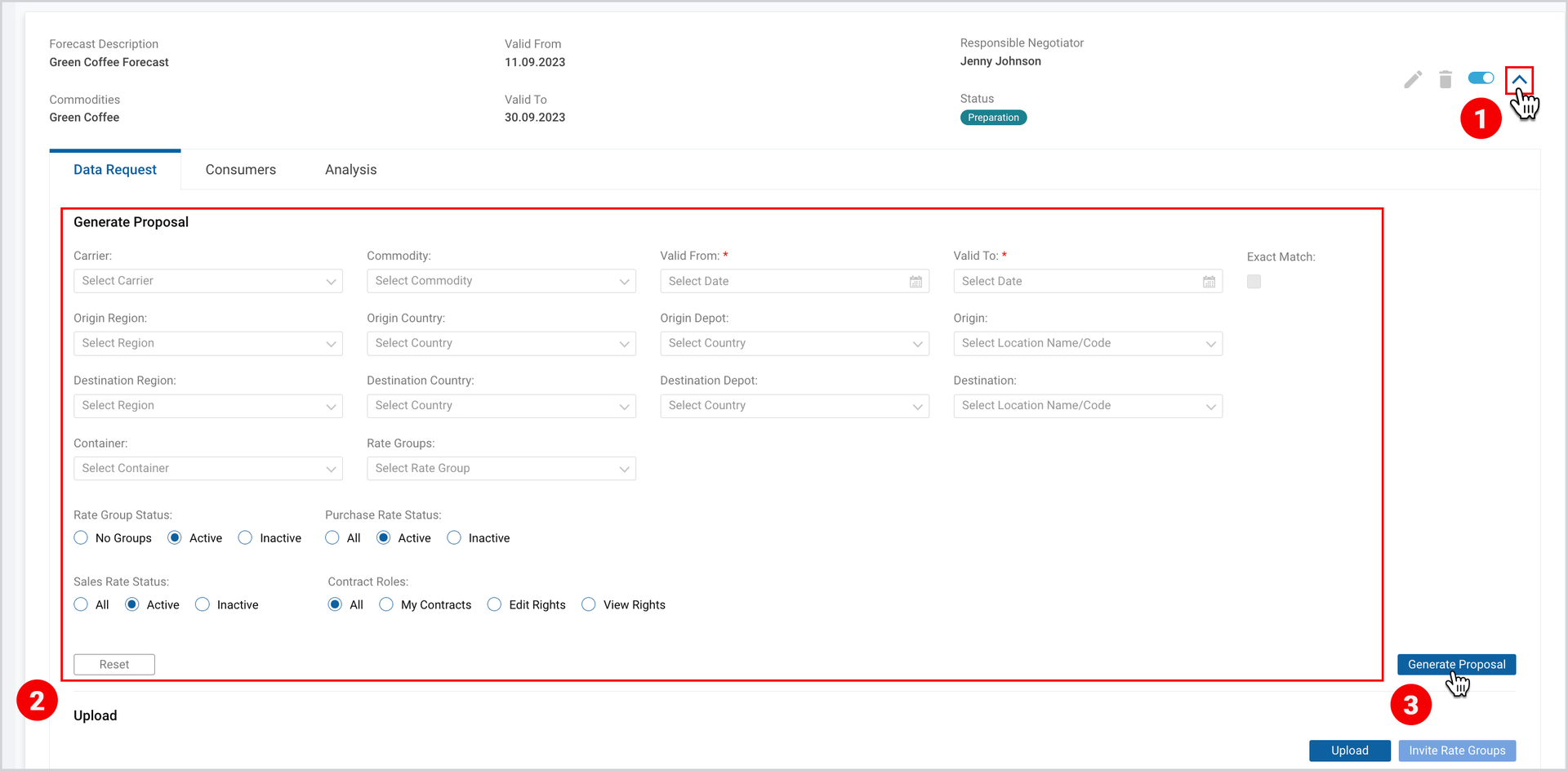
This functionality implies auto-generation of ocean freight rows that could be used as a data request upload, based on selected filters. The last selection of filters that was used for last generation of proposal is saved and always visible until the next generate proposal button is clicked.
To generate a proposal
- On the desired forecast card click “expand” icon.
- Under Data Request Tab (default), select the desired filters (see the description of filters in Table 3 below).
- Click Generate Proposal (the excel file with the proposal will be automatically exported).
Note | All values are taken from the generated ocean freight from rate service, except a few columns. |
Table 3: Generate Proposal Filters
Field | Description |
Carrier | This is a multi- select searchable dropdown with the list of carriers available in Cargoo. |
Commodity | This is a multi- select searchable dropdown with the list of commodities in alphabetical order. |
Valid From/ Valid To with exact match checkbox | Both are required fields in order to start generation of the proposal. Maximum range between valid from and valid to can be 2 years.
|
Origin/Destination Region | This is a multi-select searchable dropdown of all regions from available Geographical Regions. |
Origin/Destination Country | This is a multi-select searchable dropdown of all countries available in Cargoo |
Origin/Destination Depot | This is a multi- select searchable dropdown of all countries available in Cargoo |
Origin/ Destination | This is a multi-select searchable dropdown of all locations available in Cargoo. |
Container | This is a multi- select searchable dropdown with the list of active containers available for the user company. |
Rate Groups | This is a multi- select searchable dropdown with the list of all company Rate Groups. Search can be done by the name and code. |
Rate Group Status | This status checks the linkage and the status between the selected rate groups in the filter and found Contracts/ Ocean Freights. There might be the following states:
|
Purchase Rate Status | This status checks the status of the Ocean Freights (container type level) in purchase contract. There might be the following states:
|
Sales Rate Status | This status checks the status of the Ocean Freights (container type level) in sales contract in the selected rate groups (with contain logic). There might be the following states:
For non-markup rate groups, instead of sales contract the status of the ocean freight (container type) is checked in purchase contract. |
Contract Roles | This status checks the users’ company role in carrier contracts. There might be the following roles:
|
Upload
Through upload you submit your data request in the already exported file with the forecast requirements.
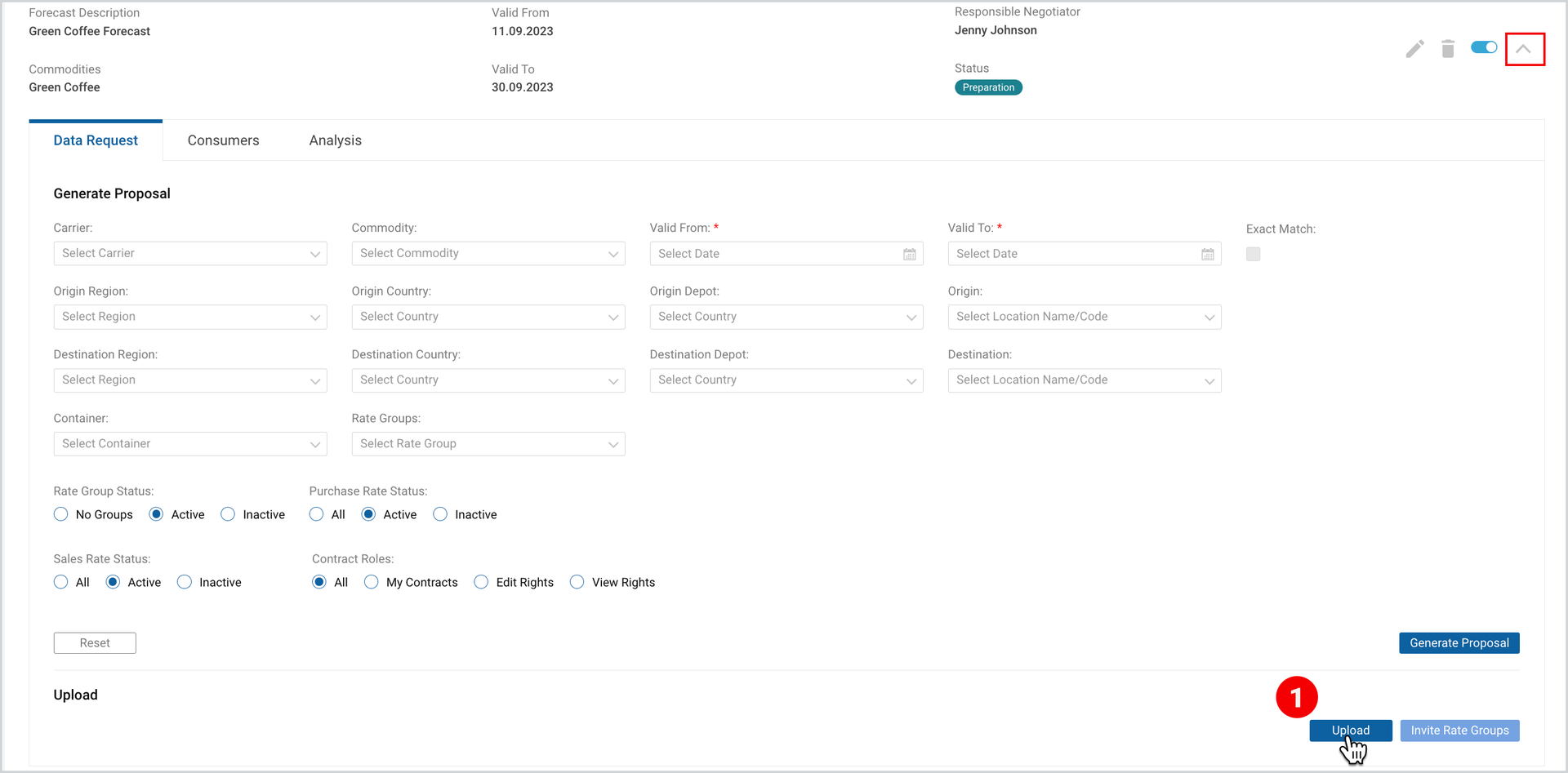
To upload the file
- In the expanded view of the desired forecast, under Data Request tab, click Upload.
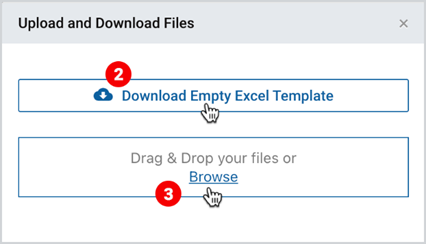
2. As the popup window appears, Download Empty Excel Template.
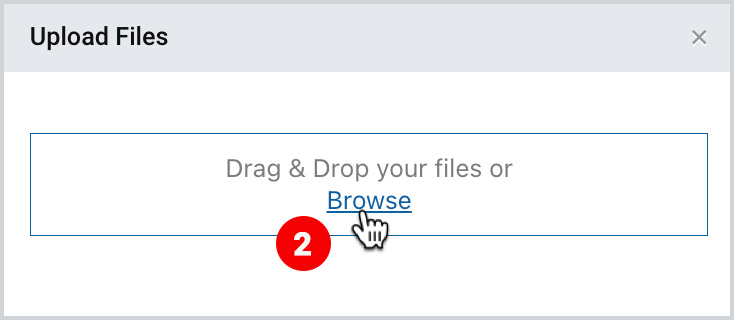
3. After filling in your tender details, Drag and Drop your files or Browse.
Note | As you upload an excel file, if the main sheet – Ocean Freights is incorrectly completed, an “Error Results Table” appears, where all errors are displayed and need to be amended. All other supporting sheets are ignored during upload and no error message is displayed. |
Invite Rate Groups/Business Partners
Invite Rate Groups or Invite Business Partners based on the forecast type (Rate Group or Business Partner) button is automatically activated only when there is an uploaded data request file and ocean freight tab is not empty. The button is disabled for the inactive forecast.
To invite rate groups or business partners
- In the expanded view of the desired tender, under Data Request tab, click Invite Rate Groups or Business Partners.
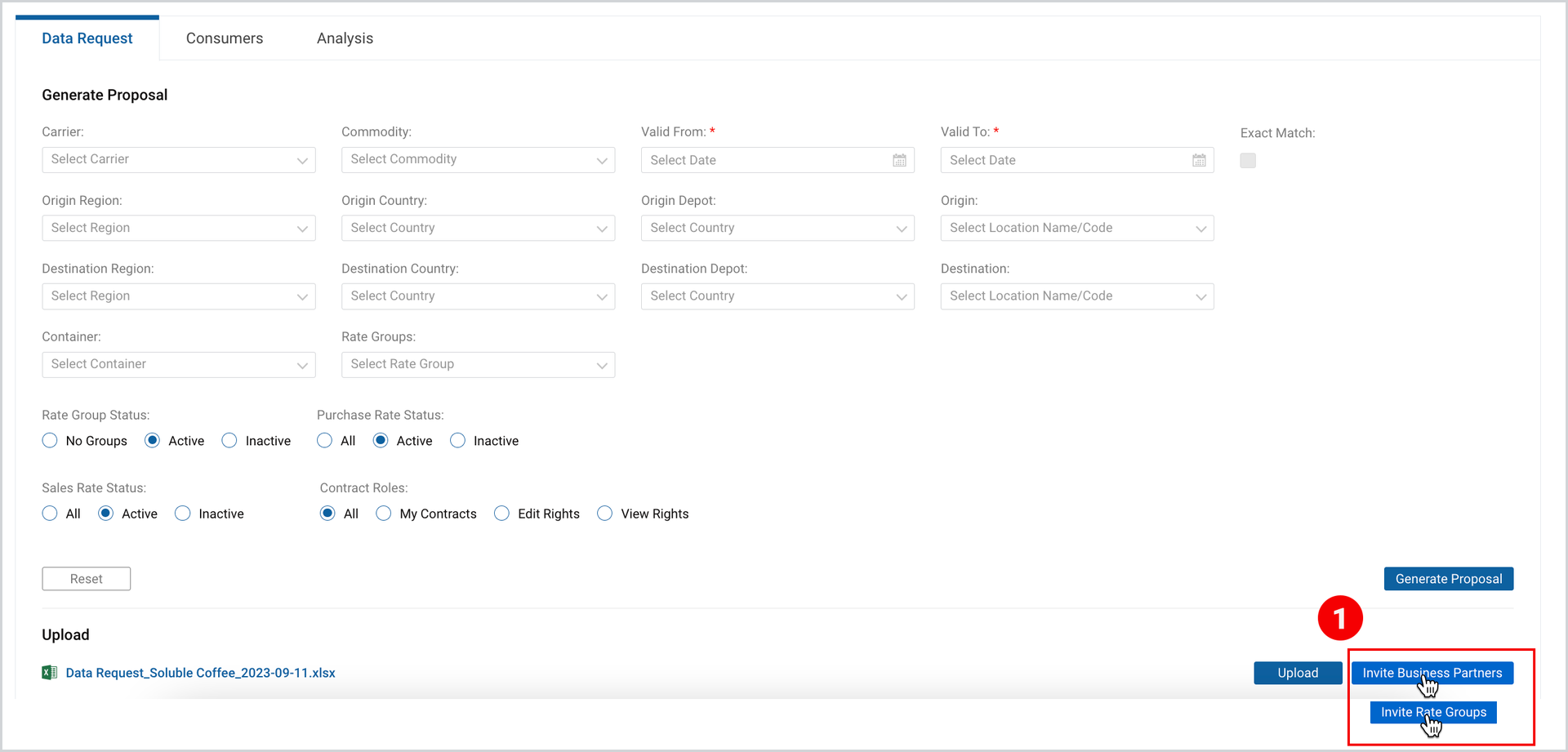
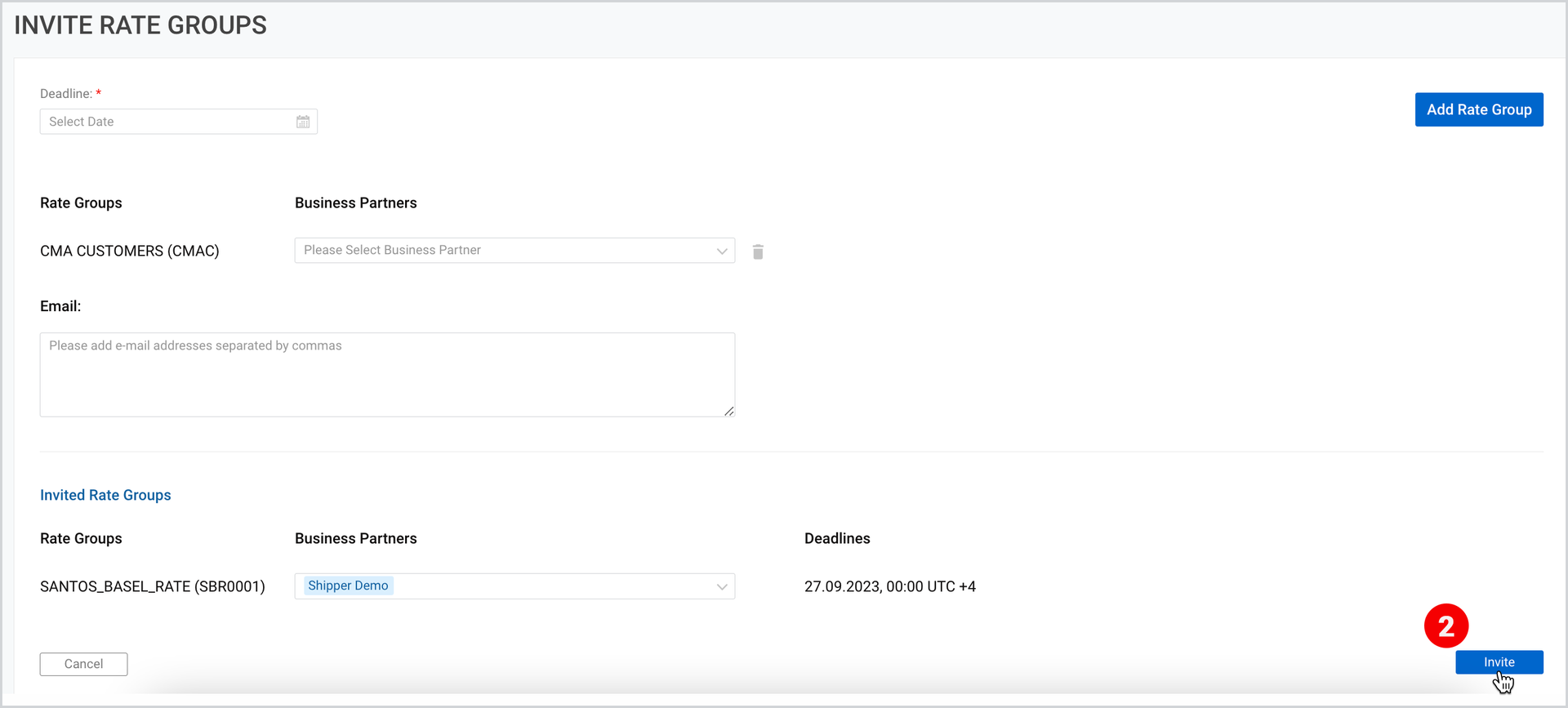
2. In the appeared page, fill in the required data and click Invite.
| Invite Rate Groups Flow |
 |
| Invite Business Partners Flow |
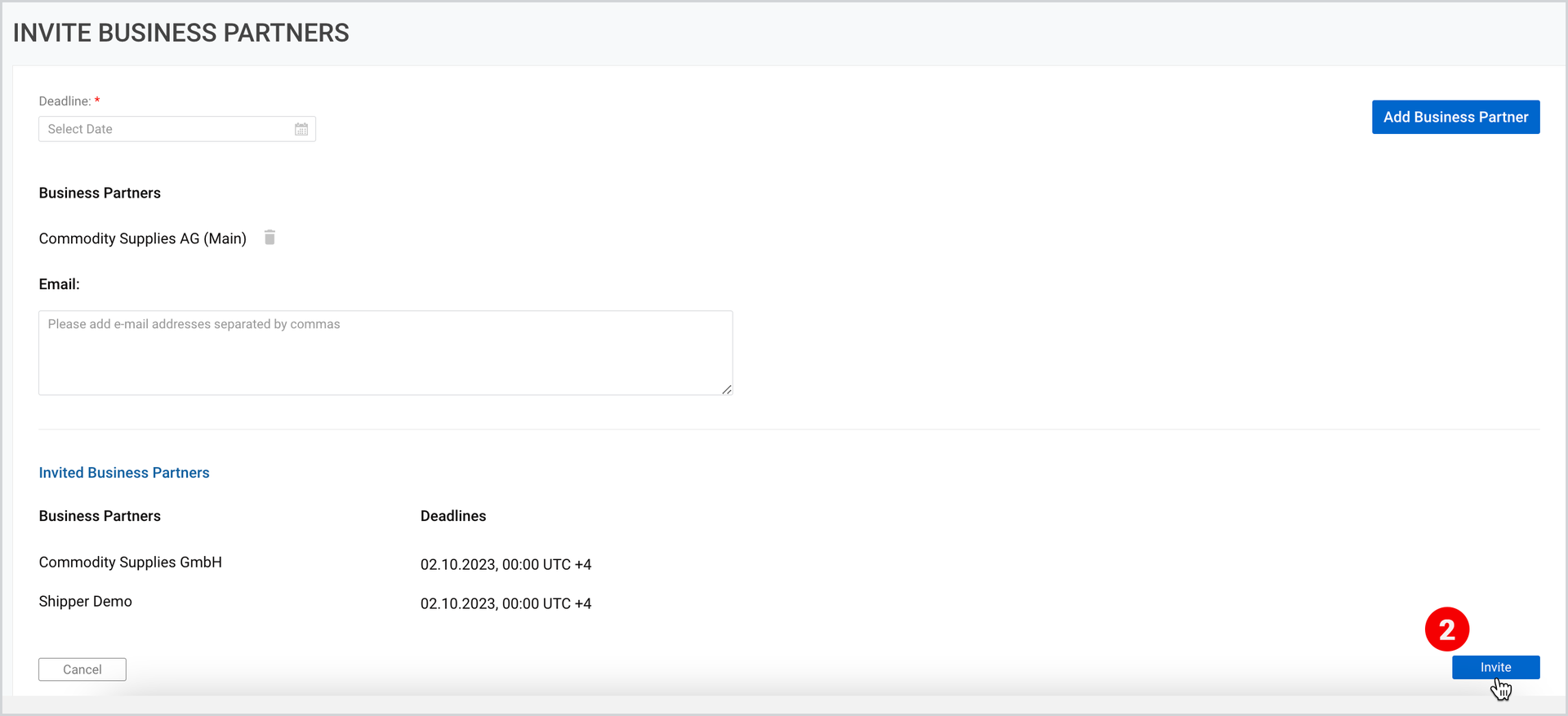 |
There is a difference in the information to be filled in the rate groups invitation and that of business partners, each flow is separately described in Table 4 and Table 5 respectively.
Table 4: Invite Rate Groups Flow
N | Field | Description |
1. | Deadline | The field is enabled if at least 1 new rate group or business partner is added (to be invited). In case a new e-mail is added or new business partner to an invited rate groups is added, the deadline is not required. Date and time can’t be set in the past. When the set deadlines are passed, the status of the invited companies are set to Closed |
2. | E-mails | This is an optional field. Invitation is sent to the filled emails with the request to complete the forecast. There is no relation between the deadline and e-mail, they are sent as general notification. |
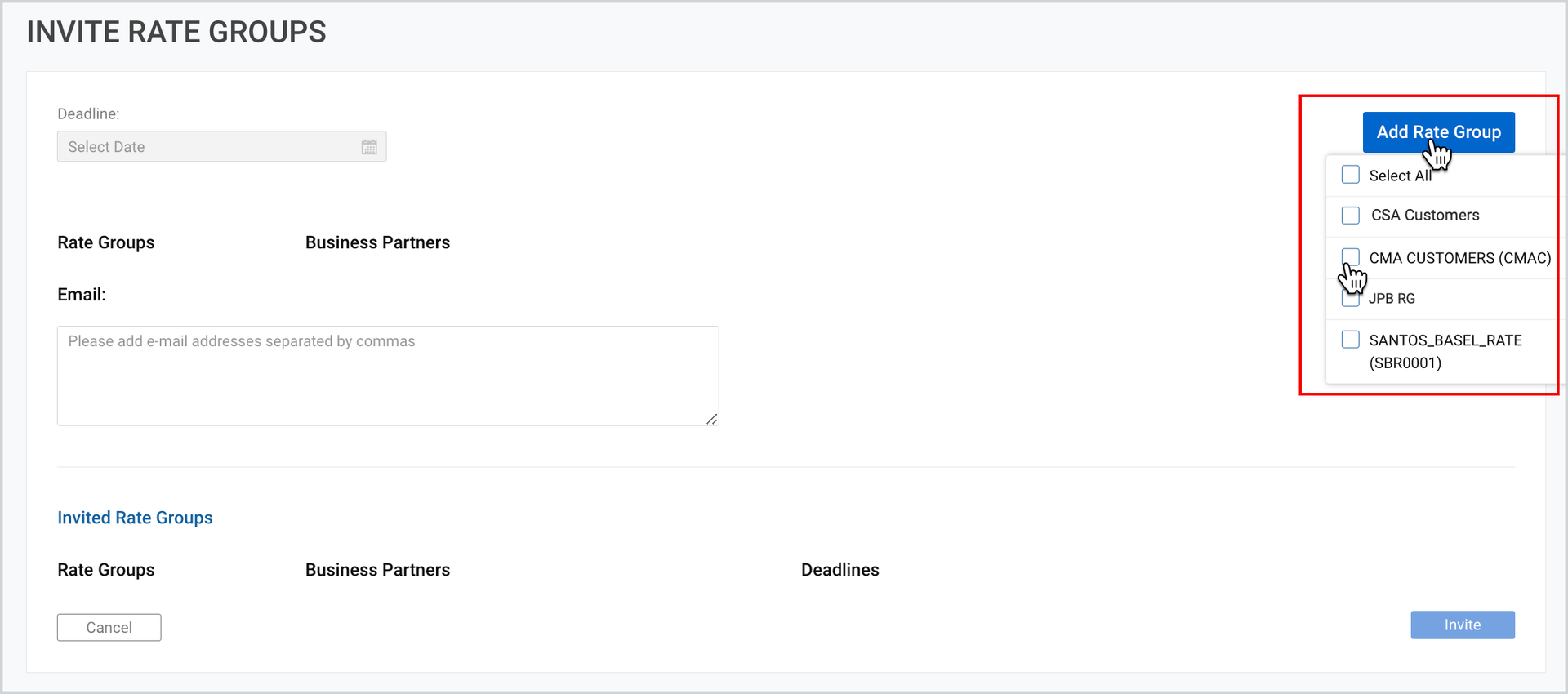
3. | Add Rate Groups | The Add Rate Groups page displays the list of pre-filled rate group name and code in alphabetical order from the uploaded data request file and only from Ocean Freights with status Active. Rate groups are taken from both Rate group manage and/or view columns If there are no rate groups in the file, the list is empty. As you click Add Rate groups button, you can select all Forecast Owner’s markup and non-markup rate groups (excluding DEFAULT) that are excluded from the prefilled list. Figure 14 If a new rate group is invited that is not in the forecast frame list, it is automatically added to the forecast, but it doesn’t affect existing ocean freights.
|
4. | Business Partners | The selection of Business Partners is activated upon the availability of Rate Groups. As you add a rate group, click on the multi-select dropdown field to select from the list of companies linked to the particular rate group.
Only companies with status Active in that rate group are displayed on the list. If it’s empty, all active companies are invited.
If a new business partner is added to the invited Rate Group, it inherits the same deadline that is already defined for the invited rate group
It is possible to select and invite Forecast Owner’s company too if it is a part of the invited Rate Group
|
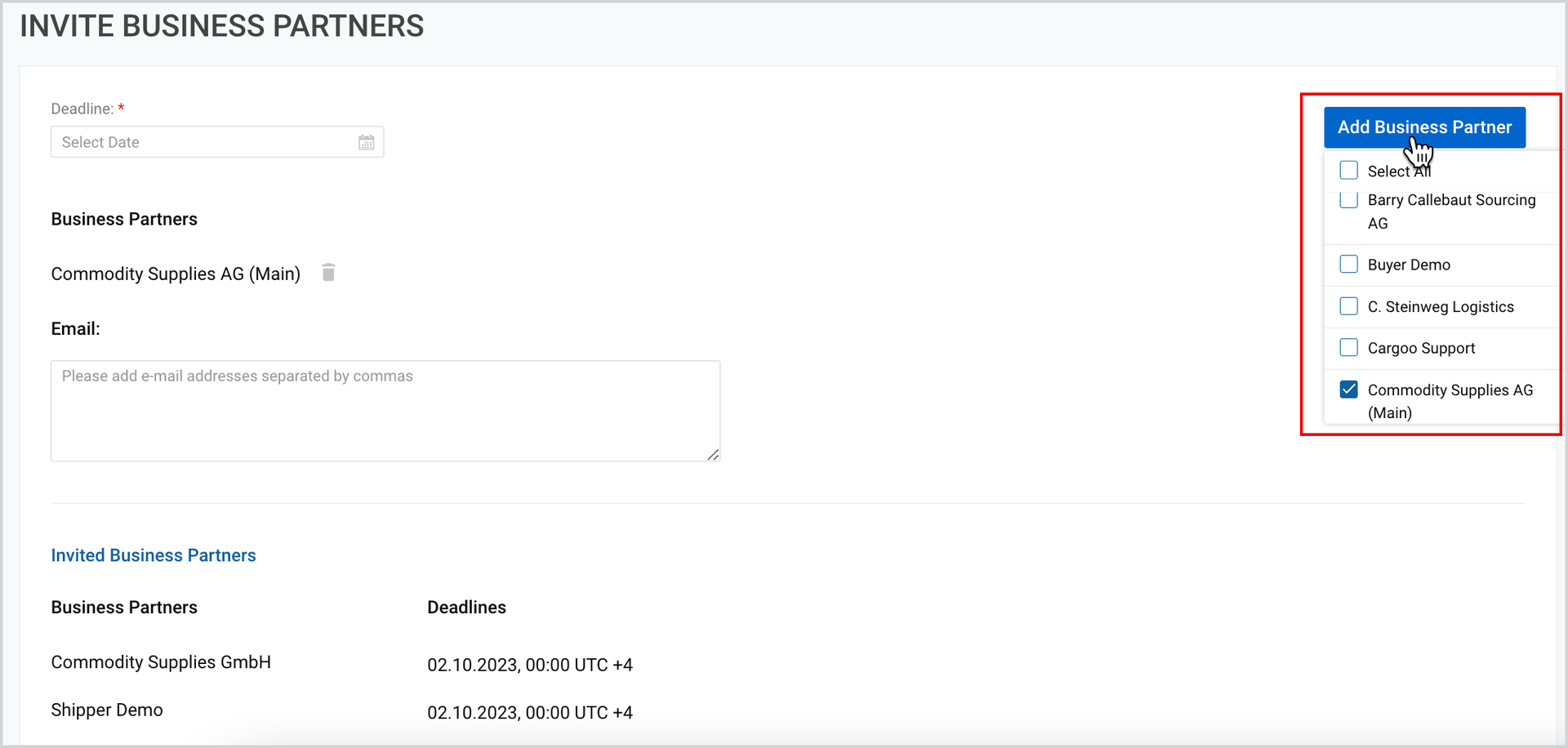
Table 5: Invite Business Partners Flow
N | Field | Description |
1. | Deadline | Same as in Invite Rate Groups flow |
2. | E-mails | Same as in Invite Rate Groups flow |
3. | Add Business Partners | The Add Business Partners page displays the list of pre-filled partners’ (companies’) names in alphabetical order from the uploaded data request file. Business Partners are taken from both Business Partners manage and/or view columns As you click Add Business Partners button, you can select all Forecast Owner’s linked Business Partners (and own company). Only companies with status Active in that rate group are displayed in the list. Figure 15
If a business partner is invited that is not in the forecast frame list, it is automatically added to the forecast, but it doesn’t affect existing ocean freights. |
Consumers Tab
This tab displays the consumers’ invitation state with the list of invited parties, their statuses and deadlines.
Only consumers that have manage rights are displayed in the table. From this tab you can access specific consumers by search and filter, as well as update the status and adjust the deadline through Invite All and Close All buttons.
Access Required Forecasts
The Consumers tab displays the following features through which you can access specific ones:
- Search
- Filter
Search the Required Consumer
Search is done by Rate Group name and code (rate groups forecast type) or Business Partner Company name (BP forecast type) that are not Pending in the forecast. Search starts with the first typed character, displaying the required consumers on the list.
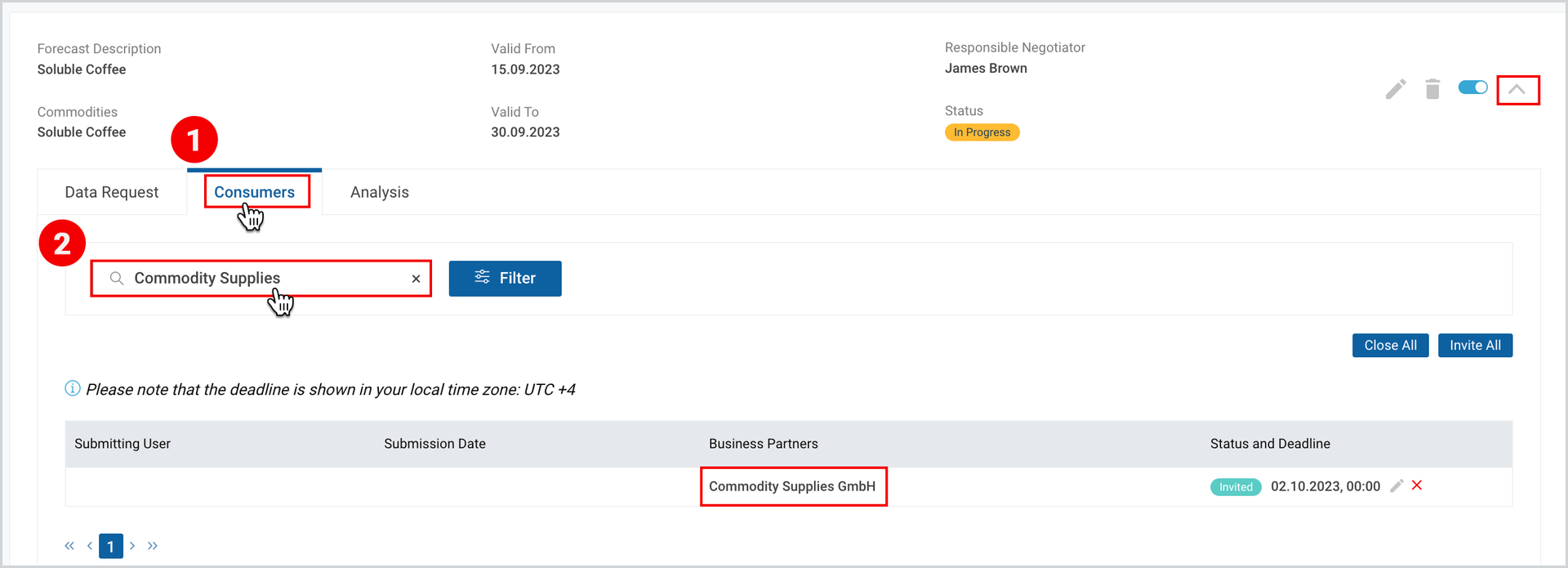
To search for your desired consumers
- In the expanded view of the forecast, click on the Consumers tab.
- In the Search field, fill in the rate group name/code or BP Company name.
Filter the Required Consumer
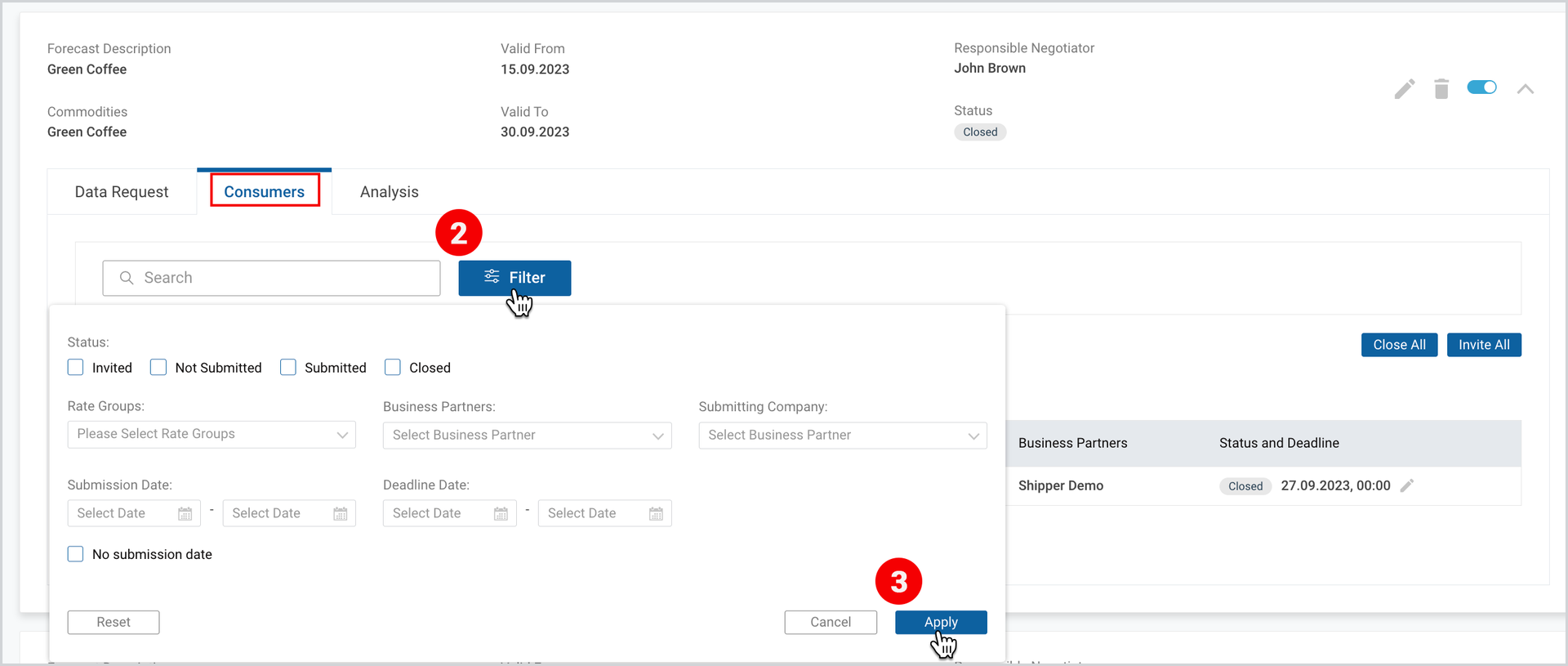
You can alternatively filter your consumer by the following categorization:
- Status (Invited, Submitted, Closed, Not Submitted)
- Business Partner (only Rate group forecast type)
- Submitting Company (only Rate group forecast type)
- Submission Date
- Deadline Range
To filter the forecast:
- Take the step, shown on the above Figure.
- At the upper-left corner of the appeared page, next to the Search field, click Filter.
- Set the desired criteria and click Apply.
Close All
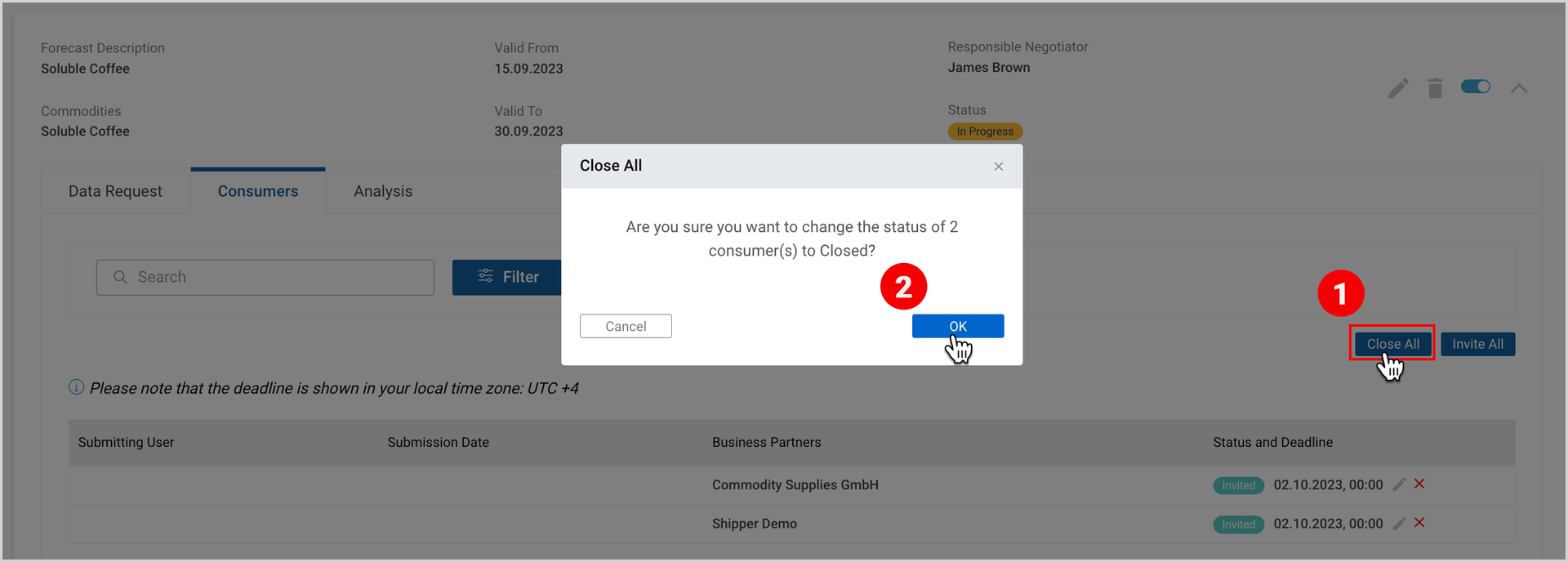
This button allows to set the status of all Rate Groups/Business Partners to Closed regardless of their current status.
To take this action
- Click Close All button at the right part of the Consumers tab.
- Click OK to confirm the action.
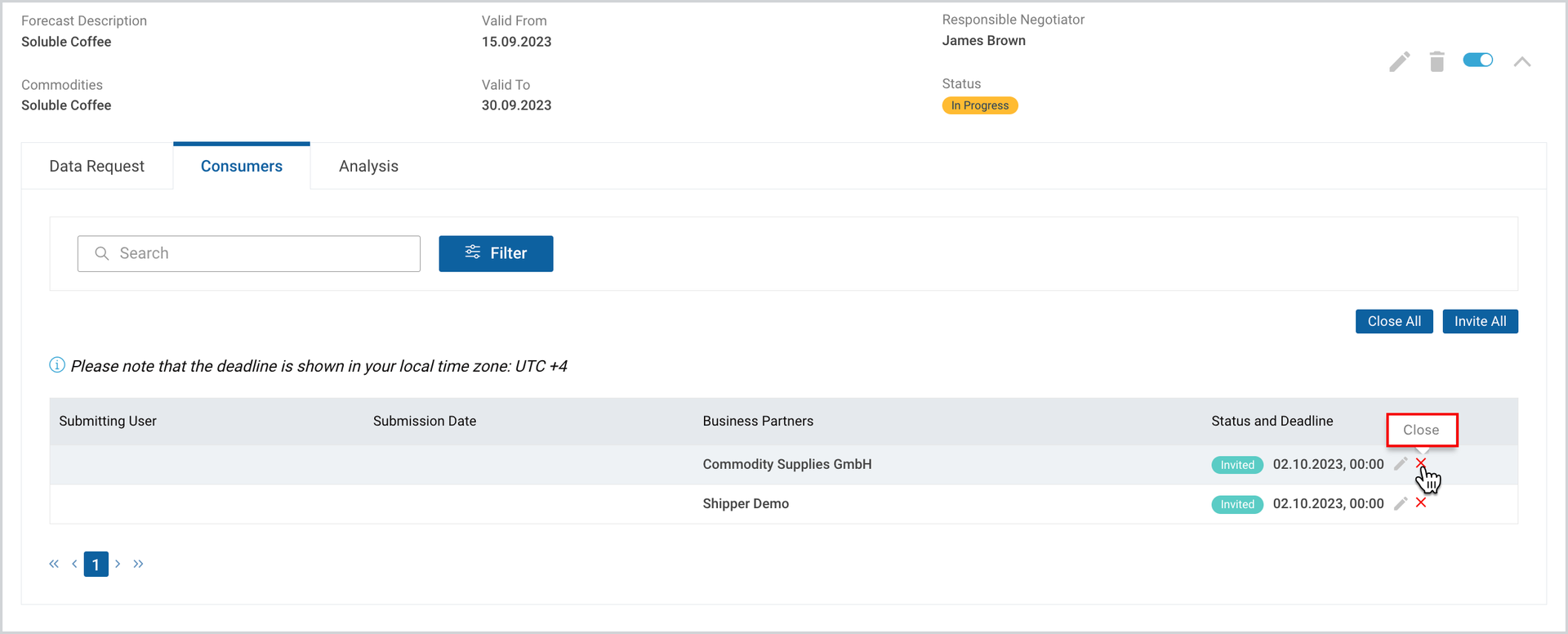
In case you want to close separate rate groups/BP statuses:
- At the right part of each consumer, click on “close” icon.
Invite All
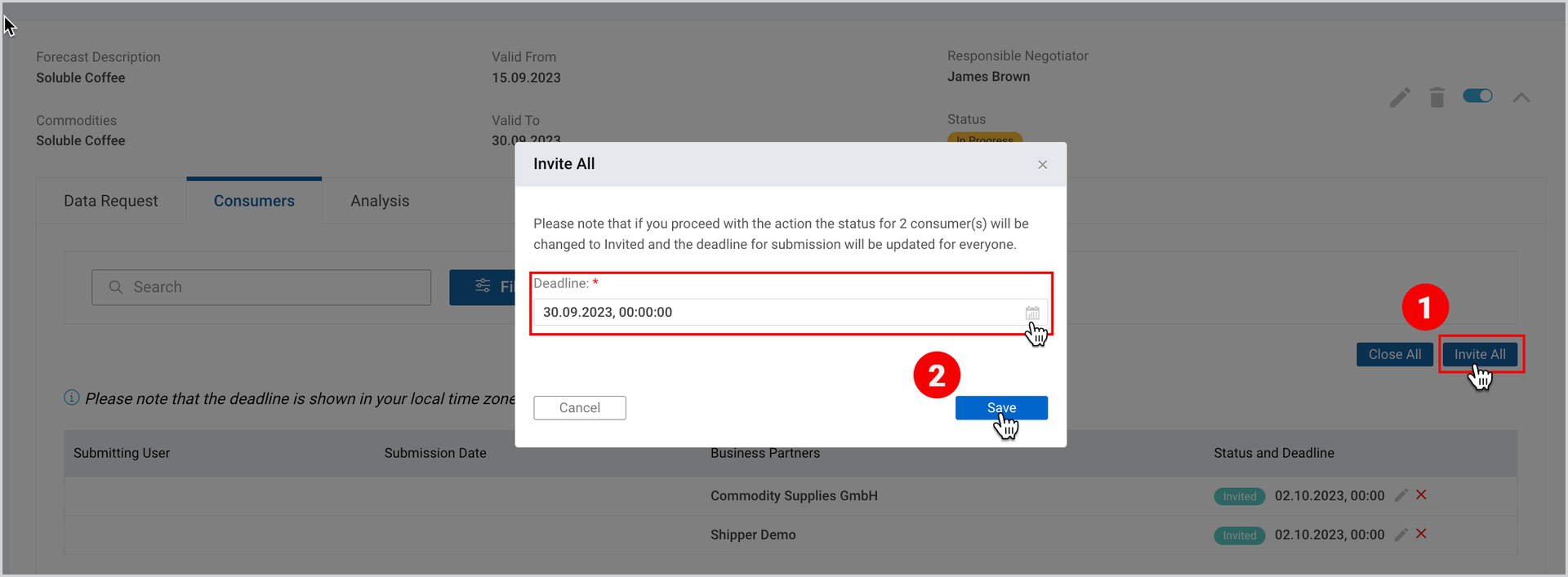
Invite All button allows to invite all consumers by setting up a new deadline. If the deadline is set, the status of the already invited rate groups/business partners will be changed to invited and the deadline for submission will be updated for everyone.
To take this action
- Click Invite All button at the right part of the Consumers tab.
- In the appeared pop-up window, update the deadline and click OK.
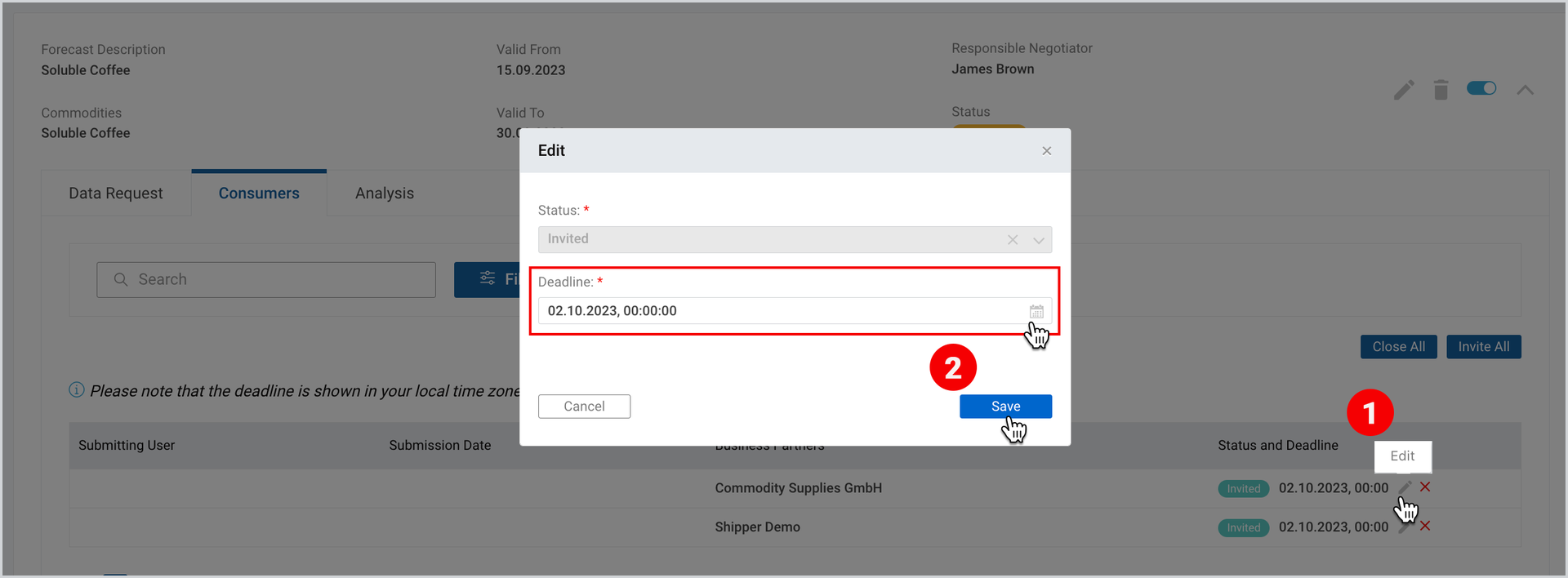
In case you want to update separate rate groups/BP statuses:
- At the right part of each consumer, click “edit” icon.
- In the pop-up window, update the deadline and click Save.
Rate Groups/Business Partner Statuses
The following consumer related statuses are displayed in the Consumers tab:
- Invited - the consumer has been invited to provide feedback in the forecast and no process has started yet.
- Not Submitted - the consumer has started the work and uploaded some draft feedback, but hasn’t submitted it yet.
- Submitted - the consumer has submitted their final feedback.
- Closed - the work on the forecast is over either because the deadline has passed, or the procurement department has closed it.
Only Submitted and Not Submitted statuses are automatically set, the rest can be set both automatically and manually.
Analysis Tab
Once the data request file is uploaded in the Data Request tab, the Analysis file becomes available for export in the Analysis tab. Click on it, to export the file.
To access and export the file:
- In the expanded view of the forecast, click on Analysis tab
- Click on the excel file at the left part of the page to export the file.

At the right part of the Analysis tab, there is an upload button which is enabled only when the export file is available. It aggregates all submitted feedbacks on planned volumes of all participating in the forecast consumers, so that the procurement department can have an input for upcoming tenders with carriers.
To upload the file
- In the expanded view of the desired forecast, under Analysis tab, click Upload.
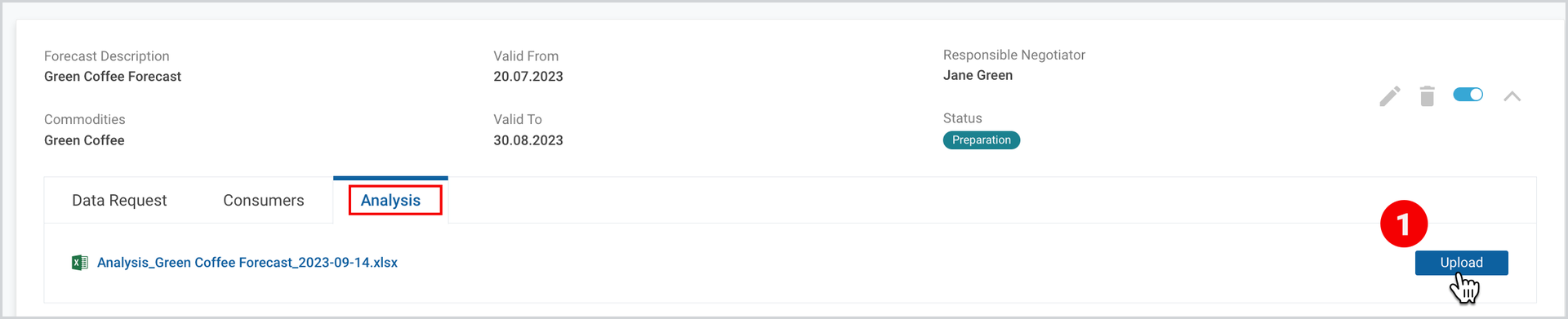
2. As the popup window appears, Drag and Drop your files or Browse.
To download the print version of this article, click the PDF icon: