 CSA Support
Orders
The Orders module is an integral part of the Cargoo system and is the primary step for the organization of the sales/purchase processes between a supplier and a buyer. For accessing the module, Org Admin(s) or Company Admin(s) shall send subscription requests to the Cargoo administration. After subscription, they can grant or limit the access of the module individually to their users with both view (all the fields are non-editable) and manage modes or either of them (for more details on user accesses see User Management, Subscribe Business Modules to Your Users).
To access the Orders Module
- On the Main Menu, click Orders.
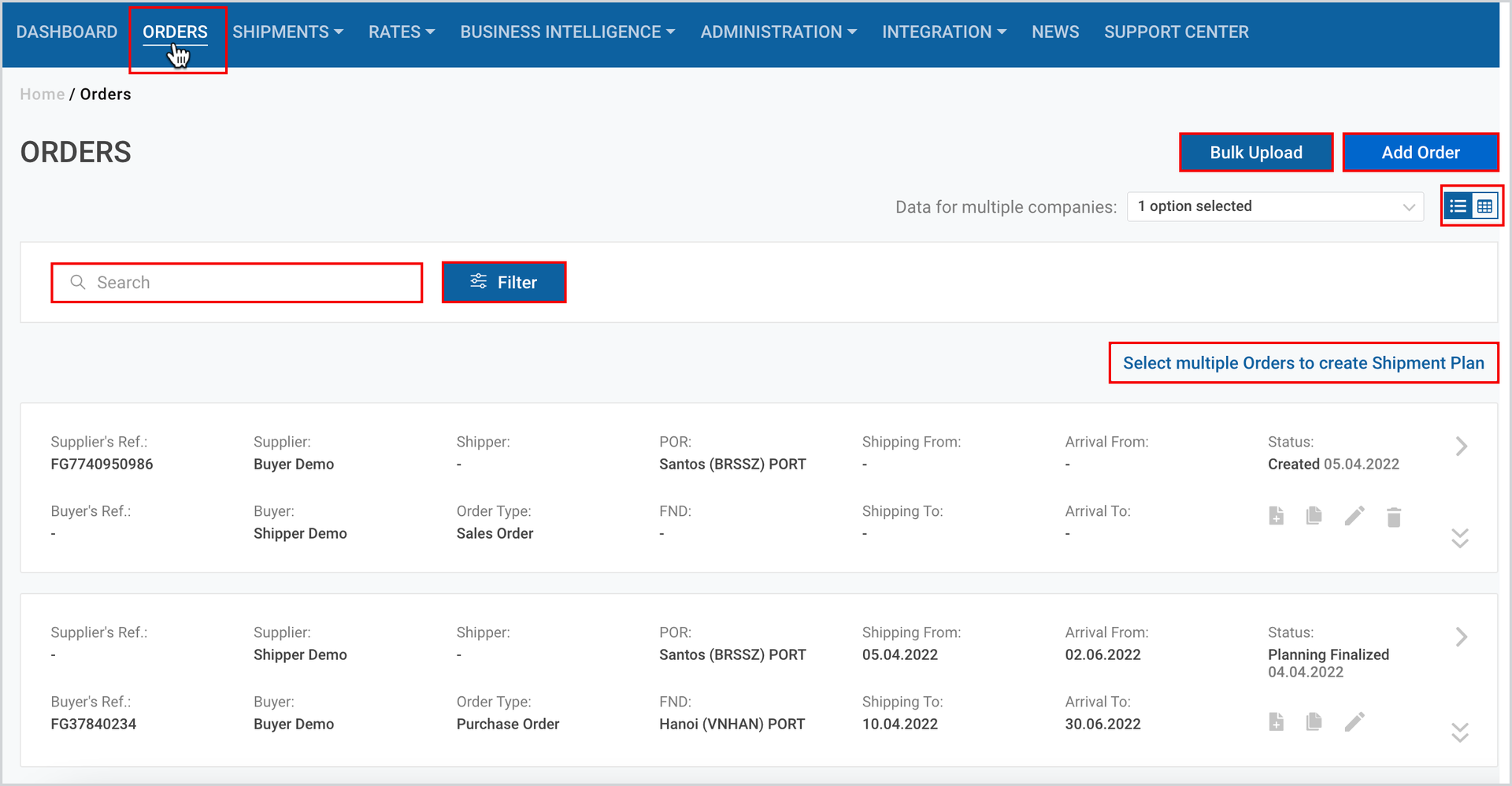
On the appeared page you can add new orders (sales or purchase), bulk upload your orders, access/manage orders list in card or table view, and see data for multiple companies. The page also includes a search tab and a filter to find the orders as per their categories. From this page you can alternatively start the shipping process by creating a shipment plan from one or multiple orders.
Add Order
This feature allows you to add new orders both manually or bulk upload them into the Cargoo system.
Bulk Upload Your Orders
If you do not want to create an order manually through your Cargoo account, you may bulk upload all your orders. In this case you fill in the already downloaded excel file, and upload it into the Cargoo system.
To bulk upload your orders.
- Under Main Menu, click Orders.
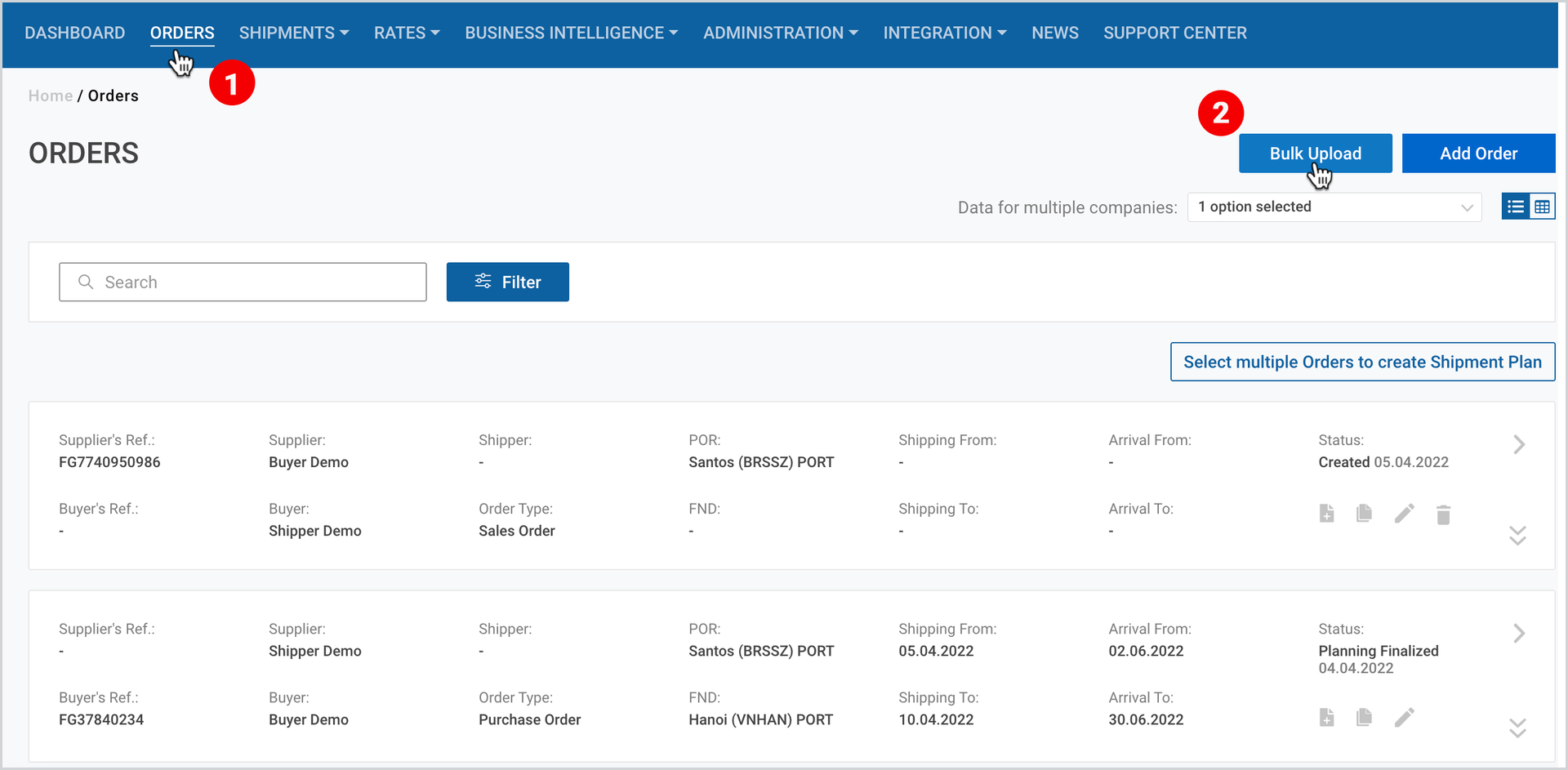
- At the upper right corner of the page, next to Add Order, click Bulk Upload.
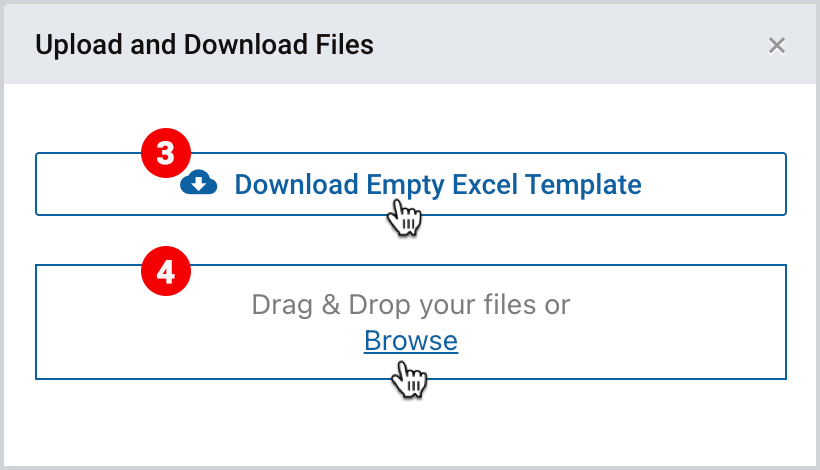
3. As the popup window appears, click Download Empty Excel Template.
4. After filling in your orders details, Drag and Drop your files or Browse.
Create Order Manually
To create an order manually through the Cargoo system you have to select between a Sales or a Purchase one.
New order form can be created by taking the following steps:
- On the Main Menu, click Orders.
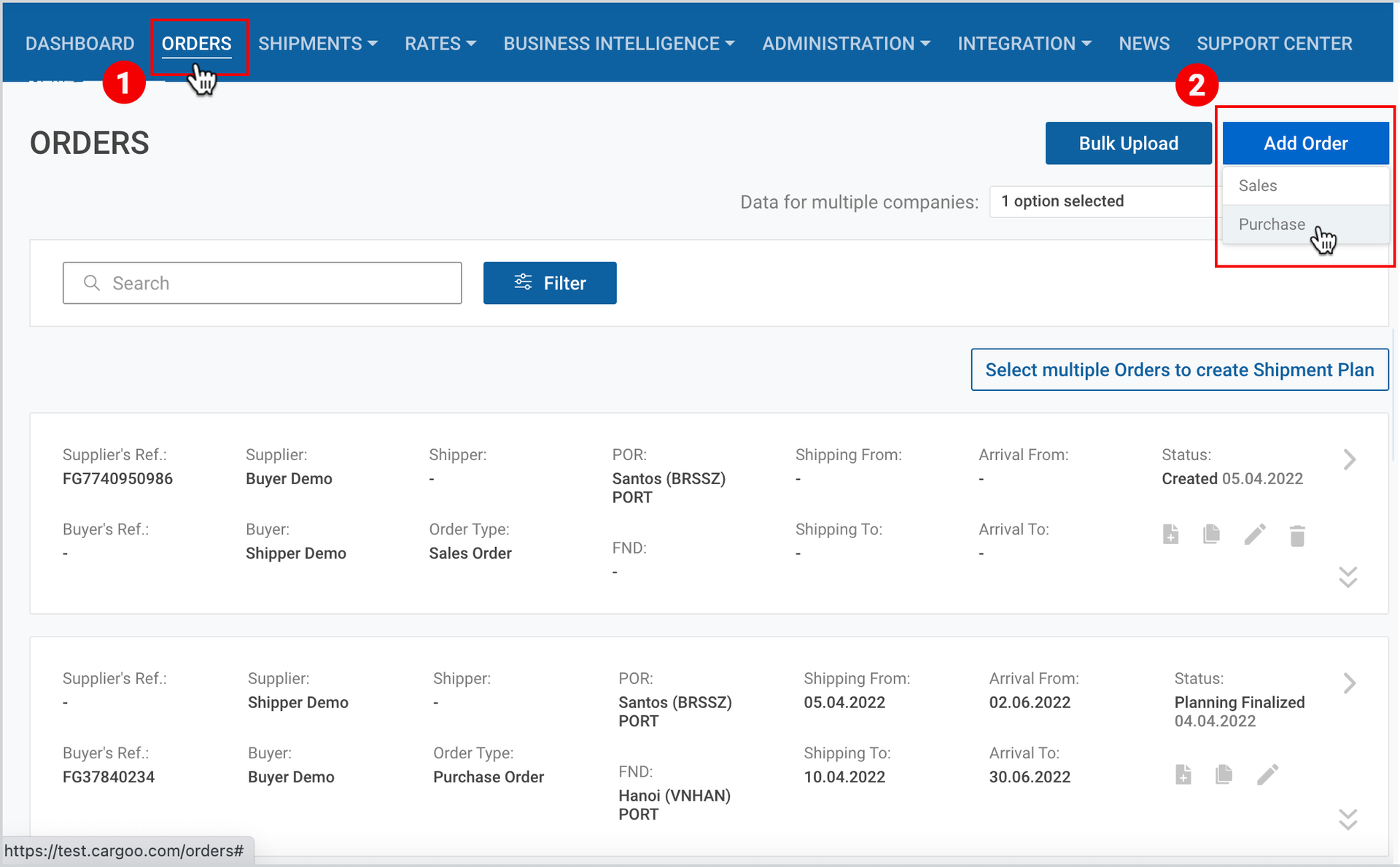
- At the upper right corner of the page, click Add order and select the type – Sales or Purchase
3. As the order creation page appears, fill in the required/non required details, described in the Order Structure below, and then click Create.
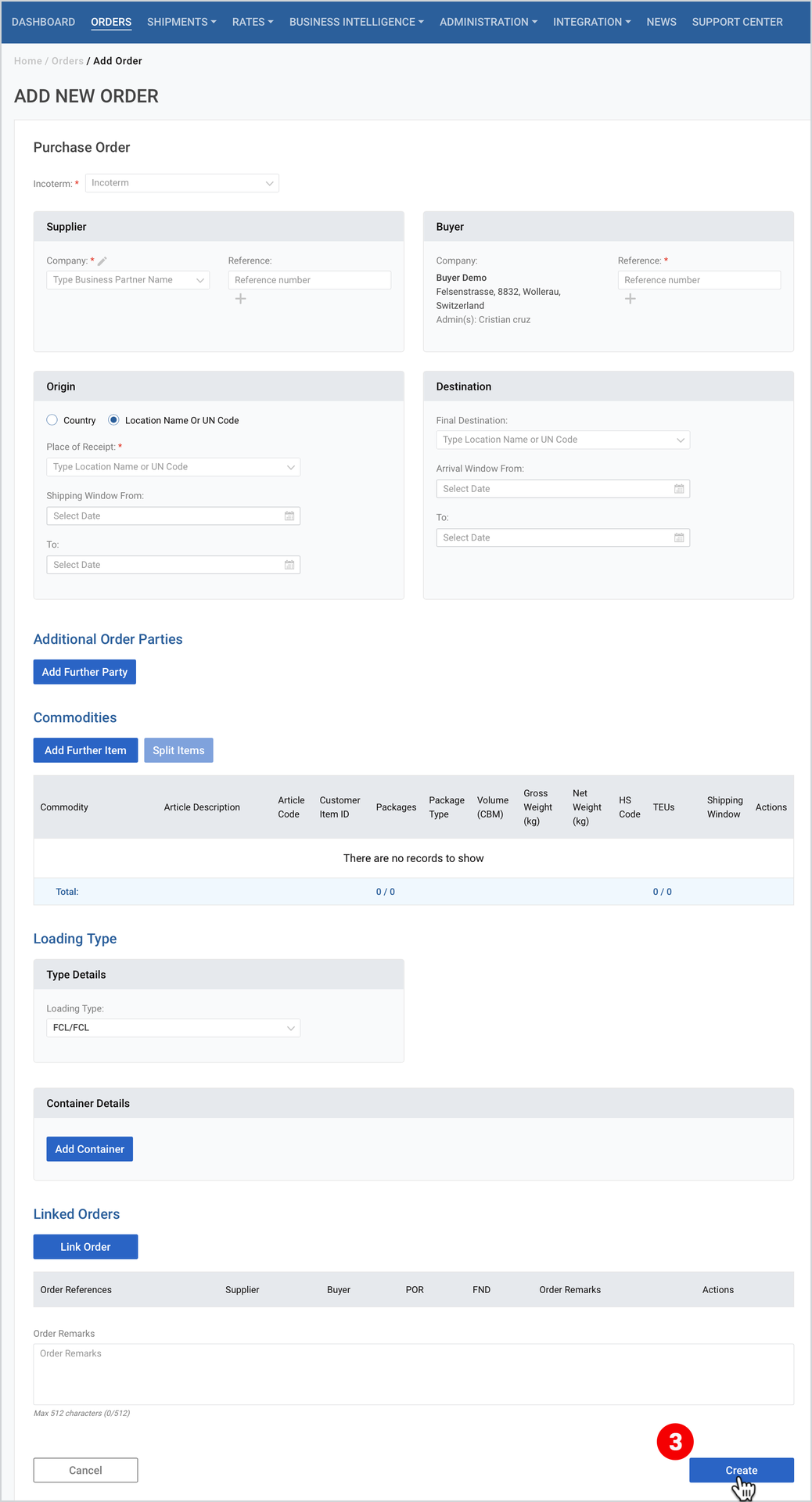
Order Structure
After clicking the Add Order button, you are redirected to the order details page, where you have to fill in the required and optional information, including incoterm, order parties, locations, shipping window, commodities, container details, as well as other additional fields.
Incoterm
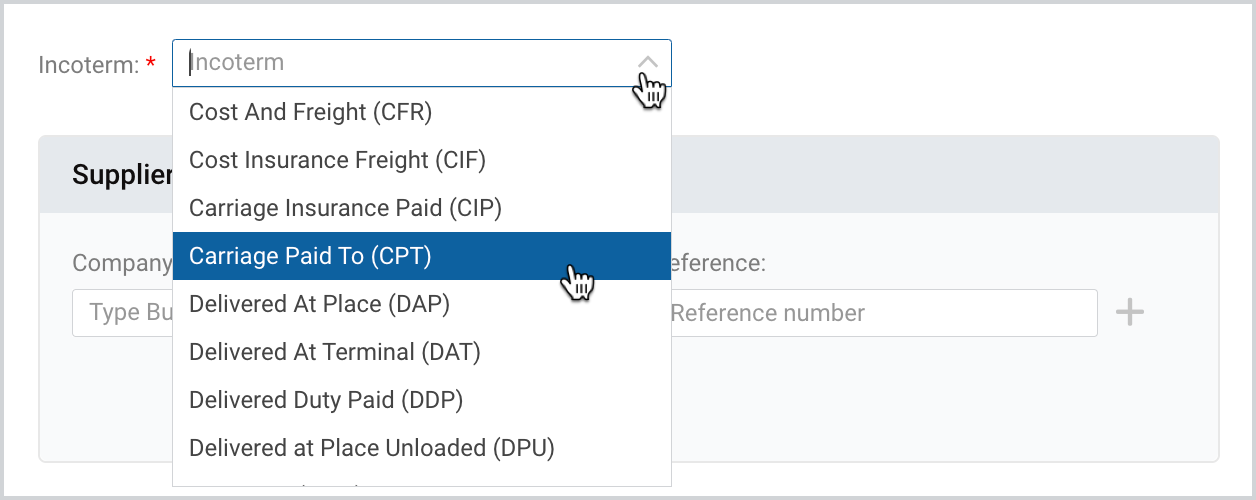
As you start the order creation process, on the orders details page, first you have to select the required Incoterm.
To perform this action
- At the top of the order creation page, next to Incoterm, click the drop-down icon and select from the list.
Order Parties
The order parties include the buyer and the supplier companies’ information. Here, you have to fill in the following details:
- Single choice company selection field or search for the business partner regardless of the status (linked or non-linked).
- Reference input, required field for the Order Creator Company.

Note | Based on the fact whether you have selected “Sales” or “Purchase” when creating the order, either Supplier or Buyer company field info will be auto-filled with the User 's Company info. |
Locations and Shipping Windows
The location details include the order origin and destination, where you have to fill in
- the Place of Receipt and Final Destination (country or location name/UN code);
- the Shipping window from/to and arrival window from/to.
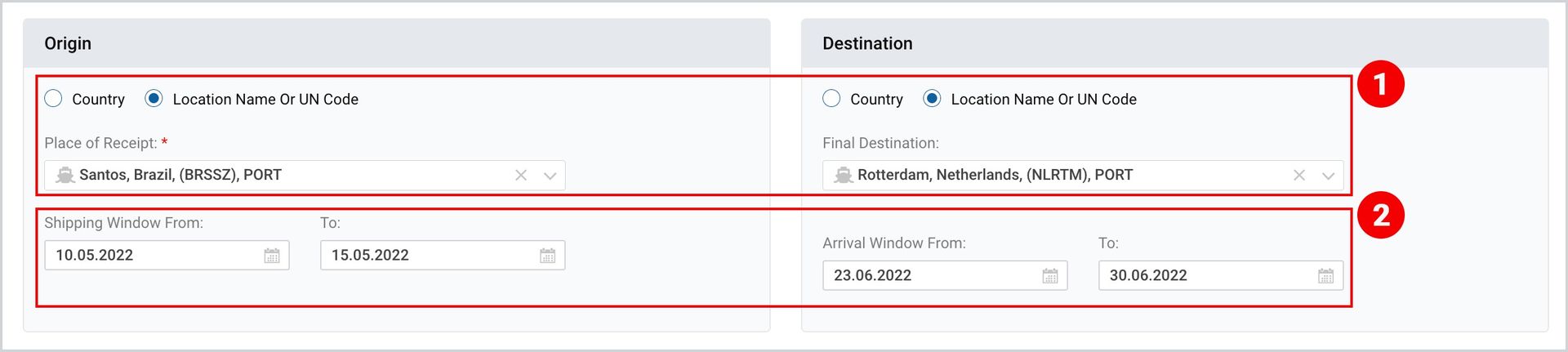
Note | The shipping window from can be selected starting from today and the date from cannot be higher than date to. The arrival window date cannot be lower or the same as the shipping window, while the arrival window to date must be higher than the arrival window from. |
Additional Order Parties
Additional order parties are other business partners involved in the order processing/shipping process.
To add additional parties
- Under Additional/Order Parties, click Add Further Party and select the party type from the suggested list.
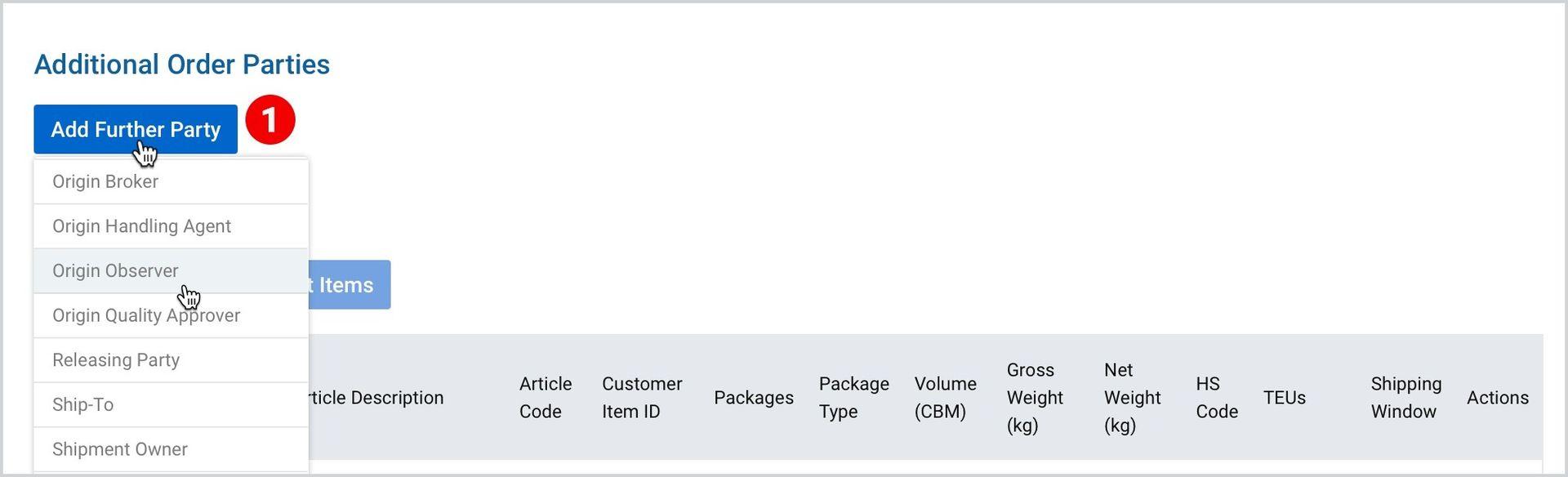
2. Fill in the name of the business partner.
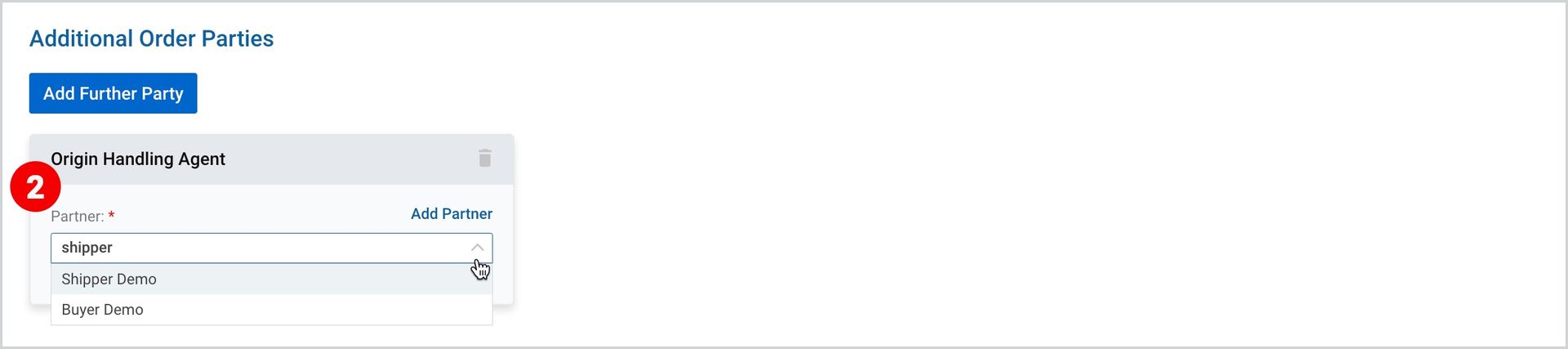
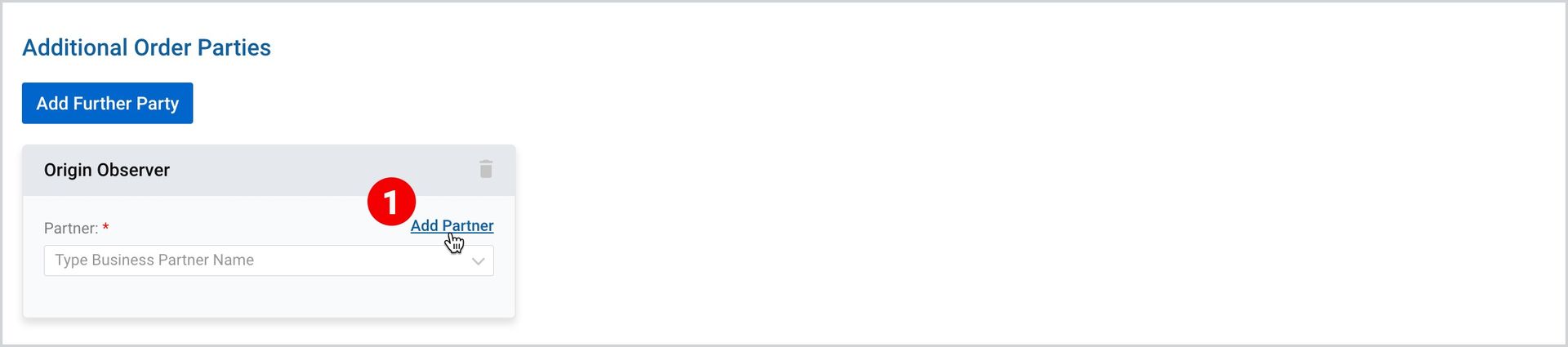
In case the party is not on your business partners list,
- Click Add partner on the appeared window.
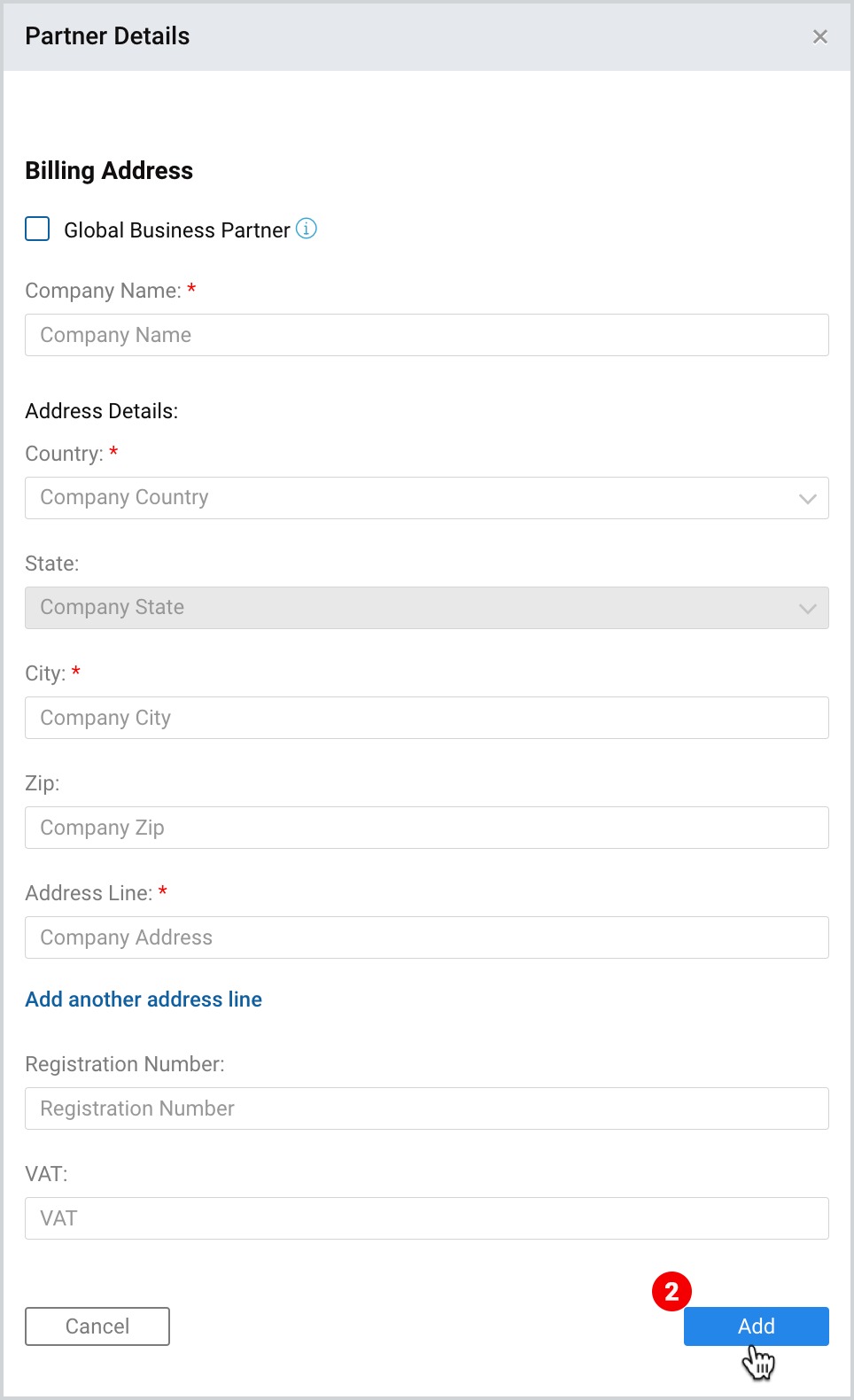
2. As the partners details popup appears, fill in the required and optional details and
then click Add.
Commodities
You can add several commodities to the order but their type should be the same. The Commodity types are subscribed to the companies by the Cargoo Administration.
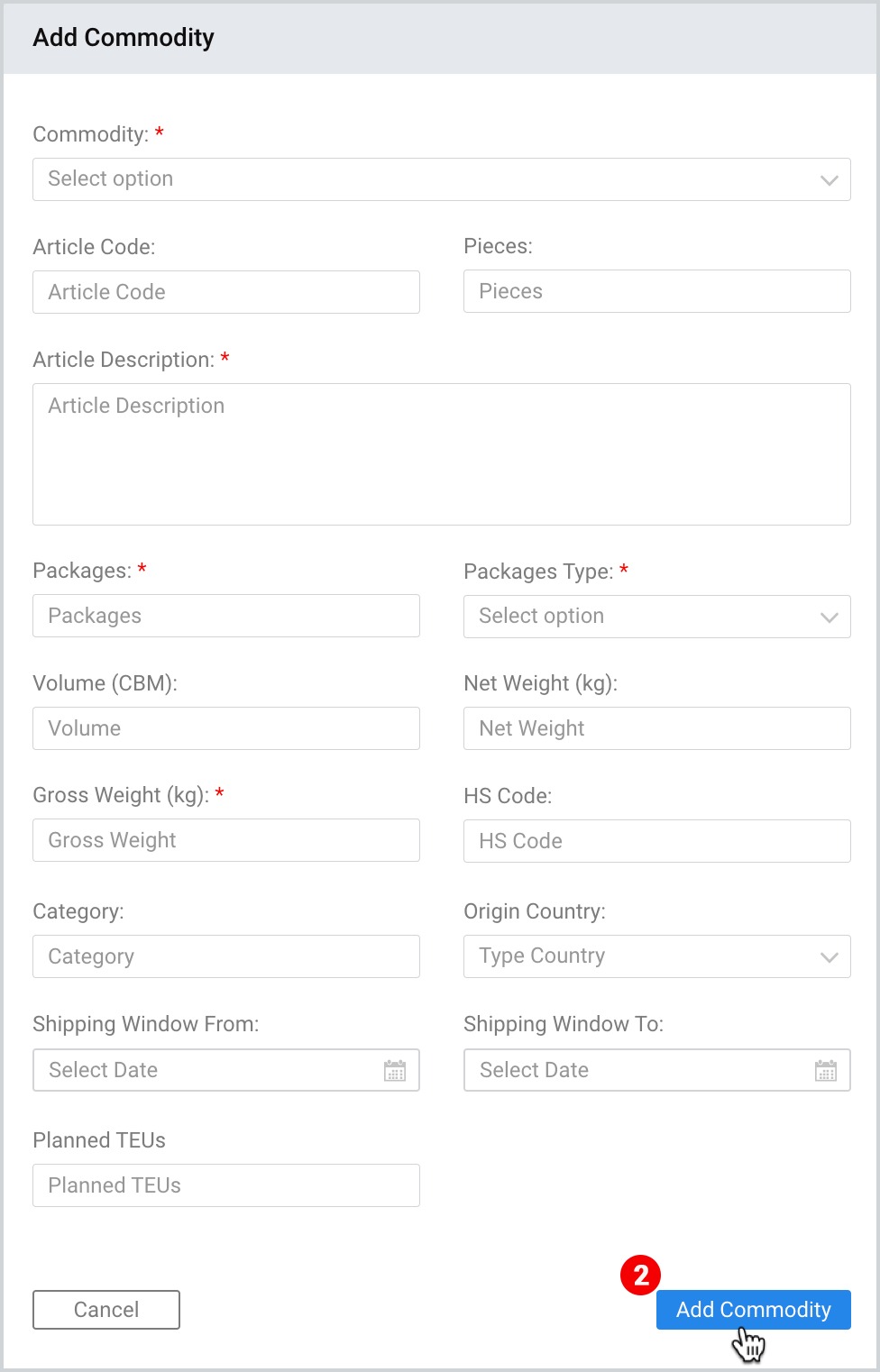
To add a commodity
- Scroll down to the Commodity and click Add Further Item.
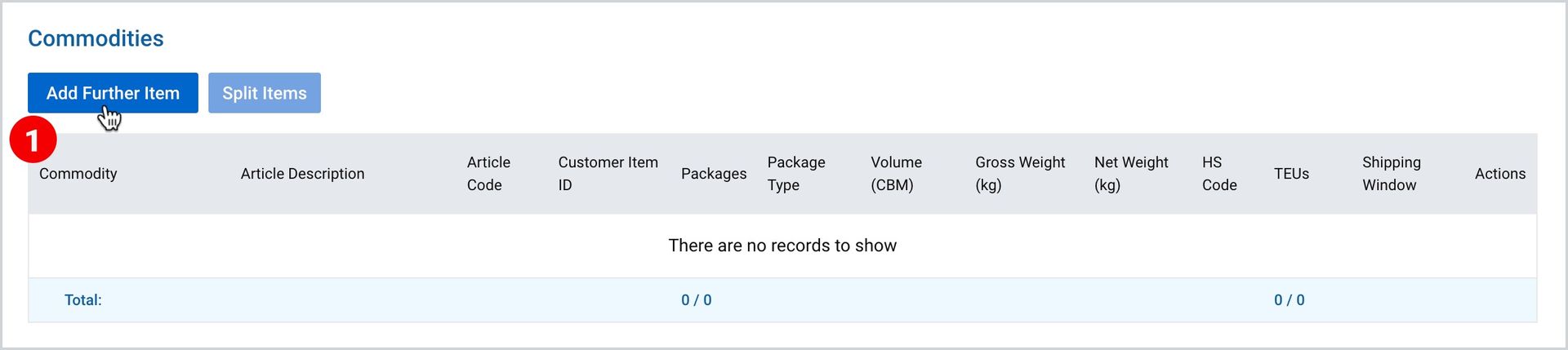
2. As the popup window appears, fill in the required and optional details of the commodity
and then click Add Commodity.
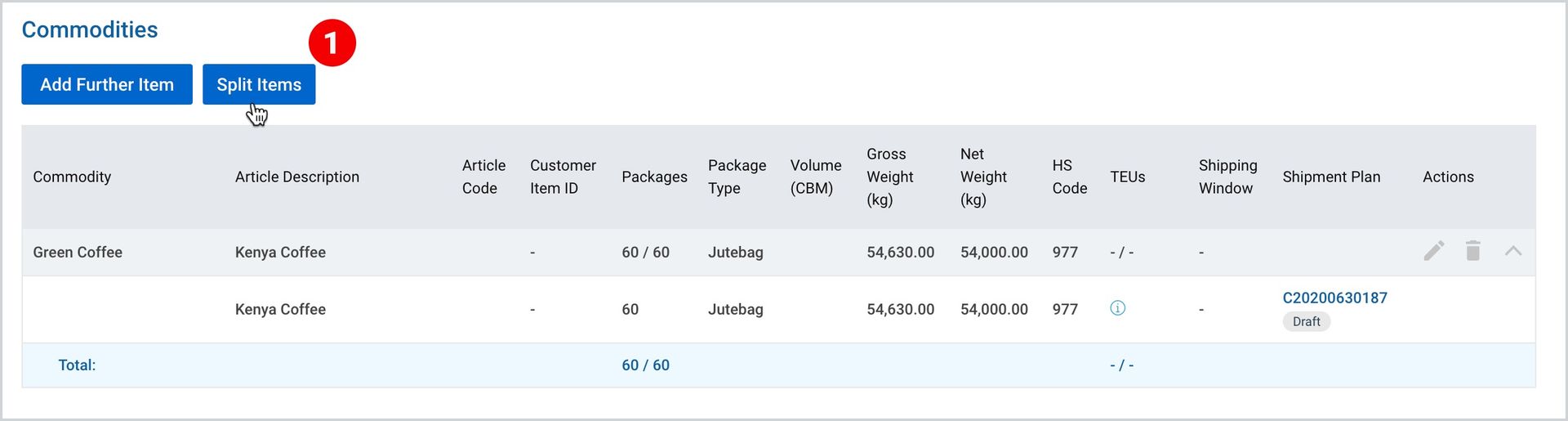
As you add one or more commodity items in your order, you have the option to split them. This is generally done in case you intend to create multiple shipment plans and include either of the split items into this shipment.
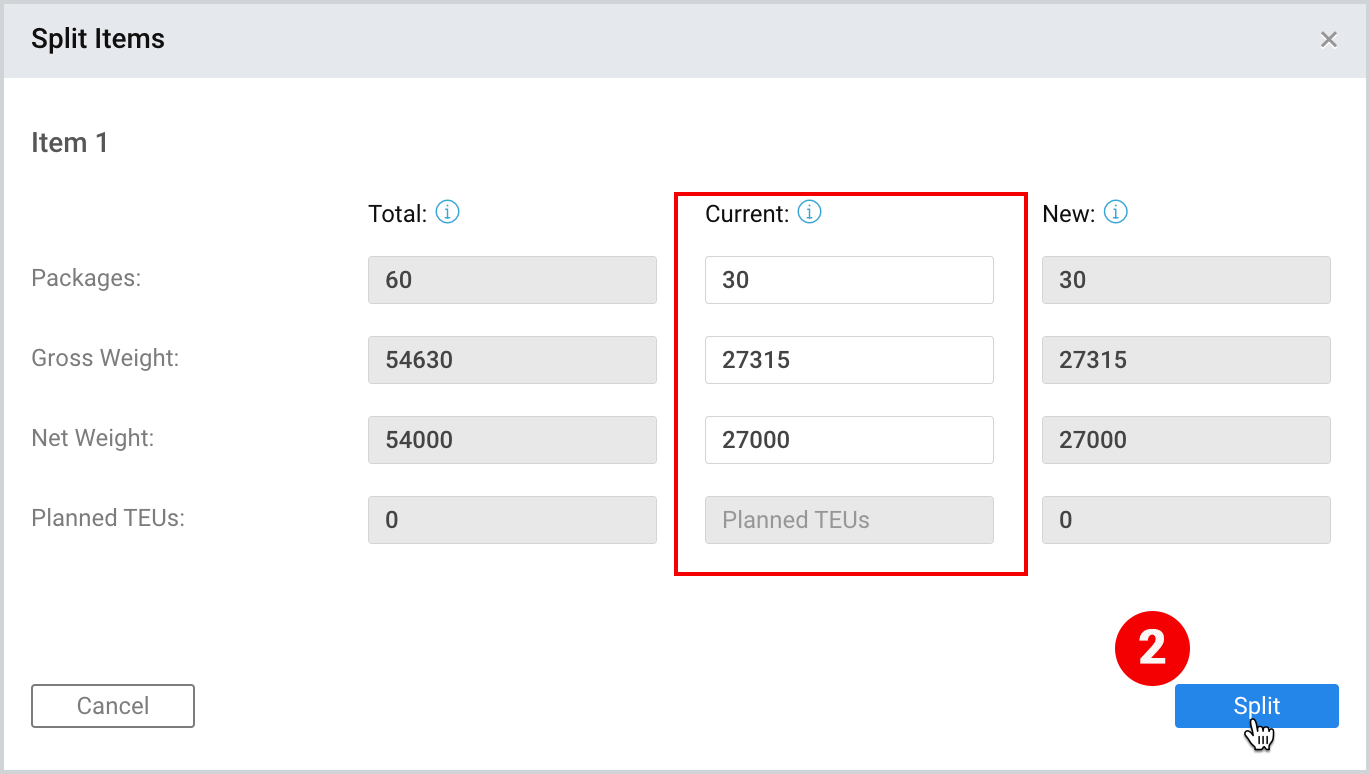
The following values can be split:
- Packages
- Gross Weight
- Net Weight (optional)
- Planned TEUs (optional)
To perform this action
- Next to Add Further Item, click Split Item.
2. In the Current column of the appeared window fill in the desired values and click Split.
As a result, two split items will be included in one order with the initial total weight, that you can separately select for creating multiple shipment plans the details of which can be found in Shipments, Create Shipment Plan.

Note | Each split item may be further split multiple times. |
Loading type
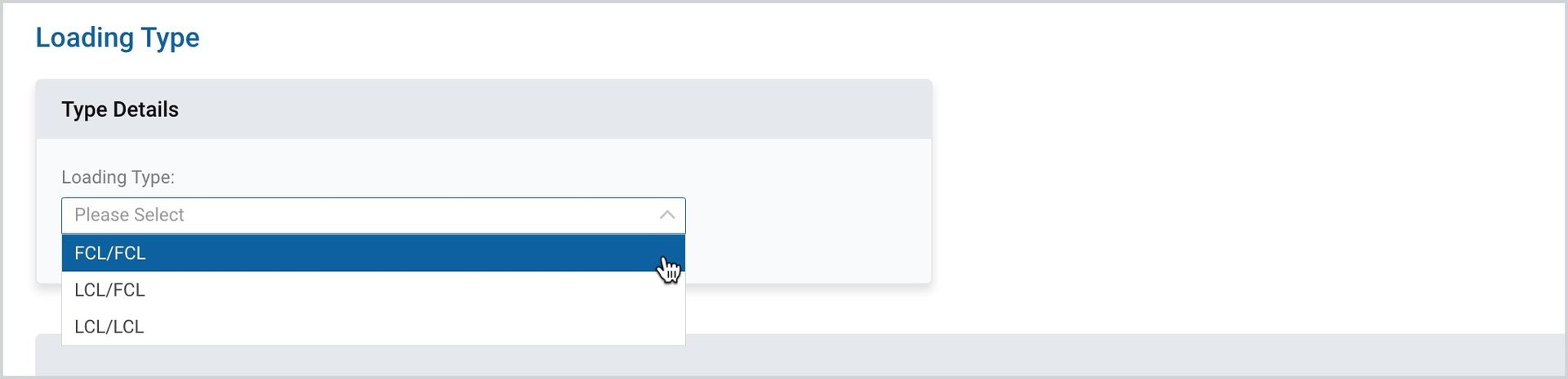
Here have to select between the available FCL/FCL, LCL/FCL or LCL/LCL shipment load type.
To perform this action
- Under Loading Type, click the drop-down and select from the list.
Container Details
Under Container Details you should fill in the number of containers, the container type and the cargo weight (which by default displays the already filled in total cargo weight). You can add additional containers upon necessity.
To fill in the container details
- Click Add Container.
- Fill in the Number of Containers, Container Type and Cargo Weight fields.
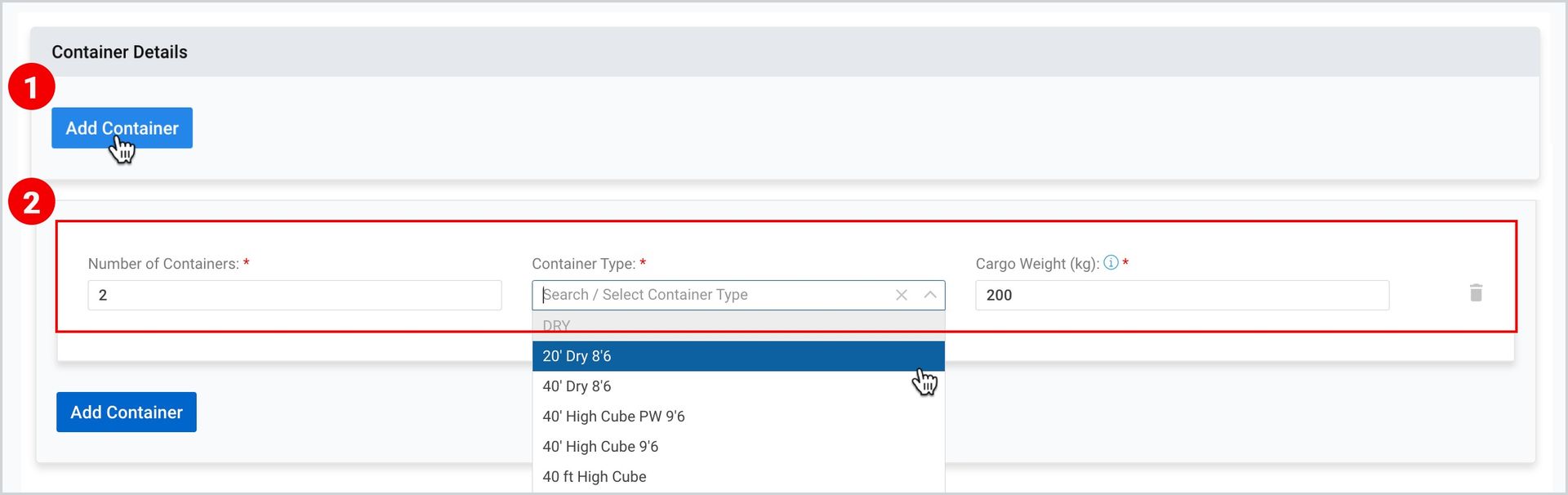
Additional Fields
Additional fields to be filled in the order creation page include
a. Order Remarks – any additional note you would like to attach to the order.

b. Linked Orders, that are usually used by the traders, who sell the commodities to the
third parties after purchasing them from the first one, to ensure the smooth tracking
processing their system, i.e. they link their Sales Orders to Purchase ones.
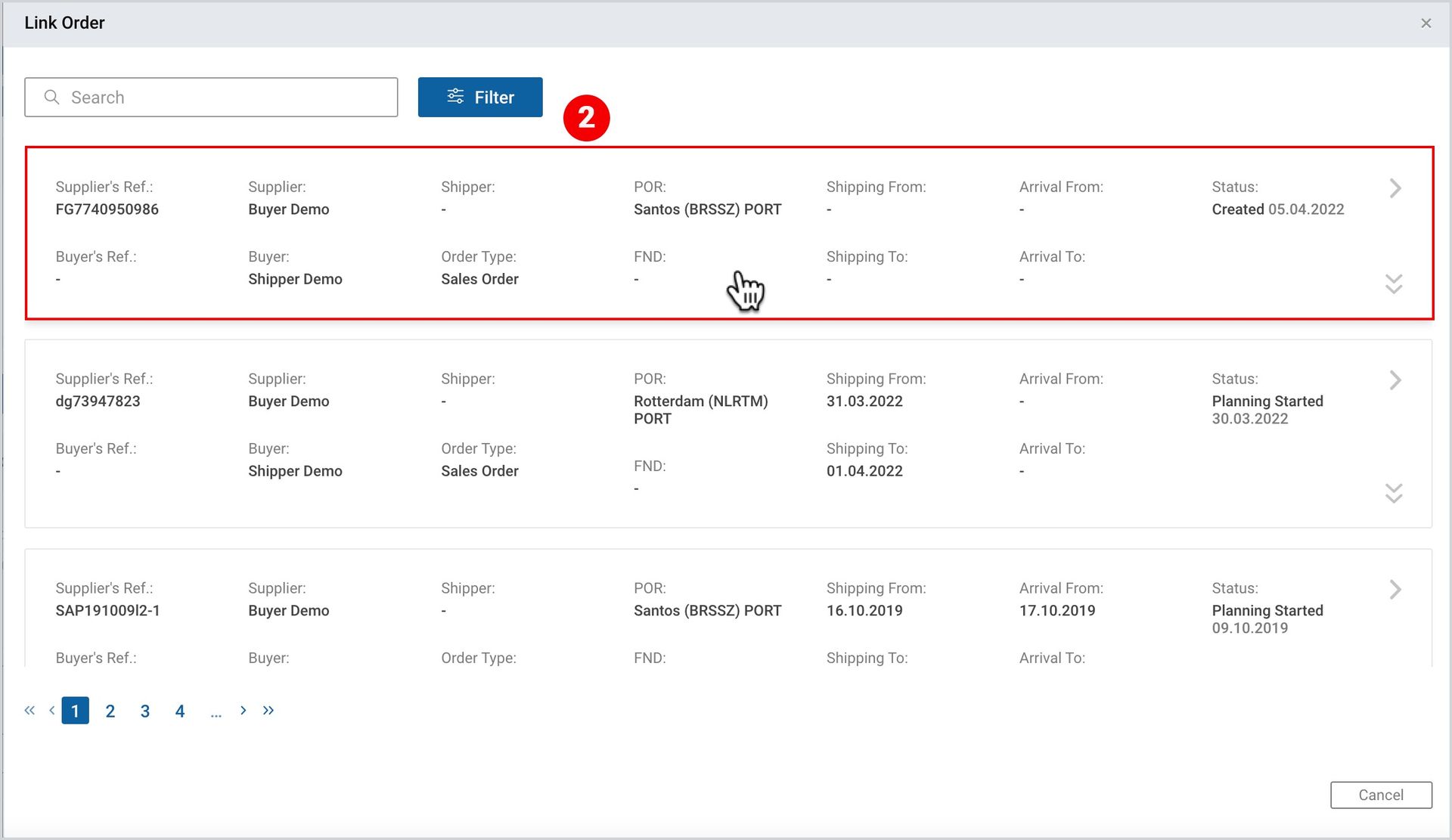
To link orders
- Under Linked Orders, click Link Order.

2. As you are redirected to the list of all SOs (if the current order is purchase order) and
POs (if the current order is a Sales one), select the order you want to link the current
one to.
Note | As soon as the order is created, it will be available on the orders list for you as a creator and your business partner, from whom the sales or purchase is to be implemented. The only difference is that you, as a creator, will have the order in the edit mode, and your business partner – in the view mode. The only editing option for the business partner is the reference number, that can be updated. |
Orders list
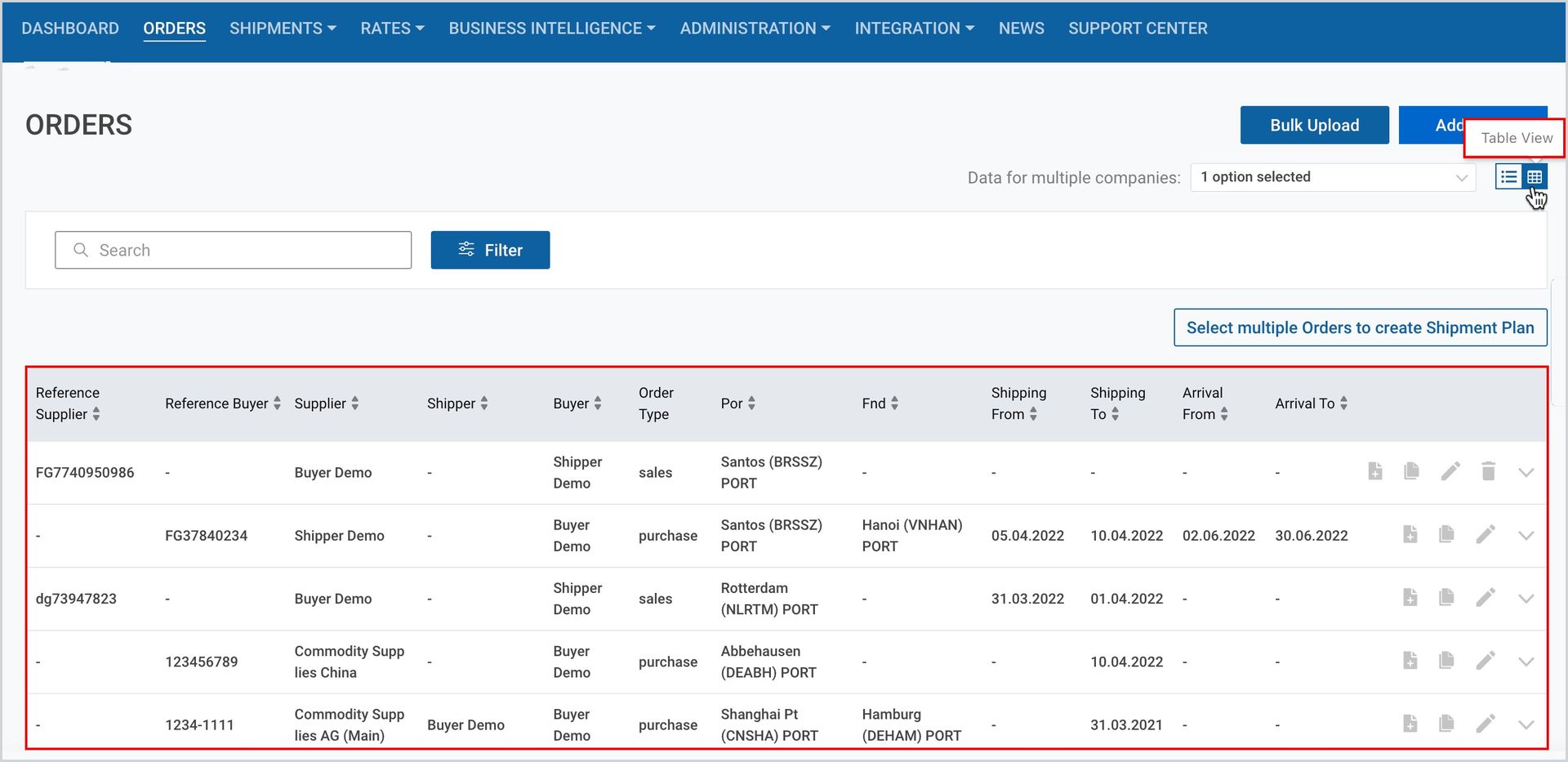
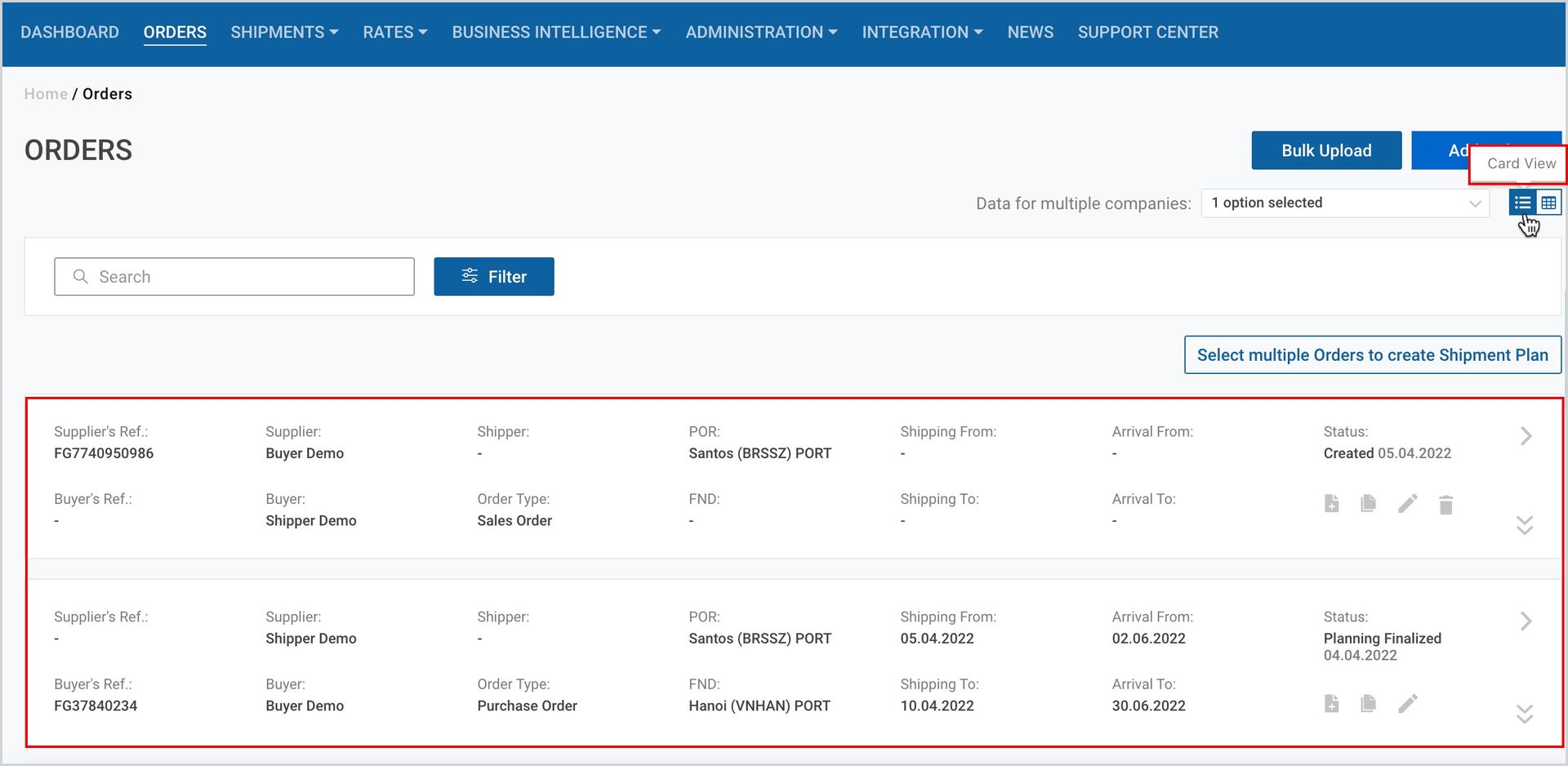
As you click on the Orders module on the main menu, you can see the list of all your orders in the card view. You can switch them to table view by clicking the table view icon at the upper-right corner of the page.
Table view |
 |
Card view |
 |
Access Your Orders
The Orders page displays the following features through which you can access specific orders:
- Data for Multiple Companies
- Search
- Filter
Data for Multiple Companies
By default, the orders page displays orders data for one company. However, depending on your account accesses, you can see data for multiple companies.
To see the data from multiple companies:
- Take the 1st step, shown here.
- At the right side of the appeared page, click Data for multiple companies and select from the list.
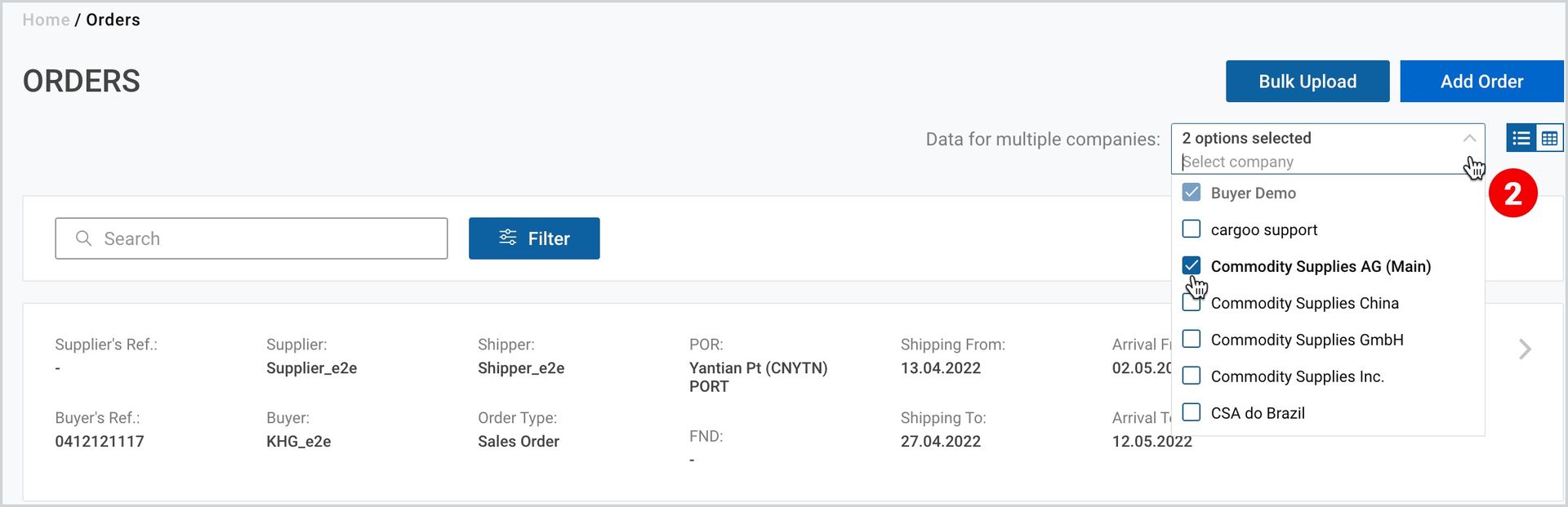
Note | As you select more than one company, the order list will be displayed only with view mode without any editing options. |
Search Your Order
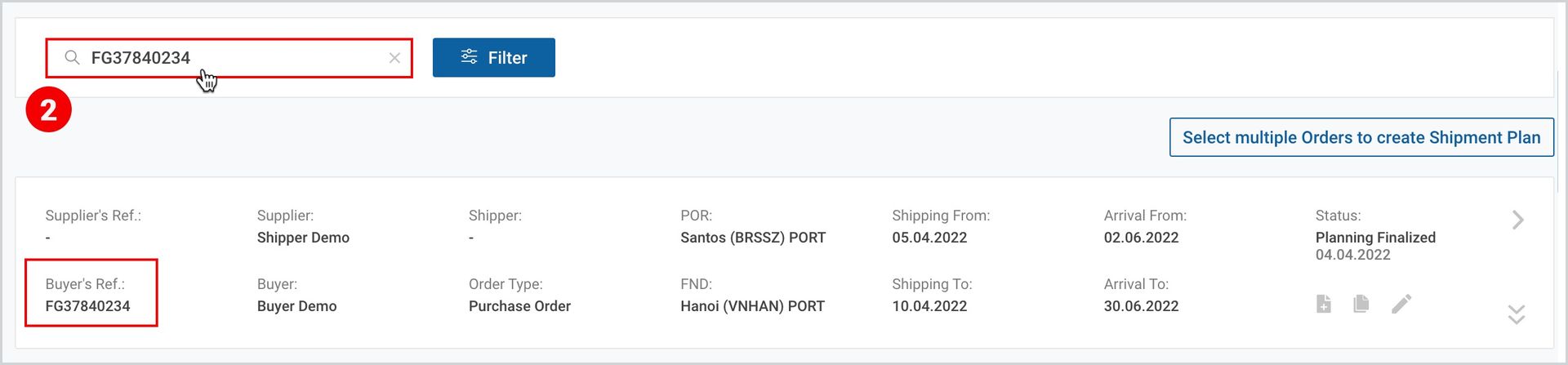
Search can be done only with the reference number of the order. Search starts working from the first typed character with the drop-down showing the suggested list.
To search for you desired order
- Take the 1st step, described here.
- At the upper-left corner of the appeared page, on the search tab, fill in the order reference number.
Filter Your Order
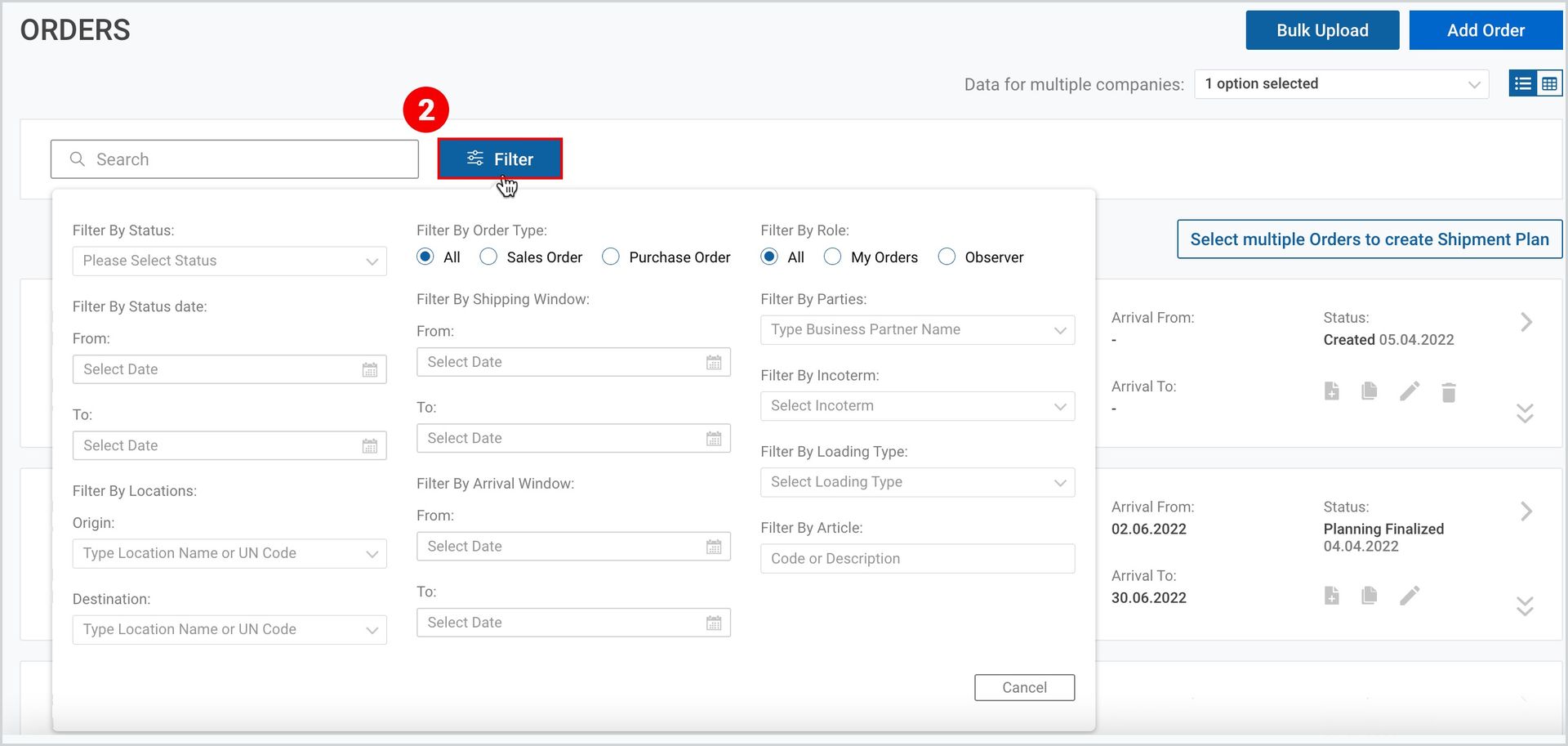
You can alternatively filter your order as per the following categorizations:
- Status – Created, Planning Started, Planning Finalized, Delivered, Completed, Closed
- Status date
- Locations
- Order type – all, sales, purchase
- Shipping window
- Arrival Window
- Role – All, My orders, observers
- Parties (business partners name)
- Incoterm
- Loading type
- Article
- Take the 1st step, described here.
- At the upper-left corner of the appeared page, next to the Search tab, click Filter and set the desired criteria.
Order Status
You can see the order status at the right side of the card view of the order. An order acquires the following consecutive statuses, given in the table below:
Table 1
N | Status | Description |
1. | Created | there is no linked shipment plan yet, or all linked shipments are rejected or cancelled |
2. | Planning started | when shipment in draft status is linked to the order |
3. | Planning finalized | either booked or booking confirmed; or gate – out empty or gate - in full |
4. | Delivered | commodity delivered |
5. | Completed | shipping completed |
6. | Closed | cancelled/rejected |
The status is being recalculated each time when
- status for linked shipment is changed
- new linkage is done
- existing linkage is removed
- packages in order item or linked shipment item are updated
Note | Closed status is the only status that is not being set by the system automatically. This is the status that is set manually by the user, the consecutive steps of which, as well as the activation of the closed order can be found in Edit the Order. |
Manage Your Orders
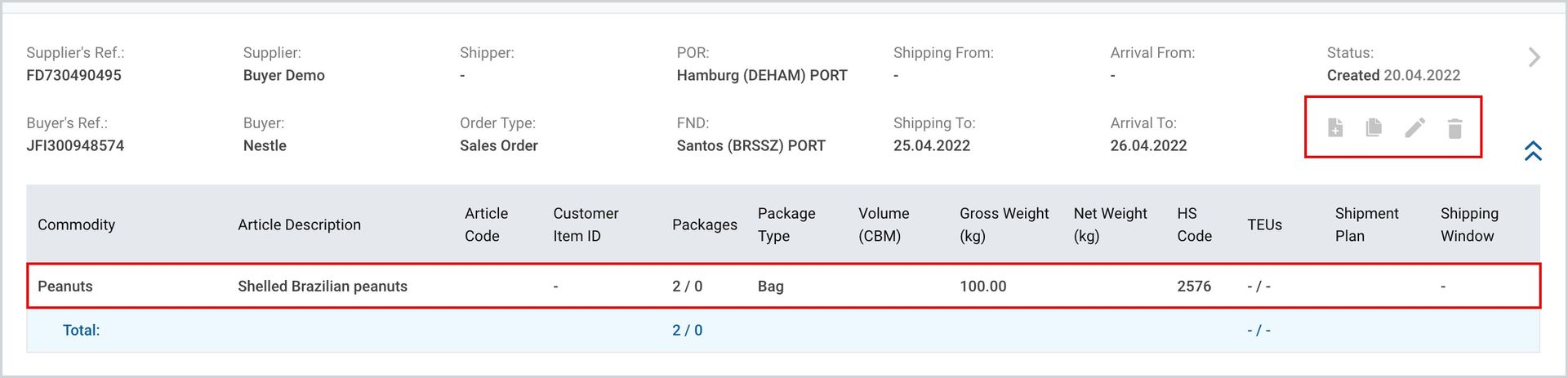
On each order card, depending on the user access (edit mode) and the party type, from left to right you will find the following clickable items:
- Create shipment plan
- Copy the order
- Edit the order
- Remove the order – if the order is in created status and the planning has not yet started
Edit the Order
This feature is available only to the creator of sales/purchase order.
To edit the order, take the following steps:
- Under Main Menu, click Orders․
- When the orders list page appears, find your order on the list or search or filter it․
- When the desired order appears, at the right part of the order card/table, click Edit Order icon․
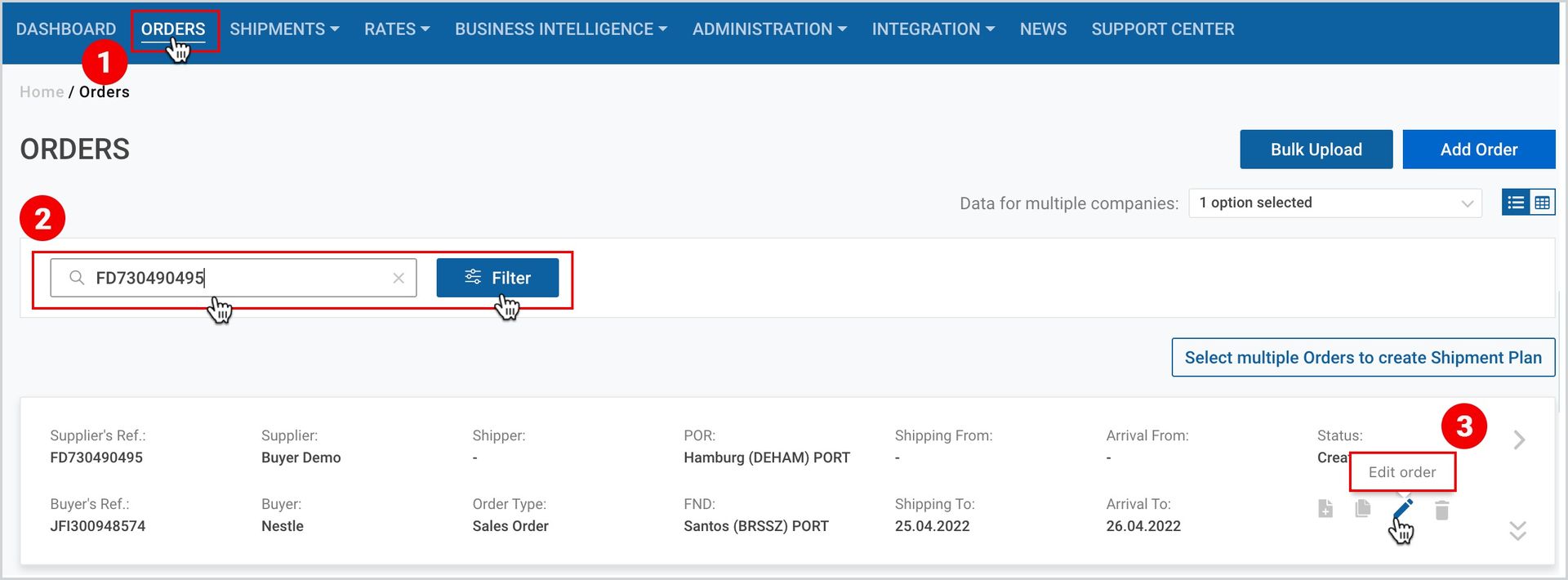
You will be redirected to the Edit Order page, where the details are the same as in the Create Order page, where you can edit all the details of the order except that of the supplier and the buyer.
It is through the Edit Order page that you can close your order manually, or reactivate the already closed one.
Close Order
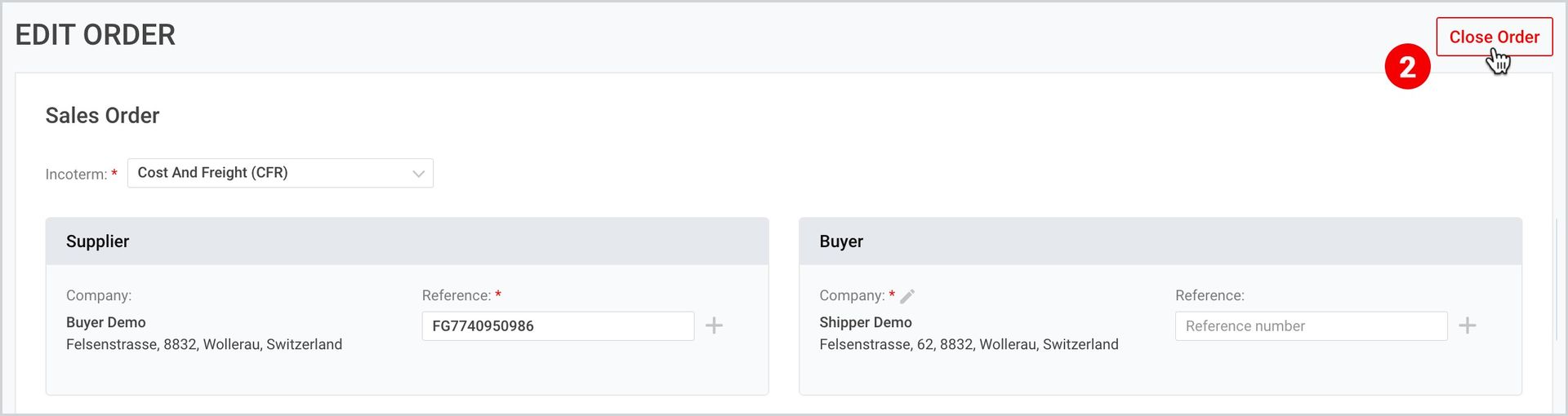
You can set Closed status to an Order in case if there is no linked shipment plan or all linked shipment plans are cancelled/rejected.
To close the order
- Take the first 3 steps described here.
- As the order details page appears, at the right side of the page, click Close Order.
Activate Closed Order
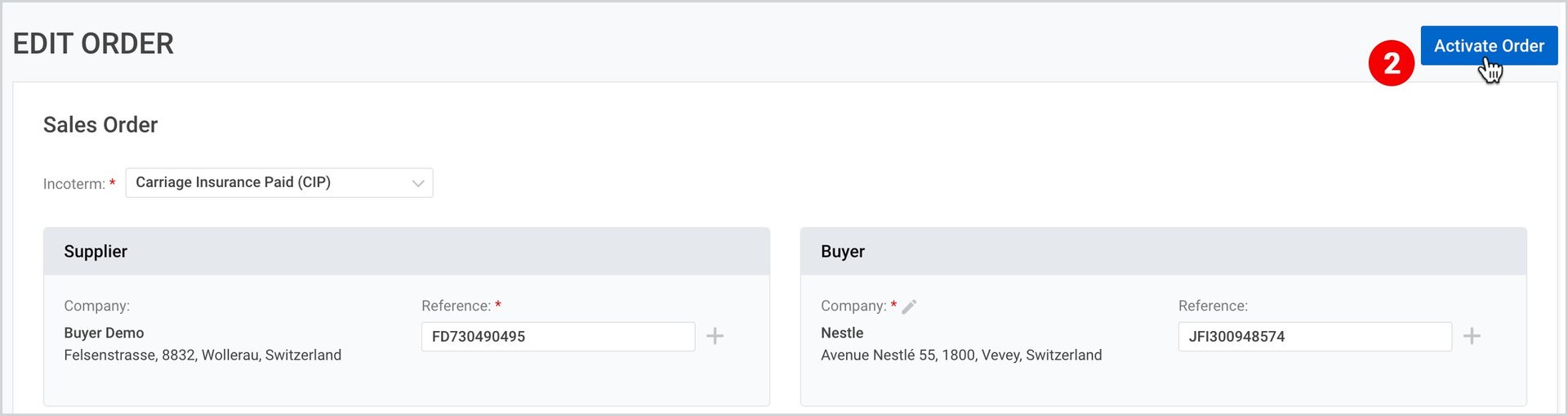
You can any time activate your order by taking the following steps:
- Take the first 3 steps described here.
- As the order details page appears, at the right side of the page, click Activate Order.
Copy the Order
In order to simplify the order creation process in case the same commodity with its details is required, Cargoo offers the “copy the order” clickable item, which is available to the creator of sales/purchase order.
To copy the order, take the following steps:
- Take the first 2 steps described here.
- When the desired order appears, at the right part of the order card/table, click Copy Order.

You will be redirected to the Copy Order page, where the details are the same as in the Create Order page, where you can edit all the details of the order, except that of the supplier and the buyer.
Remove the Order
An order can be removed by the creator of purchase/sales order if it is in created status and the planning has not yet started or if the order is already closed.
To remove an order
- Take the first 2 steps described here.
- When the desired order appears, at the right part of the order card/table, click Remove Order icon.

Create Shipment Plan
You can create a shipment plan both from the orders module and the shipments. A shipment plan can be created and is visible to the following Order Parties։
- Creator of Sales/Purchase Order
- OHA (Origin Handling Agent)
- Booking Agent
For the creation of a shipment plan, you have either of the following 3 options:
- Creation of a Single Shipment Plan
- Creation of a Shipment Plan on Multiple Orders/Items
- Creation of a Multiple Shipment Plan
For more information on the creation of shipment plans, please see Shipments.
To download the print version of this article, click the PDF icon: