 Carrier Integration Support
Business Partners
Business Partners (BP) module allows you to create partners environment and collaborate with other Companies. The module is subject to subscription by the Company/Org Admin(s) that has to be approved by the Cargoo administration. After subscription, the Org/Company Admin can grant or limit access to this module individually to their users (see User Management, Subscribe Business Modules to Your Users ).
Access Your Business Partners
You can access your business partners by viewing the whole list, by searching or filtering them.
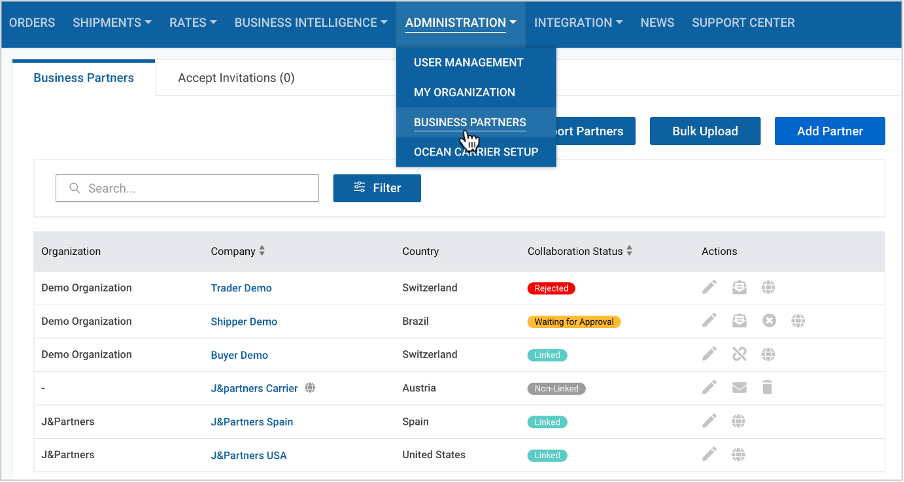
To view the list of all your business partners
- On the Main Menu, under Administration, click Business Partners.
Search Your Business Partner
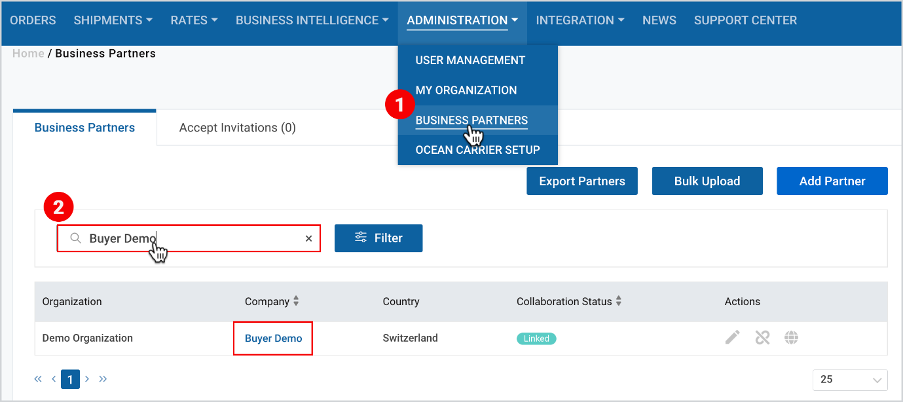
Search can be done by filling in the company name, the email domain or the BP code. Search starts working from the first typed character updating the BP list.
To search for your desired BP
- Click Administration->Business Partners.
- At the upper-left corner of the appeared page, on the search tab, fill in the desired company name (or email domain, or the BP code).
Filter Your Business Partner
You can alternatively filter your BPs as per the following categorizations:
- All/Active/Inactive
and/or
2. collaboration country
and/or
3. collaboration status
- Waiting for approval
- Linked
- Rejected
- Non-Linked
To filter your desired BP
- Click Administration->Business Partners.
- At the upper-left corner of the appeared page, next to the Search tab, click Filter and set the desired criteria.
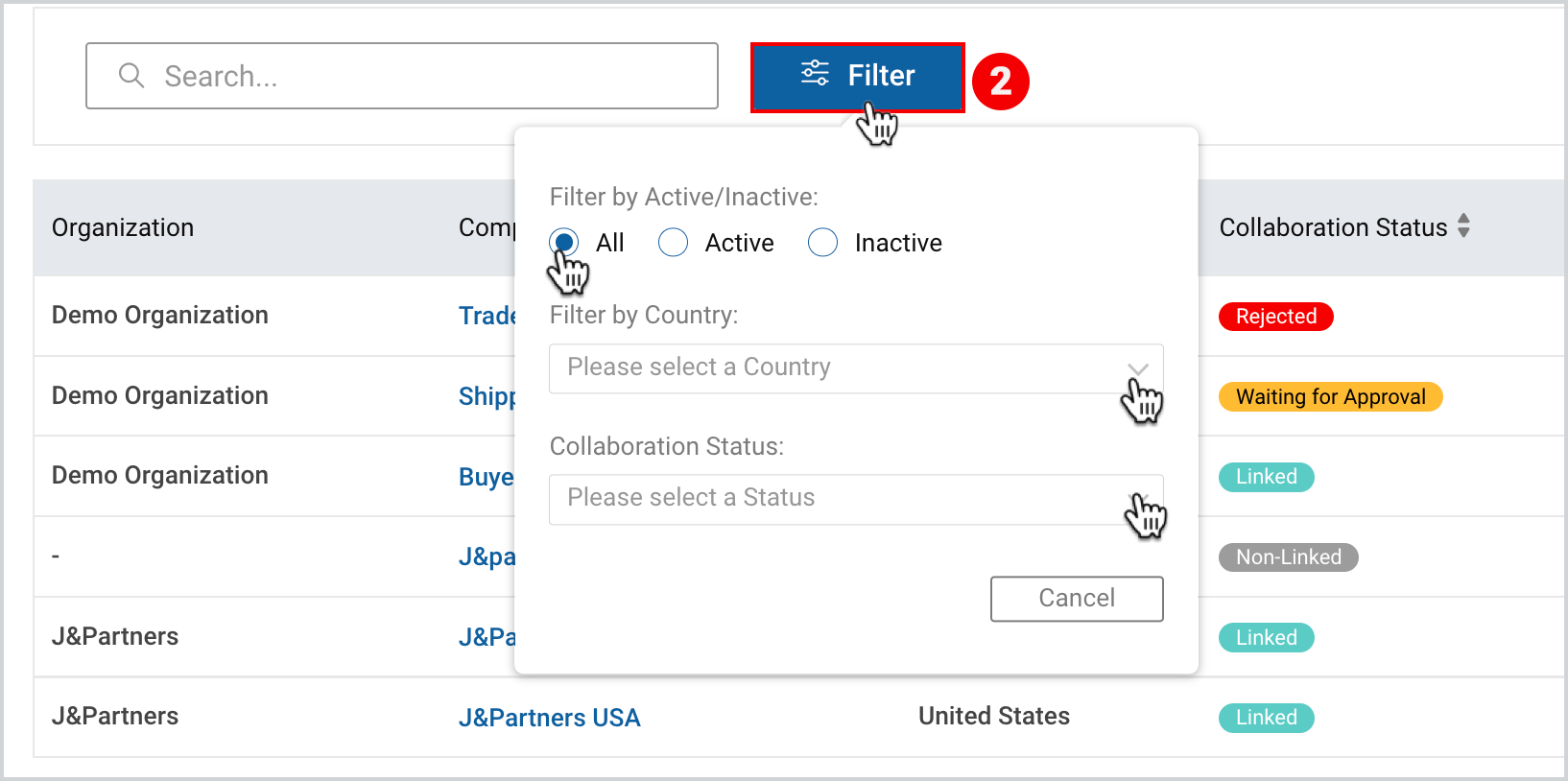
The name of the business partner(s) will appear on your list as per the selected filter(s).
Business Partner Collaboration Status
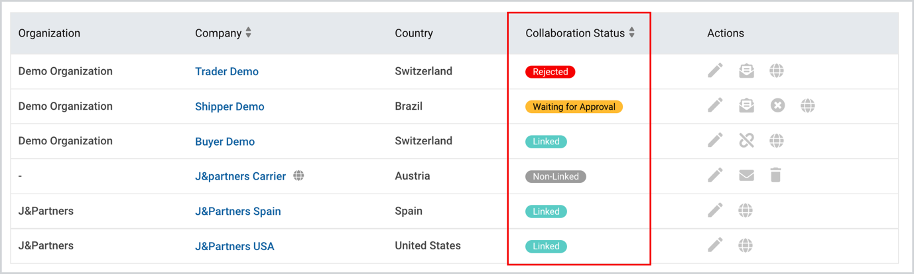
You can see the BP collaboration status on the BP list, next to the company’s country. The BP collaboration statuses are described in Table 1 and visualized in the Figure below.
Table 1
N | STATUS | DES |
1. | Linked |
|
2. | Non-Linked |
|
3. | Waiting for Approval |
|
4. | Rejected |
|
Manage Your Business Partners
You can manage your BPs by exporting the list, adding a new business partner (both manually or by bulk upload), or editing them through action icons.
Export the List of Business Partners
You can export the list of all your business partners by downloading them in an excel format.
For this action
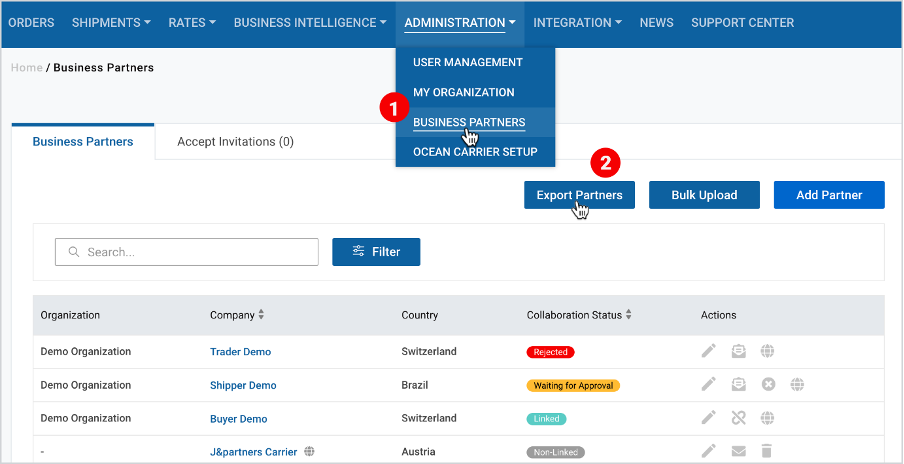
- Click Administration->Business Partners.
- When redirected to the Business Partners page, on the right side of the page, click Export Partners.
Add a Business Partner
This feature allows you to add business partners manually or bulk upload them into the Cargoo system.
Add a Business Partner Manually
To add a business partner manually through the Cargoo system you have two options:
- Invite an existing company to become a partner
- Create a new business partner
Invite an Existing Company to Become a Partner
To invite an existing company, you should take the following steps:
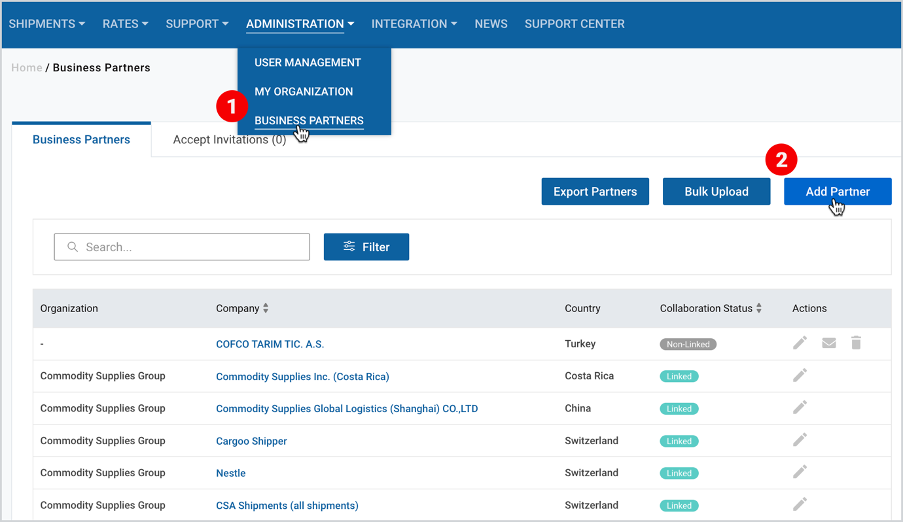
- Click Administration->Business Partners.
- When redirected to the Business Partners page, on the right corner of the page, click Add Partner.
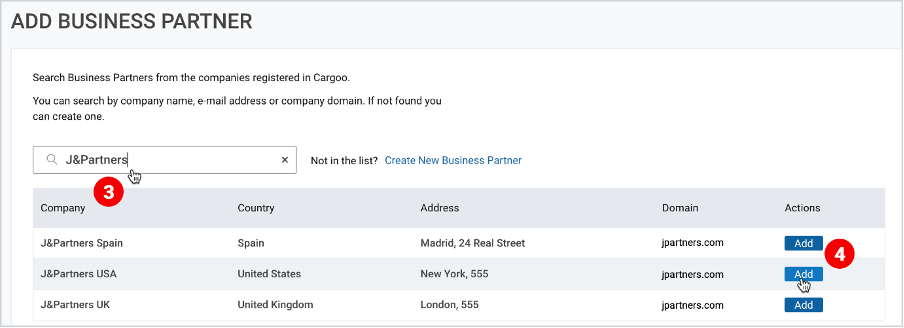
3. In the search bar, type the name of the company.
4. When the company appears, under Actions, click Add.
5. As the pop-up window appears, fill in the details (optional) and click Add and Invite.
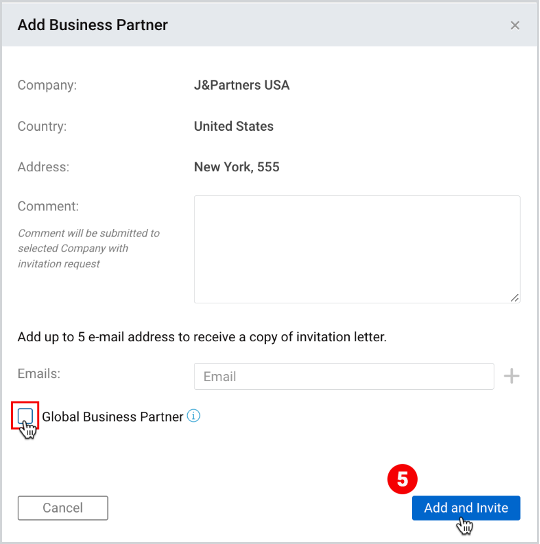
At the bottom of the window, you can choose to mark the Global Business Partner checkbox in case you want this partner to appear on the partners list of all companies registered under your organization. In this case the BP will appear on the list of all companies of the organization under waiting for approval status. As the new partner accepts the invitation, it will appear on the list of all companies of the organization under linked status.
If you choose not to mark the Global Business Partner checkbox, later you can make him/her a global business partner (see Table 2 ) and collaborate under linked status (after acceptance of your invitation) with your company and unlinked with all the other companies of your organization until those companies separately send invitation on collaboration.
Note | The pop-up window allows to fill in maximum five company user emails, that can receive the notification on invitation. However, they cannot review and confirm the invitation which is the sole responsibility of the Company Admin. In case there is no Company Admin, the invitation is sent to the Org Admin. All e-mails are sent using BCC method (not visible to each other). |
Accept or Reject Business Partners Invitation
Only Org/Company admins can accept and reject business partners invitation. To accept or reject the BP's invitation
- Take the 1st step shown here.
- When redirected to the business partners page, next to Business Partners, click Accept Invitations.
- Find the business partner on the list, and click Approve or Reject.
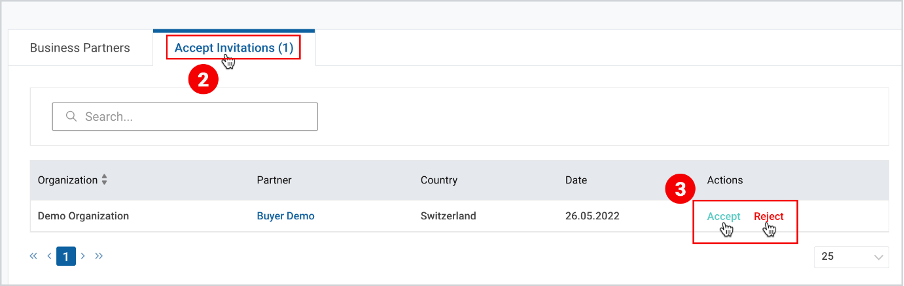
After the acceptance of the invitation by the business partner, the company will appear only on the list of the business partners of the company on behalf of which it was added, with the linked status.
However, it is further possible to make a business partner a global business partner, the details of which are displayed in Table 2.
Create a New Business Partner
In case a company does not exist on the Cargoo system, but the user wants to add it as a business partner (in order not to lose the chain of the shipment and to ensure smooth documentation) he/she can create a new business partner.
To create a business partner.
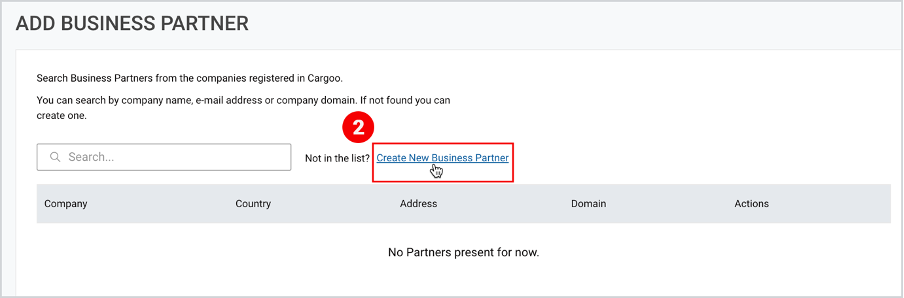
- Take the first two steps shown here.
- On the left side of the page, next to search bar, click Create New Business Partner.
3. Fill in the required (and optional) details and click Add (if you do not want this
company to join Cargoo); or click Add and Invite (if you want to invite that
partner to register on Cargoo).
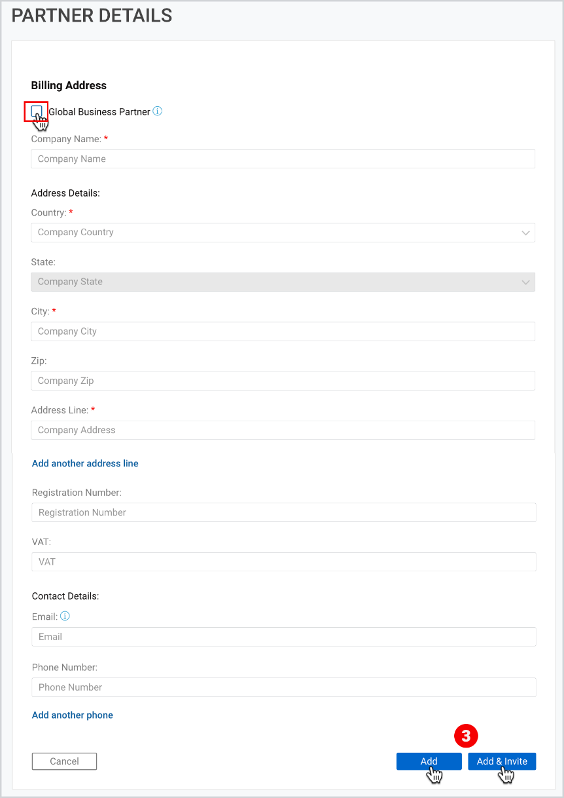
Case 1: If you click Add, the company will appear on the list of your business partners under non-linked status. If the Global Business Partner checkbox is marked, all the companies of your organization will also collaborate with the partner under non-linked status.
Case 2: If you click Add and Invite, the partner will appear on the list of your BPs under waiting for approval status. And if the company is registered on Cargoo and accepts the invitation, then it will appear under linked status. If the Global Business Partner checkbox is marked, it will again appear under waiting for approval status on the BPs list of all the companies of your organization. And if the company is registered on Cargoo and accepts the invitation, then it will again appear under linked status on the list of all the companies of your organization.
Bulk Upload Your Business Partners
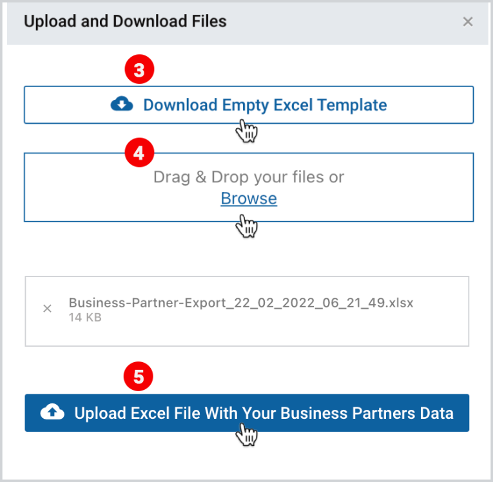
You can fill all your partners in the empty excel template downloaded from the system, and bulk upload it back to the system. For this action
- Click Administration->Business Partners.
- When redirected to the Business Partners page, on the right side of the page, click Bulk Upload.
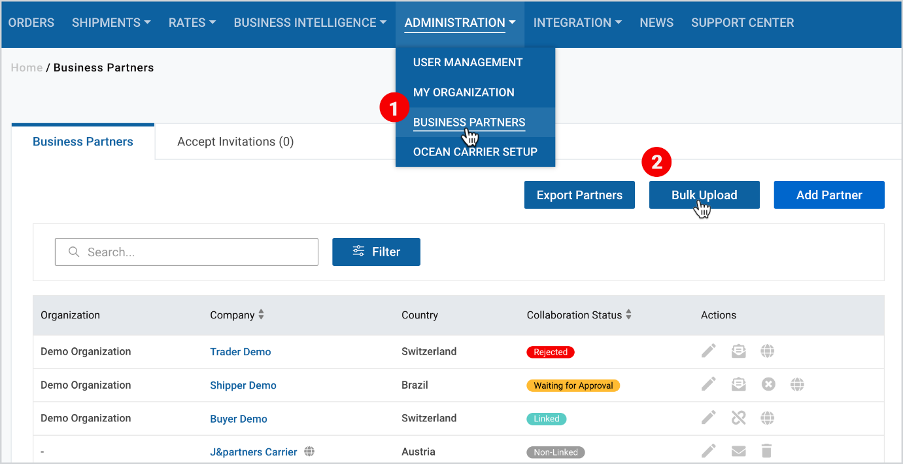
3. When the pop-up appears, download the empty template in excel format, and
fill in the information.
4. Click Drag & Drop files or Browse the template with the filled information.
5. After dropping or browsing the file, click Upload.
Note | If the partner is added through bulk upload, then it appears in BP list with non-linked status. |
Manage through Action Icons
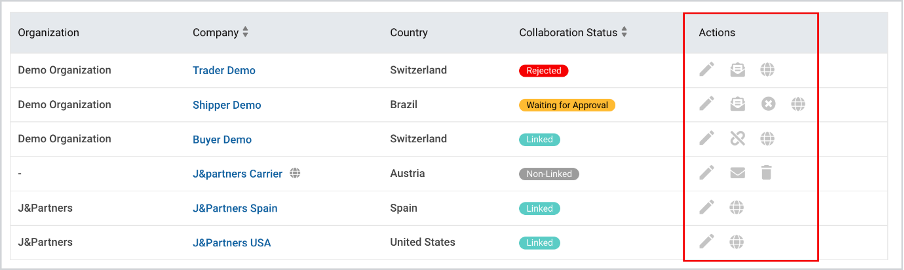
On the BP list, depending on the status, under Actions, you can find the following clickable items described in Table 2 and visualized in Figure below.
Table 2
N | ACTIONS | DESCRIPTION |
1. | Edit | All the BPs info (irrespective of their statuses) can be edited. While clicking, you will be able to see the BP’s editable info, collaboration status, connected data and partner provided address (see details below in “Edit” Action Icon. |
2. | Unlink Business Partner | You can unlink a BP if the company does not belong to the same organization. |
3. | Make Global Business Partner | While clicking, the BP will appear on the BP list of all the companies of your organization under non-linked status, Other companies of your organization can separately send invitation to the given BP and collaborate with the linked status as soon as the partner accepts the invitation. If a new company is registered in the Cargoo system, it will automatically inherit all the global business partners of the organization with the non-linked status, unless it sends separate invitation on the collaboration. If the given business partner is already collaborating with any of the companies under your organization, the system will automatically reject to make it a global business partner. |
4. | Re-send Invitation | The partner will receive another invitation on collaboration (available for the BPs under waiting for approval status) |
5. | Discard Invitation | Invitation is discarded/called back and the BP appears with the rejected or non-linked status |
6. | Send Invitation | Invitation can be sent to the BPs with unlinked, pending and rejected status. If the partner accepts it, you will collaborate under linked status |
7. | Remove | Business Partner (if not global) can only be removed if it does not have linked orders/shipments with your company. However, if it is global non-linked partner, then it can be removed if it does not have linked orders/shipments with either of the companies under the same organization. |


“Edit” Action Icon
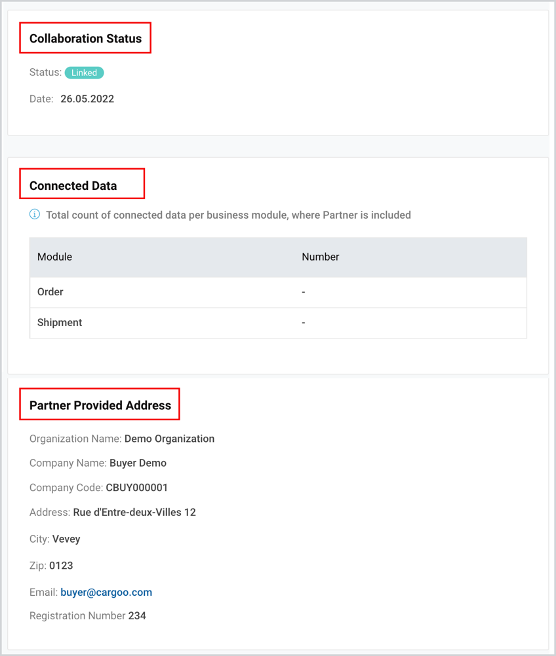
As you click the Edit button under the actions of the BPs list, you are redirected to the Partner Detail page, where you can view BP’s
- Collaboration Status
- Connected Data
- Partner Provided Data
From this page, you can also update BP’s
- Billing Address
- BL Address
To update the billing address
- At the upper left side of the Partner Detail page, under billing address, make the required changes and click Save.
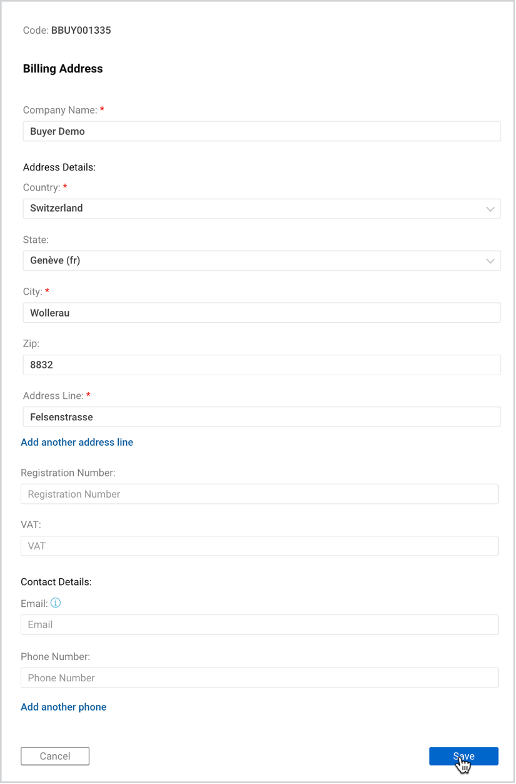
You can add BP’s BL address only in edit mode, and not while creating a BP.
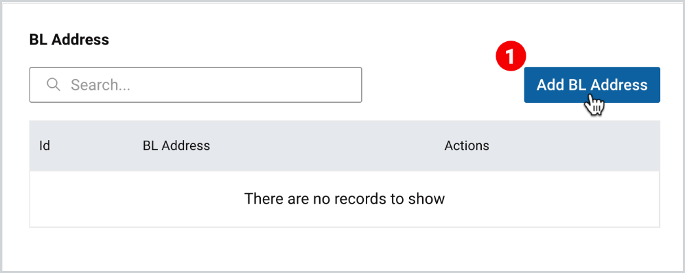
To add a BL address
- At the lower left side of the Partner Detail page, click Add BL Address.
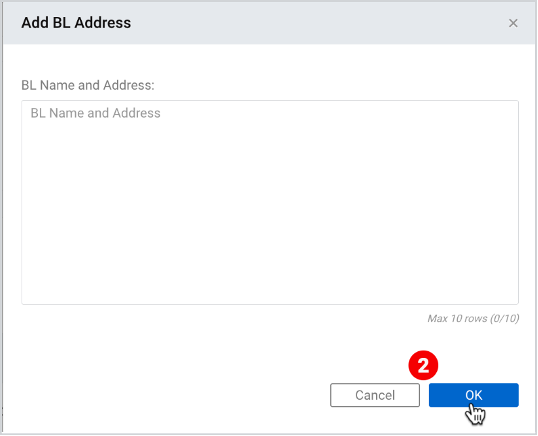
2. As the pop-up window appears, fill in the BL Name and Address and click OK.
Note | As you edit the global business partner data, the updated information will be displayed under all companies for the same BP data. |
To download the print version of this article, click the PDF icon: