 Cargoo Support
Carrier Split Confirmation and Manual Split
Booking Split Confirmation and Manual Split refers to activity, when a booking is split into 2 or more separate bookings and transported independently of each other due to last minute space, operational constraints, etc. The new booking confirmations from the carrier are displayed automatically as a new booking confirmation in the Carrier Interaction tab which has to be confirmed by the user (Booking Split Confirmation). However, for some Ocean Carriers Cargoo may not receive any information on the split. In these cases, the user may perform the split shipment action manually (Manual Split).
Thus, there are 2 types of flows for splitting shipments:
- The Split Shipment confirmation has been received from the Carrier (the user confirms split)
- The Split Shipment confirmation has NOT been received from the Carrier (the user manually splits the shipment)
For both cases
- User must be Origin Handling Agent, Booking Agent, Shipment Owner, Shipper, Creator.
- Shipment must be at least in confirmed status.
- Shipment must have at least 2 containers.
As a result of shipment split,
- The original shipment (the shipment that the user decided to split) will be active but shipping volume will be reduced. Cargoo reference will not be changed.
- New shipment(s) will be created based on the information of the original shipment, their Cargoo references will be equal to Cargoo reference of the original shipment, but with a letter-suffix (e.g., C202310100001-A) at the end. The new shipments will show a link to the original shipment.
Confirm Shipment Split
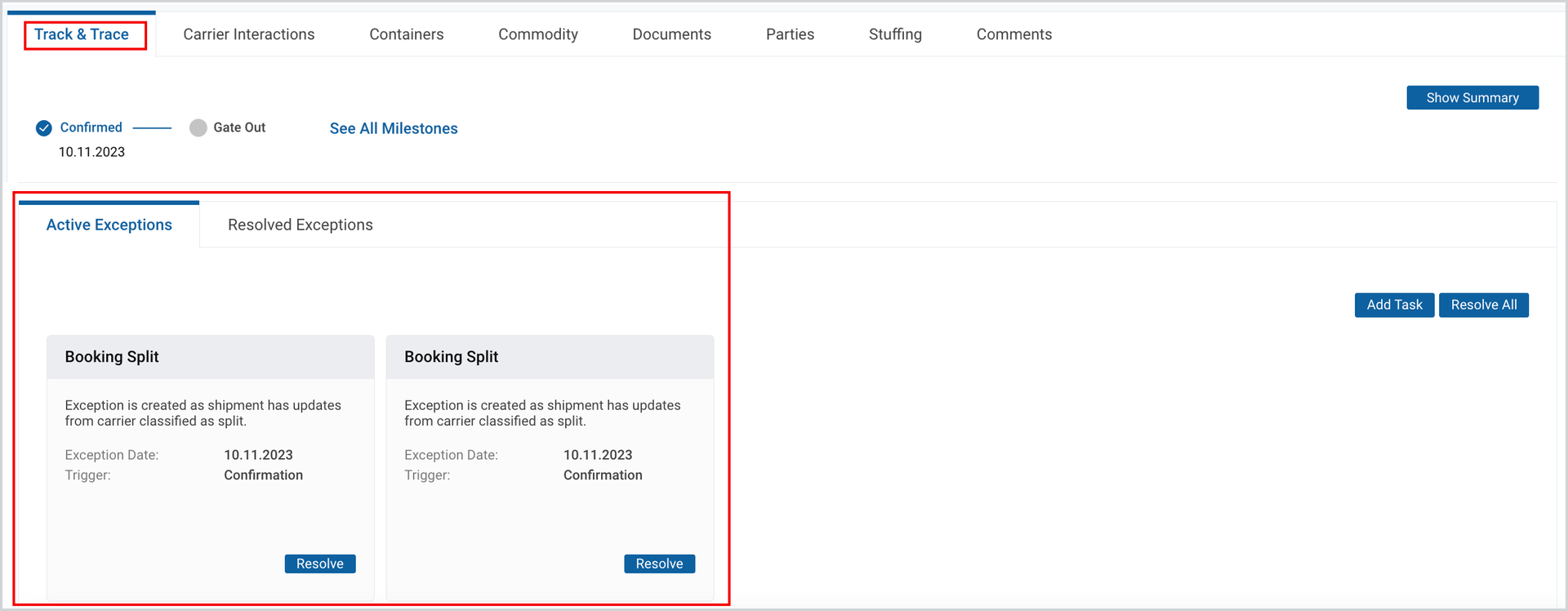
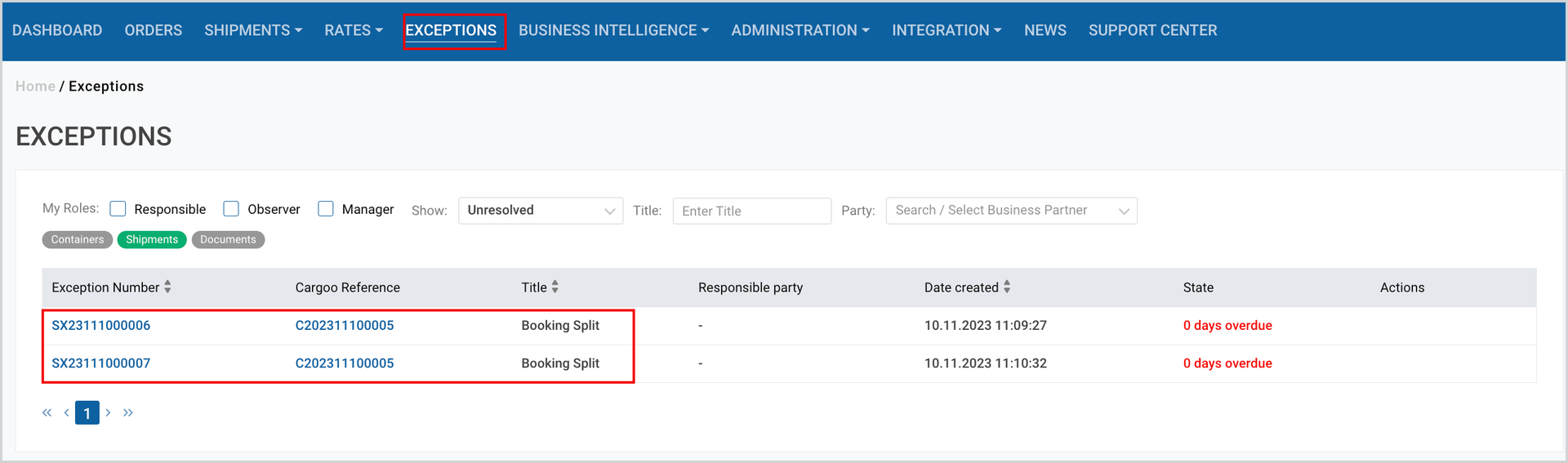
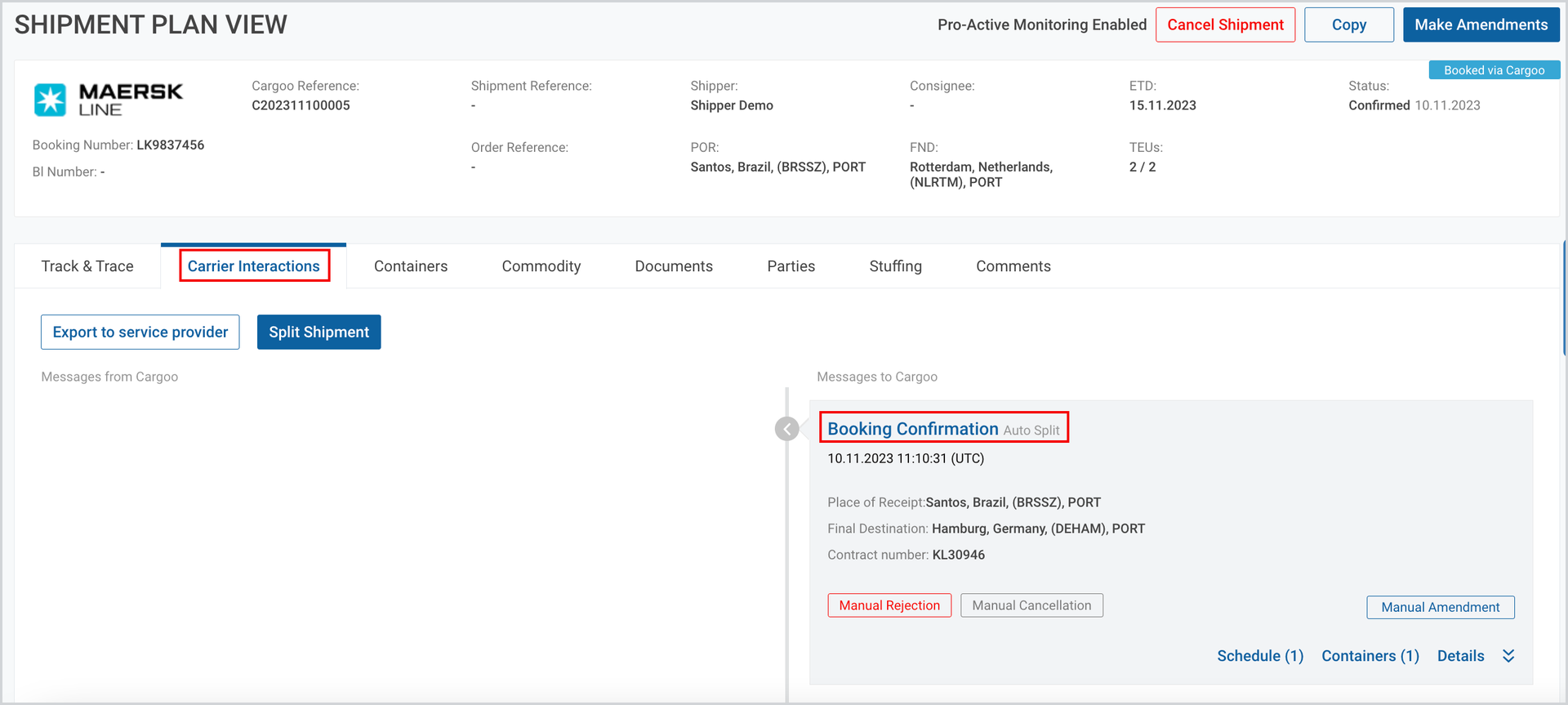
When Cargoo receives the split confirmation from the carrier, the respective information is visible in
- Exceptions section in Track & Trace
- Exceptions module
- In Carrier Interaction tab marked as Booking Confirmation (Auto Split) (see the Figure below)
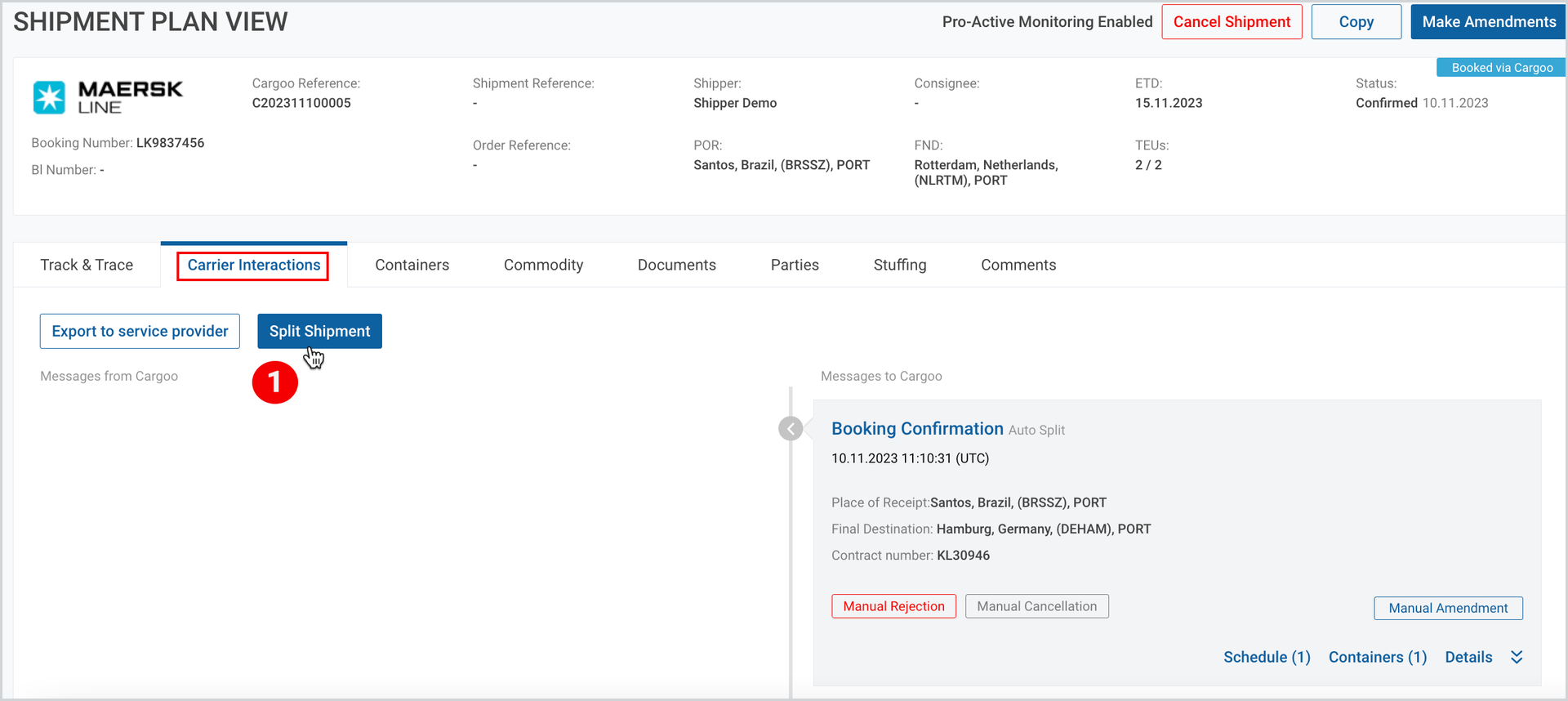
To confirm the shipment split
- In the Carrier Interaction tab of the confirmed shipment, click Split Shipment.
2. As the pop-up window appears, review/update the data (provided by the carrier)
and click OK.
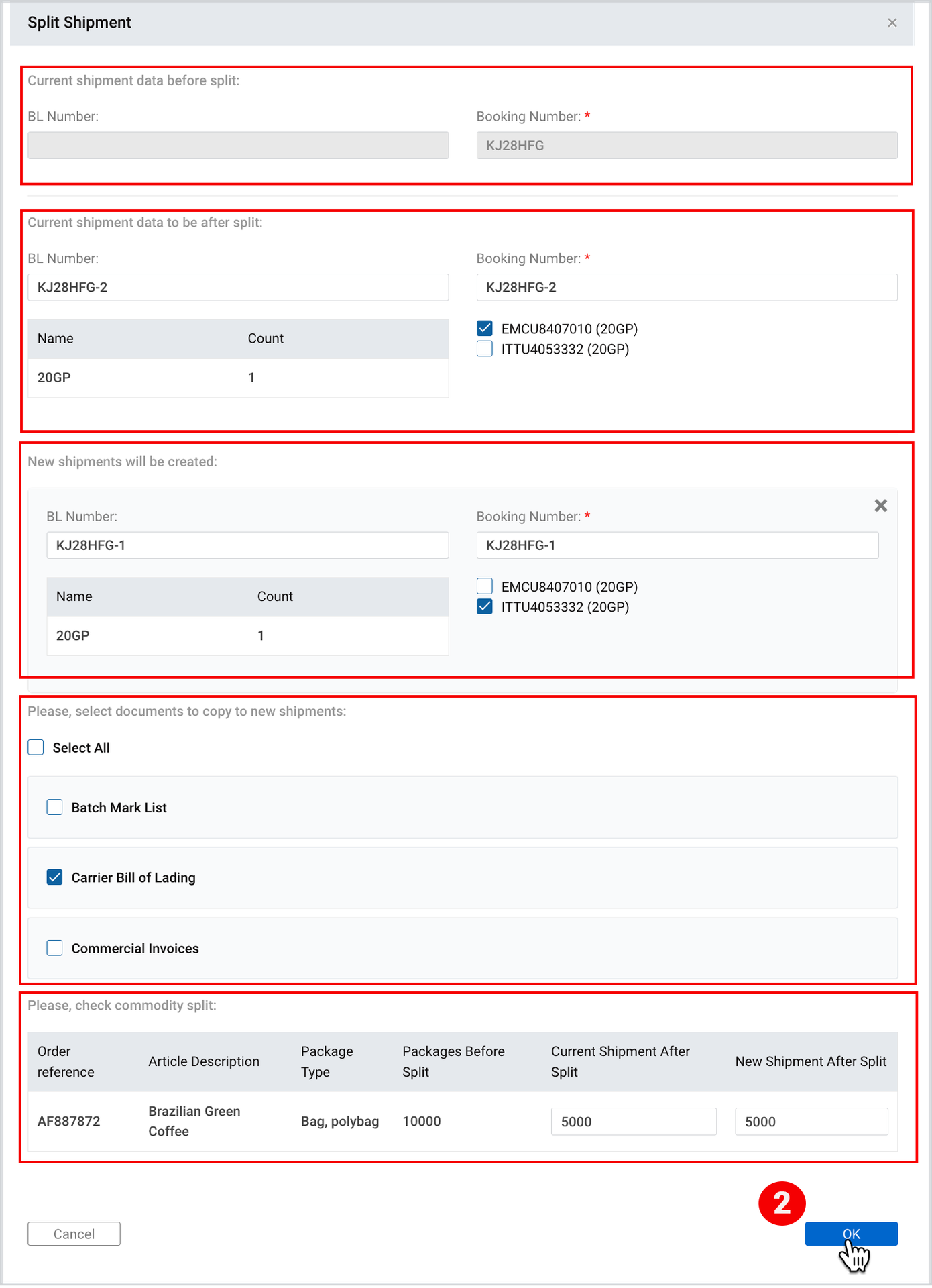
The data to be reviewed/updated in pop-up window is given in Table 1 below:
Table 1: Data in Split Shipment Pop-Up Window
Field | Description |
Current shipment data before split | Non-editable BL and BN Number. |
Current shipment data to be after split | BN and BL numbers that will be applied to the original shipment and containers that will be left in the original shipment. |
New shipments will be created | Information on the number of shipments to be created in addition to the original after split and BN and BL number that will be applied to the new shipments as well as containers that will be moved to each of them. |
Documents | Select documents that must be copied to the new shipments. |
Commodity Split | Cargoo proposes split based on TEUs that will be left in the original shipment and in new shipments. You can adjust the proposed amount. |
Note | To complete the split Cargoo recommends having at least 2 messages marked as “Booking confirmation (Auto Split). As each message contains only information on 1 shipment, for example, when shipment with 2 containers has been split, a carrier will send 2 messages for each container. |
After you successfully split the shipment, the original shipment will have a new item in the interaction list marked as “Booking Confirmation (Manual Split)” and the shipment will be linked to new shipments.
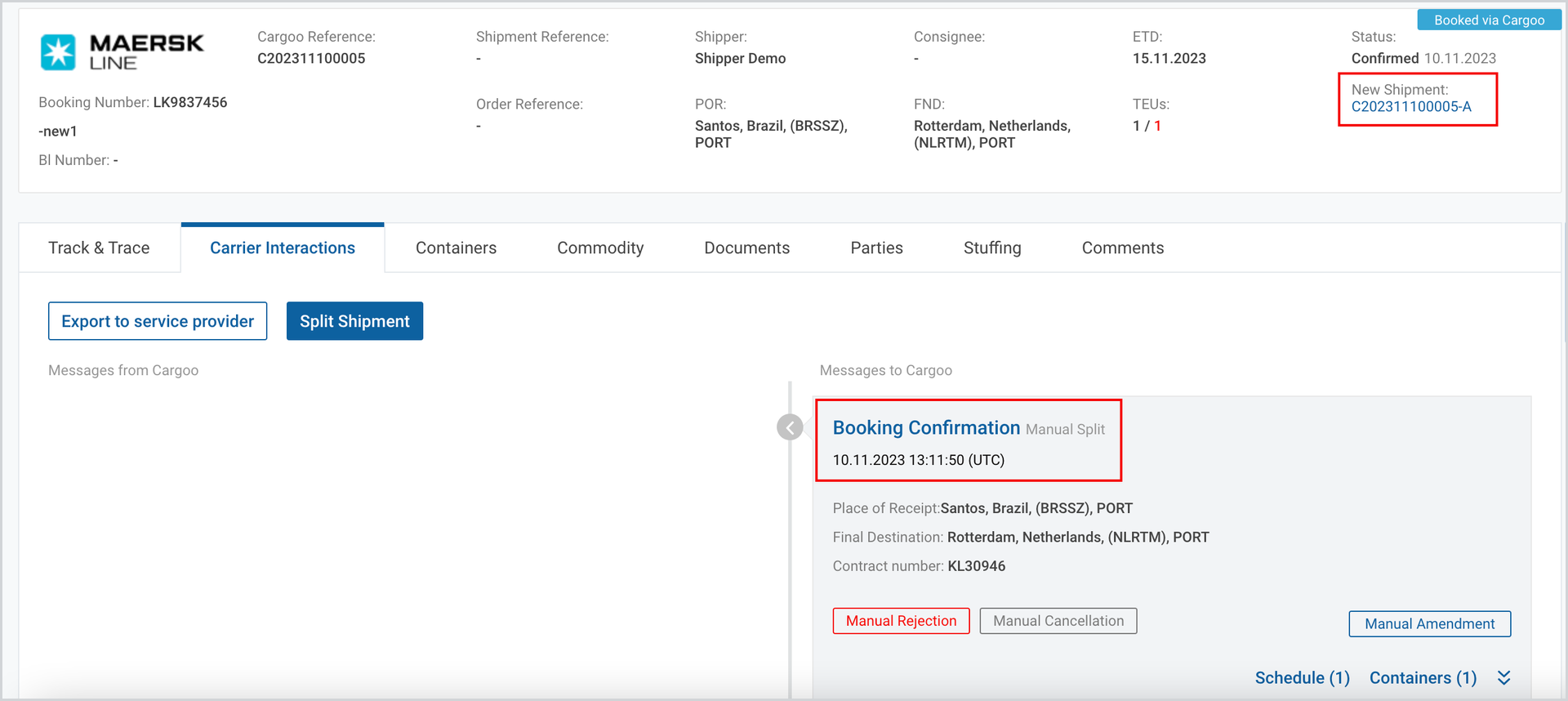
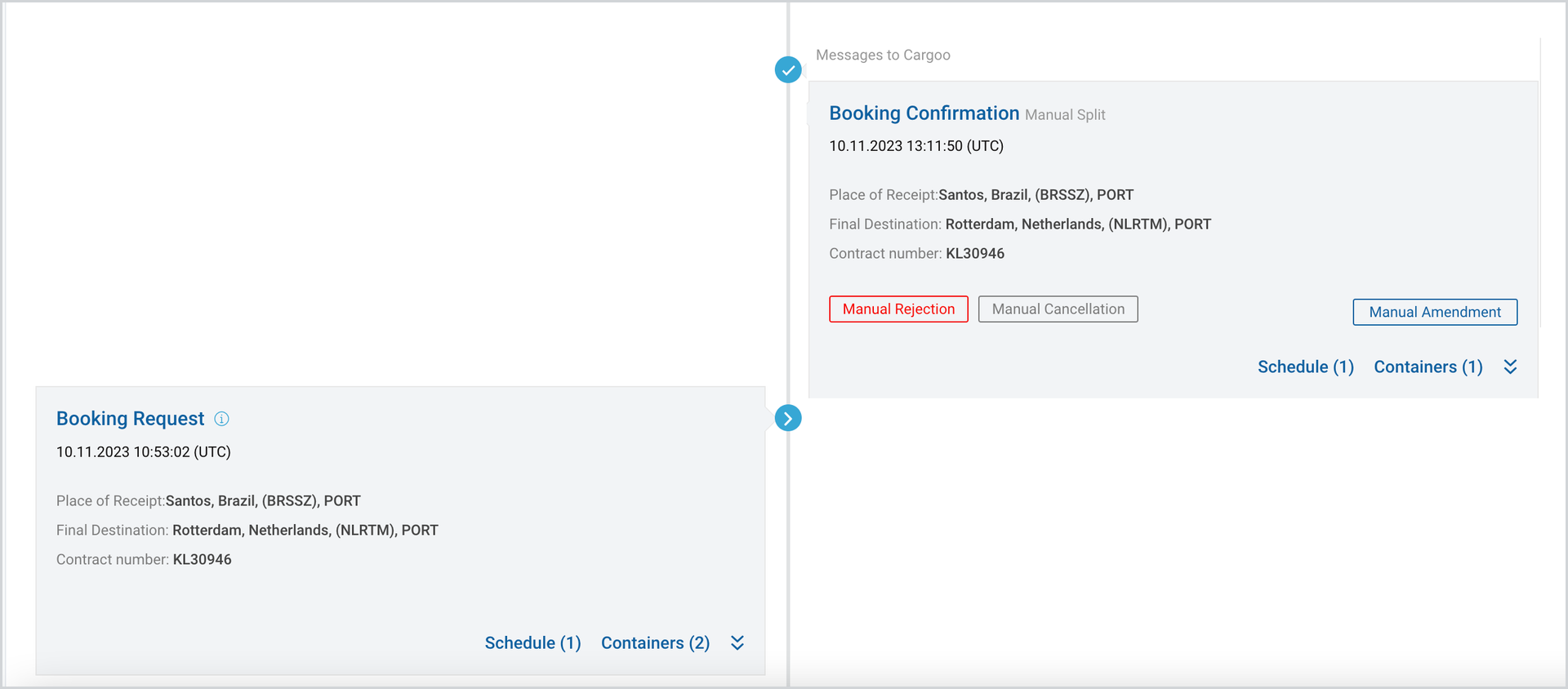
Each new shipment will have 2 items in interaction:
- Booking Request - Cargoo does not send new booking request. This interaction item is created based on the information entered during the split;
- Booking Confirmation (Manual Split).
Split Shipment Manually
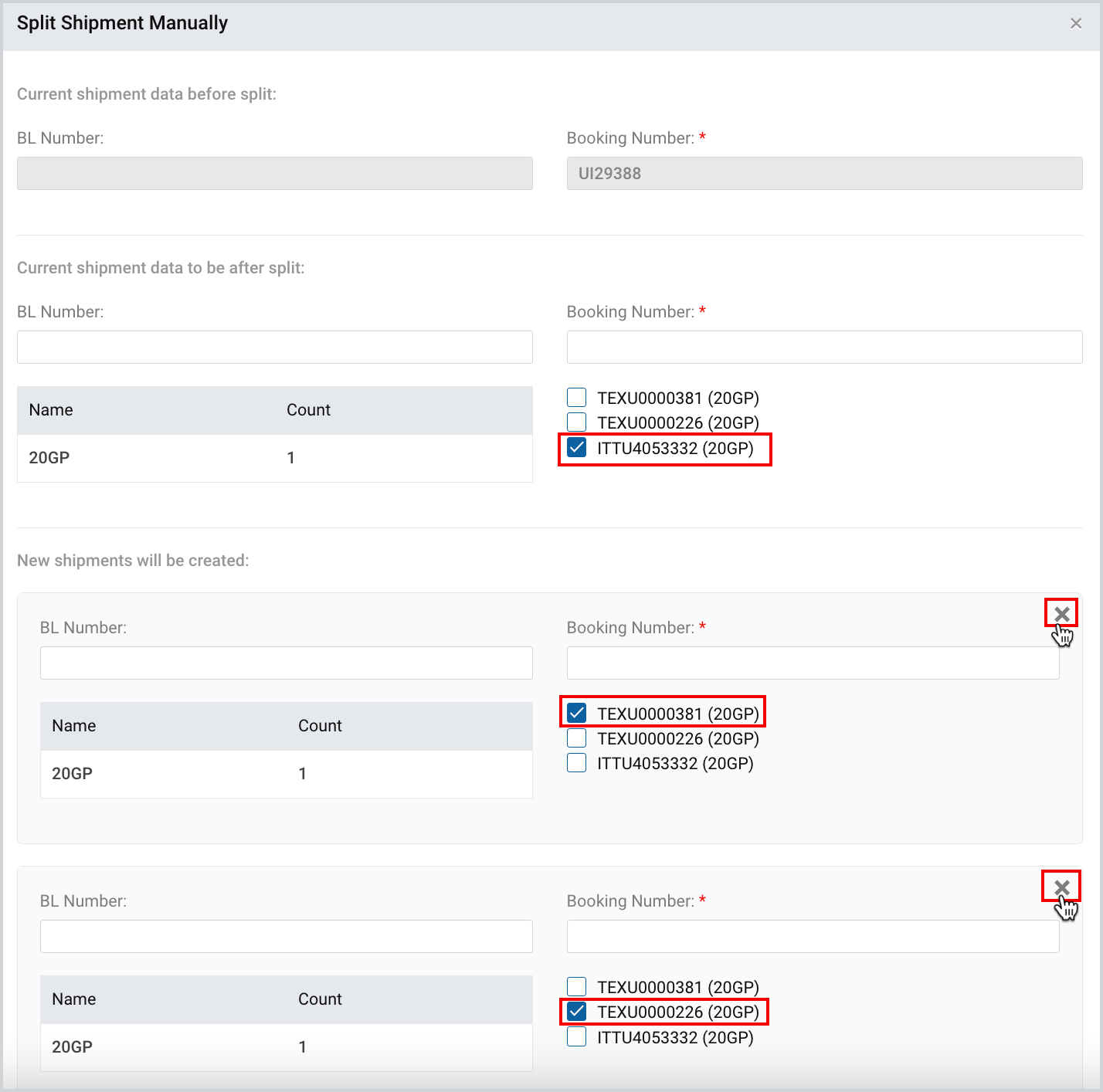
You can manually split your shipment in case no split confirmation has been received from the Carrier. In this case in the same pop-up window, you have to provide information how to distribute containers, packages, documents and provide Booking and BL information.
The actions to be performed for manual split are the same as in the case of split confirmation received from the carrier, described in Table 1: Data in Split Shipment Pop-up Window.
The only difference will be that, by default, the system will propose split by allocating 1 container per shipment, and you may remove and re-allocate containers differently.
If you want to reduce the number of shipments to be created after split, you should click on “X” icon.
As you successfully split the shipment, the same information will be displayed in the Carrier Interaction tab, described here.
To download the print version of this article, click the PDF icon: