 Cargoo Support
Volume Forecasting
Volume Forecasting is the module for customers that participate in the tender volume planning initiated by the procurement department. The object itself that the procurement department creates and invites customers to provide their feedback on planned volumes is called a Forecast.
This manual is focused on the Volume Forecasting module.
For this module Org/Company Admin should send a subscription request to the Cargoo administration. After subscription, they can grant only manage right option to their users (for more details on user accesses see User Management, Subscribe Business Modules to Your Users).
To access the Volume Planner module:
- In the Main Menu, under Rates, click Volume Forecasting.
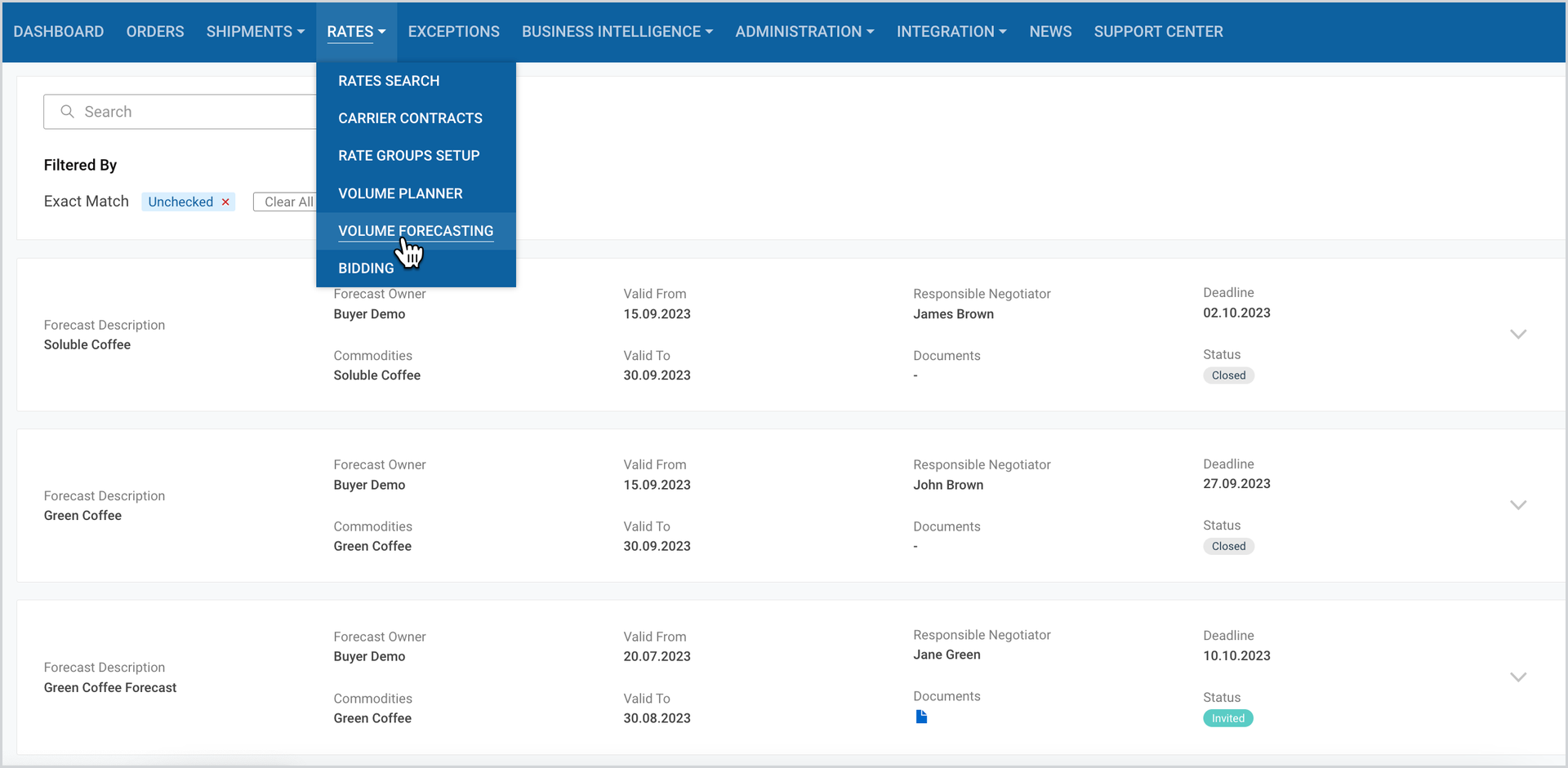
On the appeared page you can access and manage forecasts list in card or table view.
Access Your Invited Forecast
As you click Volume Forecasting under Rates module, you can see the list of all your invited forecasts. Here you can also access specific forecasts via Search and Filter.
Manage Your Invited Forecast
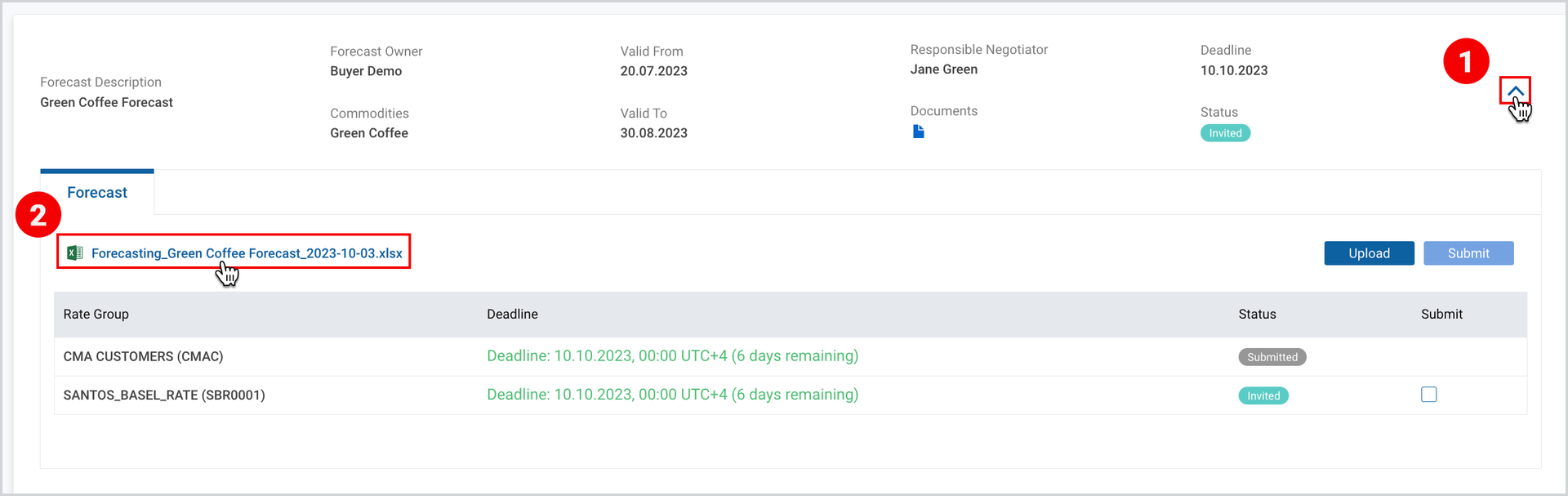
On each forecast card, as you click Expand icon, you can see the uploaded forecast in excel file under Forecast tab.
To access and export the file
- At the right part on the desired forecast card, click on the “Expand” icon.
- Click on the excel file at the left part of the page to export the file.
Tip | As you open the exported excel file, it contains several tabs where you have to fill in required and additional information. The main required tab is the Ocean Freights, which contains fields highlighted in blue, grey and green colors. The meaning of these colors, as well as the consumer/requester status is described in detail in the very first READ ME tab (highlighted in yellow) of the excel file. Please, read it carefully before starting. |
In the Forecast tab, you can see the list of all invited rate groups (that the company is linked to) or business partners. as well as the following two buttons:
- Upload
- Submit
Upload
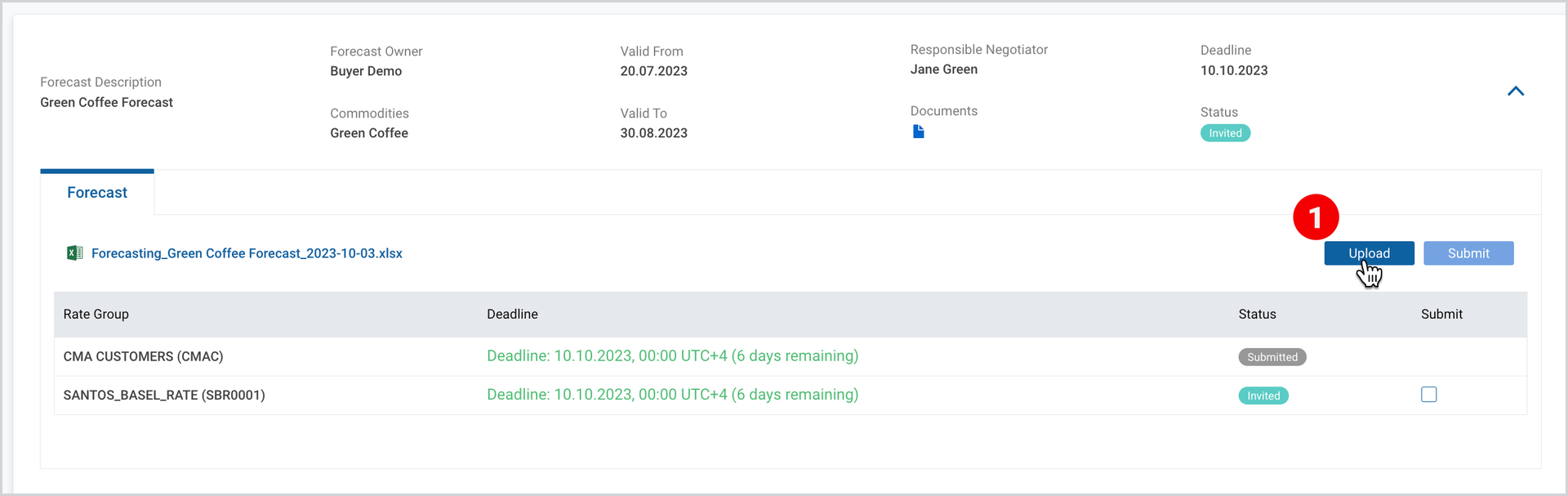
The upload button is enabled only when the consumer has the status “invited”. Through upload the consumer uploads the exported forecast (excel file) with the required updates.
To upload the file
- In the expanded view of the desired forecast, click Upload.
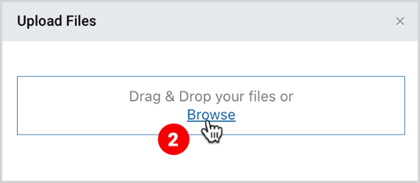
2. As the popup window appears, Drag and Drop your files or Browse.
Note | In the forecast type “Rate Groups, if the given company is linked to multiple rate groups, then the upload button will be active if at least one company has invited status (the deadline of the forecast for the given rate group has not yet passed). |
Submit
As you upload your forecast, the inviting company will not see it unless you select the required rate group or business partner from the list and submit it into the system.
To submit the forecast to the requester
- In the expanded view of the desired forecast, select the required rate group/business partner.
- Click Submit to send your forecast to the inviting company.
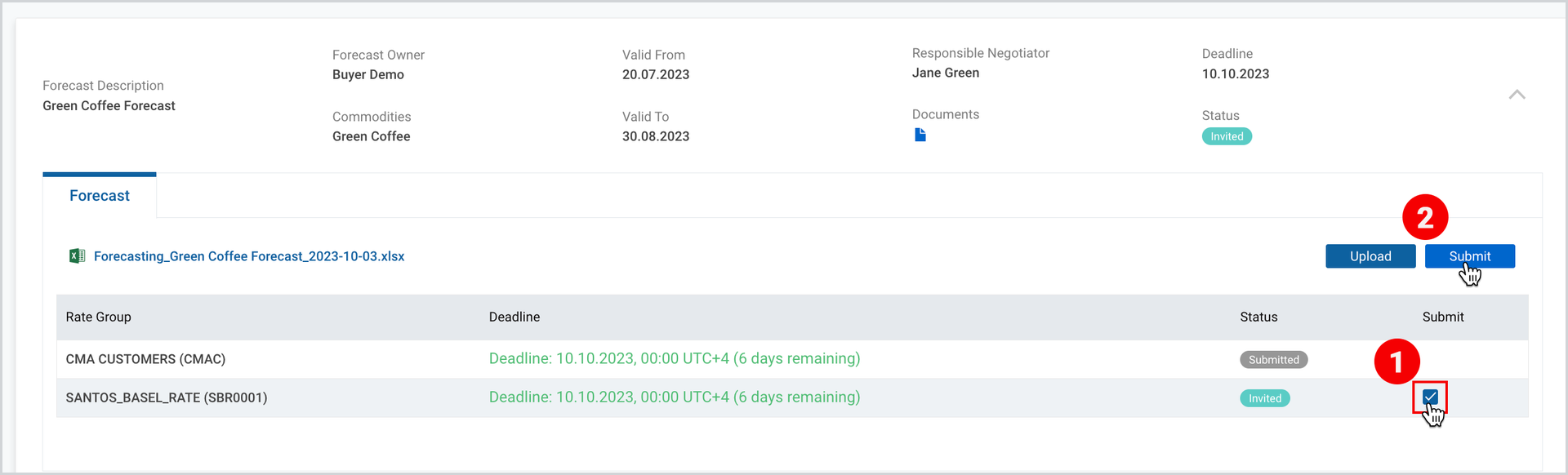
Note | Once the Submit button is clicked, ocean freight rows for selected rate group(s)/business partners get status Submitted. |
To download the print version of this article, click the PDF icon: