 BIM Support
Own KPIs
Own KPIs enables you to track various KPIs for the Company shipments in the specific time period as per the number of shipments with a difference between latest ETD and delegation to the shipper; number of shipments with a difference between latest ETD and sending of booking to the carrier; and volume per forwarder.
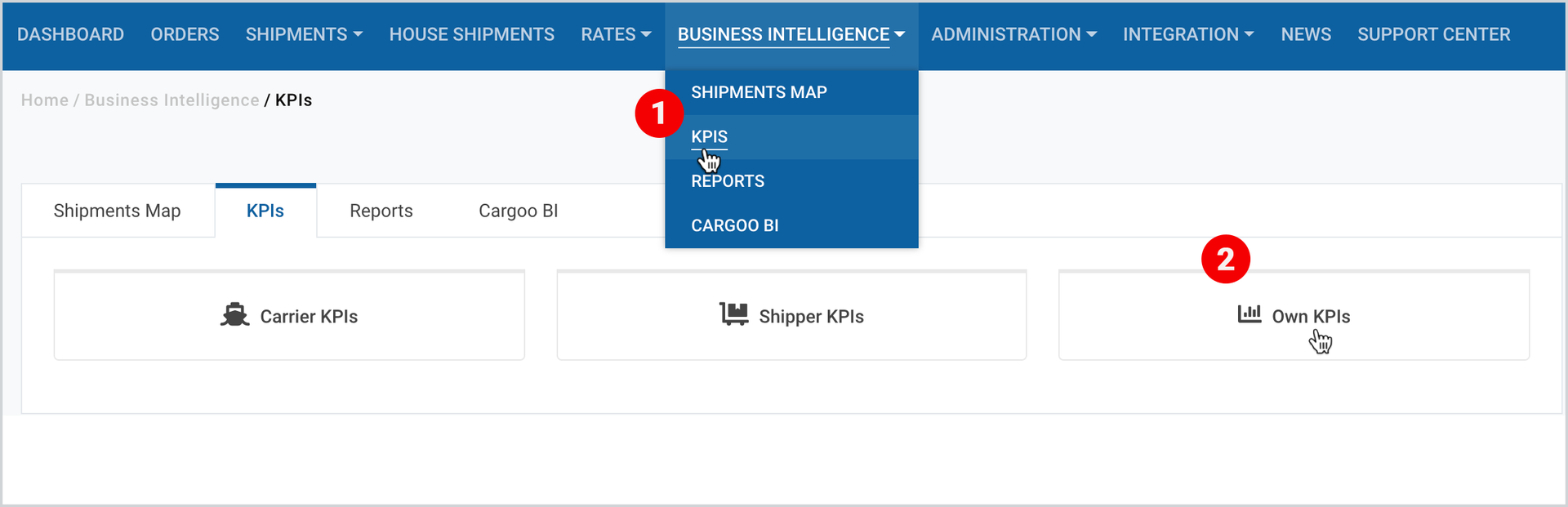
To access the Shipper KPI page:
- On the Main Menu, click Business Intelligence>KPIs.
- When redirected to the KPIs page, click Own KPIs.
Note | The page allows you to see data for multiple companies, depending on your account accesses, the detailed explanation of which can be found in Key Performance Indicators, under the section Data for Multiple Companies. |
Note | The shipments data are shown based on the selected shipment window, the details of which can be found in Key Performance Indicators, under the section Shipping Window. |
Note | The page by default displays the KPI data in the chart view, which can any time be switched to table view in Flexmonster, the details of which can be found in Key Performance Indicators, under the section Chart and Table Views of KPIs. |
Number of Shipments with a Difference between Latest ETD and Delegation to Shipper
The chart shows the number of shipments with a difference between latest ETD and first delegation date to the shipper.
The time periods are categorized as follows:
- less than 21-day [grey]
- 21-day or more (more or equal) [red]
To view the chart
- Take the two initial steps described here.
- Under Additional Filters, scroll to the first chart.
The figure below shows the volume of the confirmed bookings and orders with the shipping window set within the current year.
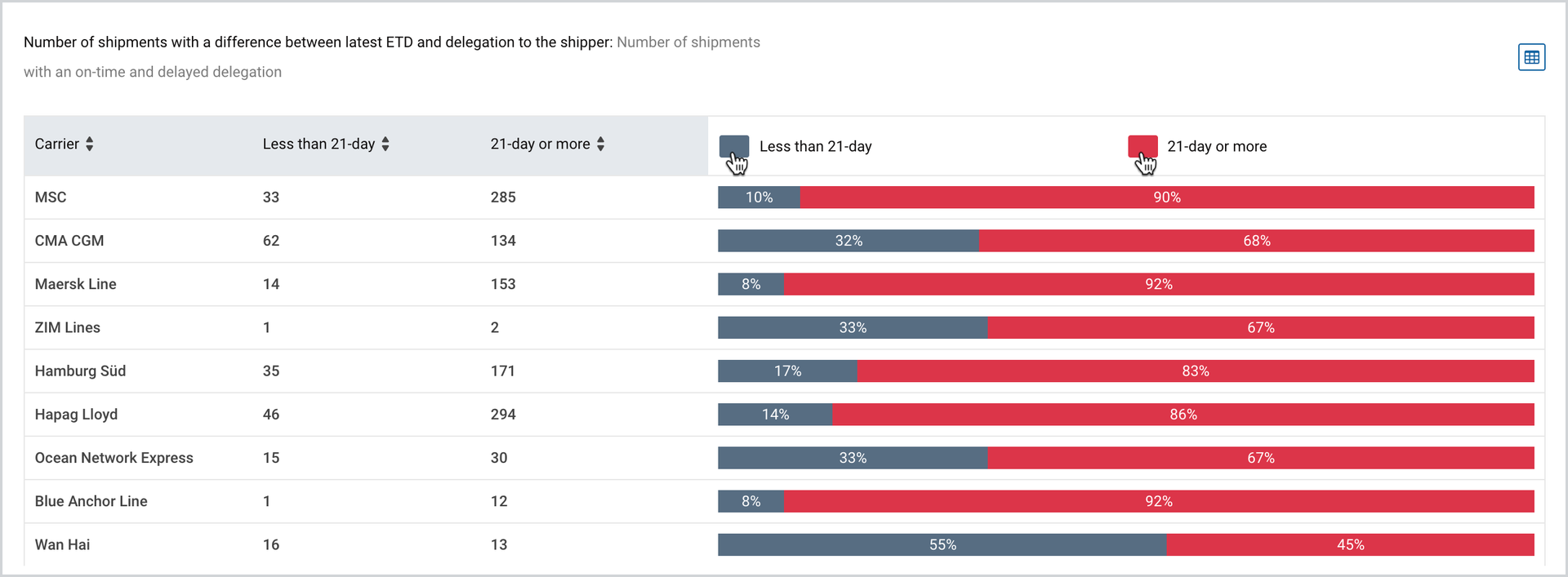
The categories are represented in percentages in different colors on the right side of the chart and by clicking on each of them you can visually add or omit their data.
Number of Shipments with a Difference between Latest ETD and Sending of Booking to Carrier
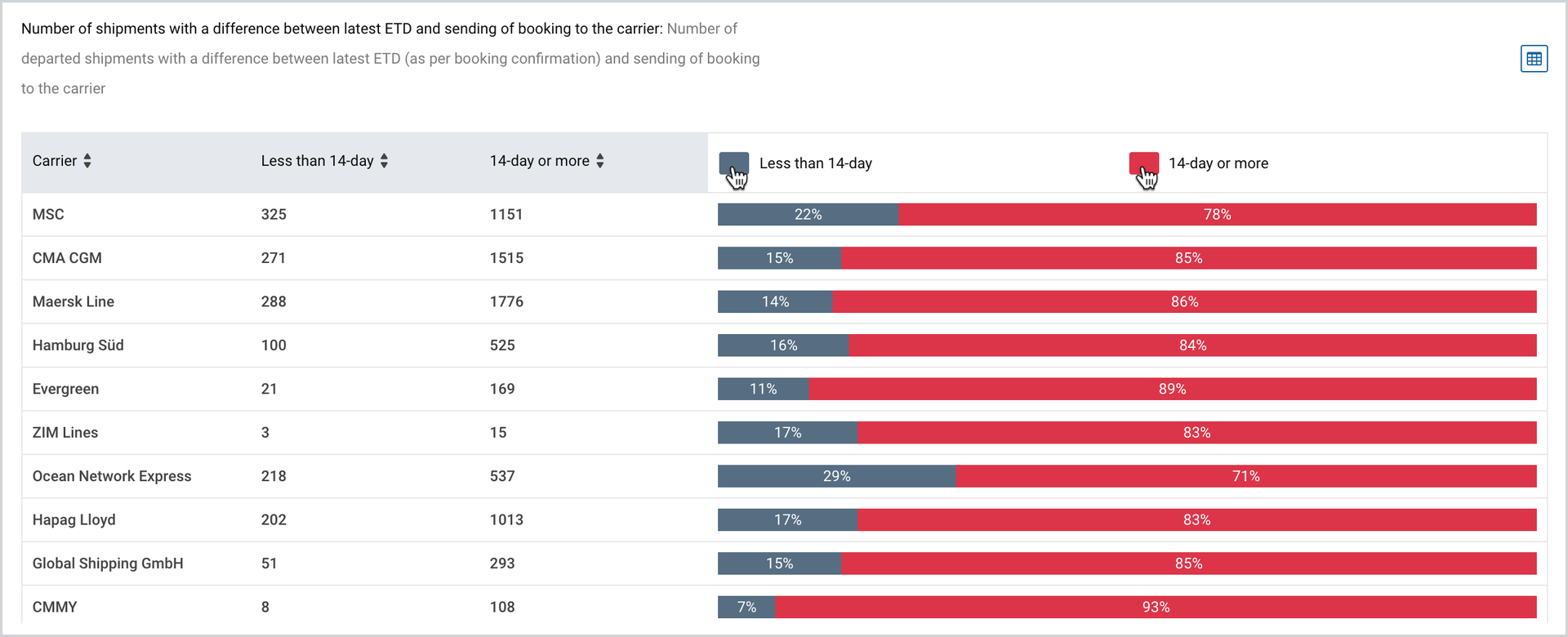
The chart shows the number of departed shipments with a difference between latest ETD (as per booking confirmation) and sending of booking request to the carrier.
The time periods are categorized as follows:
- less than 14-day [grey]
- 14-day or more (more or equal) [red]
To view the chart
- Take the two initial steps described here.
- Under Additional Filters, scroll to the second chart.
The figure below shows the number of shipments with the shipping window set within the current year.
The categories are represented in percentages in different colors on the right side of the chart and by clicking on each of them you can visually add or omit their data.
Volume per Forwarder
The chart shows the volume for confirmed bookings for the selected period of time per Forwarder. The forwarder is the booking agent from the shipment.
Note | The field displays the Business Partner Name. If the same company appears under different business partners, then they are shown separately. |
To view the chart
- Take the two initial steps described here.
- Under Additional Filters, scroll to the third chart.
The figure below shows the volume per forwarder with the shipping window set within the current year.
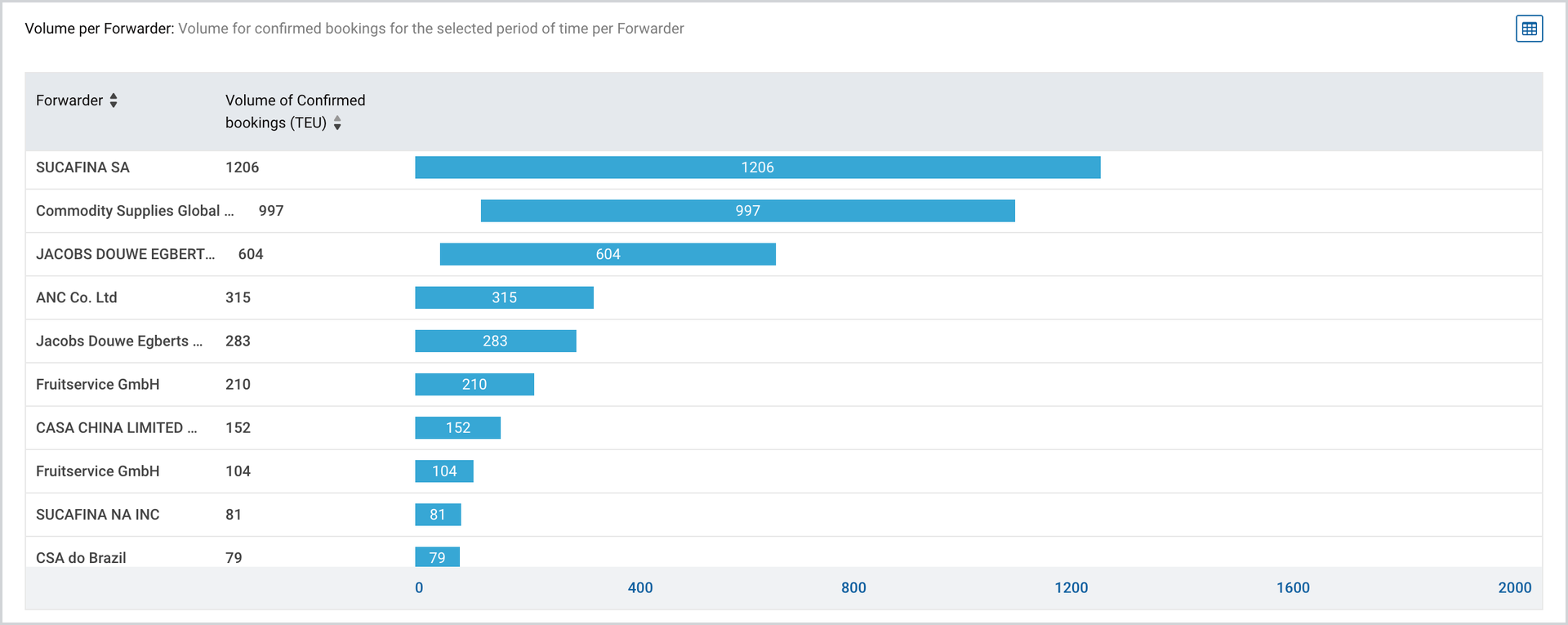
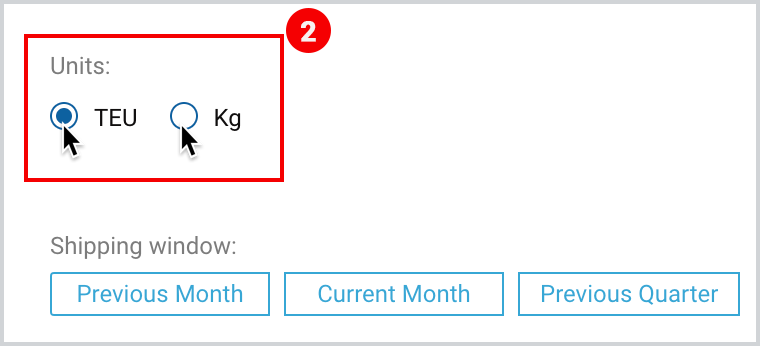
The chart here by default, shows the sum of all planned containers in TEU, and you have the option to change it into Kg.
To select the cargo volume
- Take the two initial steps described here.
- On the left side of the page, select the unit – either TEU or Kg.
Export Underlying Shipments of Own KPIs
There is a possibility to export underlying shipments (excel/csv format) that are used to calculate own KPIs. However, this information can be retrieved only in table view of the KPI.
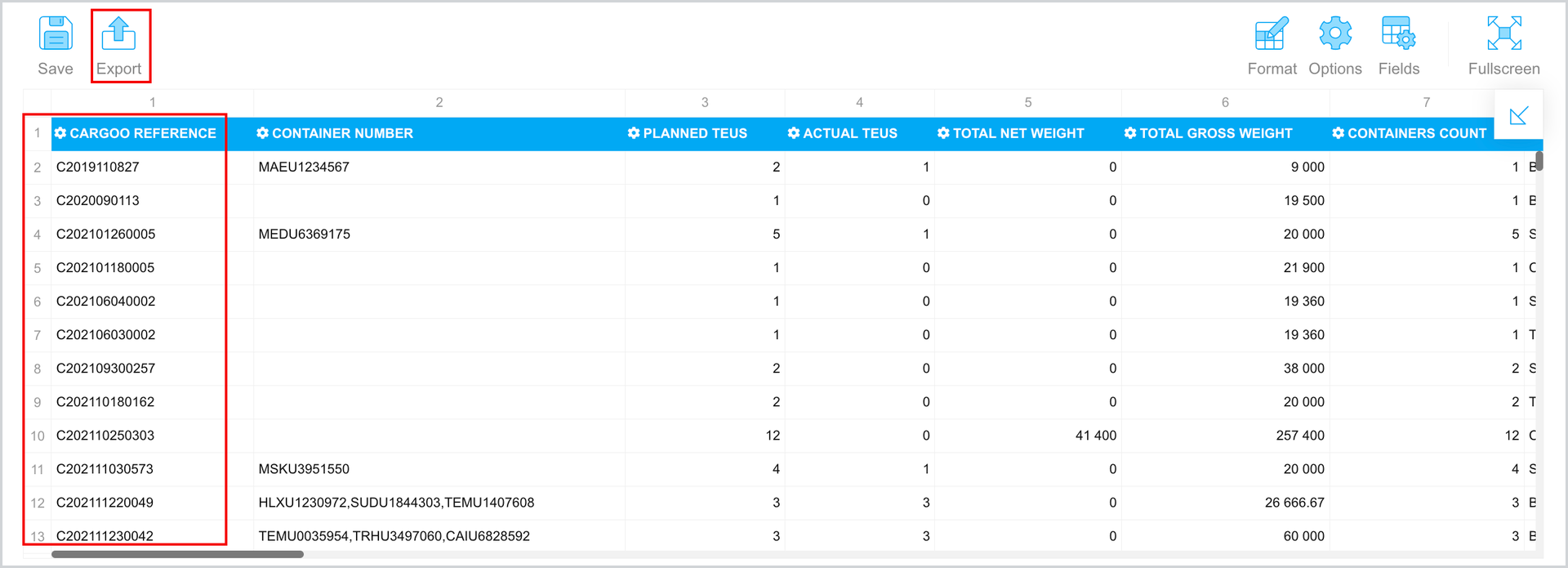
Note | Containers count always shows planned containers. |
Note | The Carrier KPIs page contains also the functionality of Additional Filters, the details of which can be found in Key Performance Indicators, under the section Additional Filters. |