 BIM Support
Common Features: Save Your Filter Configurations as a Template
If you use the same filter settings repeatedly you can save them as templates.
- Create templates for your filter settings;
- Modify existing templates;
- Create new templates using the existing ones;
- Manage your template list.
Create Templates for Your Filter Settings
To save the chosen filter configurations as a template
- Click Save.
- Enter a name for your template.
It is suggested that you use a distinctive template name. - Select Share favorite with company users if you want to make it available for those users from your company who have access to the respective section.
- Click Save to confirm the template creation, or else click Cancel.
Note | The template name should be not more than 50 characters long. |
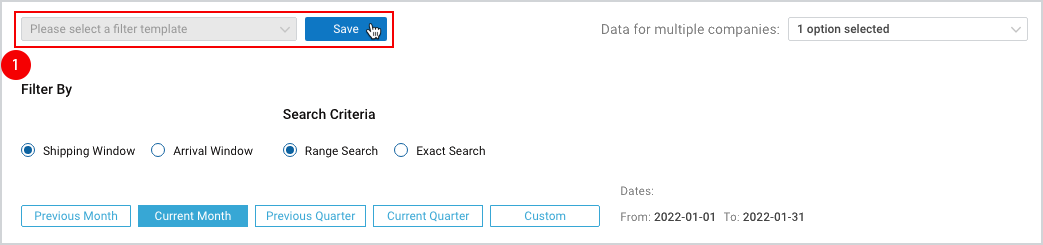
Figure 1
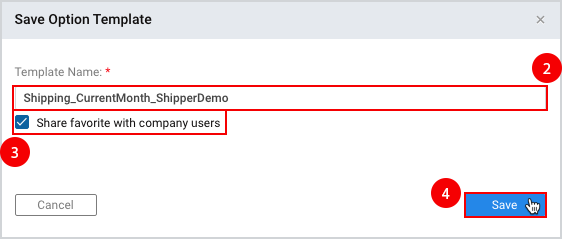
Figure 2
Modify Existing Templates
To modify an existing template, you should be the owner, i.e., the creator of the template.
To modify an existing template
- Use the drop-down menu to select the template you want to modify.
- Make the necessary changes. As you change the filter configurations, your template name will be marked with Edited label.
- To save the changes click Save.
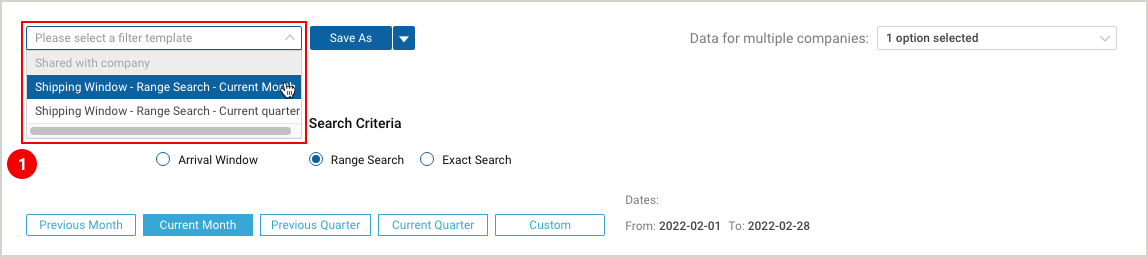
Figure 3
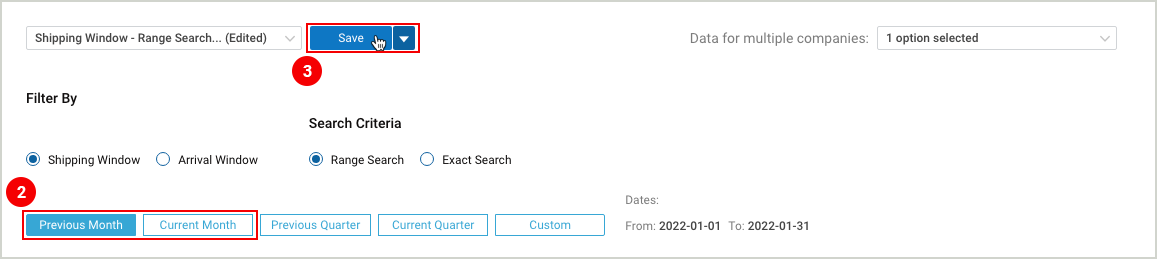
Figure 4
Create New Templates Using the Existing Ones
Both, the owner of the template, i.e., the creator of the template, and the user whom the template was shared with can create a new template based on the configurations of an existing one.
To create a new template based on an existing one
- Follow steps 1 and 2 of Modify Existing Templates.
- Open the drop-down menu, next to the Save button. Select either of the options offered in the menu.
- Save as – to save the changes as a new template.
After Save as button is selected, follow the above-mentioned 2, 3, and 4 steps of Create Templates for Your Filter Configurations. - Discard – to discard the changes.
- Delete – to delete the existing template, i.e., the one you made changes to.
- Save as – to save the changes as a new template.
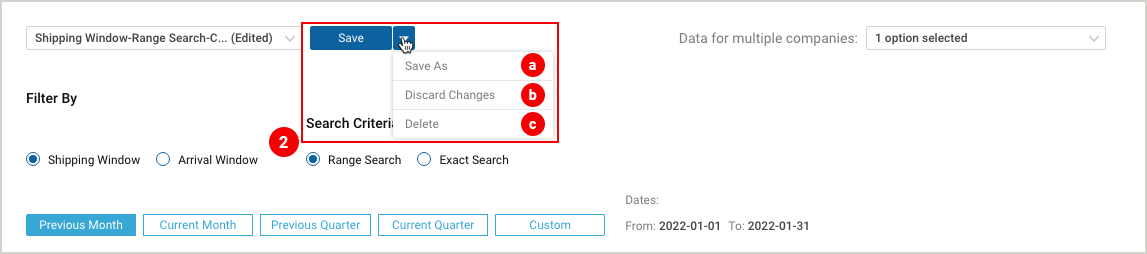
Figure 5
Manage Your Template List
You can manage your template list and delete the ones that you no longer need or use. To delete a template, you should be the owner, i.e., the creator of the template, if a template was shared with you, you will not be able to delete it.
To delete an existing template
- Choose the template from the drop-down list.
- Select Delete from the drop-down menu, right next to the Save as button.
- Select Delete on the opened Delete this Template? dialogue box to confirm the deletion of the template, or else click Cancel.
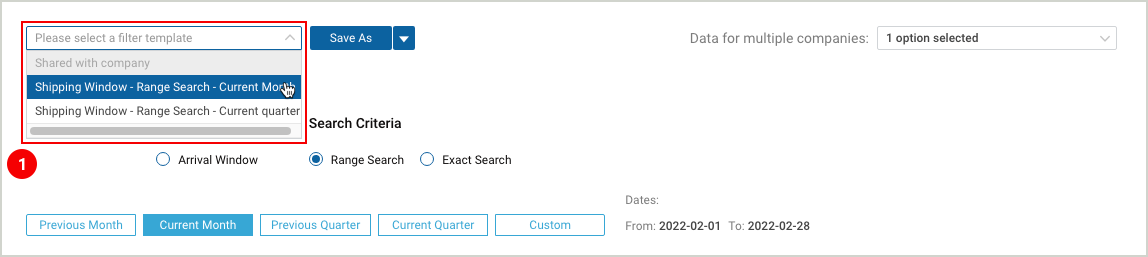
Figure 6
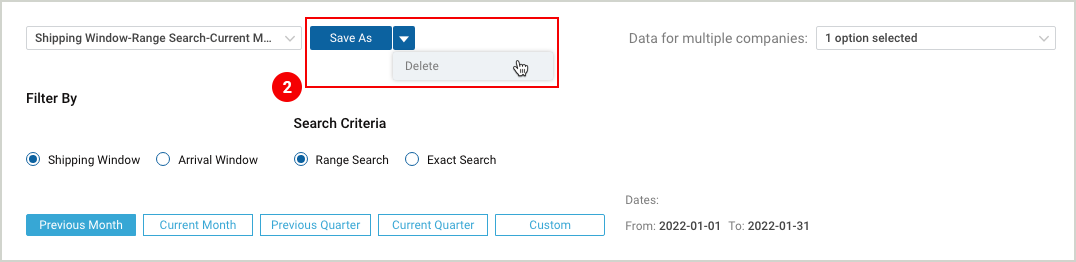
Figure 7
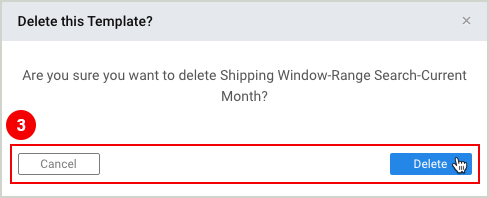
Figure 8
To download the print version of this article click the PDF icon: