 BIM Support
Creation of a Shipment Plan on Multiple Orders/Items
A Shipment Plan on Multiple Orders/Items can be created from the Orders module. In this case you create shipment by selecting separate items included in two or more orders.
To perform this action:
- Under Main Menu, click Orders․
- At the right side of the page, click Select multiple Orders to create Shipment Plan.
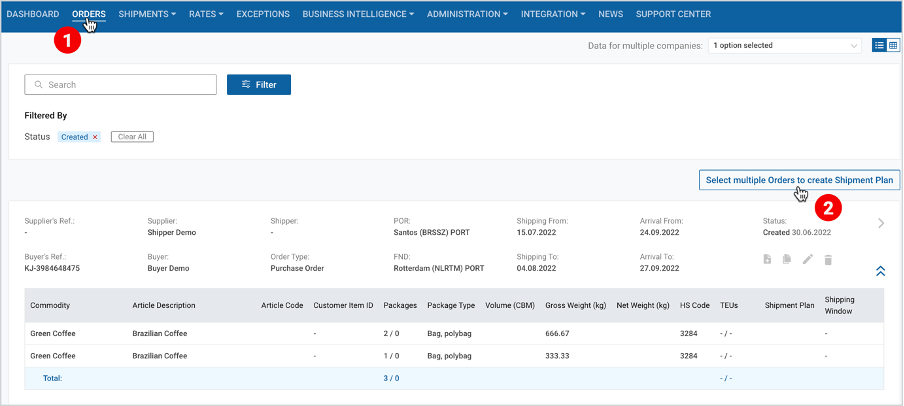
3. At the left side of the order card, select the checkboxes of the desired orders/items.
4. At the right side of the page, click Create Shipment Plan on selected Orders.
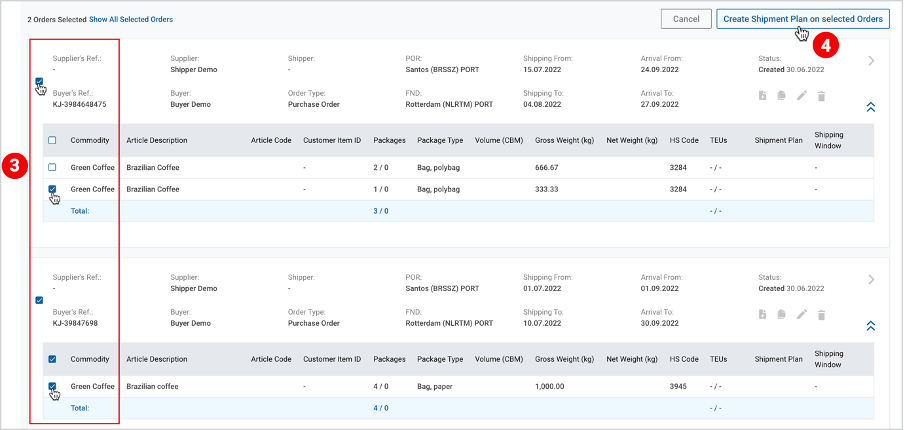
Note | If one of the selected orders is already linked to the shipment, a popup window will appear with the following question: Do you want to add another shipment plan? If so, click OK. |
Note | If you have not filled in the shipment window and the container details, while adding the order, a popup window will appear with the request to fill in that information. |
After this step, you are delegated to the Shipment Plan page, where you have to fill in/update the information in four consecutive steps depending on the selected flow (submission or delegation) as described in Submitting or Delegating a Booking Request.
To download the print version of this article, click the PDF icon: