 BIM Support
Tendering
Tendering module is a tool for managing tender process between the companies and the carriers in the Cargoo system. Through this tool, companies create tenders and invite the respective carriers to offer their bids. For this module, Org/Company Admin should send a subscription request to the Cargoo administration. After subscription, they can grant only manage right option to their users (for more details on user accesses see User Management, Subscribe Business Modules to Your Users).
To access the Tendering module:
- Under Rates, click Tendering.
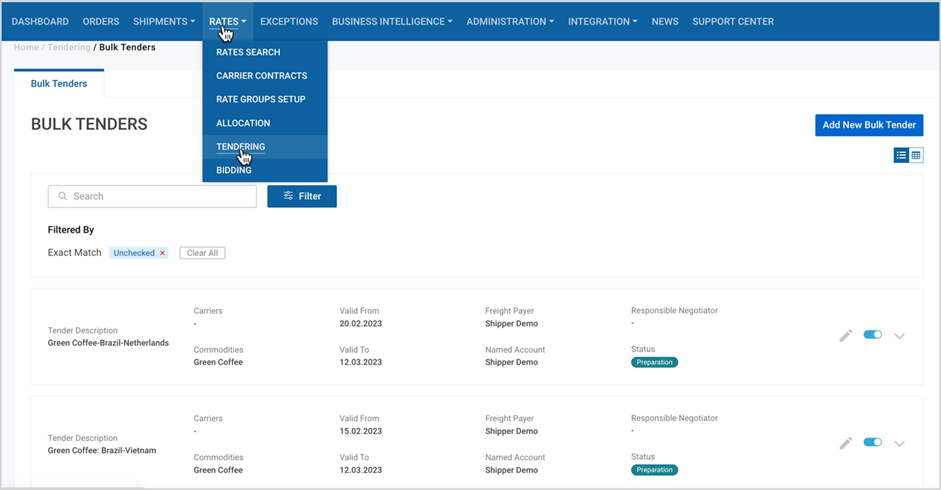
On the appeared page you can add new bulk tender, access and manage bulk tenders list in card or table view.
Add New Bulk Tender
In order to add a new bulk tender
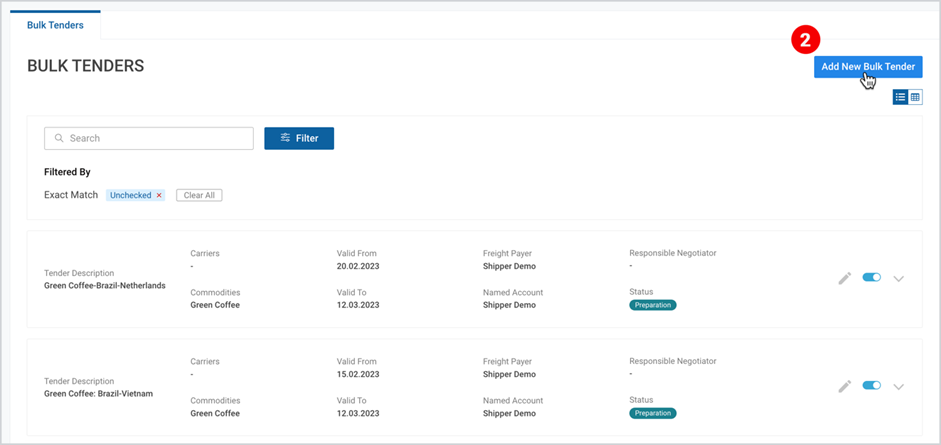
- Take the step shown in the Figure here.
- At the right part of the page, click Add New Bulk Tender.
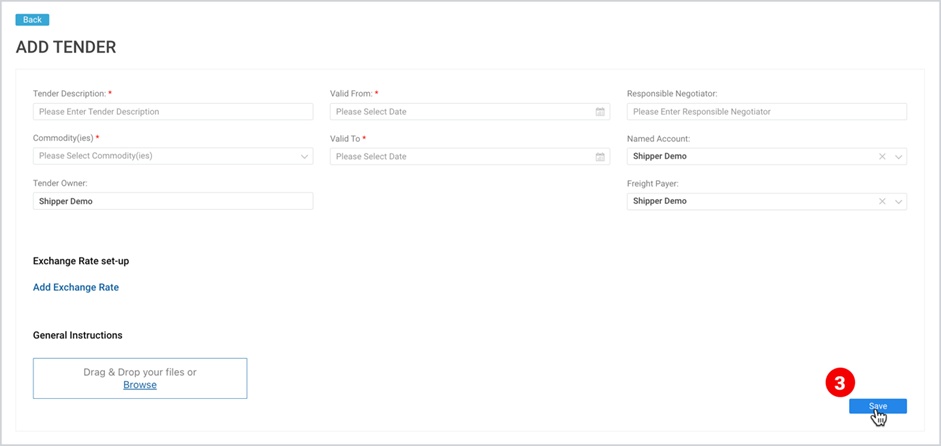
3. As the Add Tender page appears, fill in the required/optional details and click Save.
Tender Structure
After clicking the Add Bulk Tender button, you are redirected to the Add Tender page, where you have to fill in the required and optional information, given in Table 1: Tender Structure and visualized in the following Figure.
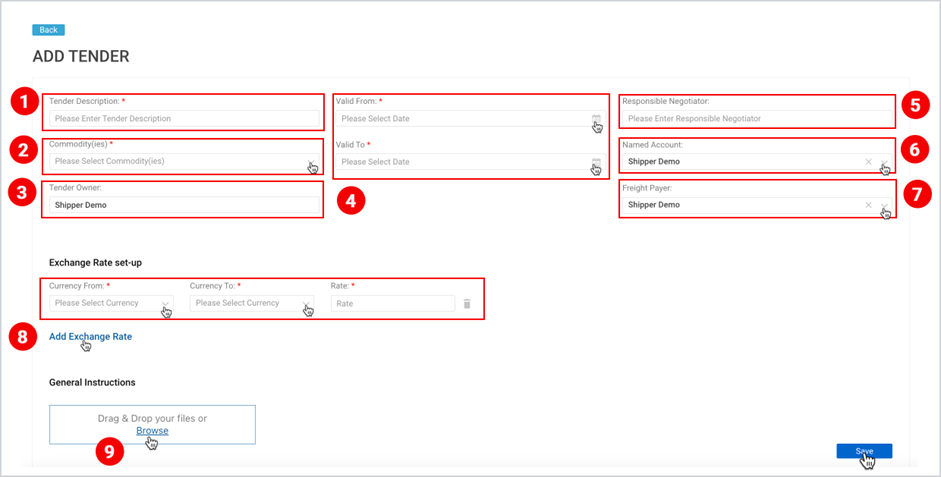
Table 1: Tender Structure
ITEM IN THE ABOVE FIGURE | FIELD | DESCRIPTION |
1. | Tender Description | This is a required field and you have to fill in the tender description in max. 50 characters |
2. | Commodity(ies) | It is a multi-select drop-down, and you have to select among the list of company’s commodities |
3. | Tender Owner | This is a non-editable field, and the current company name is pre-filled. |
4. | Validity | Here you have to fill in the validity period of the tender. |
5. | Responsible Negotiator | This is an optional field, where you can fill in the details in max. 30 characters. |
6. | Named Account | This is an optional field, where you can select from the list of linked Business Partners in the searchable single-select dropdown. Current company is pre-selected. |
7. | Freight Payer | This is an optional field, where you can select from the list of linked Business Partners in the searchable single-select dropdown. Current company is pre-selected. |
8. | Exchange Rate Setup | This is an optional setup, but if you click it, you have to fill in the following three mandatory fields.
|
9. | General Instructions | Here you can Drag and Drop or Browse your tender related multiple documents. |
Note | As you create a new tender, you will not be able to edit Fields 2, 3, 4 and 5 in the future (see Manage Your Tender ). |
Bulk Tenders List
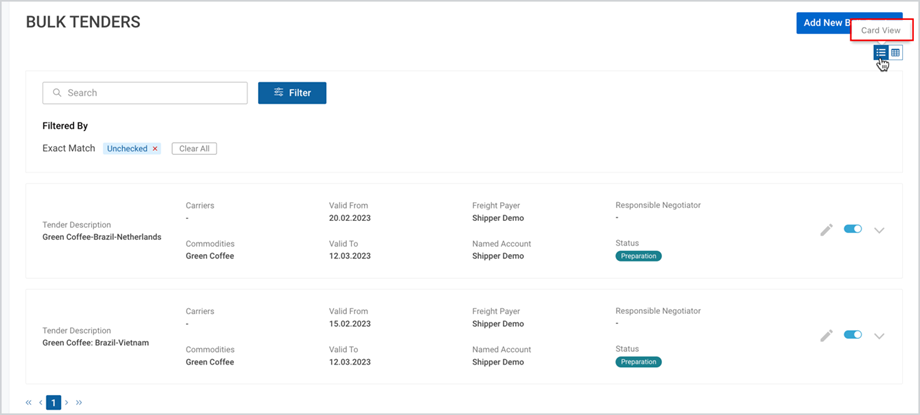
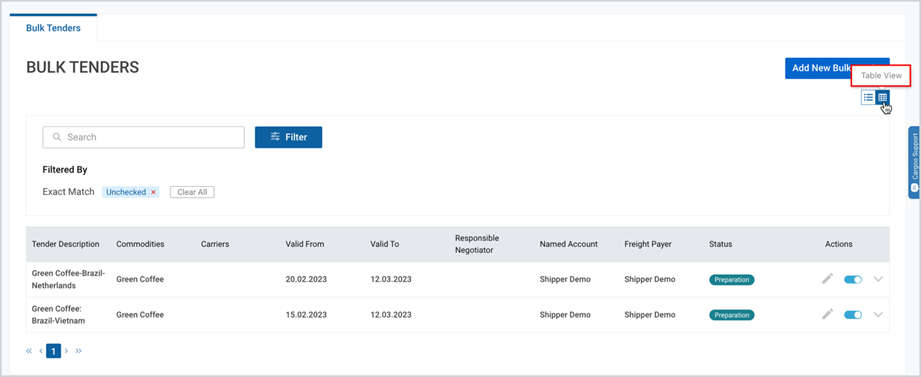
As you click on the Tendering under Rates module you can see the list of all your tenders (bulk tenders) in the card view. You can switch them to table view by clicking the table view icon at the upper-right corner of the page.
| Card View |
 |
| Table View |
 |
Access Your Bulk Tenders
The Bulk Tenders page displays the following features through which you can access specific ones:
- Search
- Filter
Search Your Bulk Tender
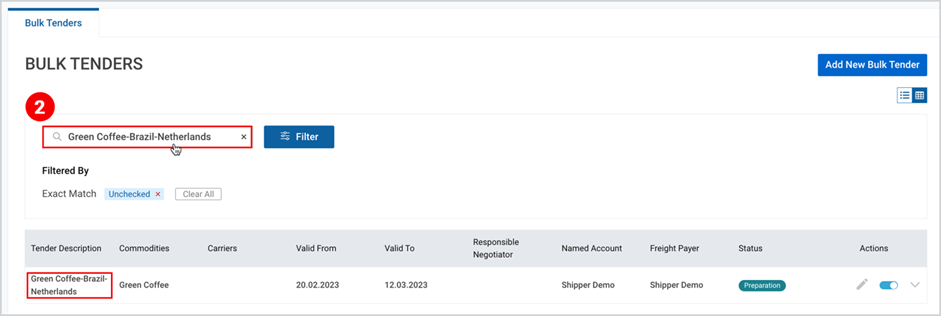
Search can be done by the tender description. Search starts working from the first typed character with the drop-down showing the suggested list.
To search for your desired bulk tender
- Take the step, shown in the Figure here.
- At the upper-left corner of the page, in the Search field, fill in the tender description.
Filter Your Bulk Tender
You can alternatively filter your bulk tender by either of the following categorization:
- Commodity
- Validity
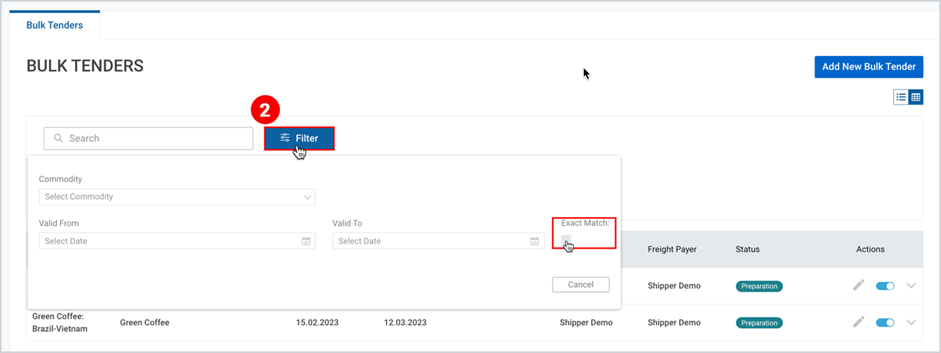
As you fill in both fields, then “Exact Match” checkbox will be activated. If you select the checkbox, you will see the exact match; if you leave it unchecked, you will see all the bulk tenders matching the commodity and falling within the range of the selected validity period criteria.
To filter bulk tender:
- Take the step, shown in the Figure here.
- At the upper-left corner of the appeared page, next to the Search field, click Filter and set the desired criteria.
Tender Status
You can see the tender status at the right side of each tender. A tender acquires the statuses, given in the table below:
Table 2: Tender Status
N | FIELD | DESCRIPTION |
1. | Preparation | Tender frame is created and saved. |
2. | In Progress | At least one carrier is invited. |
3. | No Participation | All carriers’ statuses= Not Participating. |
4. | Awarded | All carriers’ statuses = Awarded or Nothing Awarded or Not Participating. Otherwise, stays In Progress. |
5. | Filed | All carriers’ statuses = Filed or Nothing Awarded or Not Participating. Otherwise, the status remains In Progress. |
6. | Uploaded | All carriers’ statuses = Uploaded or Nothing Awarded or Not Participating. Otherwise, the status remains In Progress. |
Manage Your Tender
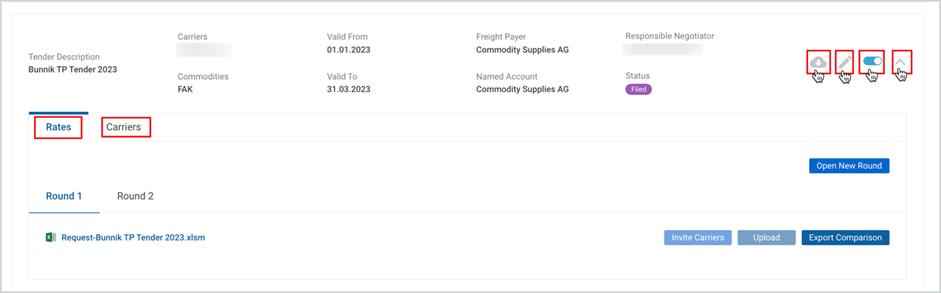
On each bulk tender card, from left to right, you will find the following clickable icons:
- Export – this icon appears only, when there is at least 1 Awarded Ocean Freight, Free Time, Additional Charge or Allocation. In this case, the tender can be exported in the custom upload format of rates module. Thus, potentially, you can export the file and without any changes upload in Custom Bulk Upload in Carrier Contracts (see Rate Groups Setup, Custom Bulk Upload.
- Edit – by clicking you will be redirected to the Edit Tender page, where the steps are the same as described in Add New Bulk Tender above.
- Activate/Deactivate toggle – deactivates or activated the tender. If the tender is deactivated, only file exports, filter and search are available for all users both on companies and carriers՛ side.
- Expand – by clicking, you will see the following tabs:
- Rates, where you can add new tender round, invite carriers, upload, export comparison.
- Carriers, where you can see the list of all carriers and close tender rounds.
Rates Tab
From this tab you can open new tender rounds and respectively invite carriers, upload and export comparison.
Open New Round
To be able to invite carriers for participation in the tender, it is required to open tender rounds.
To open a new round
- On the desired tender card, click “expand” icon.
- Under Rates tab, click Open New Round.
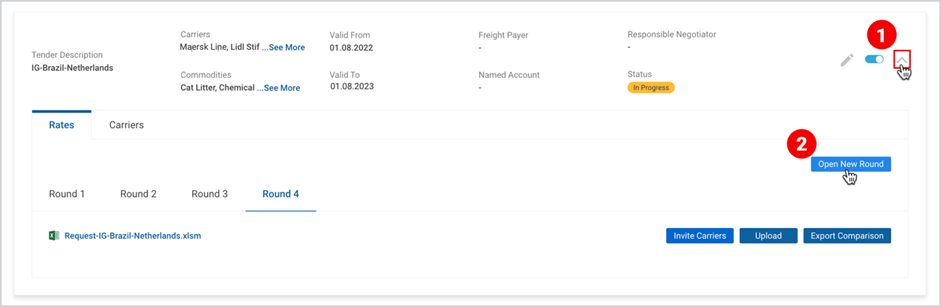
The number of rounds is recorded in the respective round 1, round 2, etc. sub-tabs.
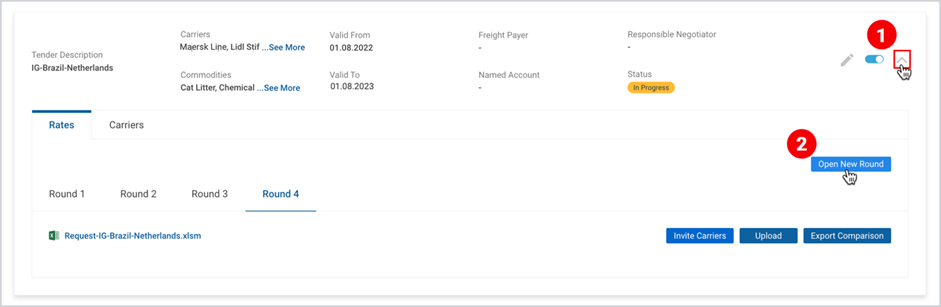
As you Open a New Round, the following three buttons appear in the tab:
- Upload
- Invite Carriers
- Export Comparison
Upload
To be able to invite carriers, you need first to upload the required data of the tender that the carriers have to fill in while applying, including Ocean Freight, Free Time, Additional Charges, Allocation․ In other words, in the file you fill in the request data that you expect carriers should bid on.
To upload the file
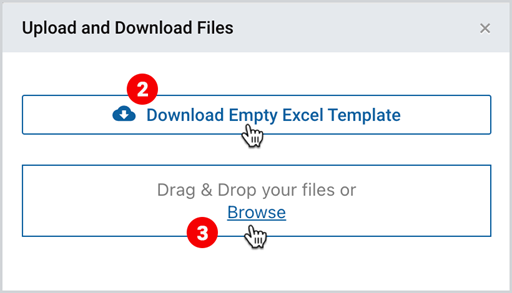
- In the Rates tab, click Upload.
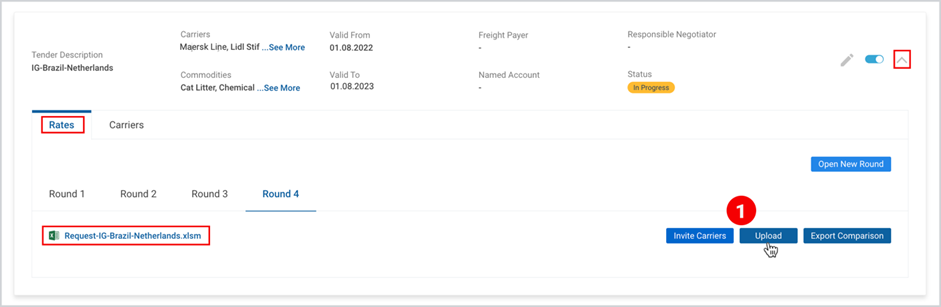
2. As the popup window appears, Download Empty Excel Template.
3. After filling in your tender details, Drag and Drop your files or Browse.
Note | As you upload an excel file, in case any of the fields is incorrectly completed, an “Error Results Table” appears, where all errors are displayed and need to be amended. |
Invite Carriers
To Invite Carriers,
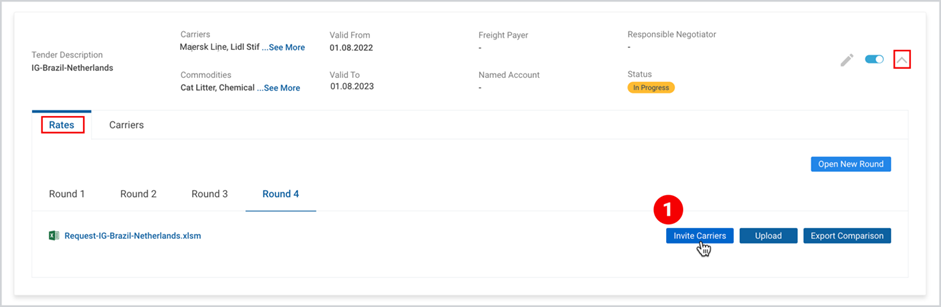
- In expanded view of the desired tender, under Rates tab, click Invite Carriers.
2. Fill in the required details in the pop-up window (described in Table 3 below) and click
Invite Carriers.
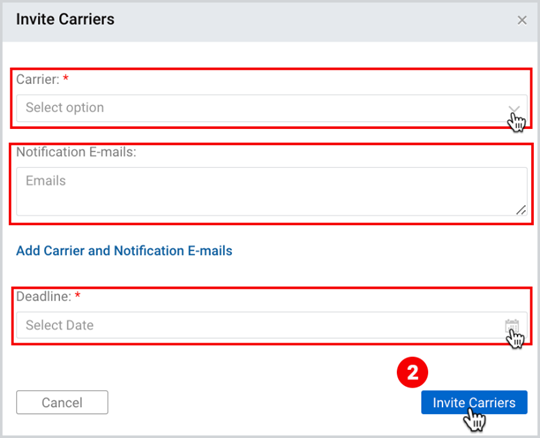
Table 3: Invite Carriers Pop-up
FIELD IN THE ABOVE FIGURE | DESCRIPTION |
Carriers | It is a multi-select field, where you have to select among linked business partners who have access to Bidding module.
|
Deadline | Select deadline for the carrier(s) to apply for the tender. This deadline has no connection with the tender validity and its expiation does not close the tender round automatically, |
Notification Emails | Here you can fill in the e-mail addresses, who will receive the invitation to apply to the tender․ |
Note |
|
Export Comparison
Through Export Comparison you can compare the bids of all the invited carriers. This is the main file where you see which carrier offers the best rate (lowest prices). You can make a decision who to award (important process) through this comparison file upload. Awarded carriers then see that they are awarded and can input contract numbers (called 'filing' process). By adding a contract number, they confirm the final contract conditions (see Bidding here).
To export comparison
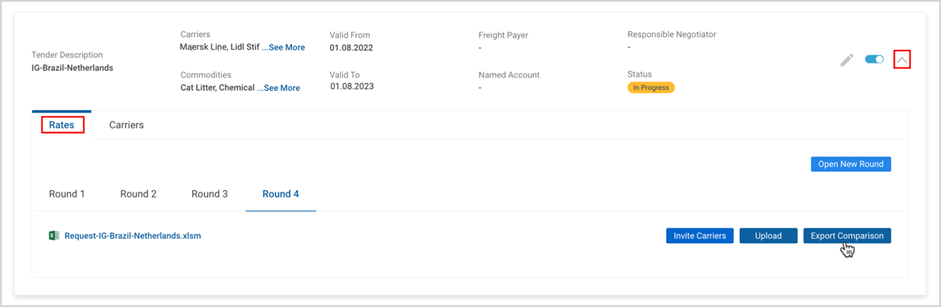
- In expanded view of the desired tender, under Rates tab, click Export Comparison.
Carriers tab
Carriers tab gets active only when at least one carrier is invited. The tab shows the list of all the invited carriers. The list can grow with the new carriers per each round.
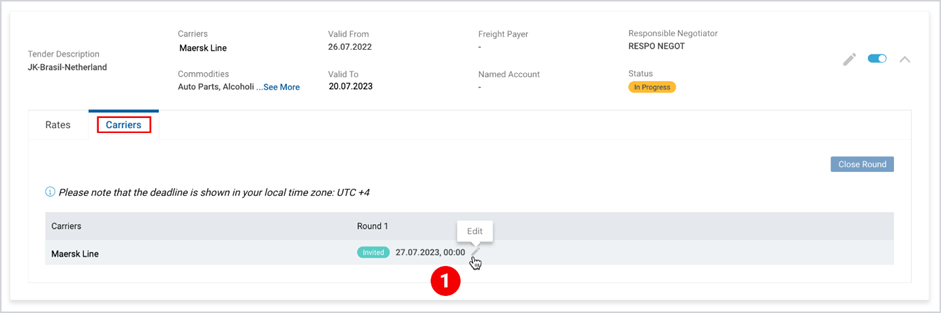
From here you can close the round(s), as well as edit the status and the deadline for each carrier.
The Close Round button is activated if at least 1 carrier has submitted status.
To close the round(s)
- At the right part of Carriers tab, click Close Round and select the desired rounds to be closed in the popup window.
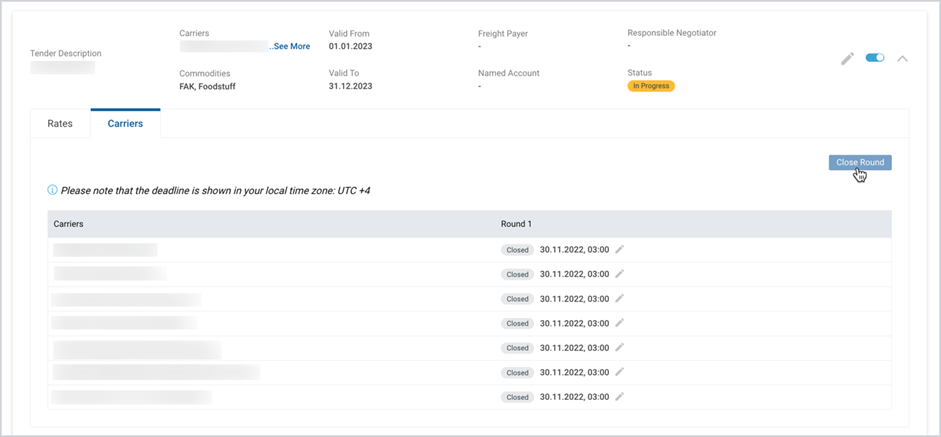
The selected round(s) will be closed for all the carriers participating in the round.
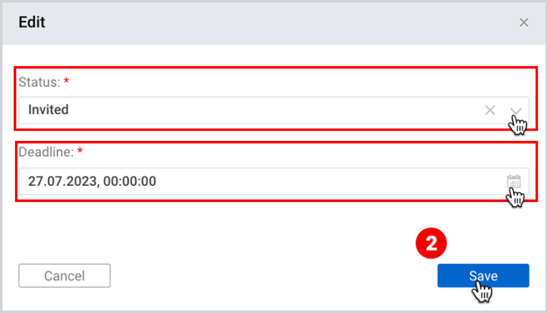
To edit the status and the deadline for a specific carrier
- Next to each Carrier, click the “Edit” icon
2. In the appeared pop-up window, update the status and the deadline for that carrier
and click Save.
Note | If the carrier is already participating in the tender, its status must be Closed in order to be invited to the next round. |
To download the print version of this article, click the PDF icon: